Older releases, v26.23.0 to v26.32.7

Each release lists its changes by title; open one to read it.

  1. v26.32.71 new1 improved7 fixed

    New

    • Support asks before looking at your setup

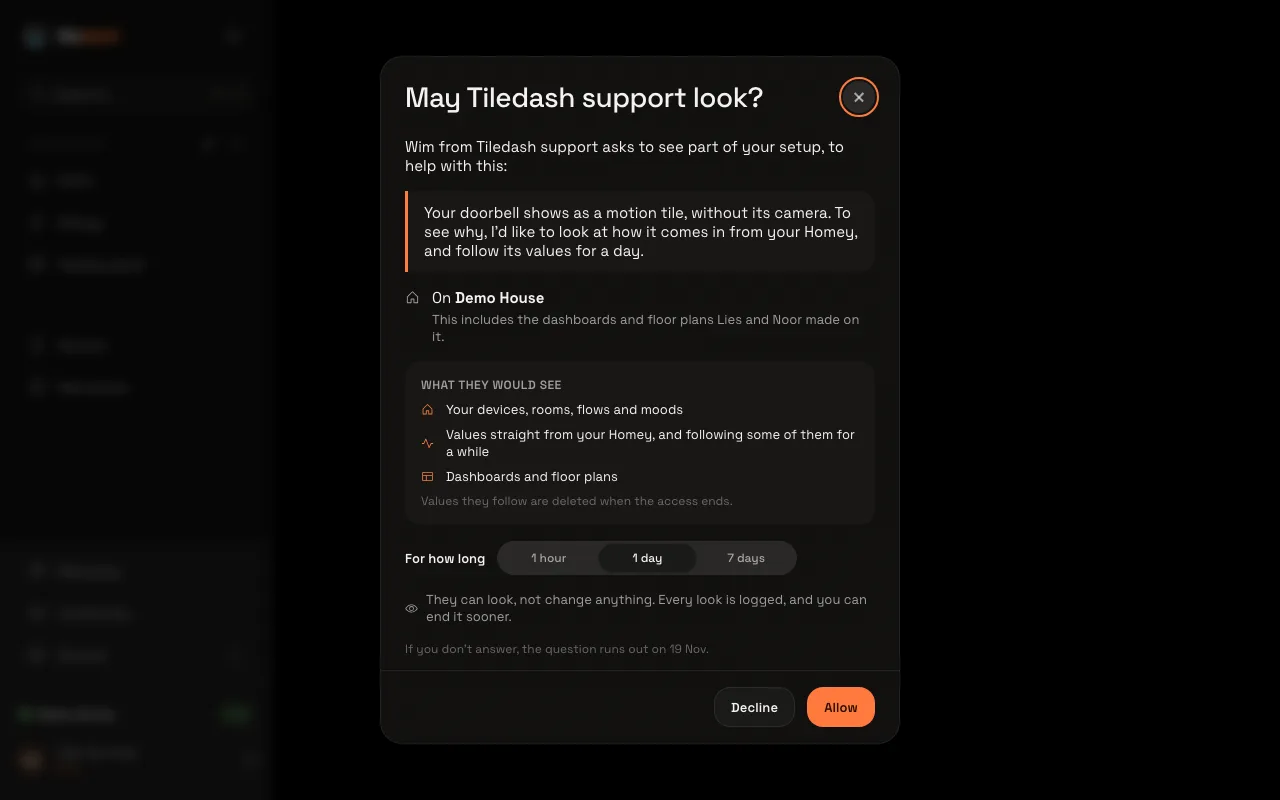
      When Tiledash support needs to look at your setup to help you, the question now comes in the app and by e-mail, with the reason. Allow it for an hour, a day or a week, or say no; the sidebar shows while it runs, with End.

      The question, with the reason and what support would see
      The question, with the reason and what support would see1 of 3
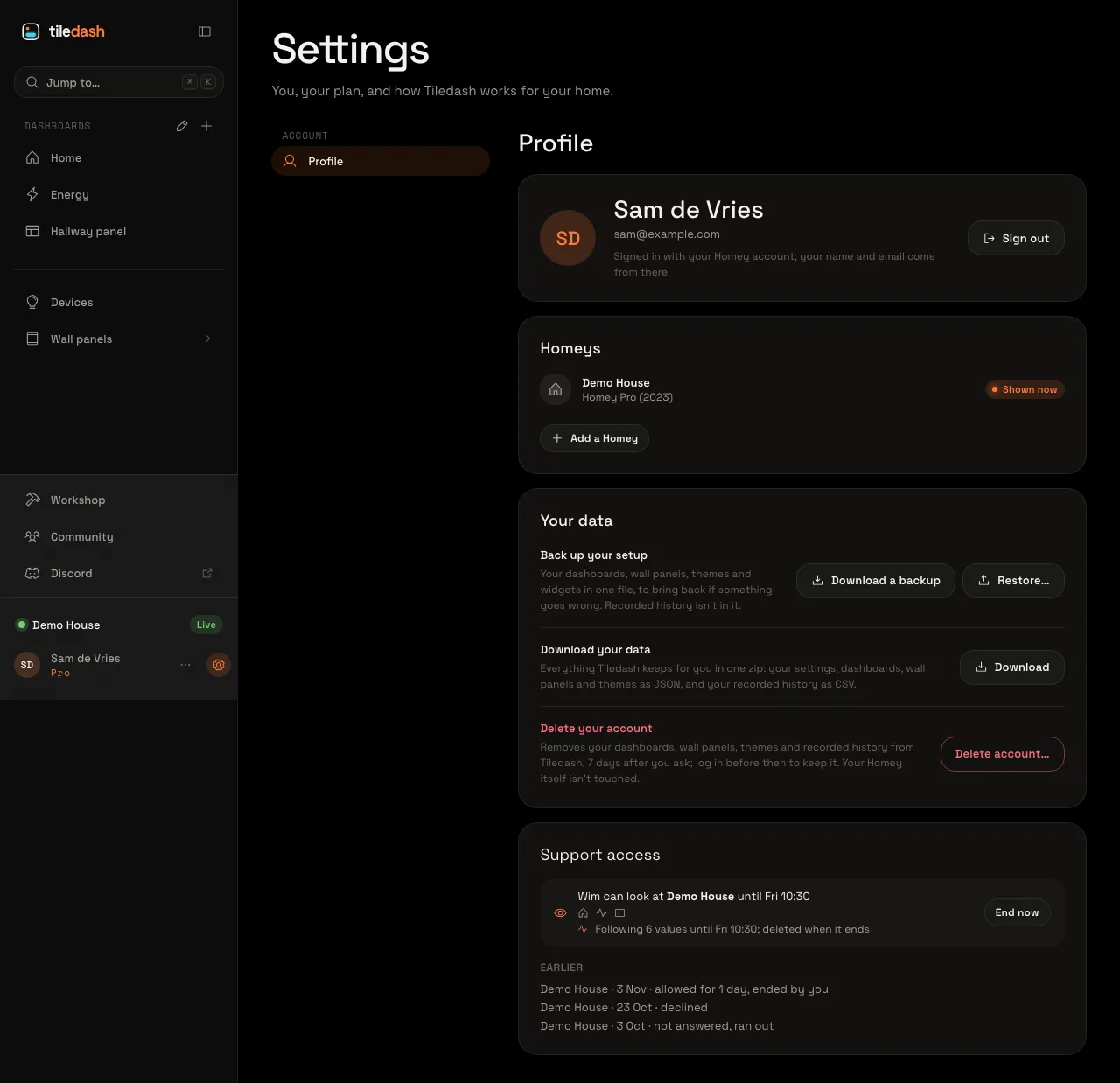
      A running access in Settings › Profile, with End now
      A running access in Settings › Profile, with End now2 of 3

      The sidebar while support may look, with End
      The sidebar while support may look, with End3 of 3
      Read the guide

    Improved

    • Open pages and screens pick up new versions by themselves

      After an update, wall panels, share links and previews reload by themselves within a minute. The app reloads when you switch away or open another page, never while you have unsaved changes; until then a small message offers to reload.

    Fixed

    • Doorbells that ring their own way get the Doorbell tile

      Some doorbells, such as Reolink's, report a press in their own way, so Tiledash showed them as a motion sensor and didn't notice the ring. They now get the Doorbell tile with their camera, and a ring opens your popups. A tile you already added keeps its widget: pick Doorbell in its settings.

    • Every level as a Stack, also after adding a Floor plan

      The widget picker stopped offering a floor plan's levels as a Stack once you had added a Floor plan tile. It offers them again.

    • The ? key opens the floor planner's tips again

      Pressing ? in the floor planner opened the tips and closed them again in the same press. It now opens them, and pressing it again closes them.

    • House preview shows Dark, Light and E-ink

      In the house editor's preview, Dark, Light and E-ink now show your house as a tile on that theme does, with E-ink in grey. Before, all three looked the same.

    • Text fields say their name to screen readers

      Screen readers now read the name of text fields such as a house's name or a search box, and limits such as a field's maximum length now work too.

    • Uninstalling a copied widget keeps your tiles

      Uninstalling a Community widget made from one of Tiledash's widgets warned that its tiles would be removed and asked you to remove them first. Its tiles now go back to Tiledash's own widget, and the dialog says so.

    • Words instead of codes on shared screens and in settings

      In languages other than English, a tile asking you to choose a device again, a model tile, a Floor plan tile's settings and Settings › Themes and Floor plans could show codes instead of words, on share links and wall panels too. They show words now.
  2. v26.32.11 new1 improved1 fixed

    Improved

    • The Floor plan now comes from the Community too

      The Floor plan is now one of Tiledash's own widgets in the Community. Your floor plan tiles keep their plan, level and room actions, and Every level of … sits right after it on the Community tab. With it, every Tiledash widget except Device comes from the Community, so the widget picker drops its empty Other tab.

      Read the guide

    Fixed

    • Community previews of Stack, Energy flow and others show them again

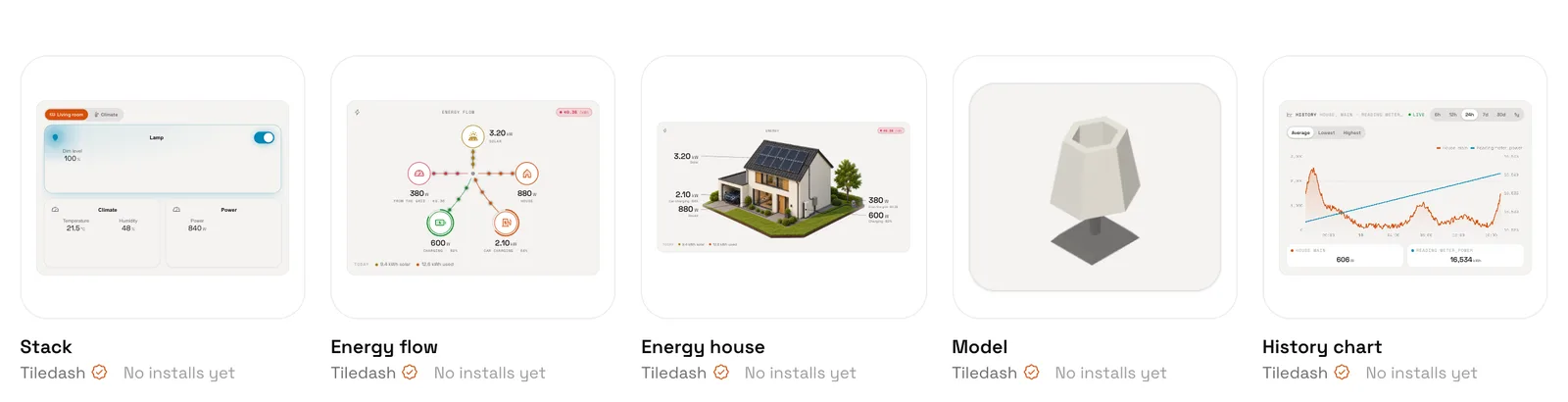
      In the Community, the Stack, Energy flow, Energy house, Model and History chart showed an empty tile in their previews. They now show on the demo home: a stack with its pages, the home's energy, a house, a table lamp and a chart.

      Stack, Energy flow, Energy house, Model and History chart
      Stack, Energy flow, Energy house, Model and History chart
  3. v26.32.01 new2 improved2 fixed

    New

    • A navigation bar that works like an app's tab bar

      Docked, the Navigation bar can now stay on every dashboard it lists, as in an app: turn on Keep it on the dashboards it lists, and switching shows the next dashboard at once, scrolled where you left it.

      A bar docked at the bottom sits on the screen's edge, and a crowded one shows just its icons. On a wall panel it opens other dashboards in place instead of as a popup.

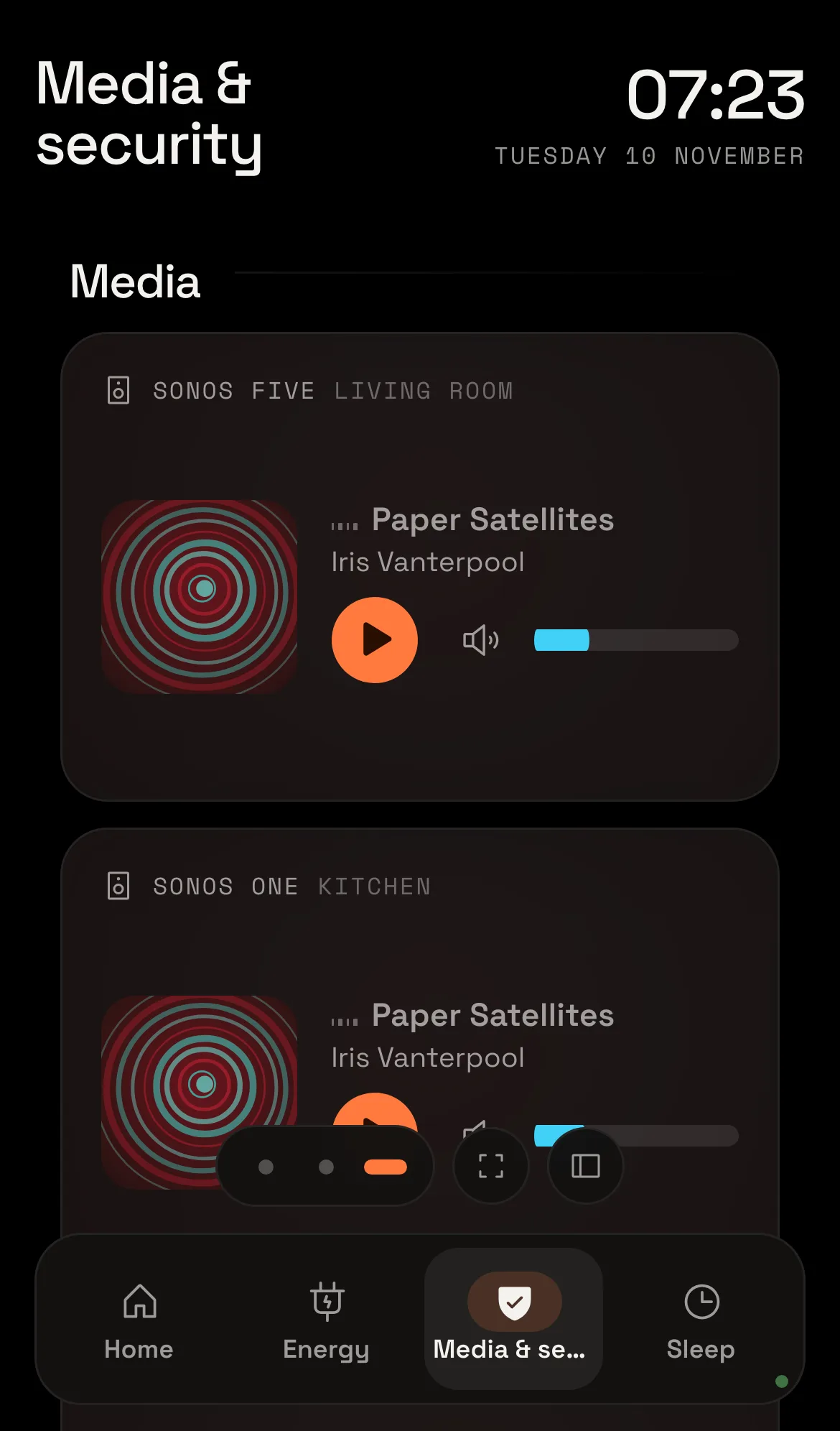
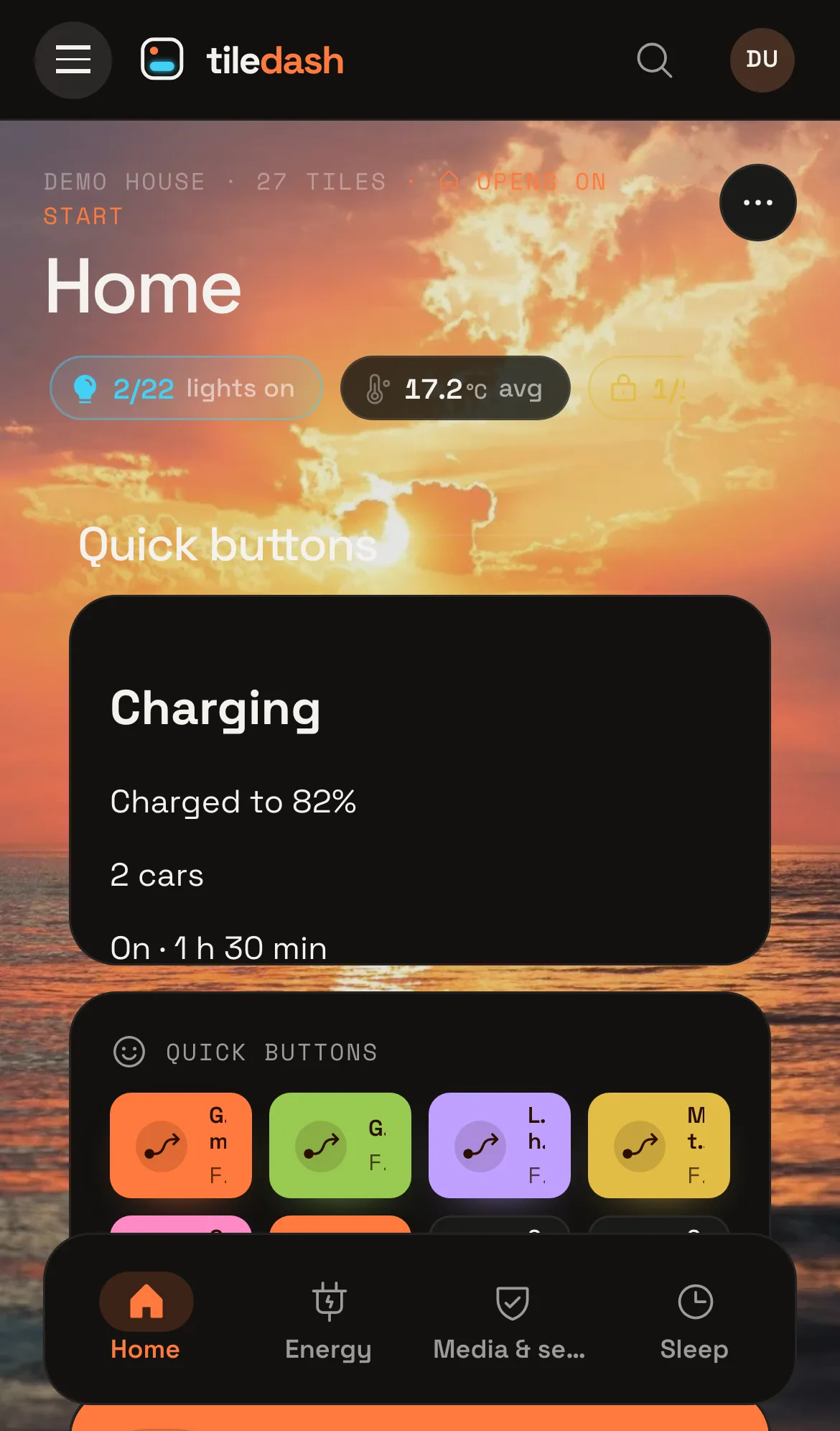
      A bar docked on the bottom edge of a phone
      A bar docked on the bottom edge of a phone1 of 3
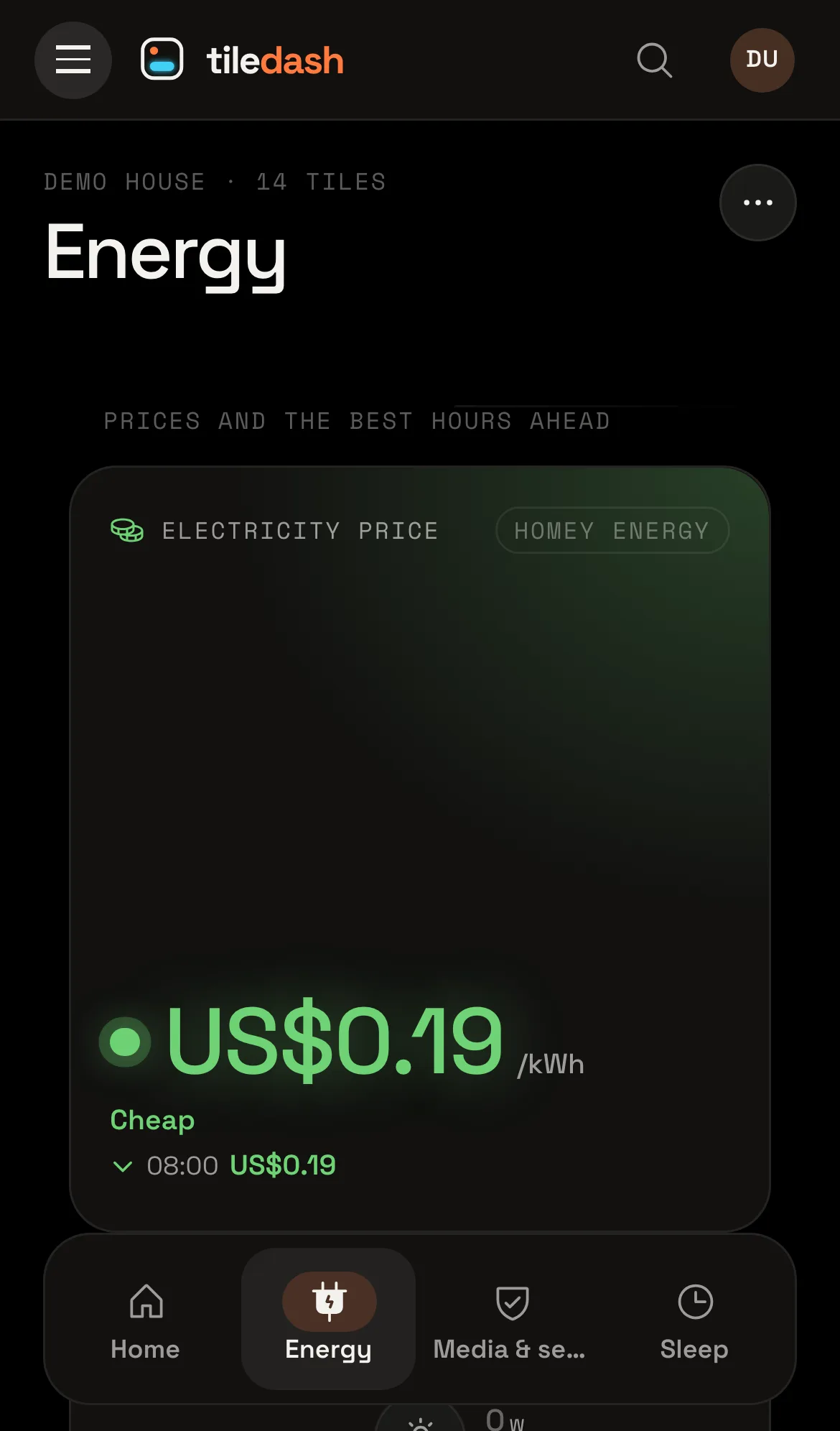
      Energy shows Home's bar, kept on the dashboards it lists
      Energy shows Home's bar, kept on the dashboards it lists2 of 3
      On a wall panel, a dashboard opened in place as a page
      On a wall panel, a dashboard opened in place as a page3 of 3
      Read the guide

    Improved

    • The Stack now comes from the Community too

      The Stack is now one of Tiledash's own widgets in the Community, like Light and Thermostat. Your Stacks keep their pages and tiles, and stacking, arranging and unstacking work as before.

      Read the guide
    • Most of Tiledash's widgets now come from the Community

      Light, Lock, Thermostat, Camera, Weather, the buttons and most of Tiledash's other widgets now live in the Community as Tiledash's own widgets. Your tiles look and work as before and keep their settings; the widgets can now improve without waiting for an app update. A widget of your own can still start from one of them, or stand in for it on every tile.

      Read the guide

    Fixed

    • Scrolling a page or waking a panel no longer presses anything

      On a phone, dragging the page could move a slider or start a Flow, and the tap that woke a sleeping panel also pressed the button under it. Dragging now only scrolls, and waking presses nothing.

    • Backups, your own widgets and the editor's preview with Tiledash's widgets

      Restoring a backup or importing a configuration dropped tiles drawn by Tiledash's own widgets, such as Prices or the Car; they now come along. Widgets of your own based on one save and preview again, and in the editor's preview a tap on your own lamp now goes to that lamp.

  4. v26.30.12 new4 improved4 fixed

    New

    • Stairs, a loft ladder and a lift between levels

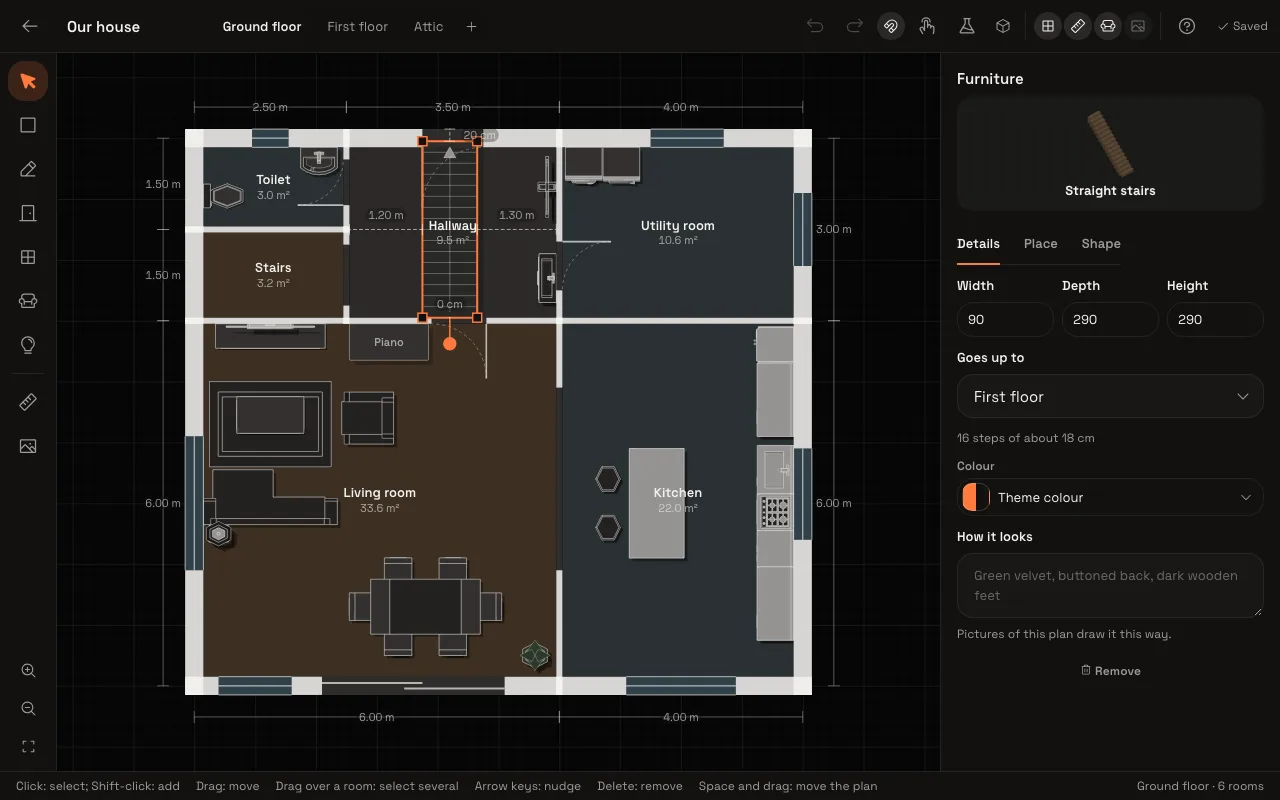
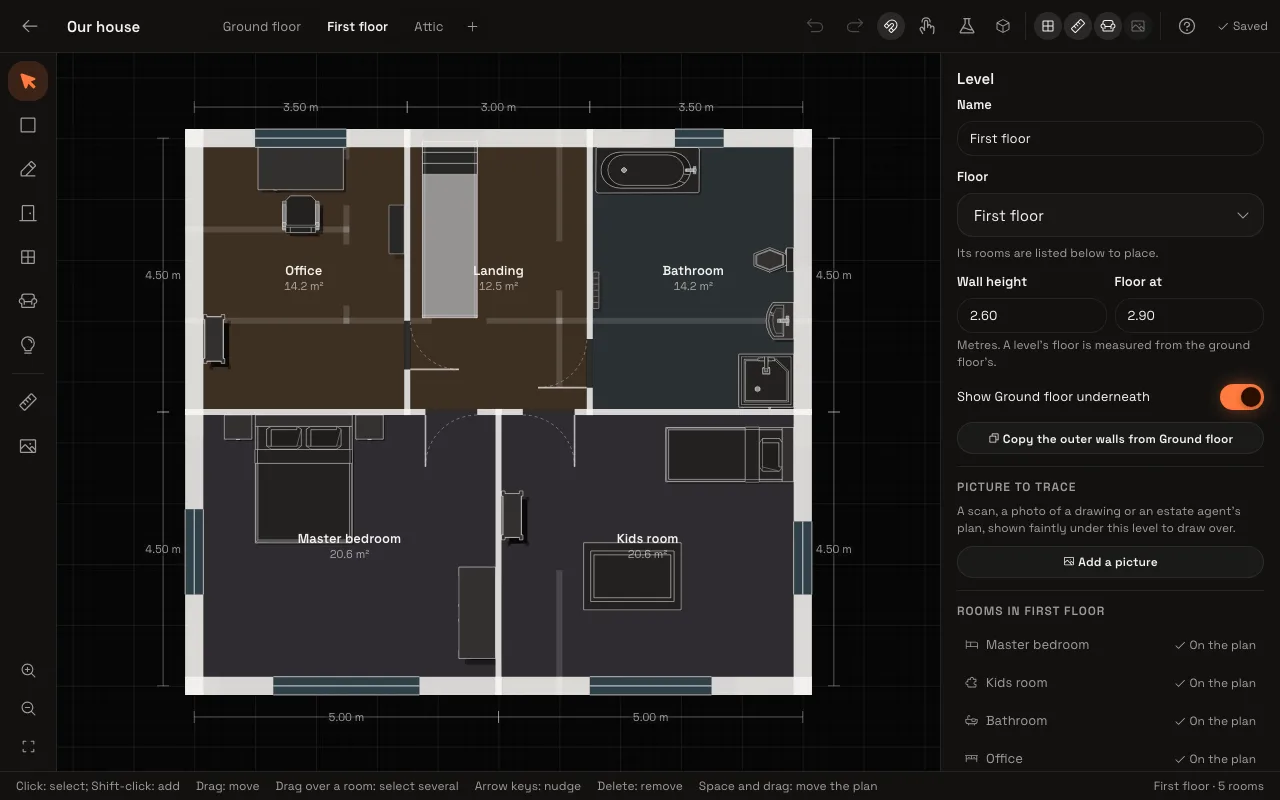
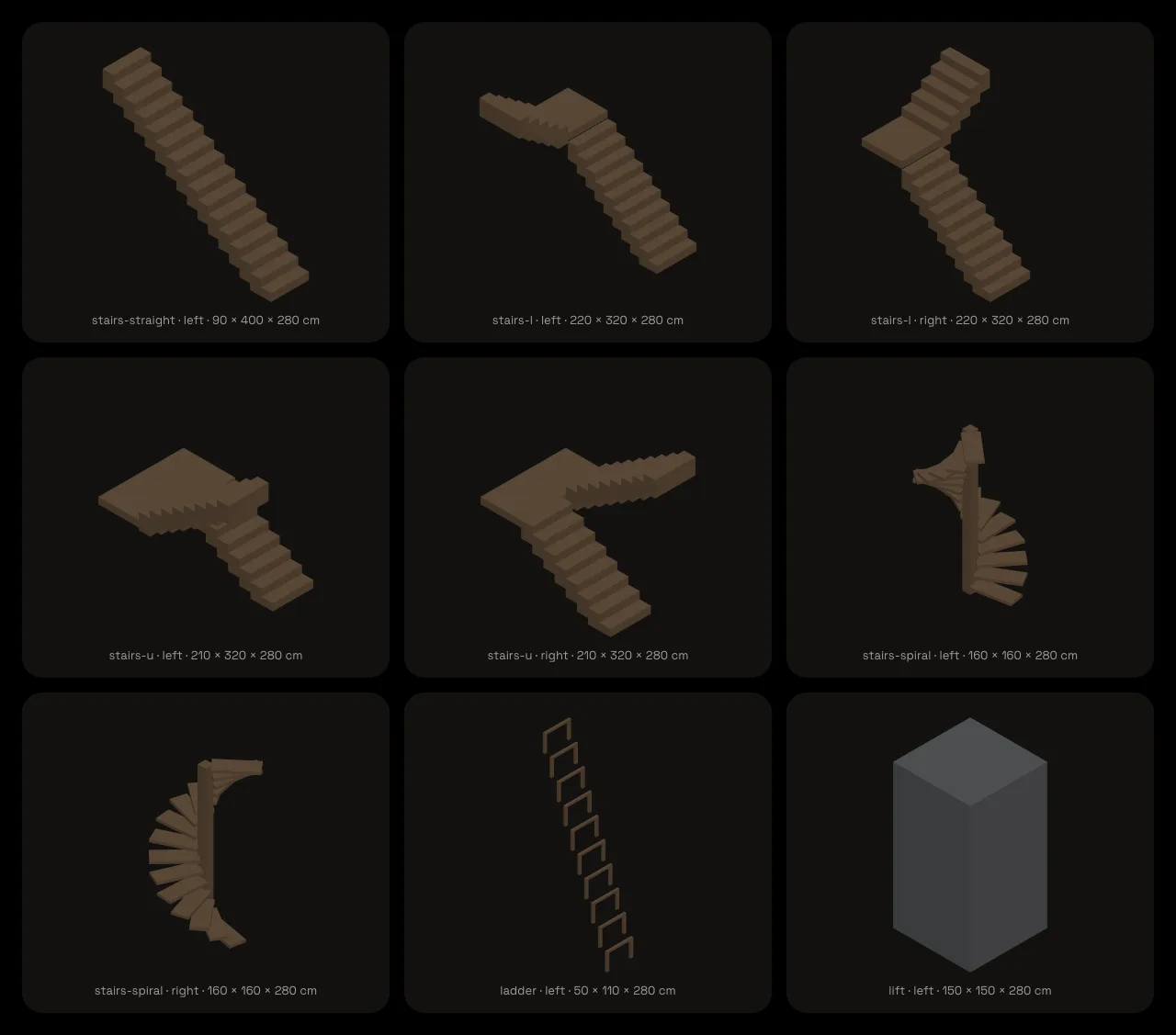
      Place straight, L-shaped, U-shaped or spiral stairs, a loft ladder or a lift where they start and choose the level they go up to. That level draws the opening in its floor for you, they show step by step in 3D, and on a dashboard a tap on them takes you up or down, in 2D and 3D. Lights in the steps can be the stairs' own device.

      Stairs in the hallway, going up to the first floor
      Stairs in the hallway, going up to the first floor1 of 3
      The opening they leave in the landing upstairs
      The opening they leave in the landing upstairs2 of 3
      Every kind in 3D, turning left and right
      Every kind in 3D, turning left and right3 of 3
      Read the guide
    • Tiledash in Norwegian, Swedish and Danish

      Tiledash now speaks Norwegian (Bokmål), Swedish and Danish. If your browser is set to one of them, Tiledash switches by itself. Otherwise choose it under Settings › General › Language & region. The translations are made by AI and marked Beta until someone who speaks the language has checked them.

      Read the guide

    Improved

    • Assistants build floor plans more reliably

      When an AI assistant draws rooms next to each other, they now share their walls as when you draw them, and it puts doors and windows between rooms without working out where they go. An assistant can now look at a level from above and in 3D while it works, to check its own rooms, doors and furniture before showing you.

    • Tiledash's own widgets need no installing

      Tiledash's own widgets in the Community, such as Prices, Car and Home battery, are now in everyone's widget picker and keep themselves up to date. Install one only to keep it at its version: uninstalling it lets it update again, and your tiles stay.

      Read the guide
    • Publishing limits say when you can publish again

      The Community's publishing limit (30 in any hour, 90 in any day) now frees up one publish at a time instead of all at once. When you reach it, the publish dialog says when you can publish again, and AI assistants are told how long to wait, so they can carry on a batch by themselves.

      Read the guide
    • A quieter note when Tiledash is updated

      After an update with something new, a small message in the corner now says there's a new version and goes away by itself. Its button opens What's new. Before, a window over the app showed the changes, which with daily releases meant almost every visit.

    Fixed

    • Assistants say which tool needs a reconnect

      An AI assistant connected before floor plans, pictures or Community installs were added said deleting was new when it tried them. It now names the tool it can't use yet.

    • Limits no longer blame Athom

      Reaching one of Tiledash's own limits, such as checking community names too fast, said Athom was asking us to slow down. It now says which limit it was.

    • Cars, chargers and batteries get their own widget again

      Adding a car, an EV charger or a home battery gave it the plain Device widget instead of its own, and the Energy dashboard the wizard makes laid out its price and energy widgets too small. Both use the right widgets again.

    • Home-screen icons from the pairing page open it again

      A screen added to the home screen from its pairing page opened Tiledash's start page and asked for a login. The icon now opens the pairing page.

      Read the guide
  5. v26.29.24 new3 improved1 fixed

    New

    • The community has a site of its own

      The community has a site of its own: community.tiledash.app. Browse the most used widgets, themes and 3D furniture, see each one drawn live, search everything from the top bar, and look up a maker. Install in Tiledash takes you to the same item in the app to finish.

      Read the guide
    • Look around the community without an account

      Anyone can now browse the community and try items on the demo home, without an account. Log in to install brings you back to the item to finish installing. Items whose maker left Tiledash are marked as no longer maintained; they keep working.

      Read the guide
    • A gentler start

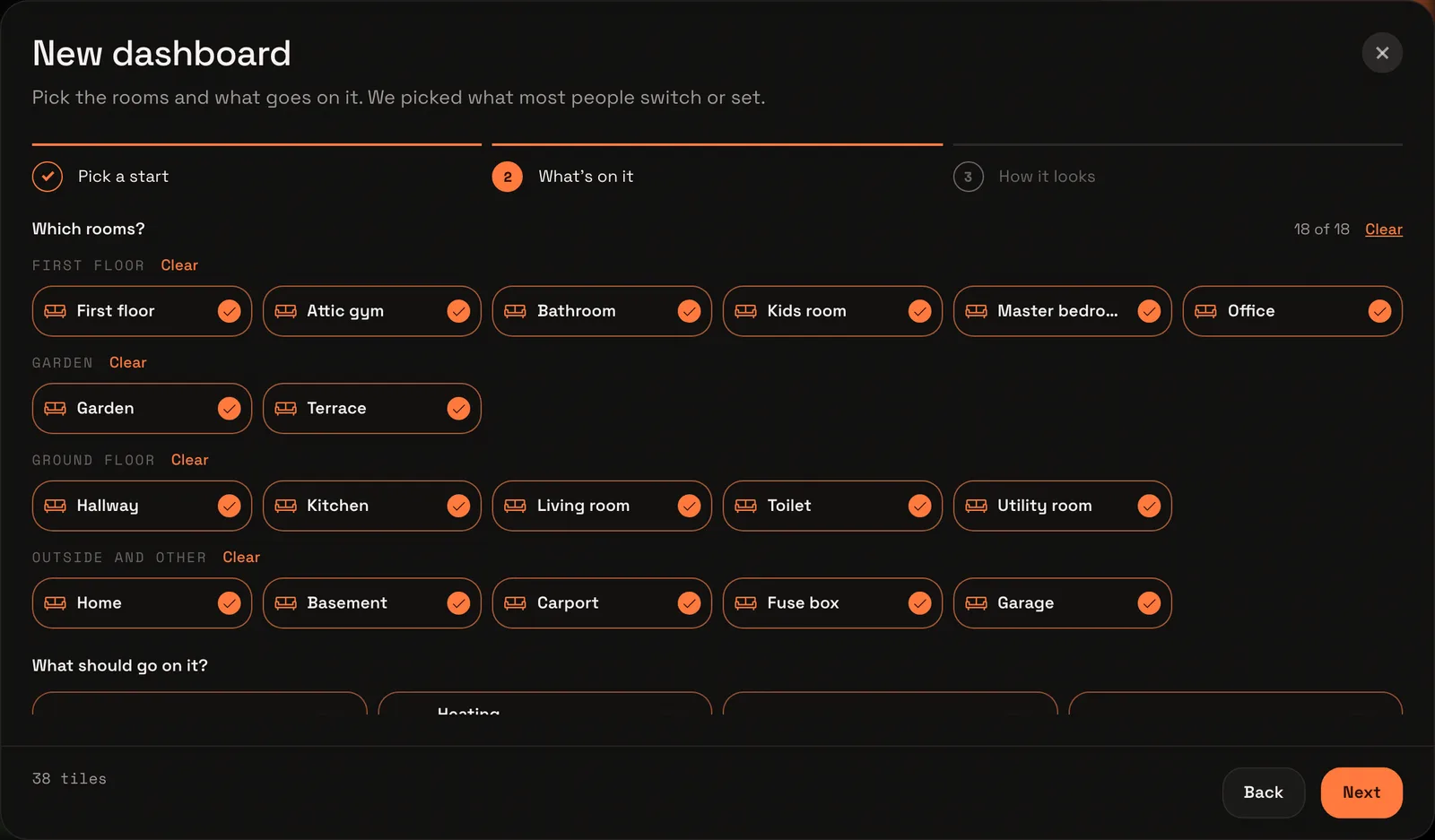
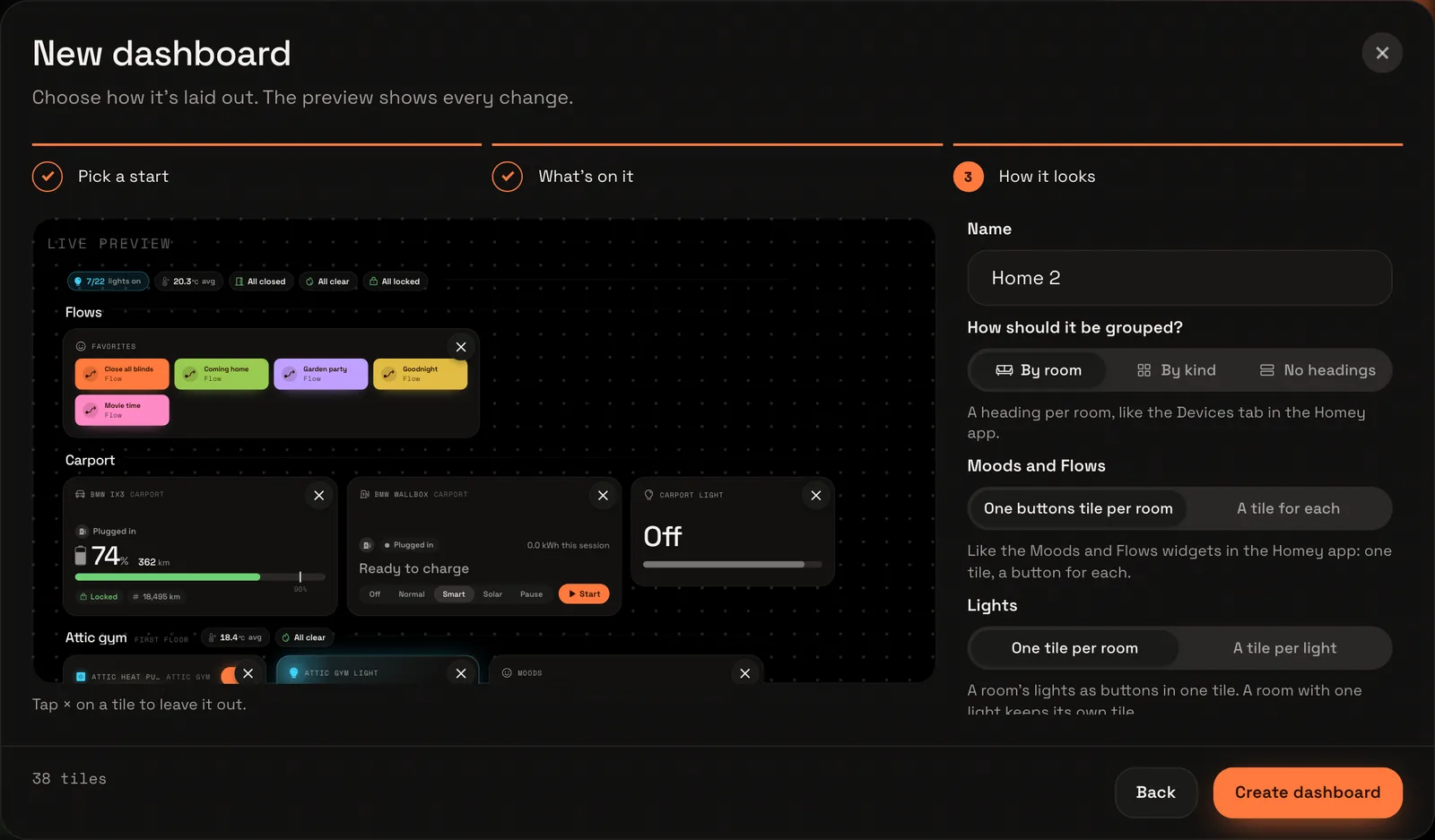
      New accounts get one question (a tablet on the wall, your phone, or both), then a Custom dashboard built from the rooms and kinds you pick. Short tours are offered, never forced, and start again from their (?) or Settings › General › Guided tours and tips, where Show tips switches every tip off. The privacy policy says what Tiledash counts while you get started.

      Pick the rooms and what goes on it
      Pick the rooms and what goes on it1 of 2
      How it looks, with × to leave a tile out
      How it looks, with × to leave a tile out2 of 2
      Read the guide
    • Put a dashboard on a tablet in one go

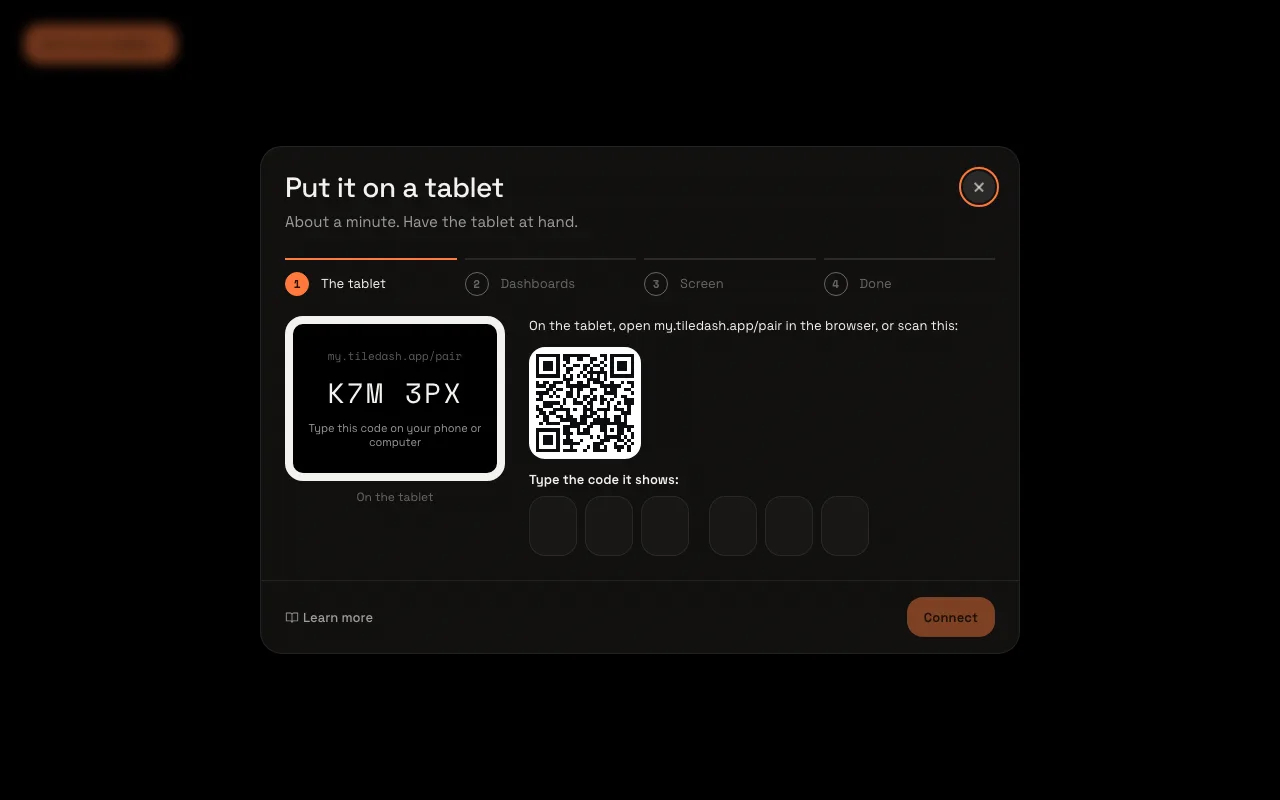
      ⋯ › Put it on a tablet…: open tiledash.app/pair on the tablet and type its code, then pick the dashboards, the kind of screen and what it does when nobody uses it. Tiledash makes a wall panel with good defaults and pairs the tablet to it.

      Type the code the tablet shows
      Type the code the tablet shows
      Read the guide

    Improved

    • Backups bring your community widgets and themes

      Restoring a backup now installs the community widgets and themes you had, at the version you had, so the tiles and dashboards using them come back too.

      Read the guide
    • Calmer screens, nothing hidden

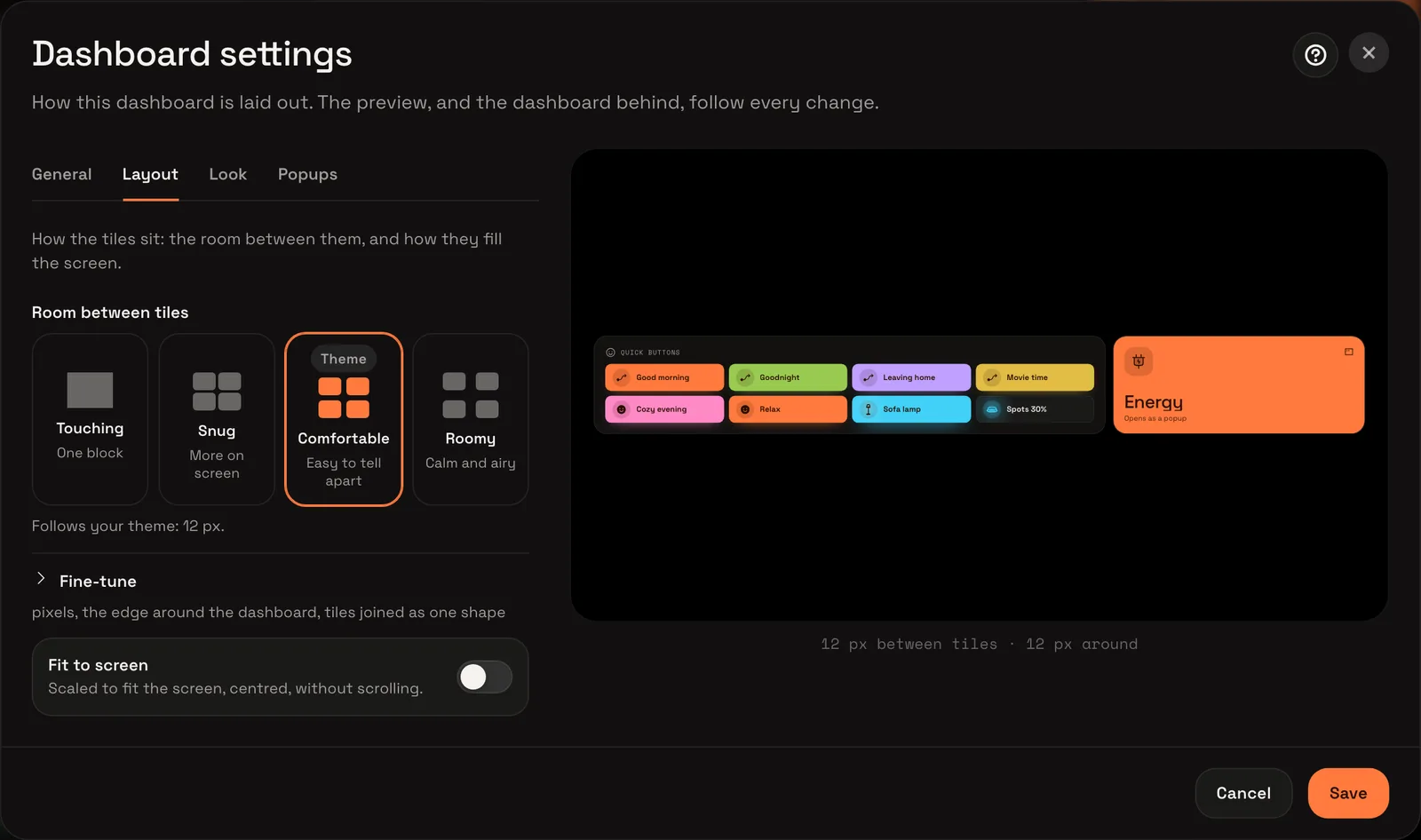
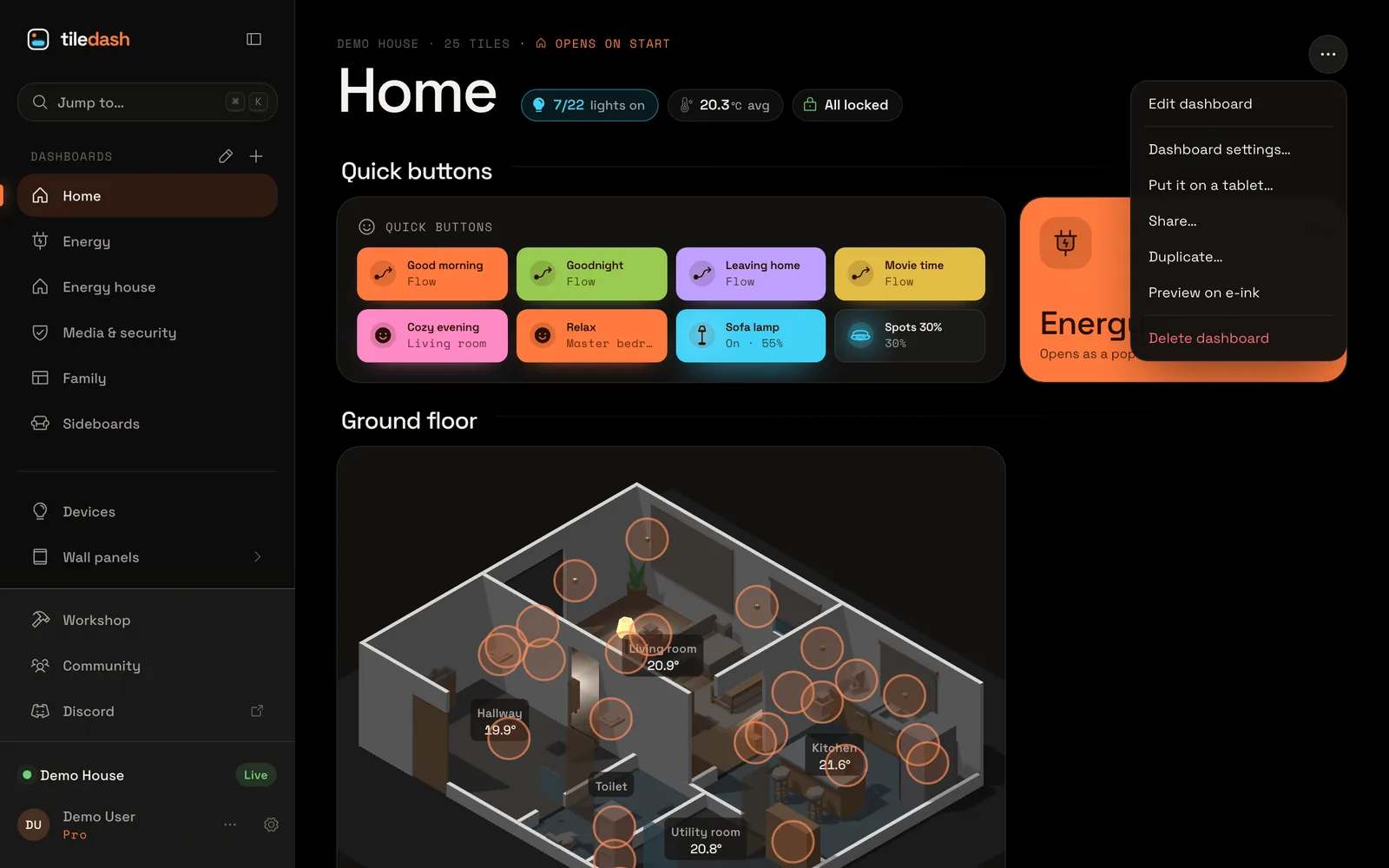
      The ⋯ always sits top right with a shorter menu. Dashboard settings has four tabs, with spacing as Touching, Snug, Comfortable or Roomy and pixels under Fine-tune. Advanced options fold away where they're used: more tap actions, a tile's own CSS, wall panel sleep details, map providers, AI apps, currency. Deleting a dashboard or resetting a tile's style can be undone.

      Dashboard settings, spacing in words
      Dashboard settings, spacing in words1 of 2
      A shorter ⋯ menu, always top right
      A shorter ⋯ menu, always top right2 of 2
      Read the guide
    • The community runs on its own

      The community now runs as a service of its own. What you installed keeps working even when the community can't be reached: only searching, installing and updating wait until it's back. Publishing with the command line goes straight to the community.

      Read the guide

    Fixed

    • The weather tile in your language

      The weather tile still said Clear, Now and Today in English, and named the wind and weekdays in English. It now says all of it in your language, and the weekdays follow your region.

  6. v26.27.05 new2 improved

    New

    • Your AI assistant installs themes, partials and models from the Community

      Your assistant could already find Community widgets. Now it searches and installs themes, partials and 3D models too, always one exact version and only after you say yes in the chat.

      Read the guide
    • Your AI assistant can delete what you made

      Ask your assistant to tidy up: it can delete your own widgets, partials, themes, 3D models and test devices. It names each one and where it's used, and waits for your yes in the chat. Connect it again once to allow this.

      Read the guide
    • Your AI assistant draws and changes your floor plans

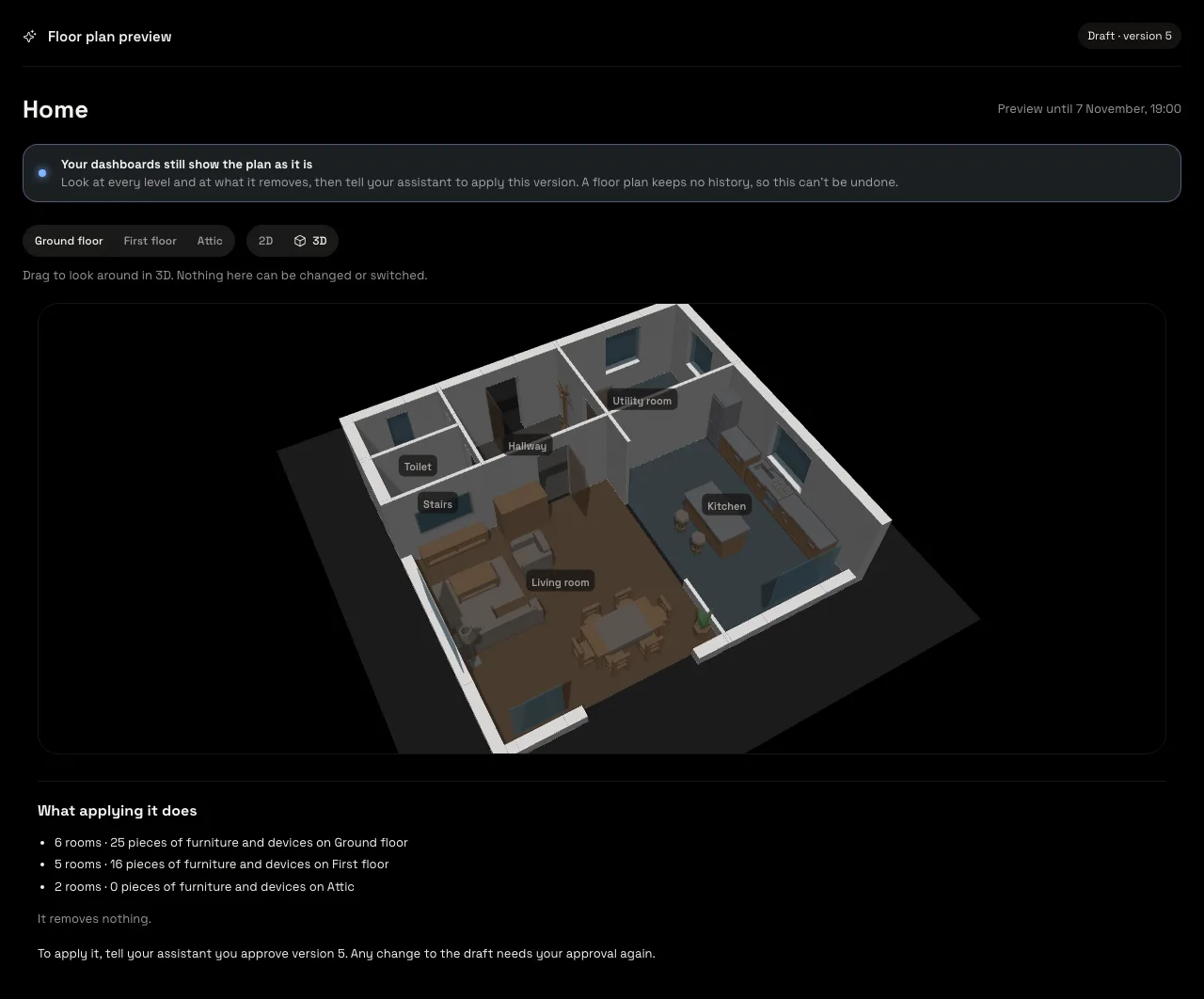
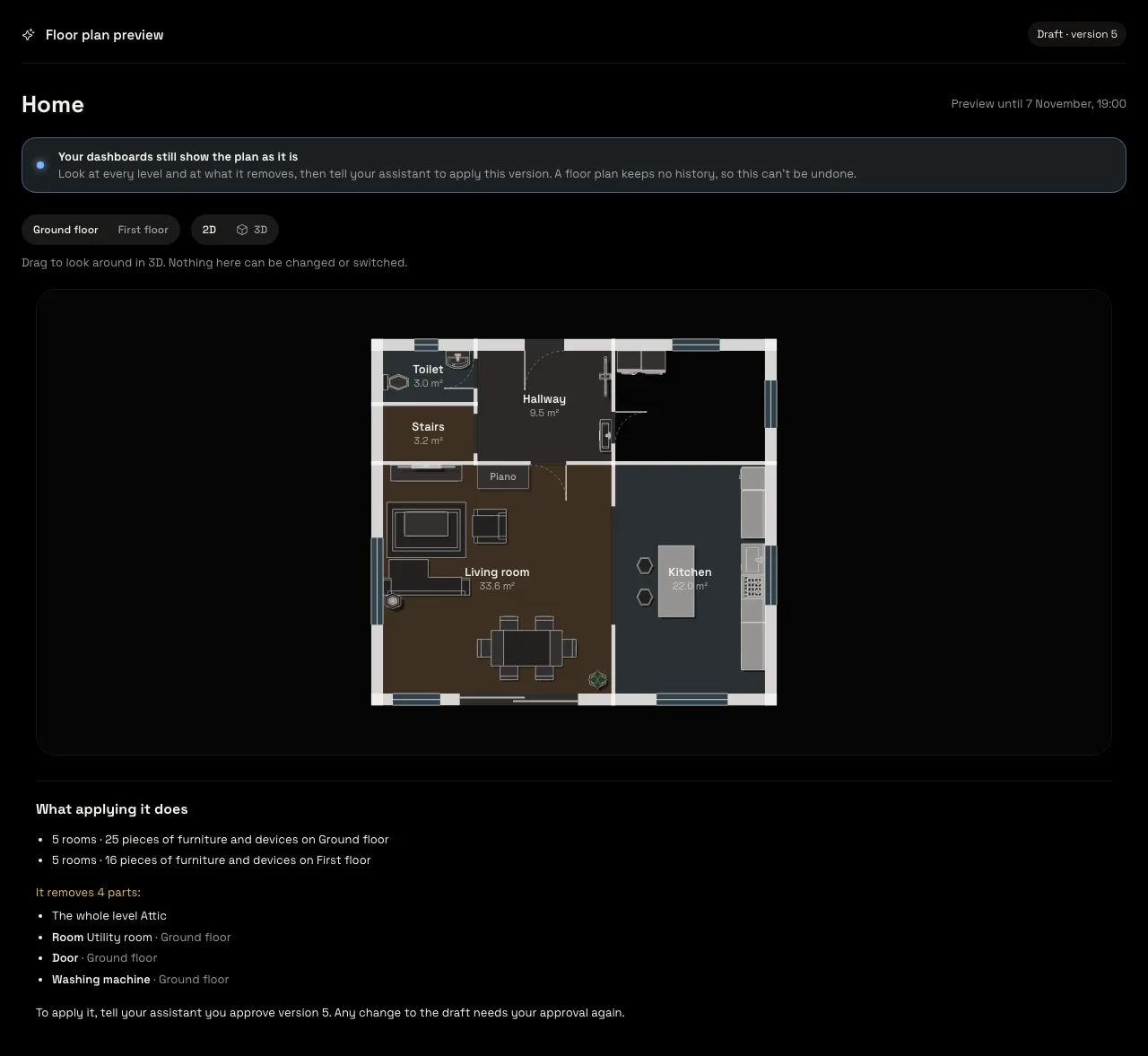
      Ask your assistant to lay out a level's rooms, add doors and windows, and put furniture and your devices in place. It works in a draft and gives you a preview of every level in 2D and 3D with what it would remove, and changes your plan only once you approve that version.

      The draft's preview, a level in 3D
      The draft's preview, a level in 3D1 of 2
      What applying the draft would remove
      What applying the draft would remove2 of 2
      Read the guide
    • Your AI assistant picks and adds pictures for wallpapers and tiles

      Your assistant can now see your pictures and Tiledash's, look at one before choosing it for a dashboard's wallpaper or behind a tile, and add a picture you asked for to your library. Connect it again once to allow this.

      Read the guide
    • Translate your widgets

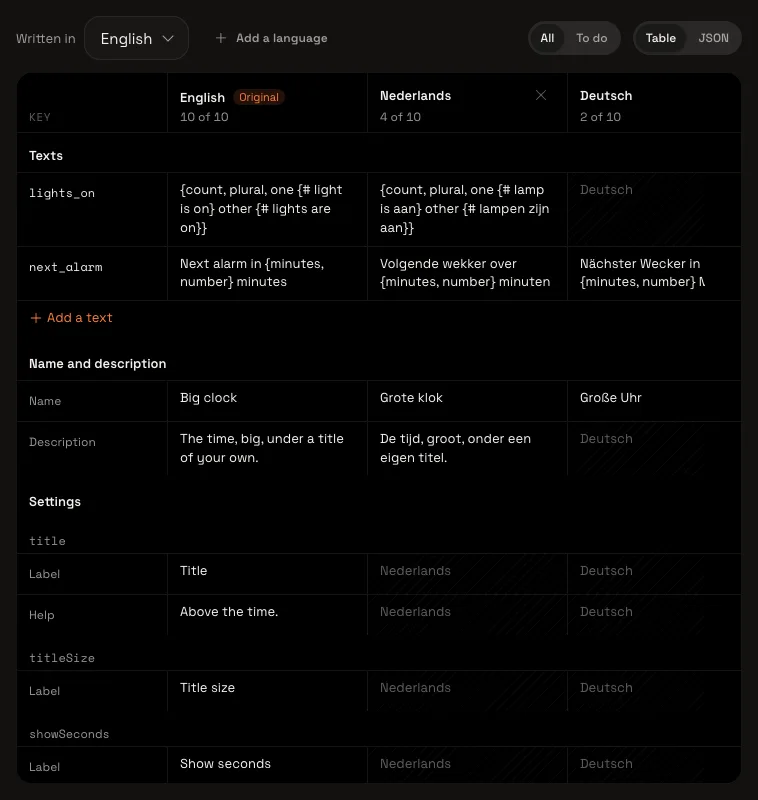
      Your own and Community widgets can now show their texts, name and settings in each viewer's language. Translate them in a table on the new Translations tab in the widget editor, a column per language, or have your AI assistant do it. Times, durations and on/off in widgets follow the viewer's language too.

      The Translations tab, a column per language
      The Translations tab, a column per language1 of 2
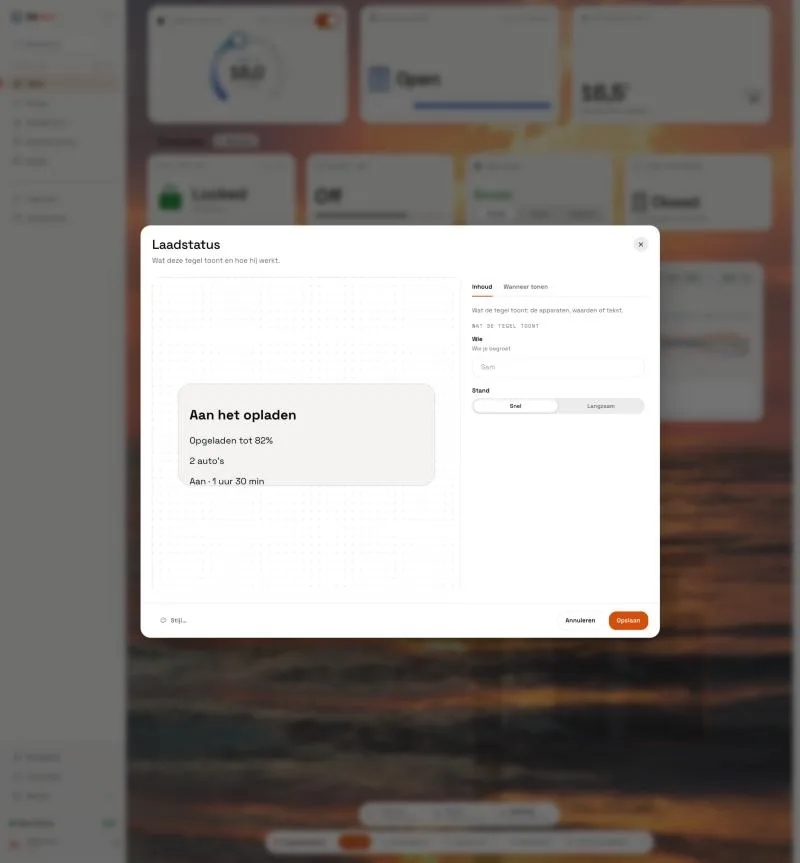
      A translated widget and its settings
      A translated widget and its settings2 of 2
      Read the guide

    Improved

    • Your AI assistant sees weather, prices and charts in its previews

      Widgets your assistant builds now show sample weather, prices and energy in its preview, and charts draw made-up history on a test device. It can switch the weather and the time of day to check how a widget looks in sun, snow, at the evening peak or with solar at midday. The widget editor's preview draws made-up chart history on test devices too.

      Read the guide
    • Built-in widgets in your language

      The names of a device's readings, their choices and units now show in your language, whichever language your Homey is set to; a name the driver or you chose stays as it is. Tiledash's own widgets follow too, built in and in the Community, and so do a heading's summaries and the names of energy and price values.

  7. v26.26.01 improved1 fixed

    Improved

    • Wallpapers from a web address

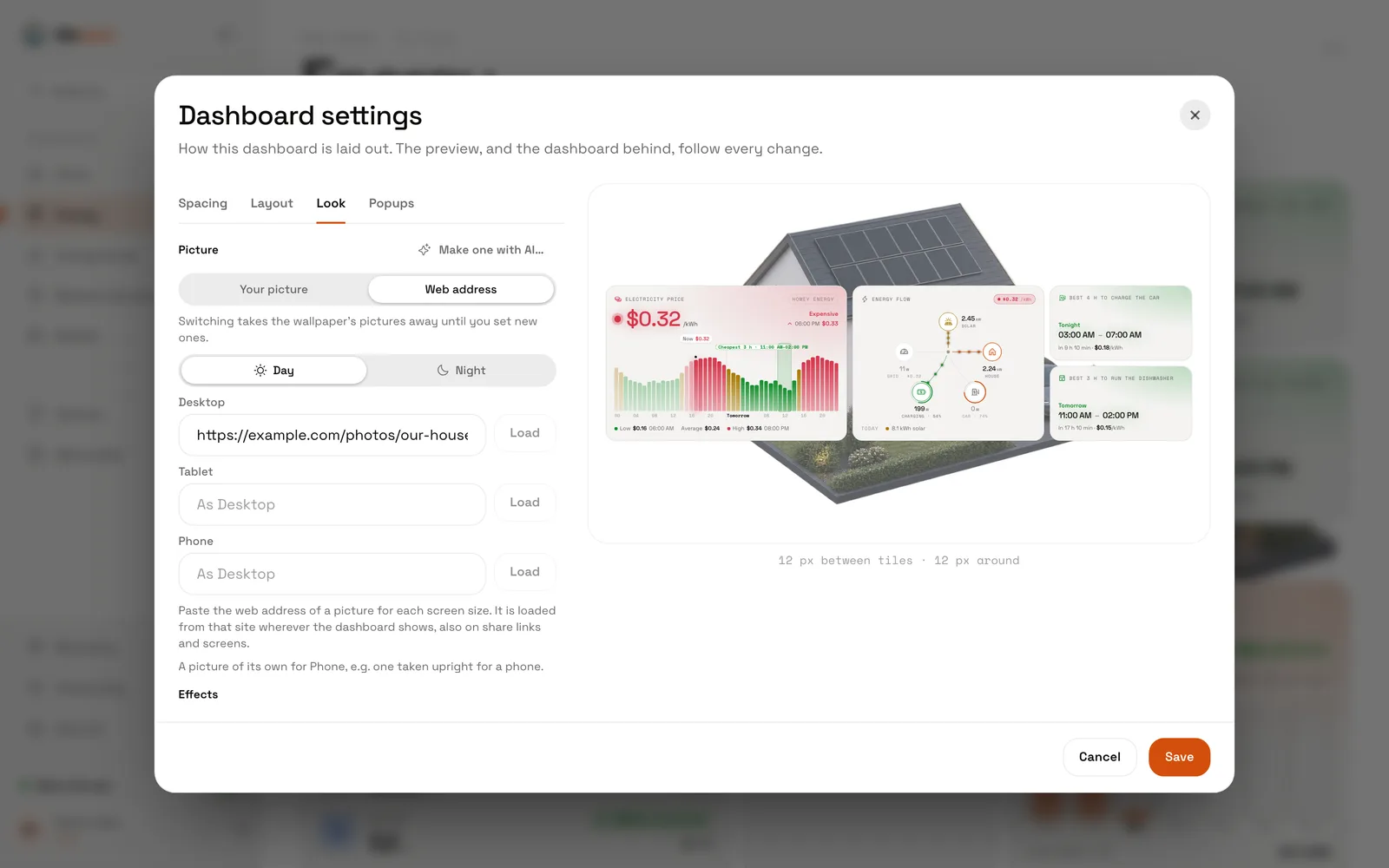
      A dashboard's wallpaper can now be a picture from the web, as a tile's picture already could: choose Web address under Wallpaper on the Look tab and paste its address for each screen size. Tiledash doesn't copy it, so every screen loads it from that site.

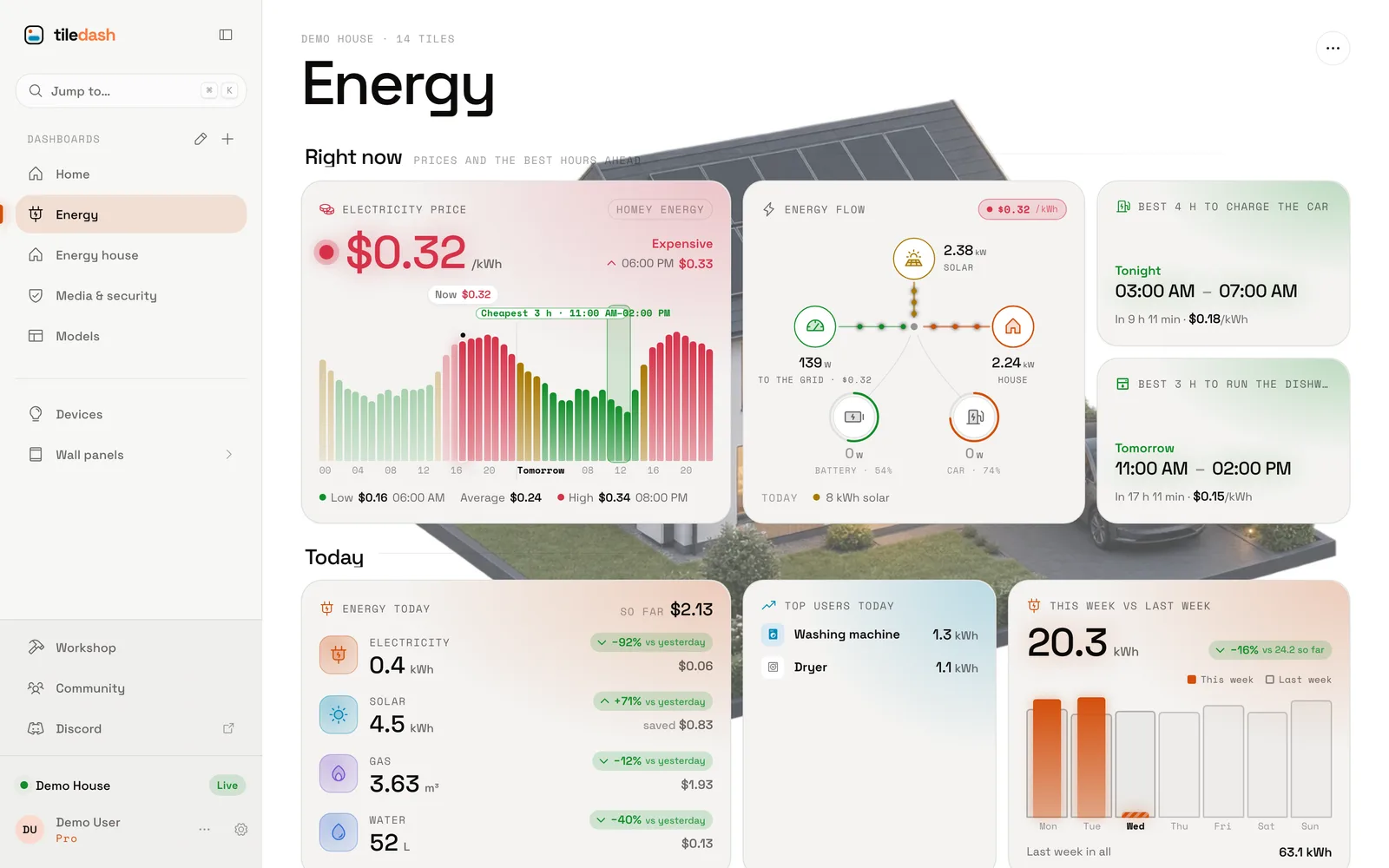
      A picture from the web behind the Energy dashboard
      A picture from the web behind the Energy dashboard1 of 2
      Web address on the Look tab, per screen size
      Web address on the Look tab, per screen size2 of 2
      Read the guide

    Fixed

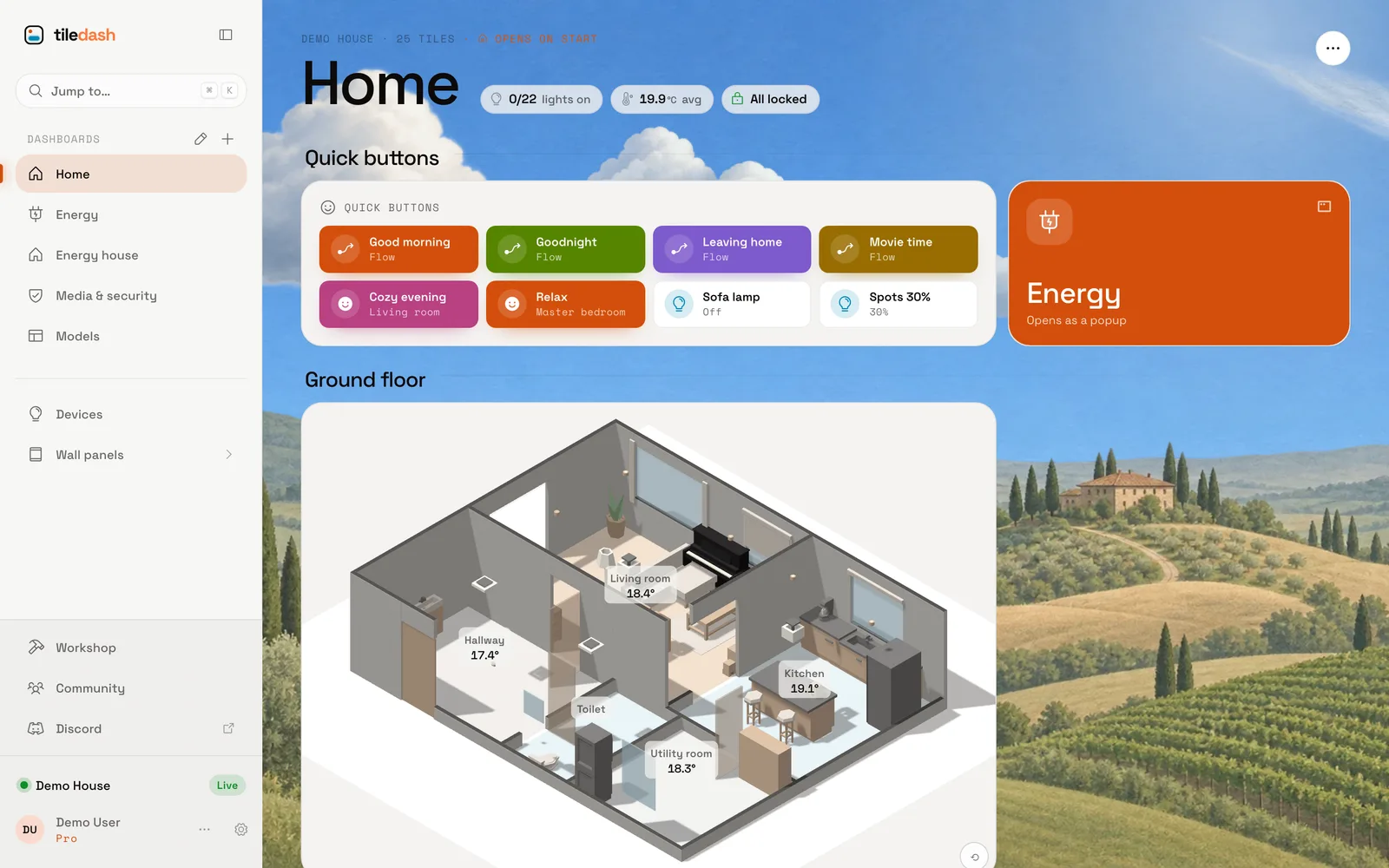
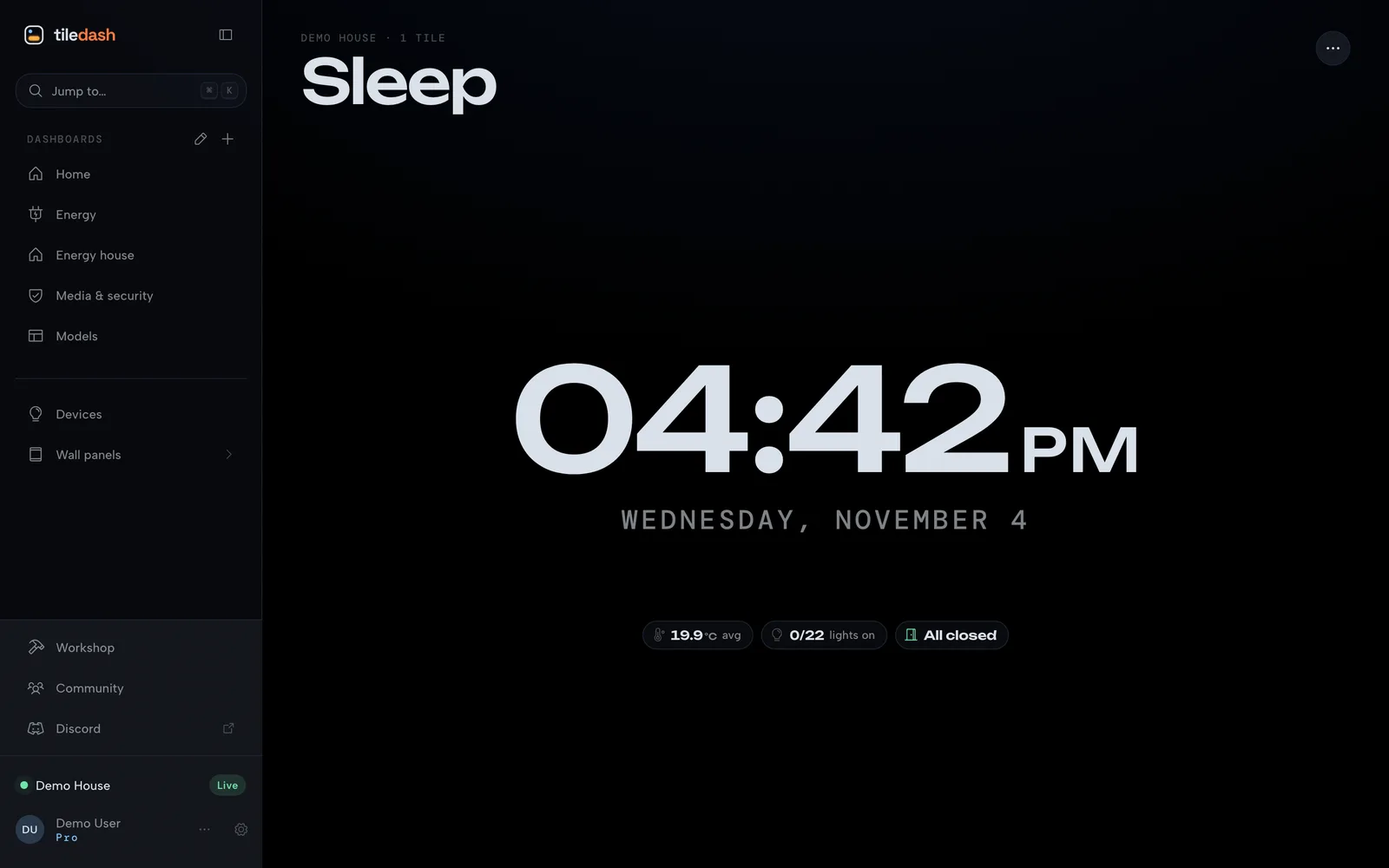
    • The sidebar takes the dashboard's theme

      A dashboard with a theme of its own now gives the sidebar that theme too, and the sidebar changes as you move between dashboards. Other pages keep the theme you chose for this device.

      Home has no theme of its own, nor does its sidebar
      Home has no theme of its own, nor does its sidebar1 of 2
      Sleep is in Midnight, and its sidebar too
      Sleep is in Midnight, and its sidebar too2 of 2
      Read the guide
  8. v26.25.24 new1 improved4 fixed

    New

    • Themes with a character of their own

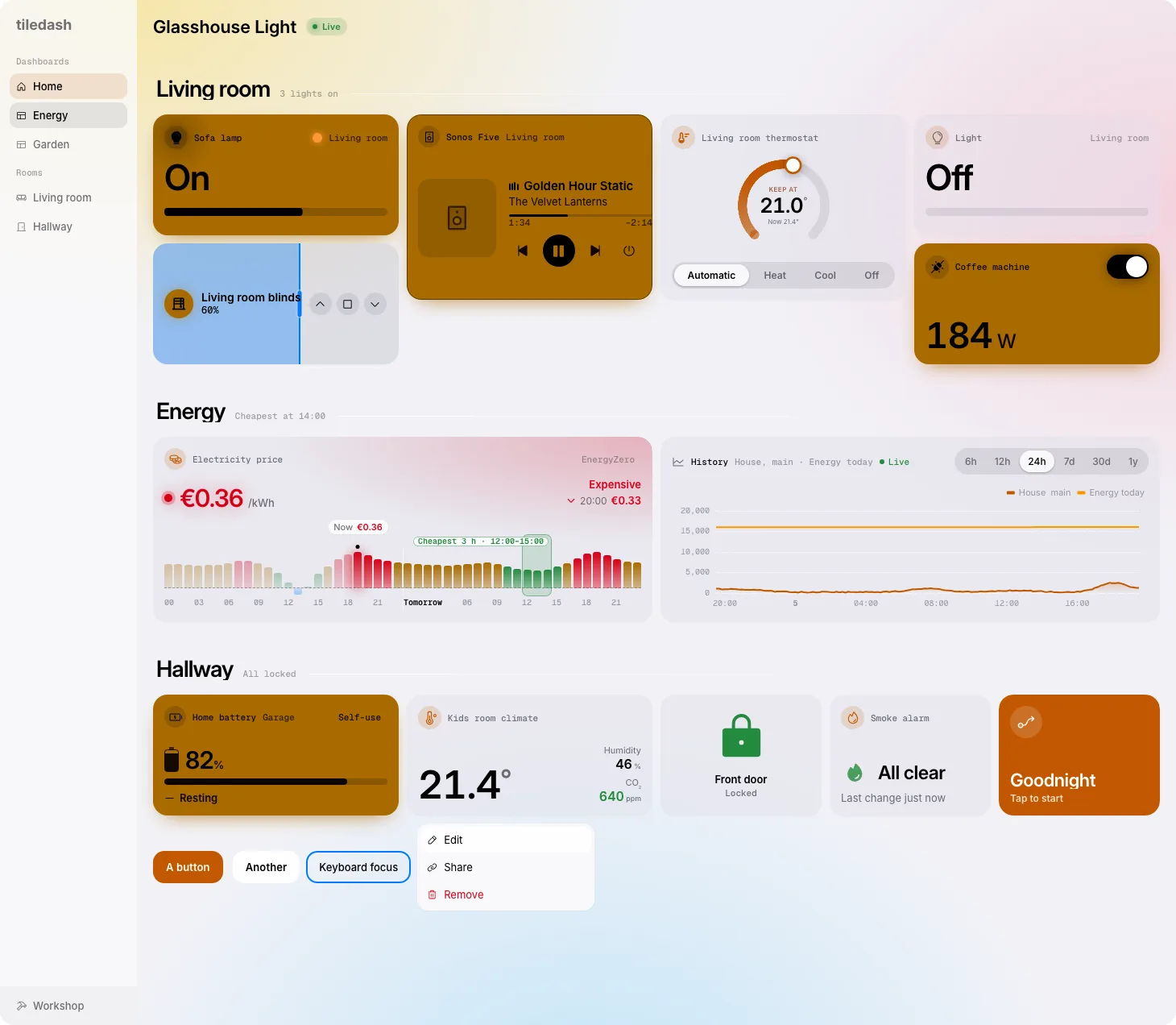
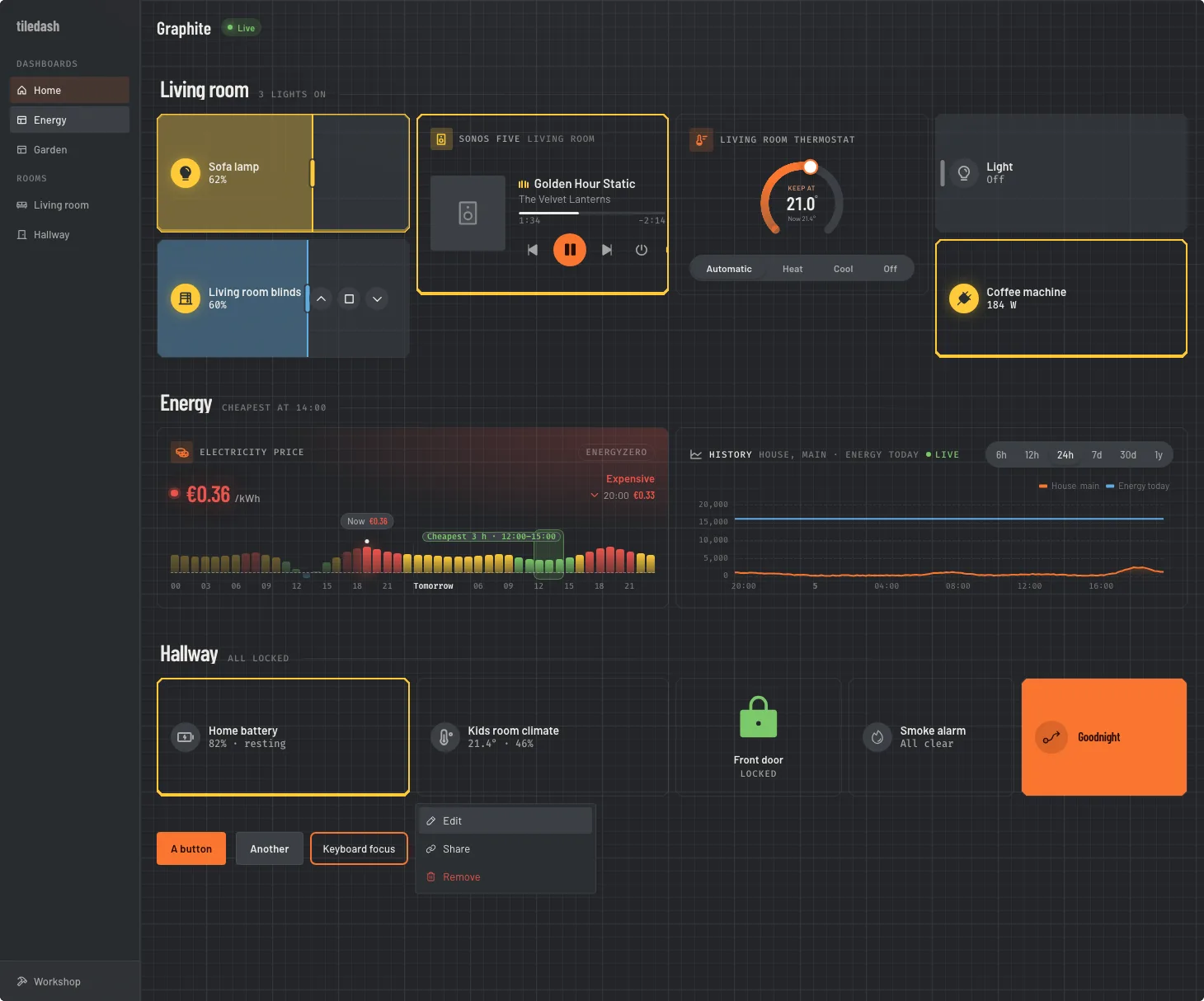
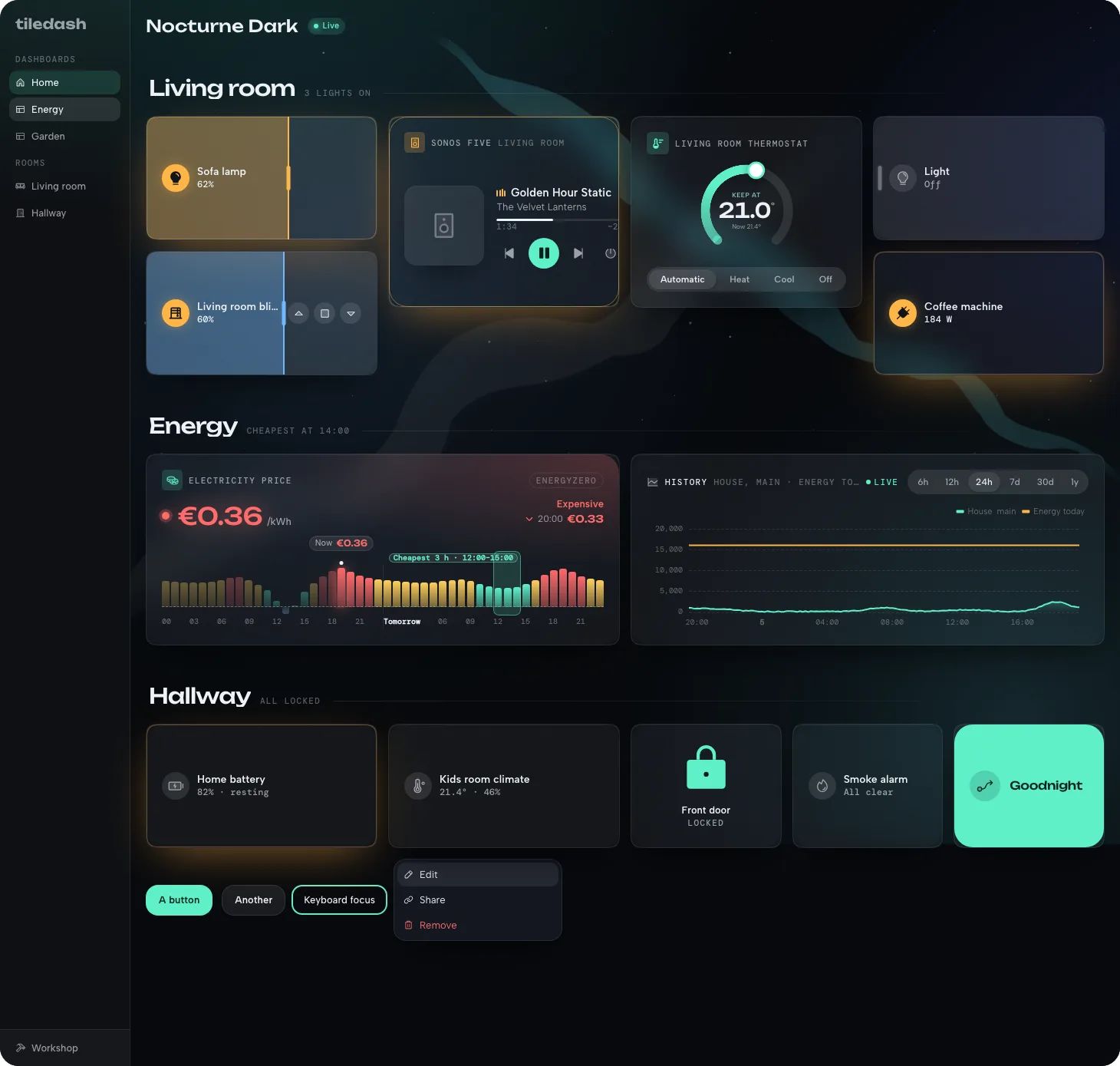
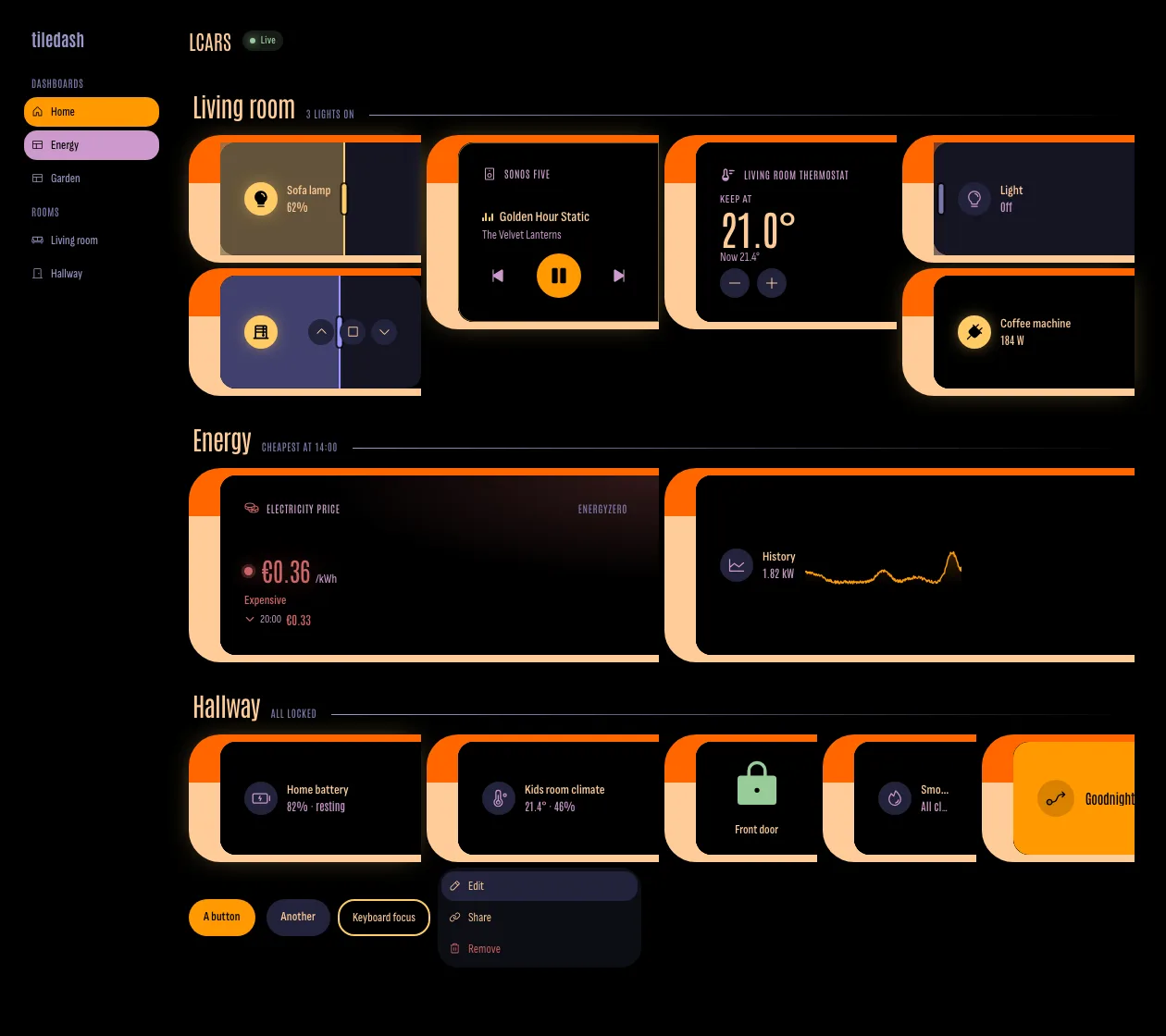
      Themes can now look truly different from each other, not only in their colours. A theme gets its own background, its own way of showing a tile that is on, its own icons, tile shapes, charts, controls, type, motion and sidebar. Glasshouse Light, Graphite and Nocturne Dark already use them, and you can give your own themes the same.

      A background behind the tiles
      A pattern such as dots, a grid, contours or a blueprint, or a living scene of waves, drifting silk or a glow, with stars, snow, rain or mist on top. Built-in themes bring theirs on Free; a dashboard can leave it out or show its own wallpaper instead.
      When a tile is on
      Five ways to show it: a glow, a ring, a coloured edge, a soft wash, or a tile that fills with the light’s colour, as in Apple Home. Text and readings on a filled tile change with it, so they stay readable.
      Icons and tiles
      Icons in regular, bold or two-tone, in circles, squircles or squares. Tiles with a corner of their own, outlined, with a border on one side, or a frame like a starship console’s.
      Charts and controls
      Thin or bold chart lines, smooth, straight or stepped, with a fill, grid lines and dots. Sliders and switches as pills, rounded or square, with a round or bar handle.
      Type, textures and motion
      A content size from 85 to 125 %, the weight of titles, the spacing of numbers and a taller line for tall fonts. Paper, linen, grain or scanlines over the tiles. Tiles that shrink or sink when pressed, lift or glow under the pointer, and pop when they turn on.
      The sidebar
      A sidebar that floats off the edge, its items in a font, size and weight of their own, coloured section titles, a foot with its own background, and icons at the theme’s weight.
      Easy to try
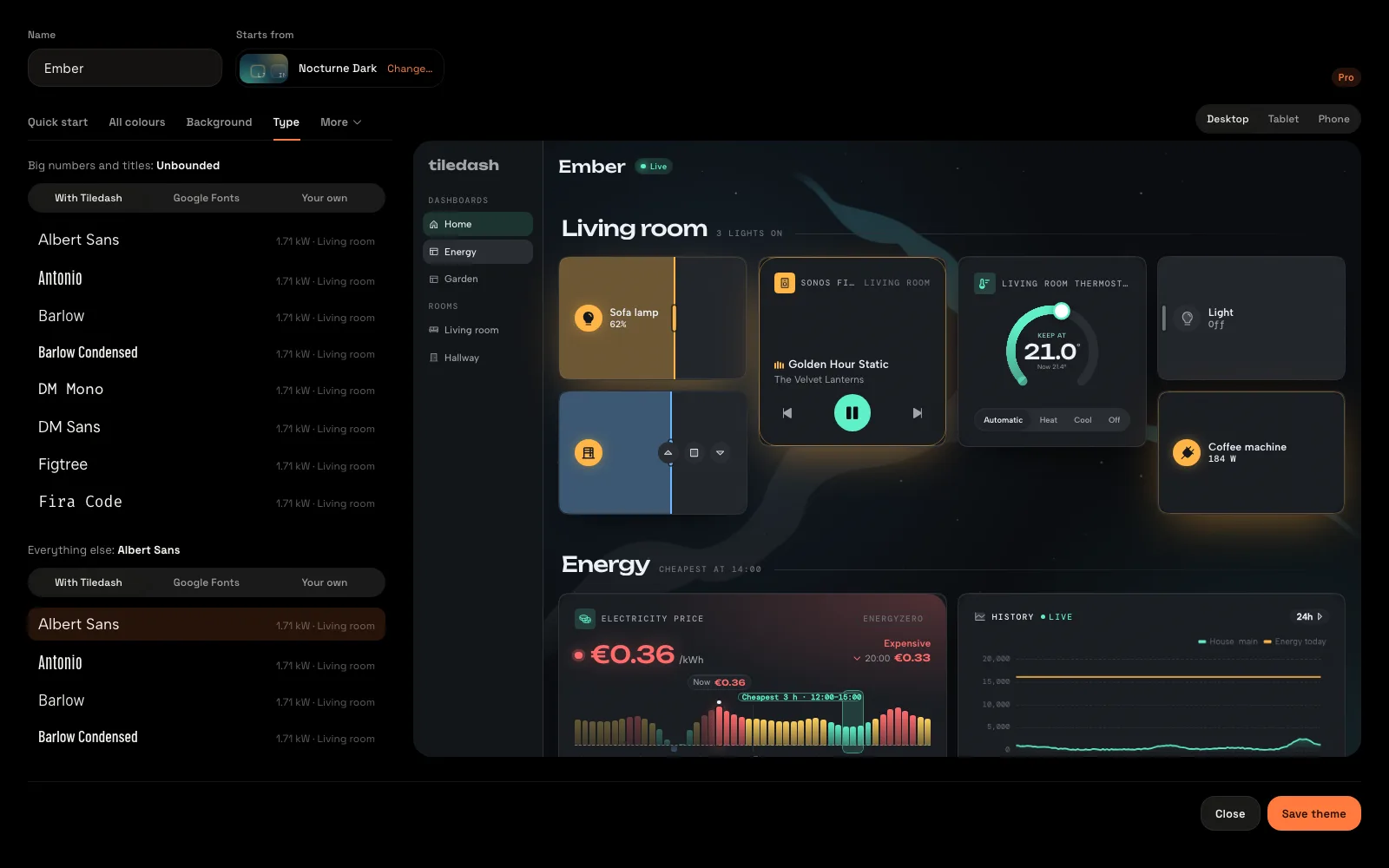
      The theme editor shows it all on a fuller sample dashboard, with headings, sliders and more kinds of tiles. Undo all changes, or just one tab’s, to go back to where you started.
      Shared on the Community
      All of it is part of the theme, so a theme you publish on the Community looks the same for everyone who installs it.
      Glasshouse Light fills a tile that is on
      Glasshouse Light fills a tile that is on1 of 5
      Graphite on a blueprint, a ring when on
      Graphite on a blueprint, a ring when on2 of 5
      Nocturne Dark with silk and stars behind
      Nocturne Dark with silk and stars behind3 of 5
      Frames like a starship console’s
      Frames like a starship console’s4 of 5
      The theme editor’s fuller preview
      The theme editor’s fuller preview5 of 5
      Read the guide Read the guide
    • Your own themes in light and dark

      A theme of yours can now come in light and dark. Add light… in the theme editor makes its other half, with your colours turned round for the day, and a dashboard on Auto shows light by day and dark at night. The halves share everything but their colours and background. A Community pair installs and copies whole, and your AI assistant can make the other half too.

      Read the guide Read the guide Read the guide
    • Two tutorials for making a theme, by hand or with your AI

      Make your first theme in the theme editor, step by step: a colour, a moving background, tiles that fill when on, and a dashboard to wear it. Or let your AI assistant make one, with a live preview that follows every change.

      A dashboard in the theme made by hand
      A dashboard in the theme made by hand1 of 2
      The live preview of a theme your AI made
      The live preview of a theme your AI made2 of 2
      Follow the tutorial Follow the tutorial
    • Your AI assistant makes and changes your themes

      Ask your assistant for “a warm dark theme for the bedroom tablet”, and it makes one of your own themes, from Tiledash’s, yours or one from the Community. It opens a live preview that follows every save, warns about text that reads badly, and asks before changing a theme your dashboards use. History in the theme editor shows every save and can bring one back.

      The live preview your assistant opens
      The live preview your assistant opens
      Read the guide

    Improved

    • Light and dark themes are one card in Settings and the Workshop

      Settings › Themes now shows a family with a light and a dark theme as one card with Light, Dark and Auto, as This device does: use it on this device or give it to dashboards in the one you pick. Your own pairs are one card in the Workshop too, and publishing either half updates the same Community item.

      Read the guide

    Fixed

    • Naming a new Homey tile works every time

      Choosing “Tell Homey” for a Button on a Homey that already had Homey tiles showed “New Homey tile…” without a field to give it a name. The field now shows whenever no Homey tile is picked yet.

    • Long flow and mood names fit small tiles

      On a small or narrow tile, a flow’s or a mood’s name could run off the edge of the button. It now ends in … when it doesn’t fit.

    • History in the theme editor shows again

      The theme editor’s History tab, with every save of your theme and a way back to each, didn’t show. It’s back once the theme has opened.
    • A theme’s preview shows its words again

      The sample dashboard on a theme’s live preview link and on a Community theme’s page showed codes such as “themes.sample.livingRoom” where its headings, buttons and menu should read.

  9. v26.24.03 new1 improved1 fixed

    New

    • Tiles in your Homey flows

      With the Tiledash app for Homey Pro, a Button can tell Homey it was pressed, so a flow starts. Your flows can switch it back, give it a text, a colour or an icon, or hide it, on every screen at once. Comes with Pro.

      A Button following what Homey flows set on it
      A Button following what Homey flows set on it
      Read the guide
    • Device tiles show the icon picked in Homey

      Tiles now show the icon you picked for a device in the Homey app: on your dashboards, share links and screens, on the devices page and in the device pickers. A Button that opens a device shows it too, and a new Button no longer asks for an icon before you can save it. Prefer another one? Pick it on the tile's Look tab: Tiledash's icon for its kind, or any icon from the library.

      Lamps with the icons picked for them in Homey
      Lamps with the icons picked for them in Homey1 of 2
      A tile's icon on its Look tab
      A tile's icon on its Look tab2 of 2
      Read the guide
    • Wallpapers that move, by day and by night

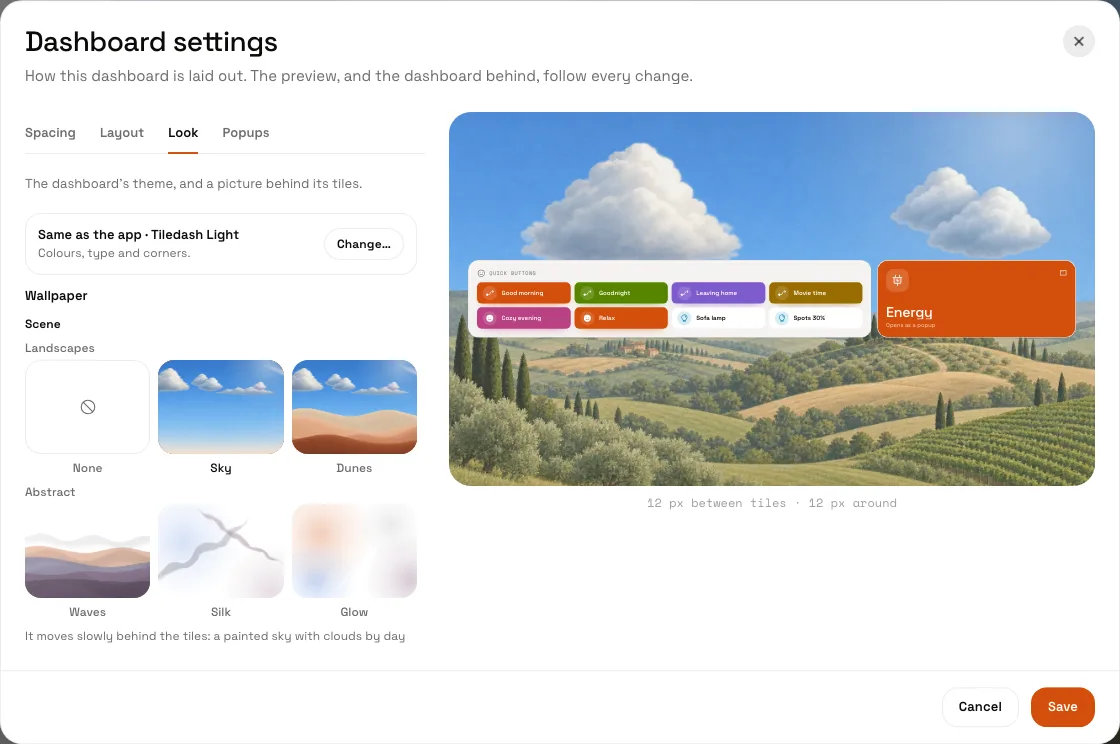
      Give a dashboard a living wallpaper: a painted sky with drifting clouds and stars at night, rolling dunes, or abstract waves, silk and glow in your theme's colours. Add a night picture, effects such as snow or the live weather, or let AI paint a landscape by day and at night for 2 credits.

      Waves in Dusk, with snow falling
      Waves in Dusk, with snow falling1 of 4
      A landscape made with AI, over the moving sky
      A landscape made with AI, over the moving sky2 of 4
      The same view at night
      The same view at night3 of 4
      Dashboard settings › Look
      Dashboard settings › Look4 of 4
      Read the guide

    Improved

    • Most built-in widgets go down to 1×1

      Make almost any built-in tile as small as one column by one row, from lights, thermostats and locks to sensors, cameras, weather and the clock. A small tile shows its icon and state or value: tap it for its main action, hold it for all its controls. One- and two-row tiles keep a control, such as minus and plus for a thermostat.

      Read the guide

    Fixed

    • Home batteries inside an inverter are found and shown

      A home battery that Homey shows as part of its inverter, such as a Huawei through the SolarEdge + Growatt TCP modbus app, wasn't found for the energy widgets, by itself or by hand. Tiledash now counts what it charged and gave, and the Energy flow, the energy house and the Home battery tile show whether it charges or gives power.

  10. v26.23.03 improved

    Improved

    • Moving between dashboards loads less

      Tiledash now loads your Homey's devices, rooms, flows and moods once and keeps them while you use the app, so switching dashboards is quicker and uses less data. They still update when your Homey changes or reconnects.

    • Devices show at once while your Homey connects

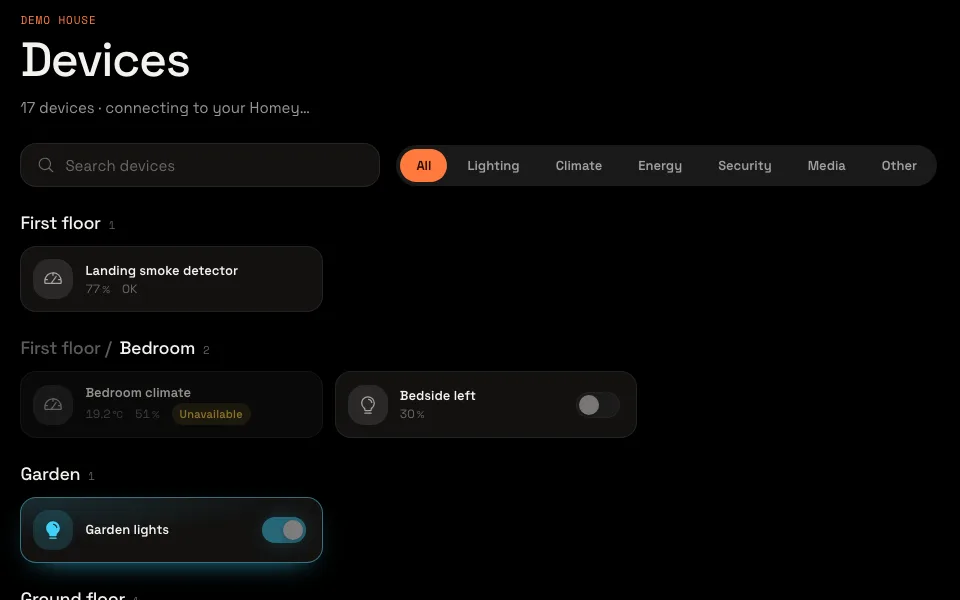
      The devices page shows your devices right away, with the values Tiledash saw last, while it connects to your Homey. Their live values take over within seconds; switches work once connected.

      The devices page while it connects to your Homey
      The devices page while it connects to your Homey
    • Prices that fit where you live

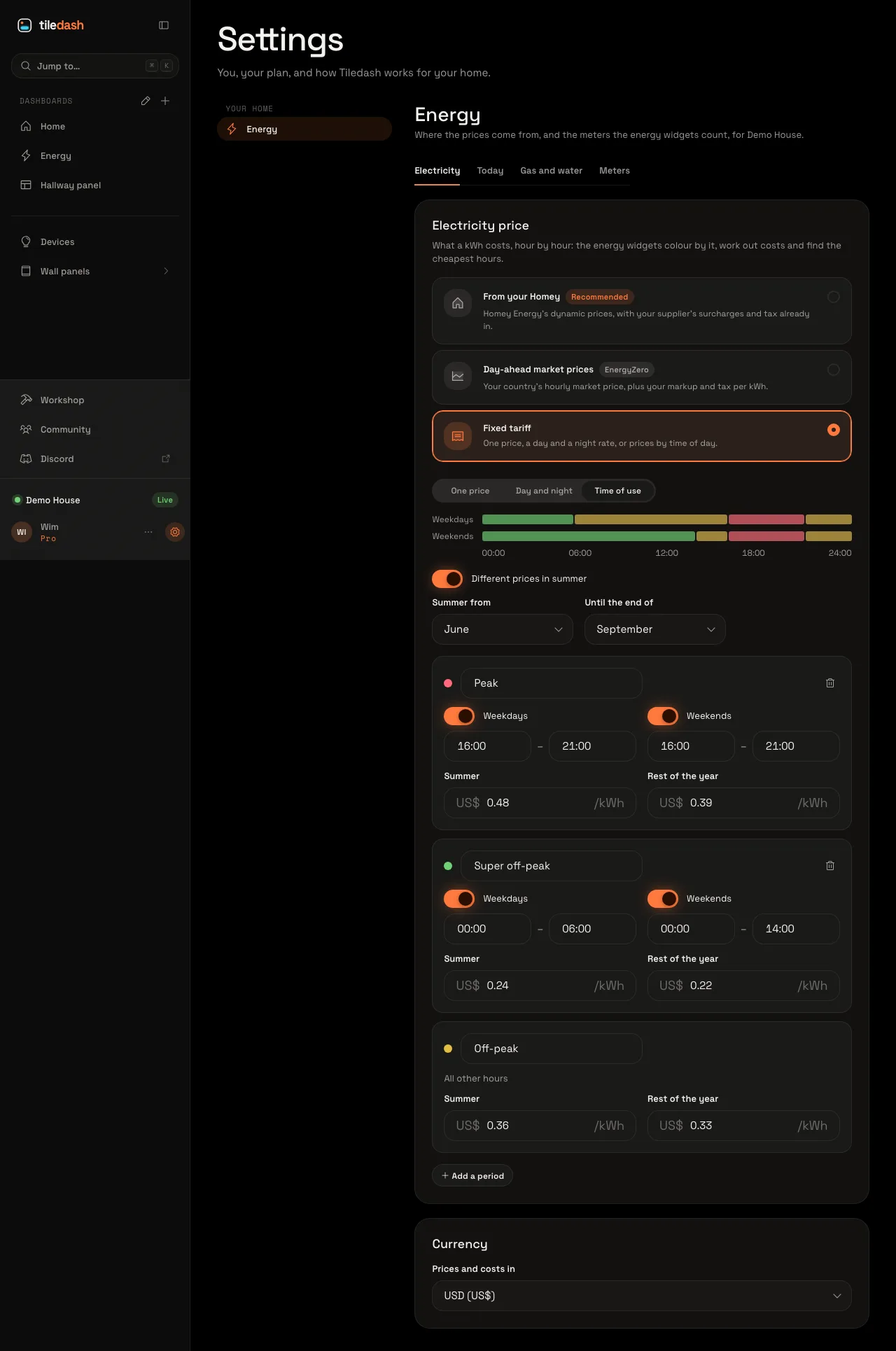
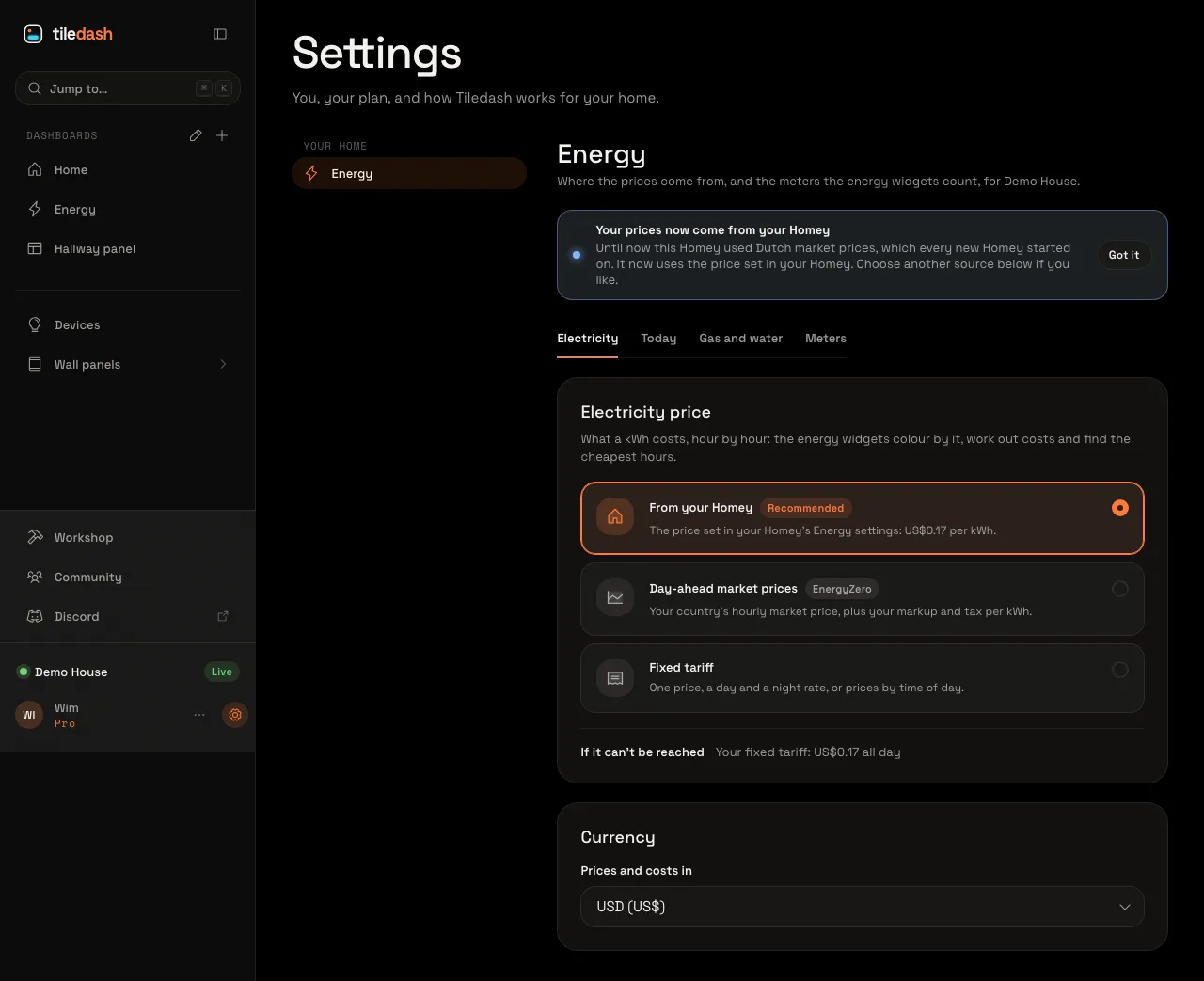
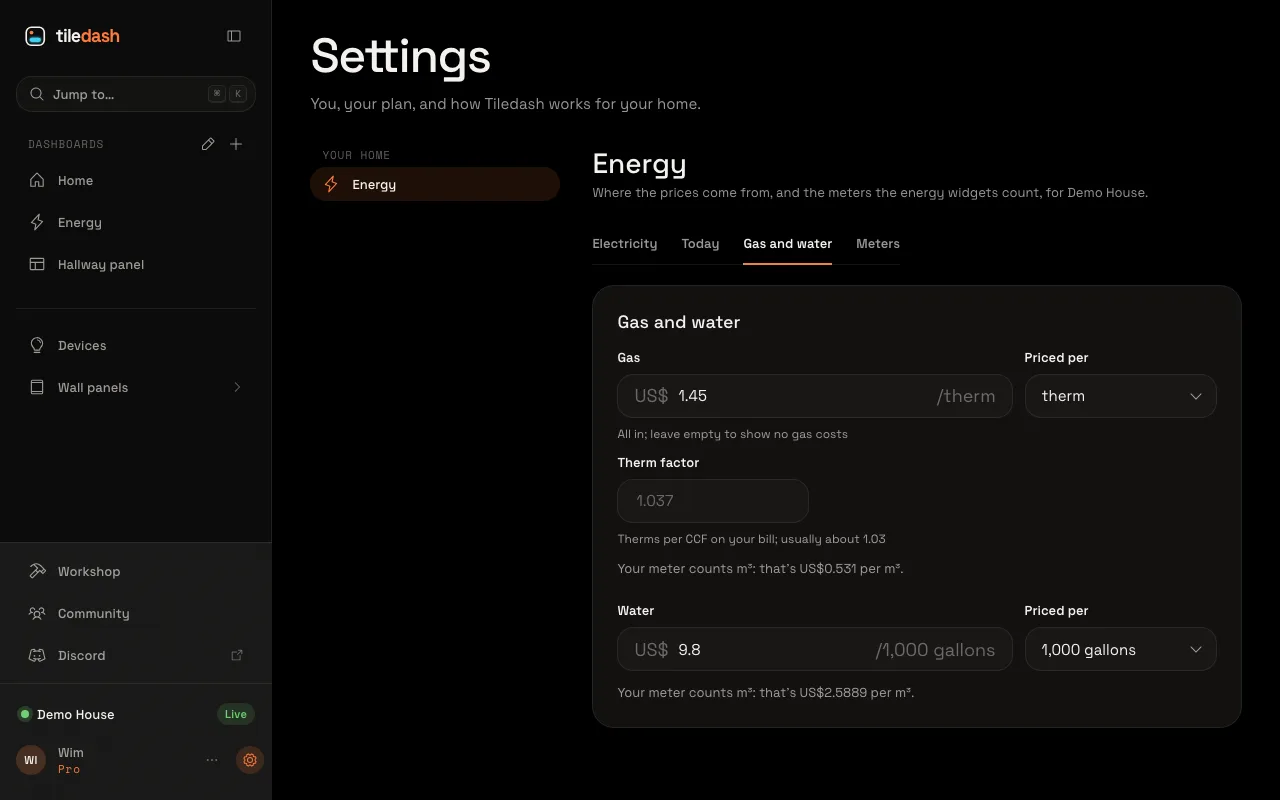
      Every Homey now starts on its own price: Homey Energy’s dynamic prices or the price set in Homey’s Energy settings, in your country’s currency. Homeys outside the Netherlands still on Dutch market prices moved over. Prices can be in US, Canadian and Australian dollars or Mexican pesos, a fixed tariff can follow time of use, gas and water follow your bill’s units, and the settings have tabs.

      Your Homey’s own price, and why it changed
      Your Homey’s own price, and why it changed1 of 4
      A time-of-use tariff with summer prices
      A time-of-use tariff with summer prices2 of 4
      Gas per therm, water per 1,000 gallons
      Gas per therm, water per 1,000 gallons3 of 4
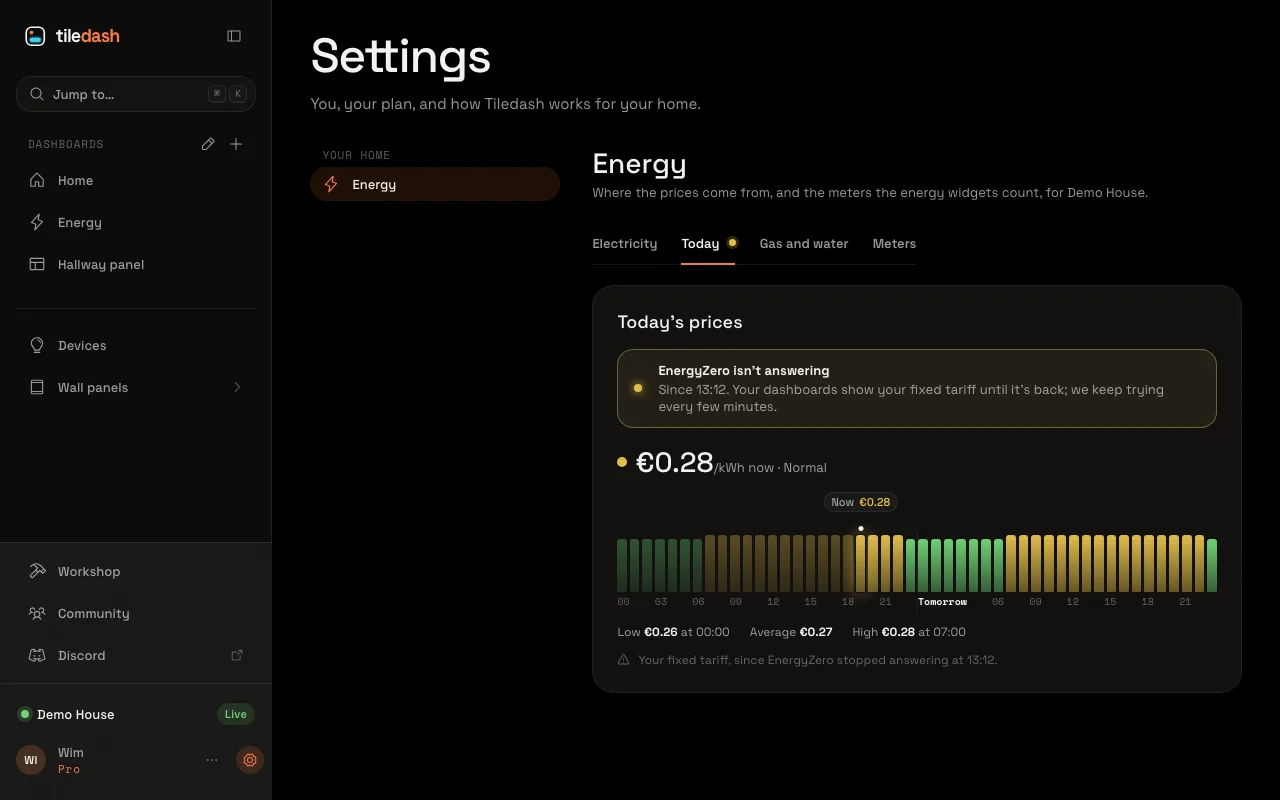
      Today, marked while the price source isn’t answering
      Today, marked while the price source isn’t answering4 of 4
      Follow the tutorial Read the guide

Put your home on a screen tonight.

Log in with your Homey account, pick the dashboards you want and watch them fill in. It takes a couple of minutes.

Log in with Homey