Tutorial
Set up your energy prices and meters
Check where your electricity price comes from, see today’s prices, add gas and water prices, and check the meters the energy widgets count.
- Takes
- About 3 minutes
- Steps
- 6
What you end up with

Open Settings
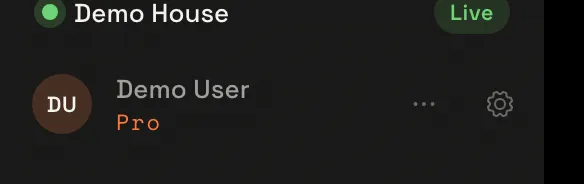
At the bottom of the sidebar, choose the gear beside your name: it opens Settings.
Choose Energy
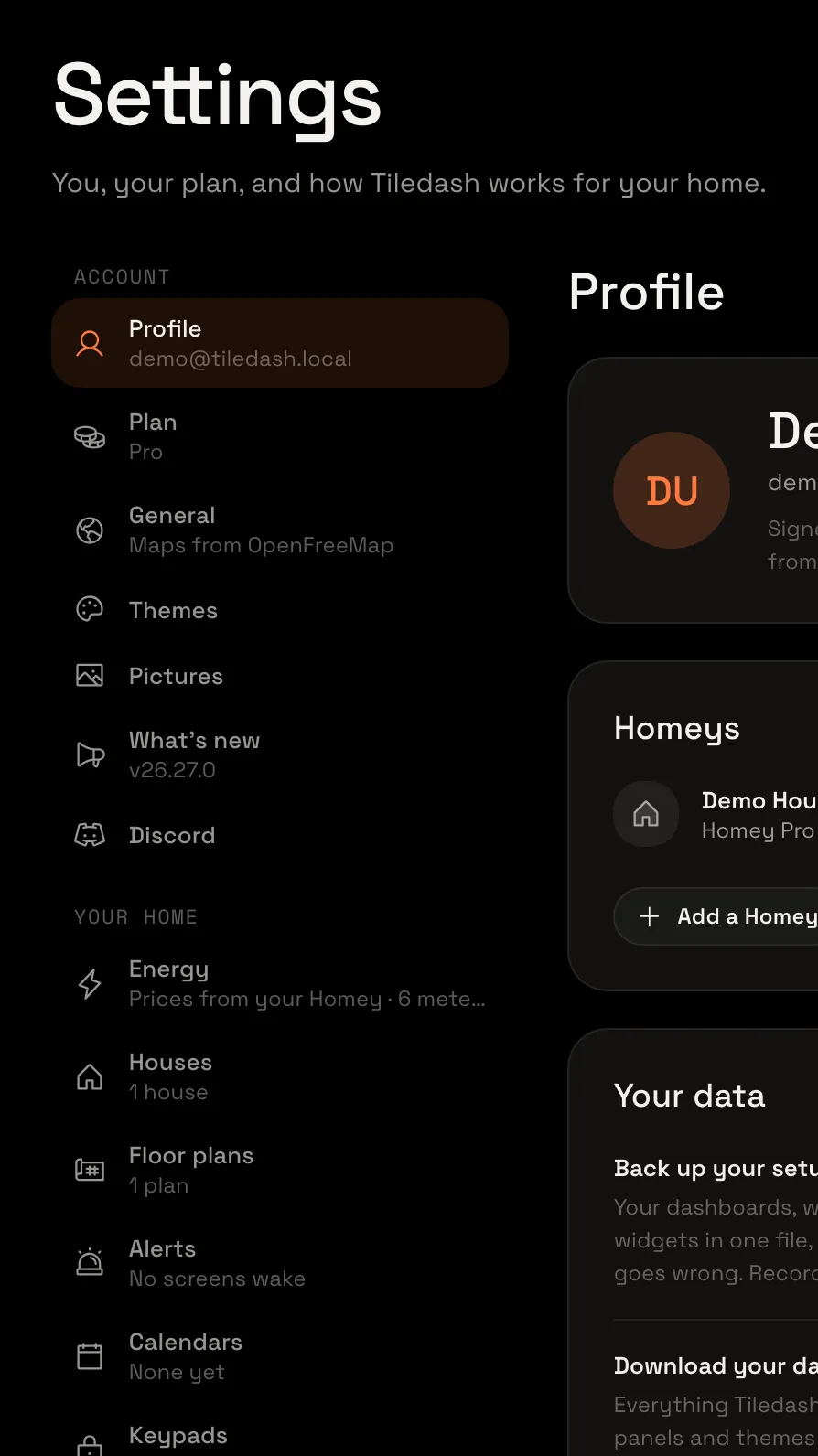
Choose Energy. It opens on the Electricity tab, with the Electricity price card on top.
Check where your price comes from
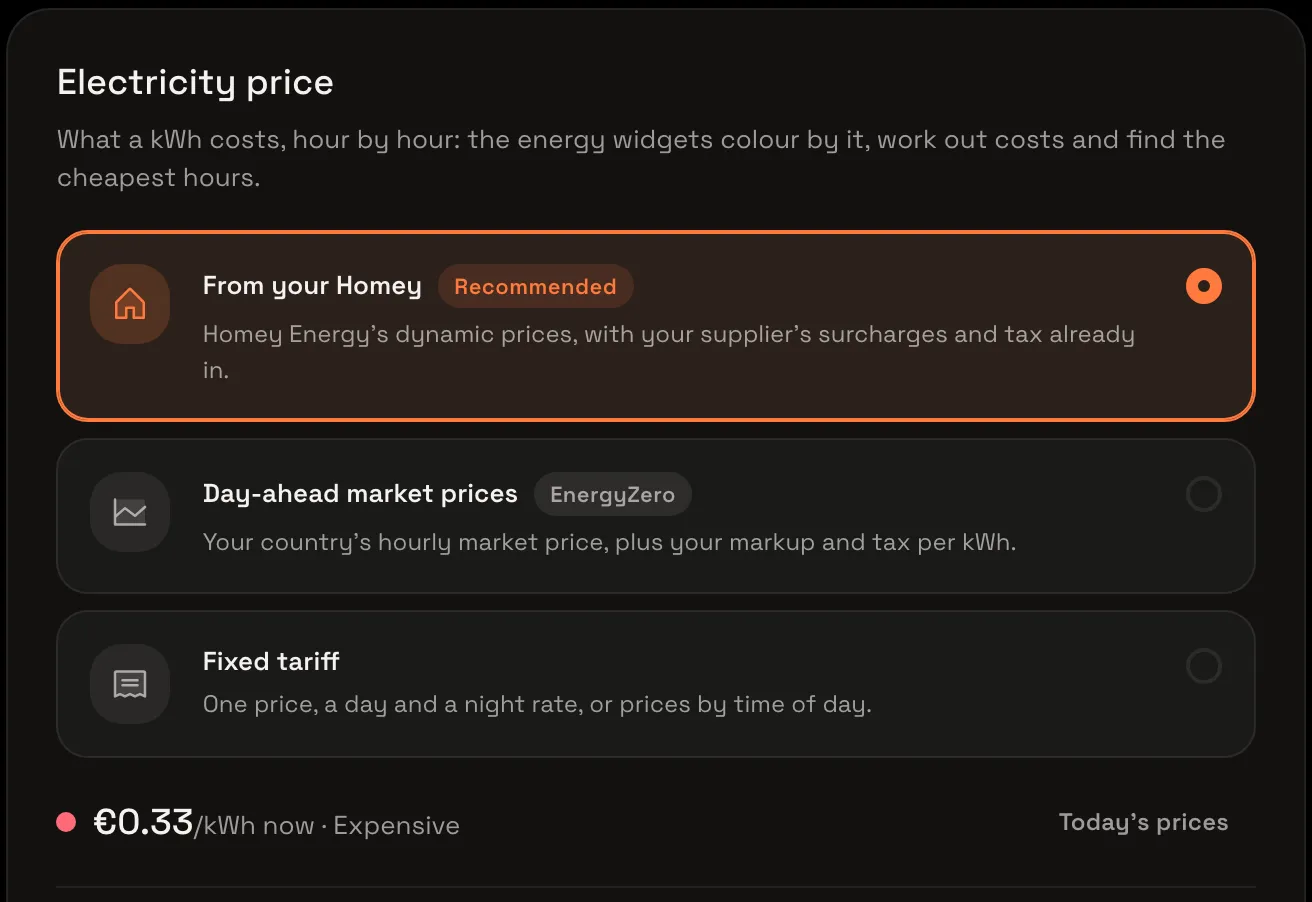
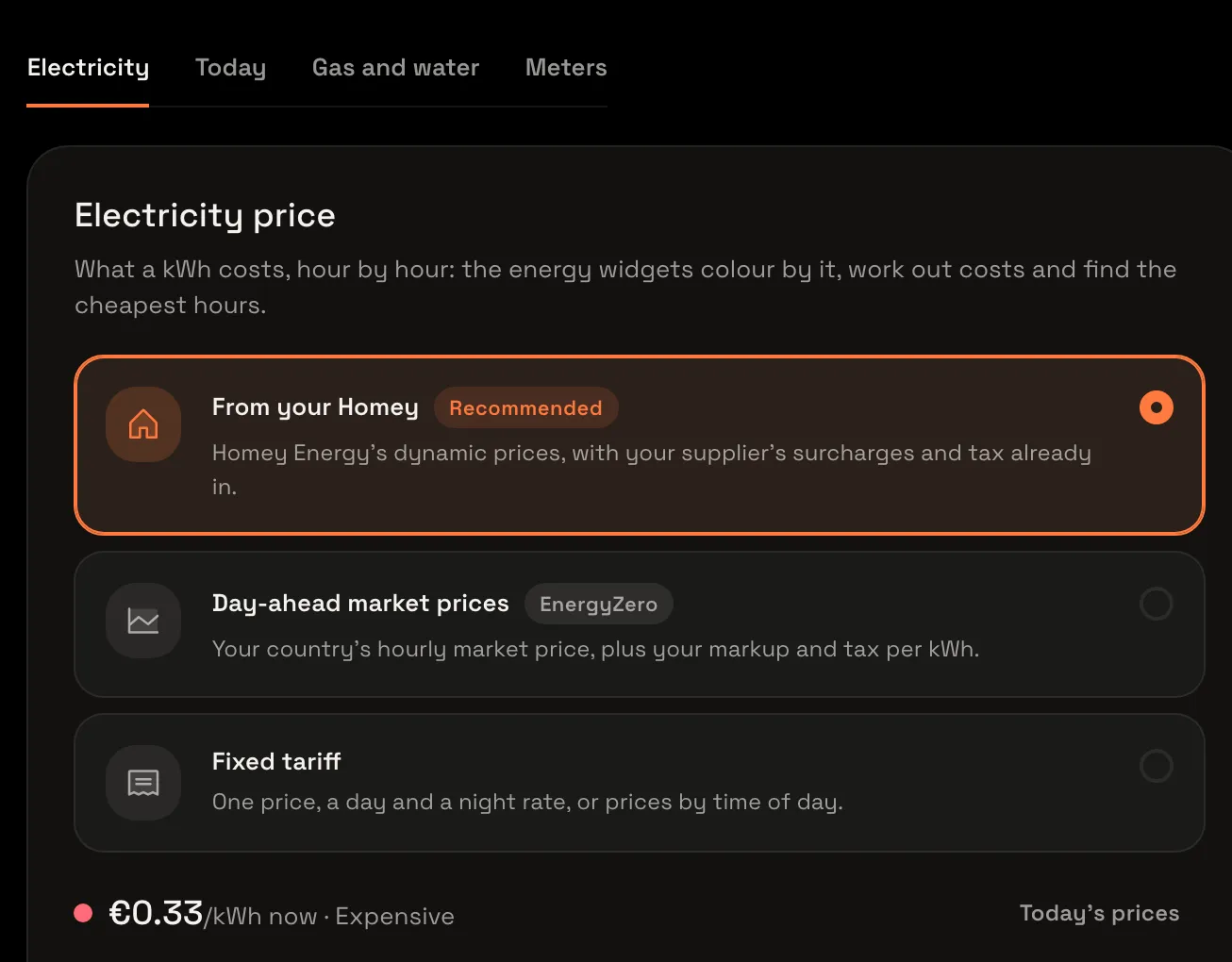
Every Homey starts on From your Homey: Homey Energy’s dynamic prices, or else the price set in your Homey’s own Energy settings, in your country’s currency. Under the sources you see what a kWh costs right now.
If your Homey has no price at all, choose Day-ahead market prices for your country’s hourly market price, or a Fixed tariff: one price, a day and a night rate, or prices by time of day.
See today’s prices
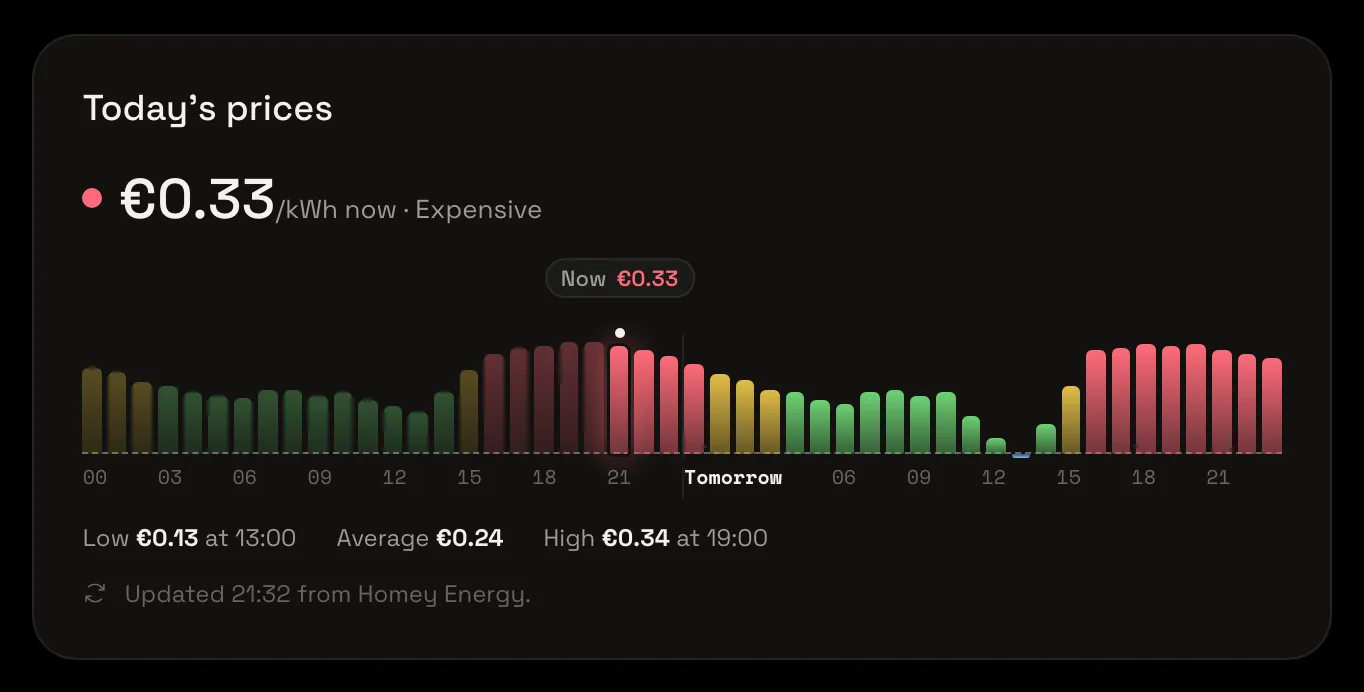
Choose the Today tab. It shows today’s prices hour by hour as the energy widgets draw them, with the price now, and tomorrow’s once they are out.

Set gas and water prices
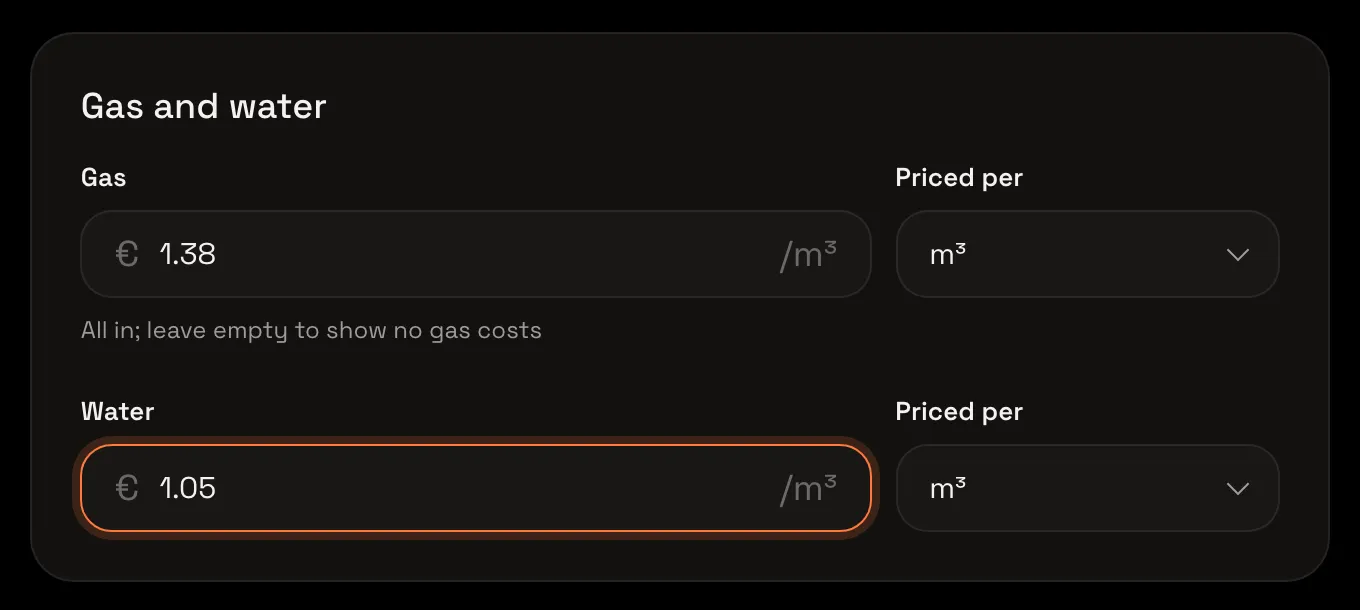
Choose the Gas and water tab and type what gas and water cost you, all in. Priced per starts on the unit bills use in your country, here m³; pick another, such as kWh or therms, if your bill prices it that way. Leave one empty to show no costs for it. Every change saves by itself.
Check your meters
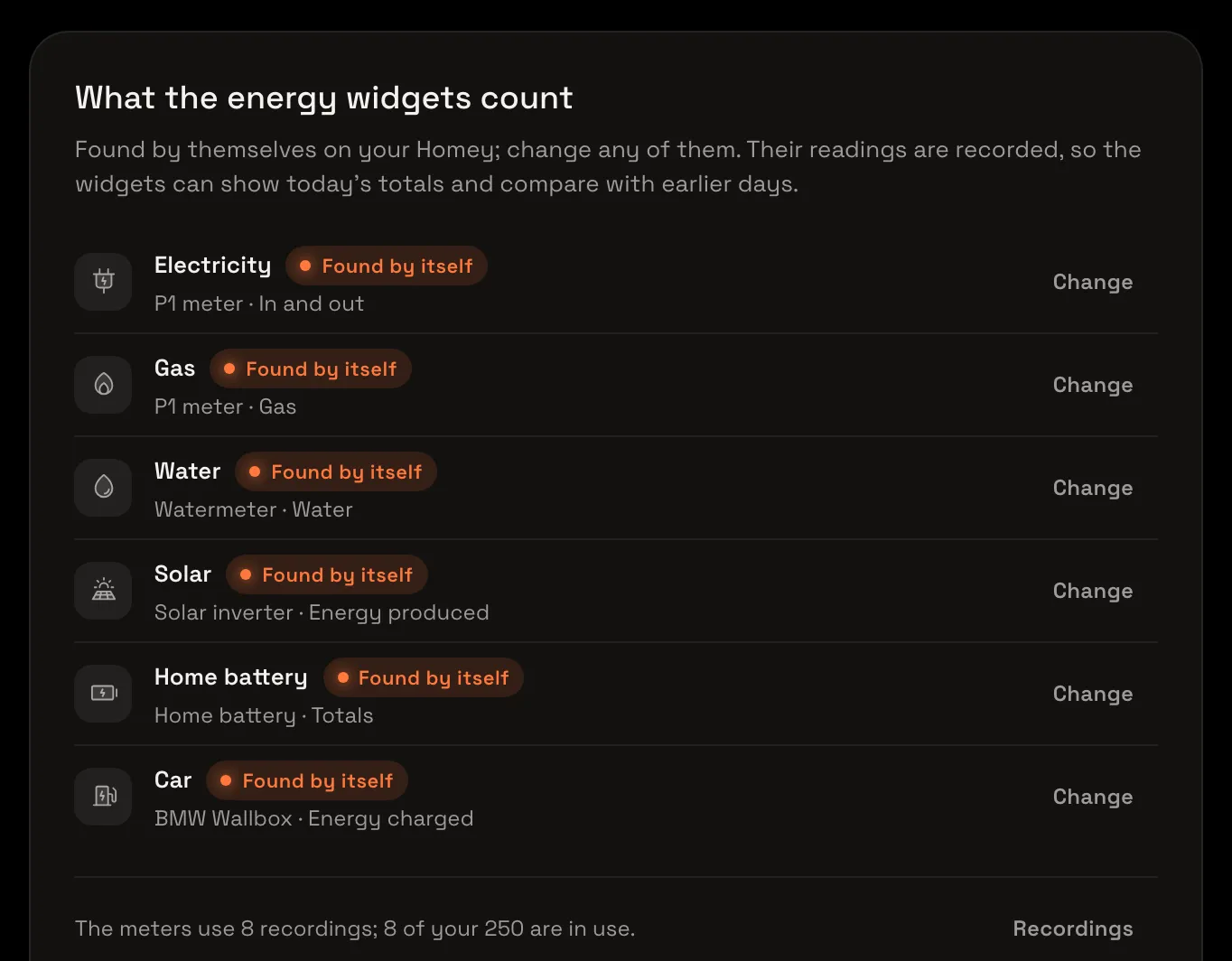
Choose the Meters tab. Tiledash finds your meters by itself: electricity, gas, water, solar, a home battery and a car charger. Choose Change on a row if it picked the wrong device.
Your prices are set
Your energy widgets now colour by your prices, work out costs and find the cheapest hours. The settings are for the Homey you are looking at.
Energy and prices explains every option, time-of-use tariffs included, and Show your home’s energy on a house puts them on a dashboard.


