Tutorial
Make a theme with your AI
Describe a theme, watch it in a live preview, ask for a change, see each save in History, and put it on a dashboard.
- Takes
- About 5 minutes
- Steps
- 5
What you end up with

Describe the theme you want
In a chat with your connected assistant, describe the look you want and the theme to start from. You can copy this prompt:
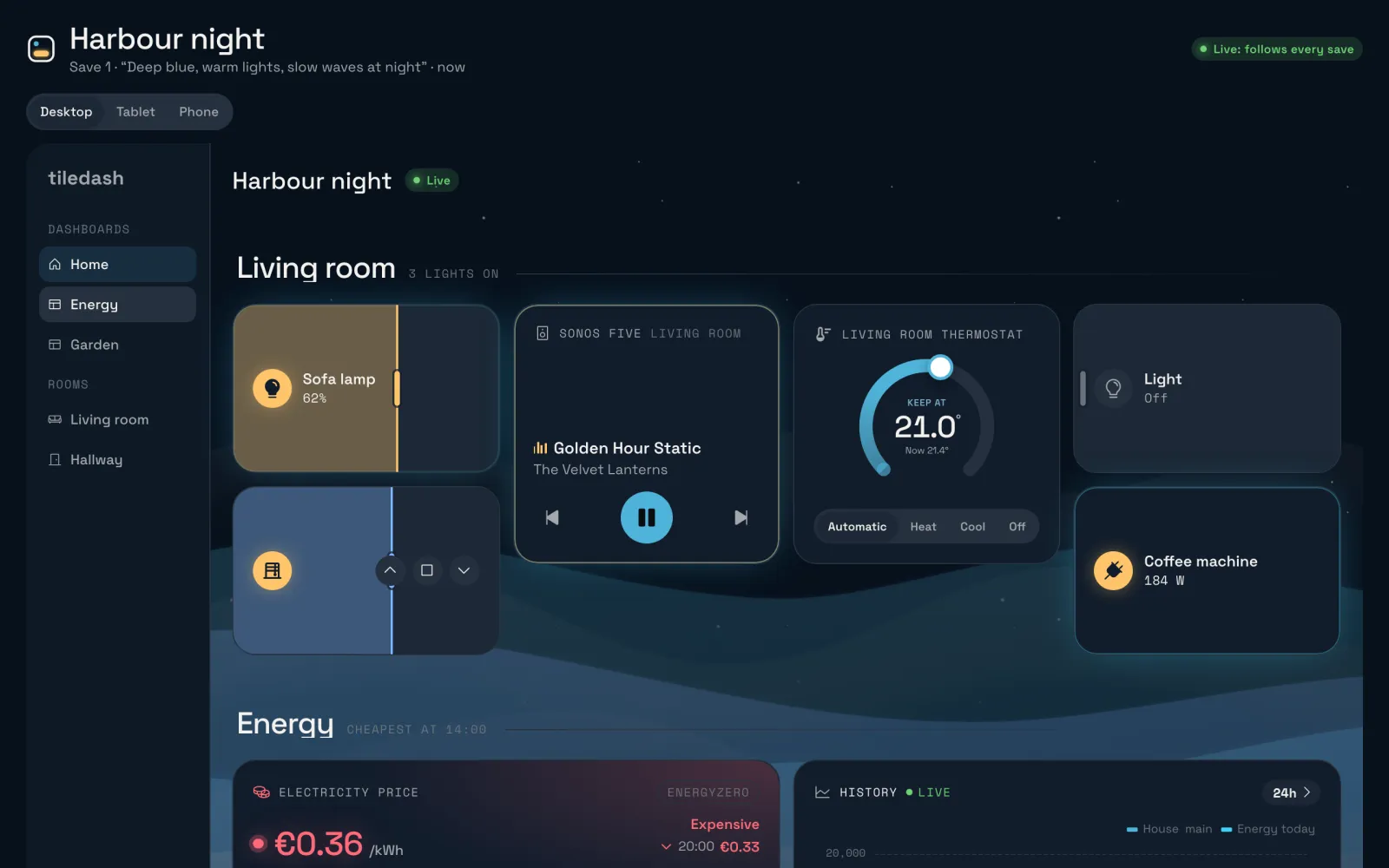
Use Tiledash to make me a theme called Harbour night, starting from Tiledash Dark. Make the background and tiles a deep blue, the accent a sea blue and the lights that are on a warm yellow, with slow waves behind the tiles and stars at night. Give me its live preview link.
The theme is saved as Harbour night, among your own themes. Your assistant’s colours may differ; the pictures show one theme made from this brief.
Open the live preview
Open the preview link your assistant gives you. The live preview shows Harbour night on a sample dashboard, on Desktop, Tablet or Phone, and says if any text reads badly. Keep it open while you talk to your assistant.
Ask for a change
Return to your chat and ask for one change:
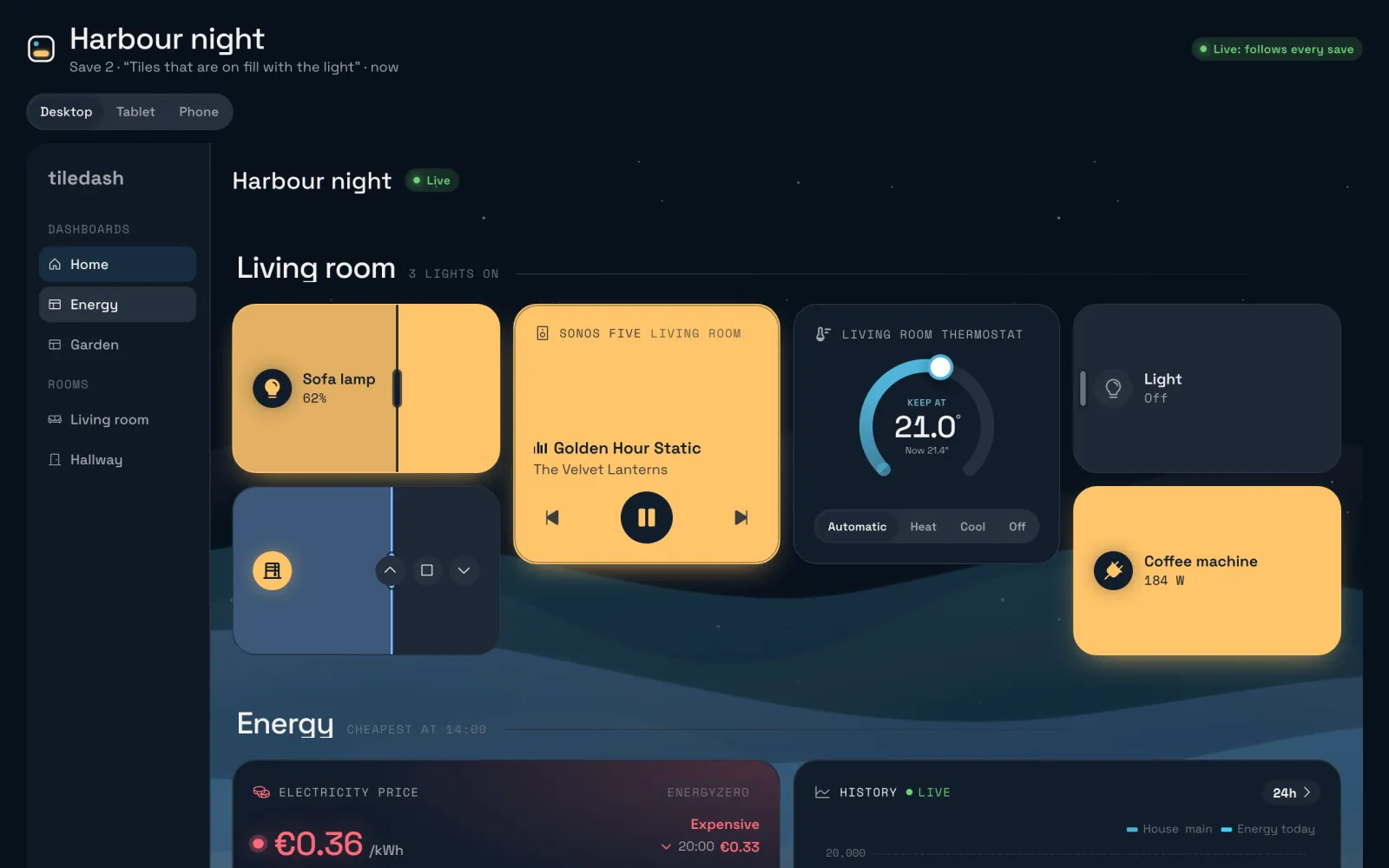
Make the tiles that are on in Harbour night fill with the light’s colour. Save it with the note “Tiles that are on fill with the light”.
The open preview follows the save: it names the new save, and the lamps and the player that are on fill with warm yellow.
See its saves
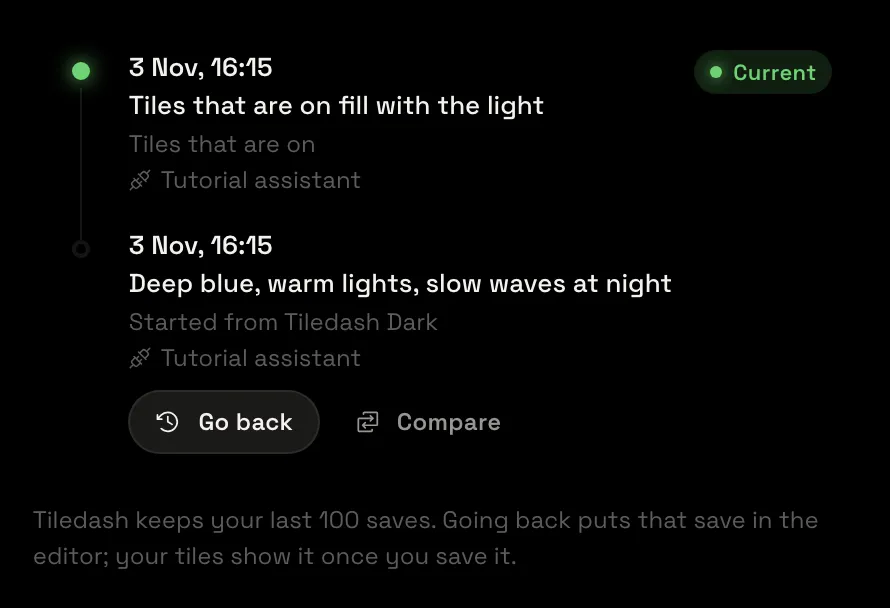
Back in Tiledash, choose Workshop in the sidebar, then Edit on Harbour night, and More › History. History lists the assistant’s change and the save that made the theme, each naming your assistant. Go back brings an earlier save back, should you want it.
Give a dashboard your theme
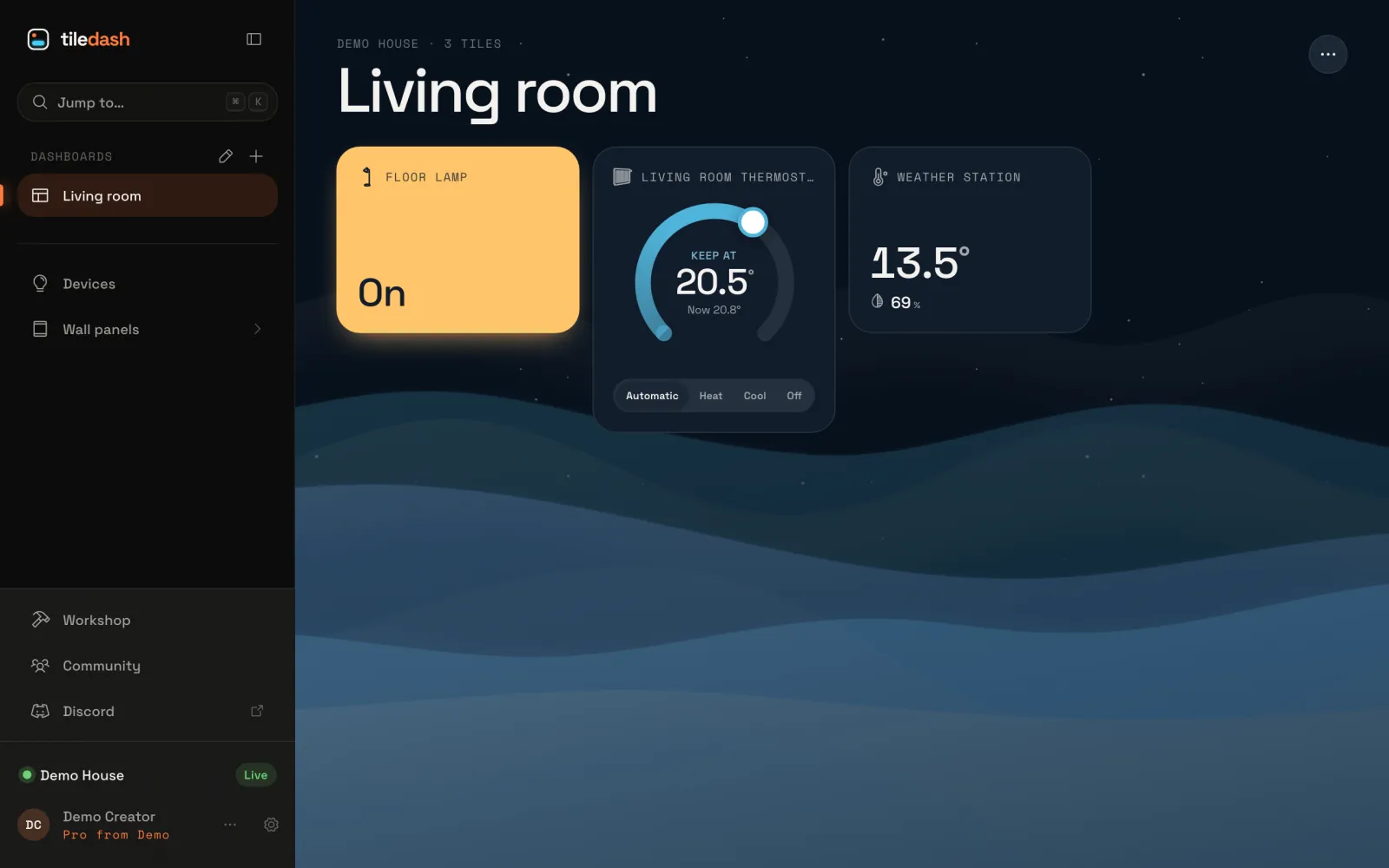
Open your dashboard, choose its ⋯ menu, Dashboard settings…, then Look and Change…. Harbour night is in the list under Your themes: choose it, then Use this theme, and Save in the settings.
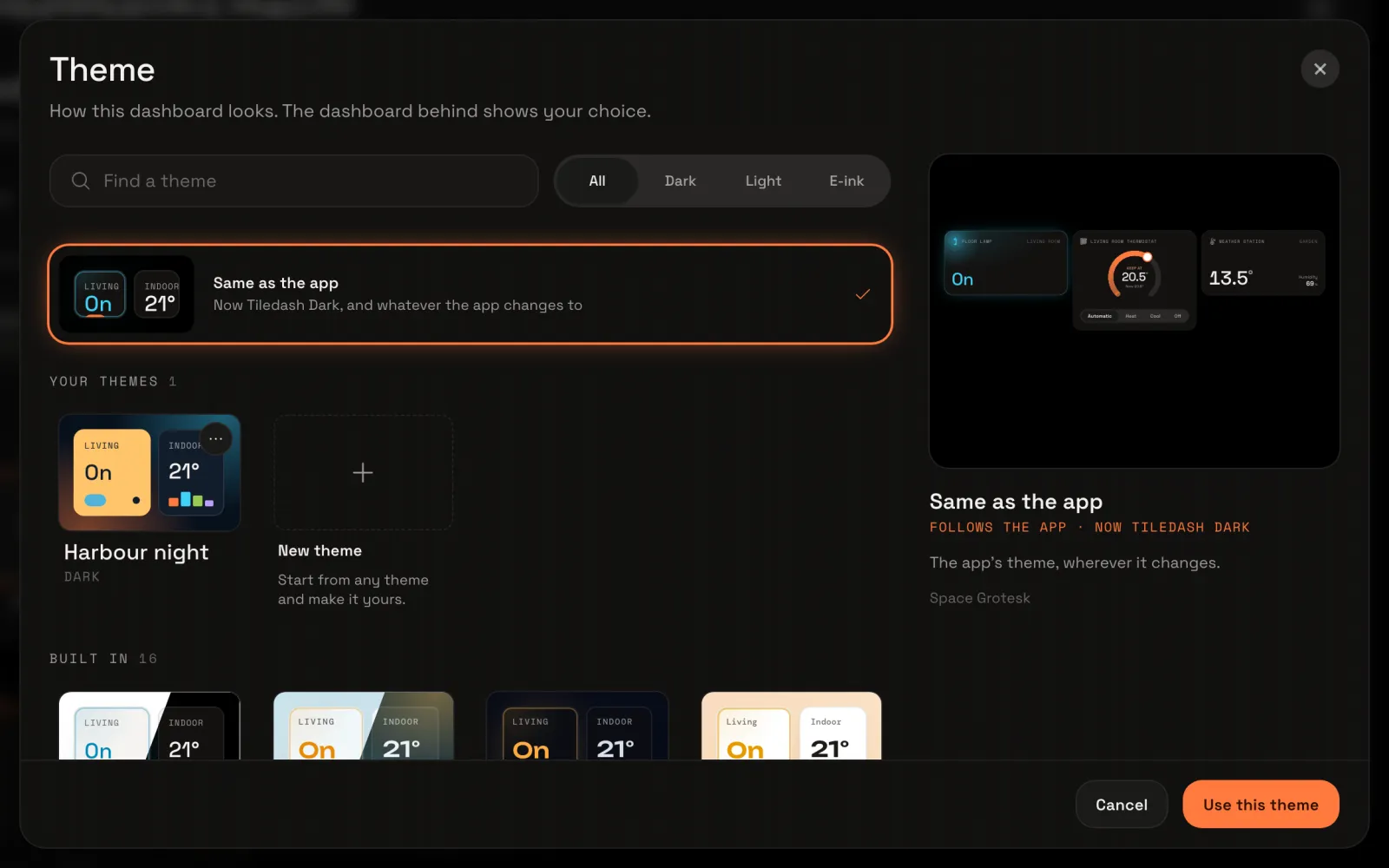
Your dashboard in its new theme
The dashboard draws in the theme your assistant made. From now on, ask your assistant to change it and every dashboard in it follows each save; it asks before a big change to a theme your dashboards use.
Themes on the AI assistants page says what your assistant can change, and Make your own theme explains every part of a theme.