Your AI
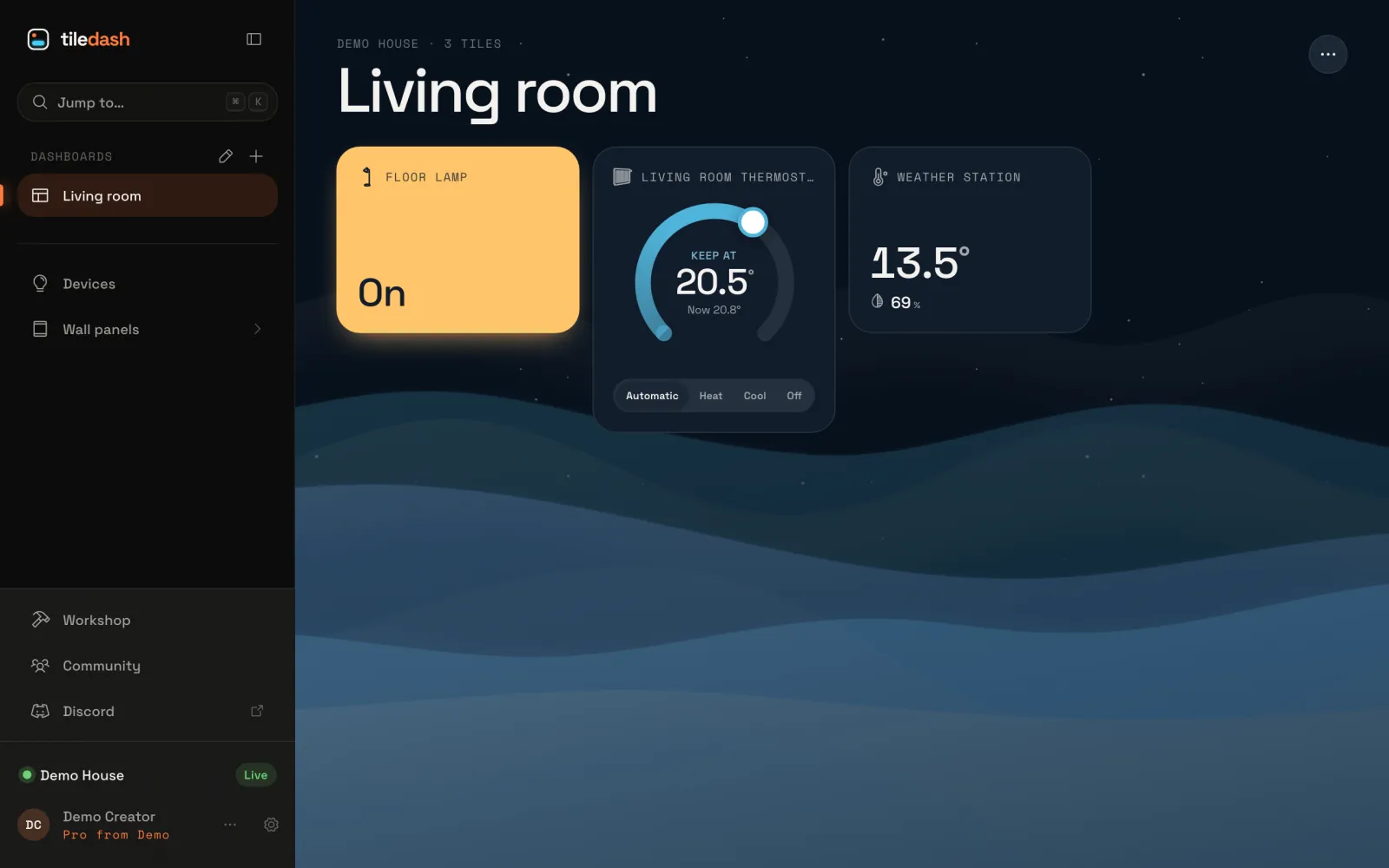
Ask for it. Watch it appear on your wall.
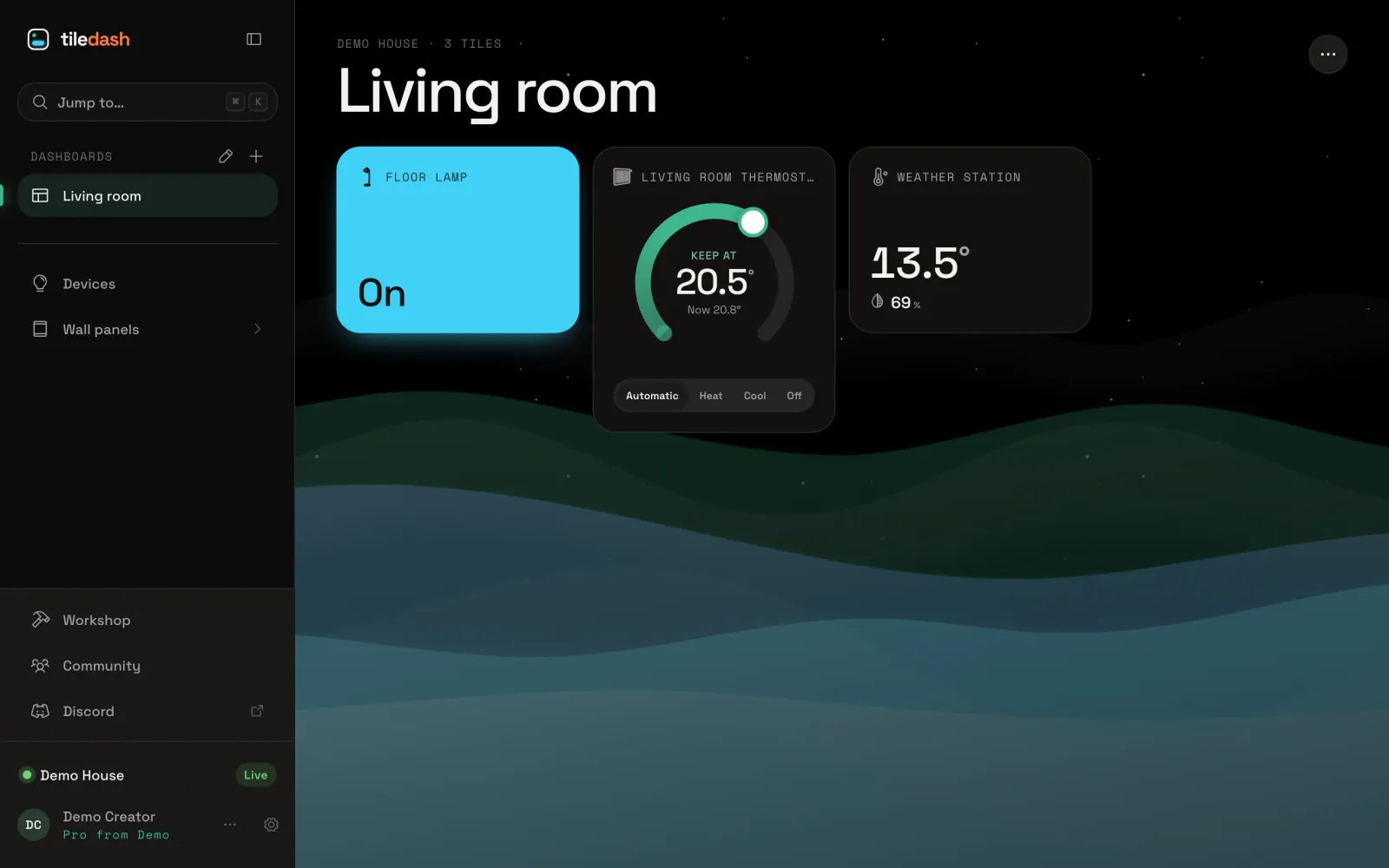
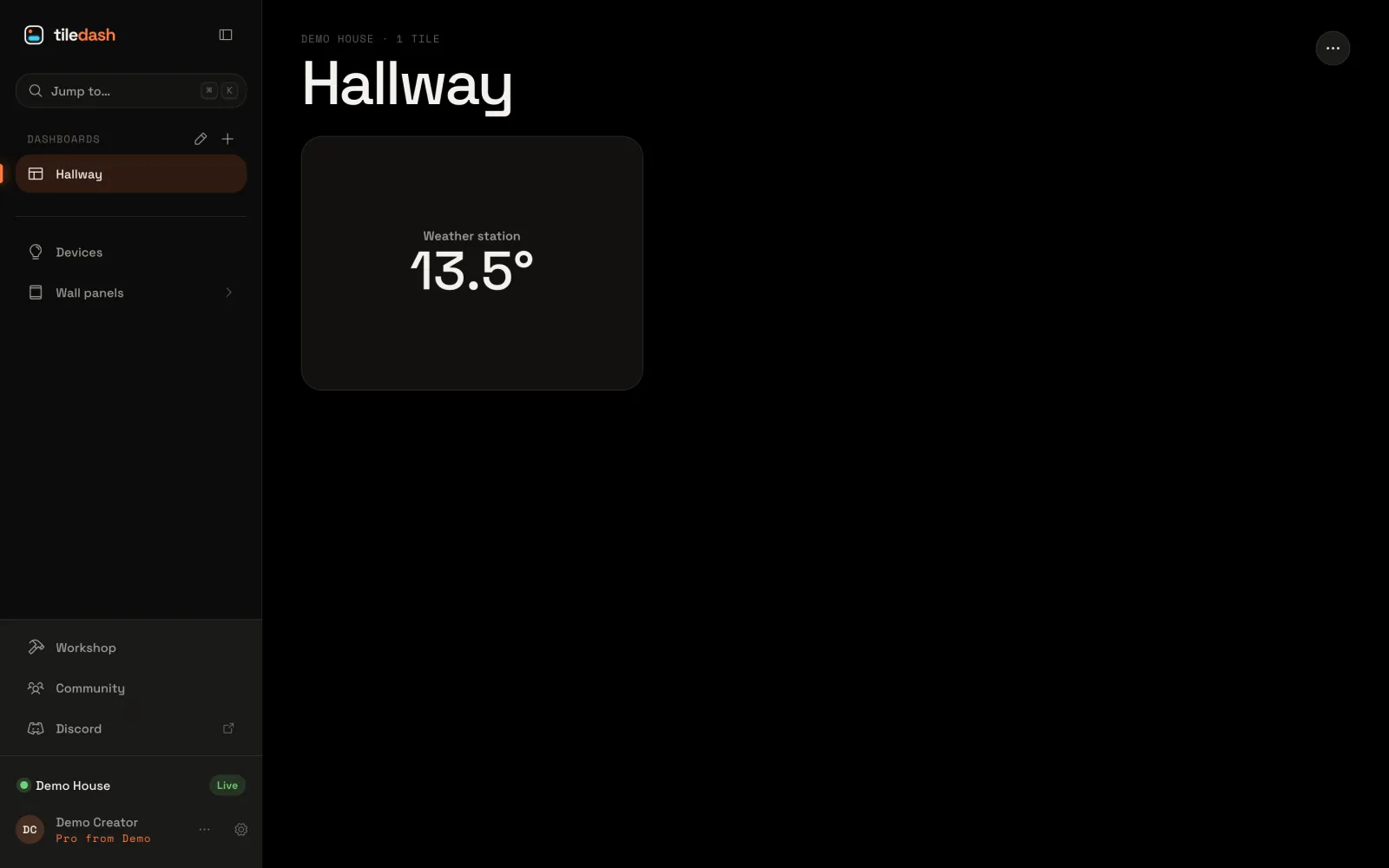
Connect the assistant you already use and it builds dashboards, widgets, themes and 3D furniture against your own devices, with a live preview before anything changes.
Part of Pro

- The assistant you useClaude, ChatGPT, Copilot, Cursor or Claude Code, connected over MCP, the standard way to give an assistant tools.
- A draft firstIt builds a draft without touching your screens. Check it on phone, tablet and desktop, then tell it to apply what you saw.
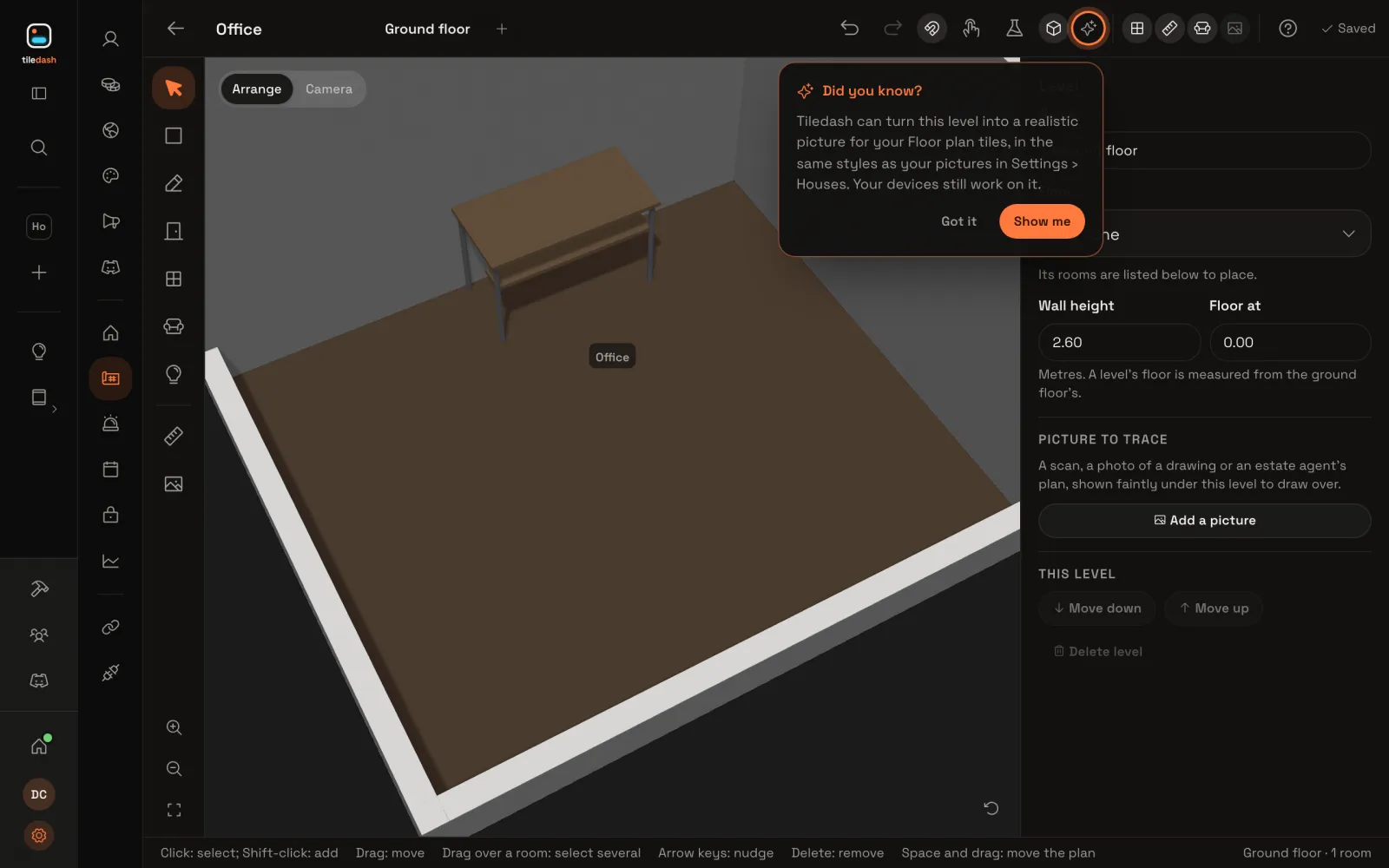
- Furniture and themes tooDescribe a desk or a look, refine it in a live preview, and place it in your floor plan or on a dashboard.
- It asks firstInstalling from the Community, applying a draft and deleting each wait for your yes.
Learn how
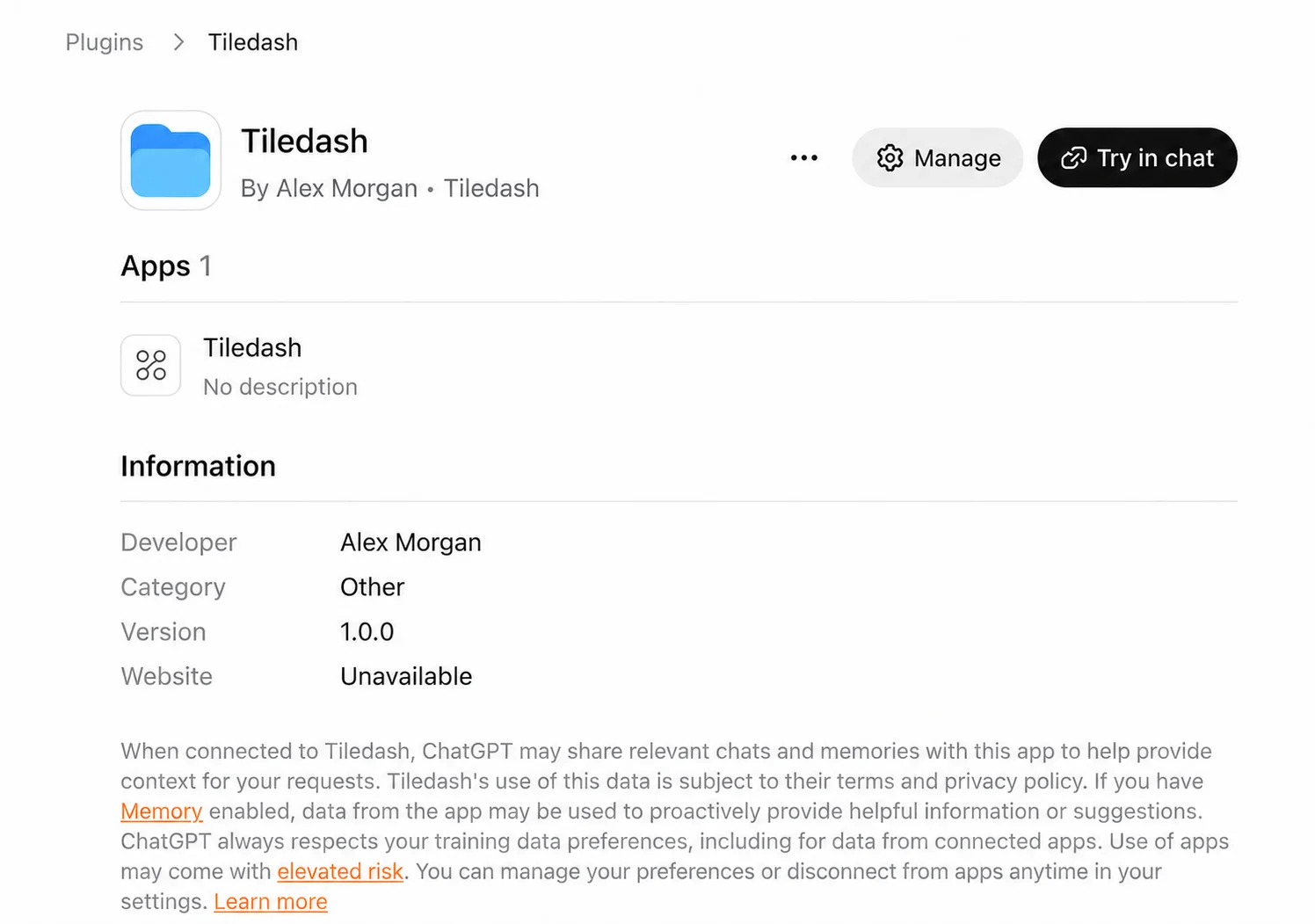

- Connect your AI assistantConnect Claude, ChatGPT, Copilot, Cursor or Claude Code to Tiledash over MCP, and see what the assistant can reach.
- What your AI can buildWhat your AI assistant builds in Tiledash: dashboards, widgets, partials, furniture and themes, and things to ask for.


Goes well with