Tutorial
Disconnect an AI assistant
Take an AI assistant’s access to your Tiledash away, so its key and preview links stop at once.
- Takes
- About 2 minutes
- Steps
- 4
What you end up with

Open Settings
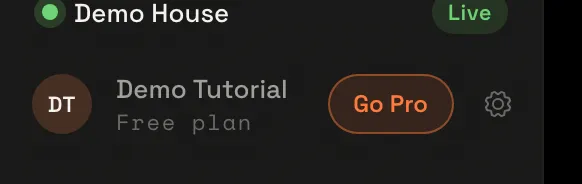
At the bottom of the sidebar, choose the gear beside your name: it opens Settings.
Choose AI assistants
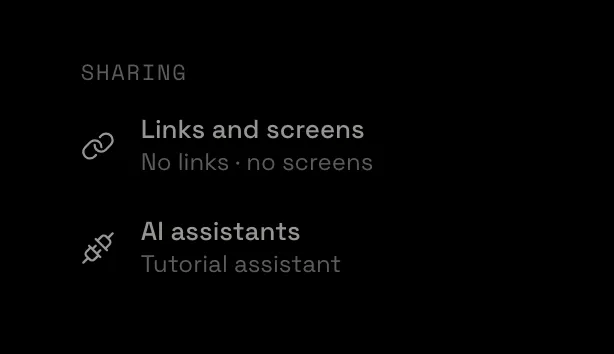
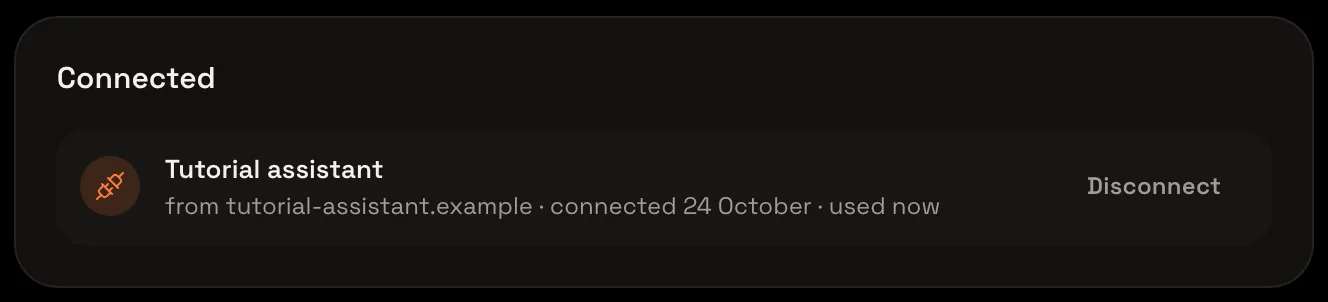
Scroll down the Settings menu to Sharing, and choose AI assistants. Under Connected, every app you allowed is listed with where it signed in from, when it connected and when it was last used. Here it is Tutorial assistant.
Choose Disconnect
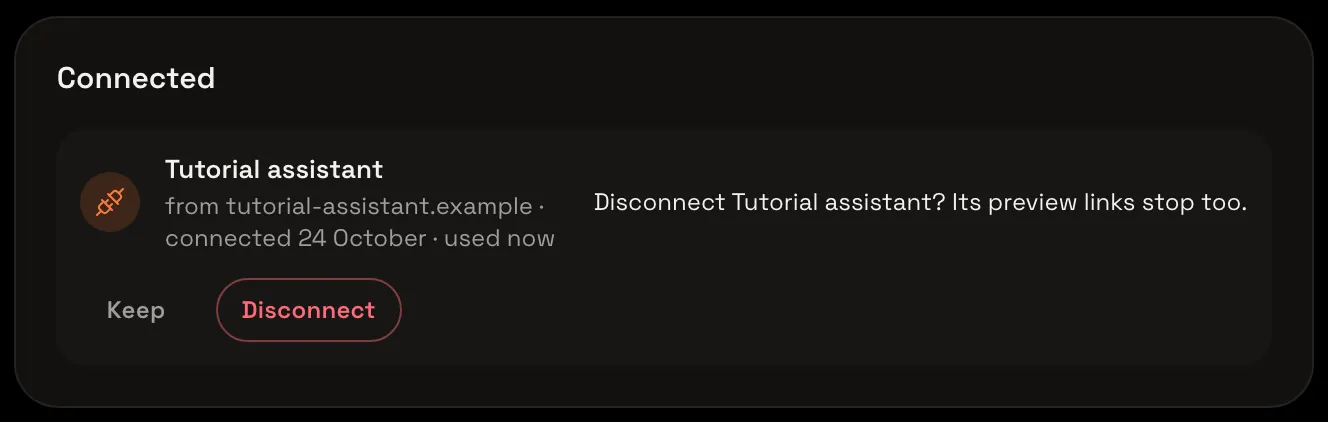
Choose Disconnect on the app’s row. The row asks first: Disconnect Tutorial assistant? Its preview links stop too.
Confirm
Choose Disconnect again. The app is gone from the list, and Connected says No assistant connected yet.
Its access is gone
The assistant’s key stopped working at once: it can’t read or change your widgets any more, and its preview links stop too. To use it again, connect it again and sign in as before.

Build widgets with your AI says what a connected assistant can do, and Connect Tiledash to your AI connects one again.


