Tutorial
Connect Tiledash to your AI
Add Tiledash’s MCP server to your assistant, sign in, and review the access before connecting.
- Takes
- About 5 minutes
- Steps
- 4
What you end up with
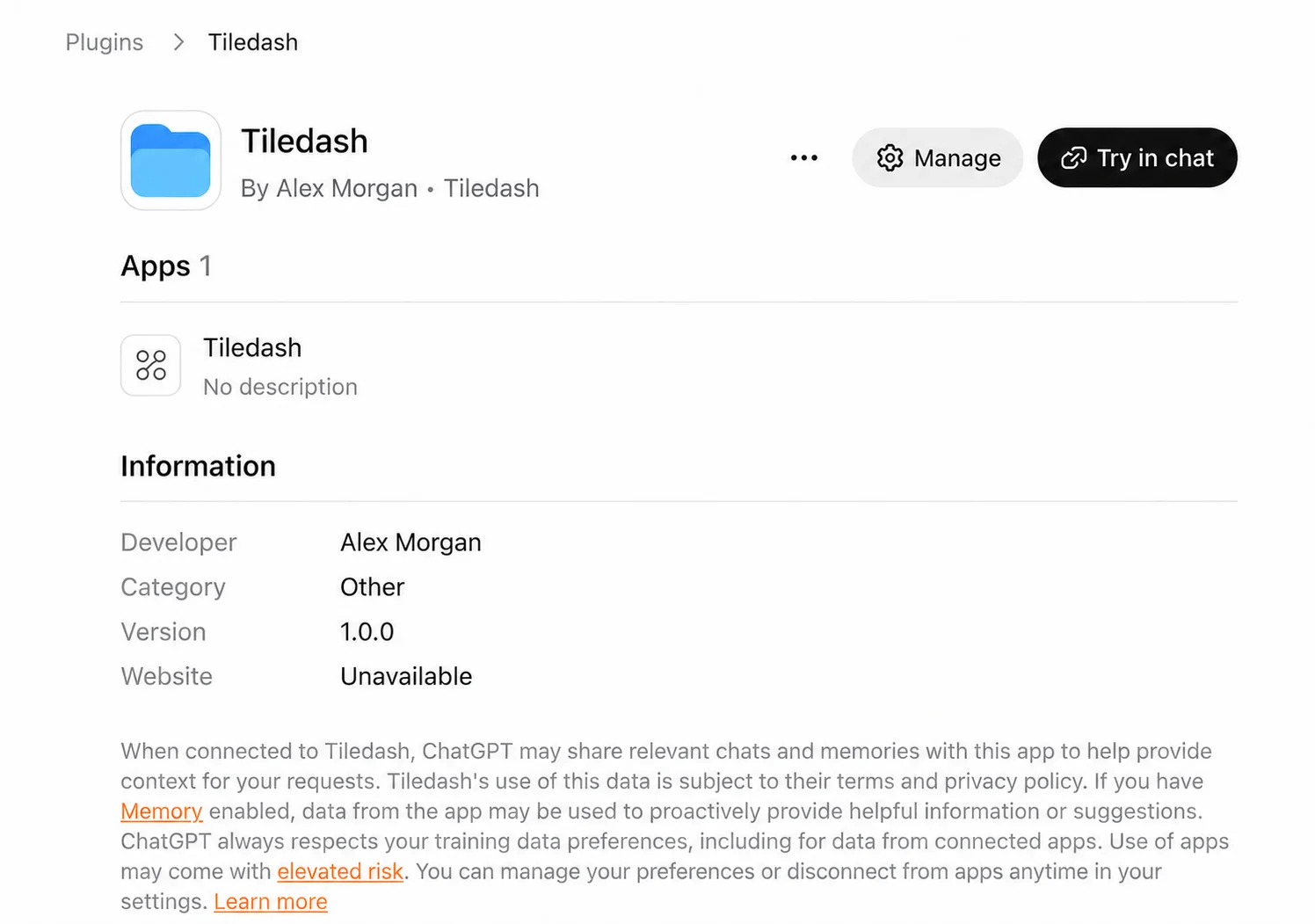
The pictures follow ChatGPT in a browser. The Codex desktop app uses its own settings; follow the Codex instructions in the first two steps instead. Claude and other clients have different menus, but use the same server address and Tiledash sign-in.
Add the server
In Codex, open Settings → MCP servers → Add server. Name it Tiledash, choose Streamable HTTP, and enter this server URL:
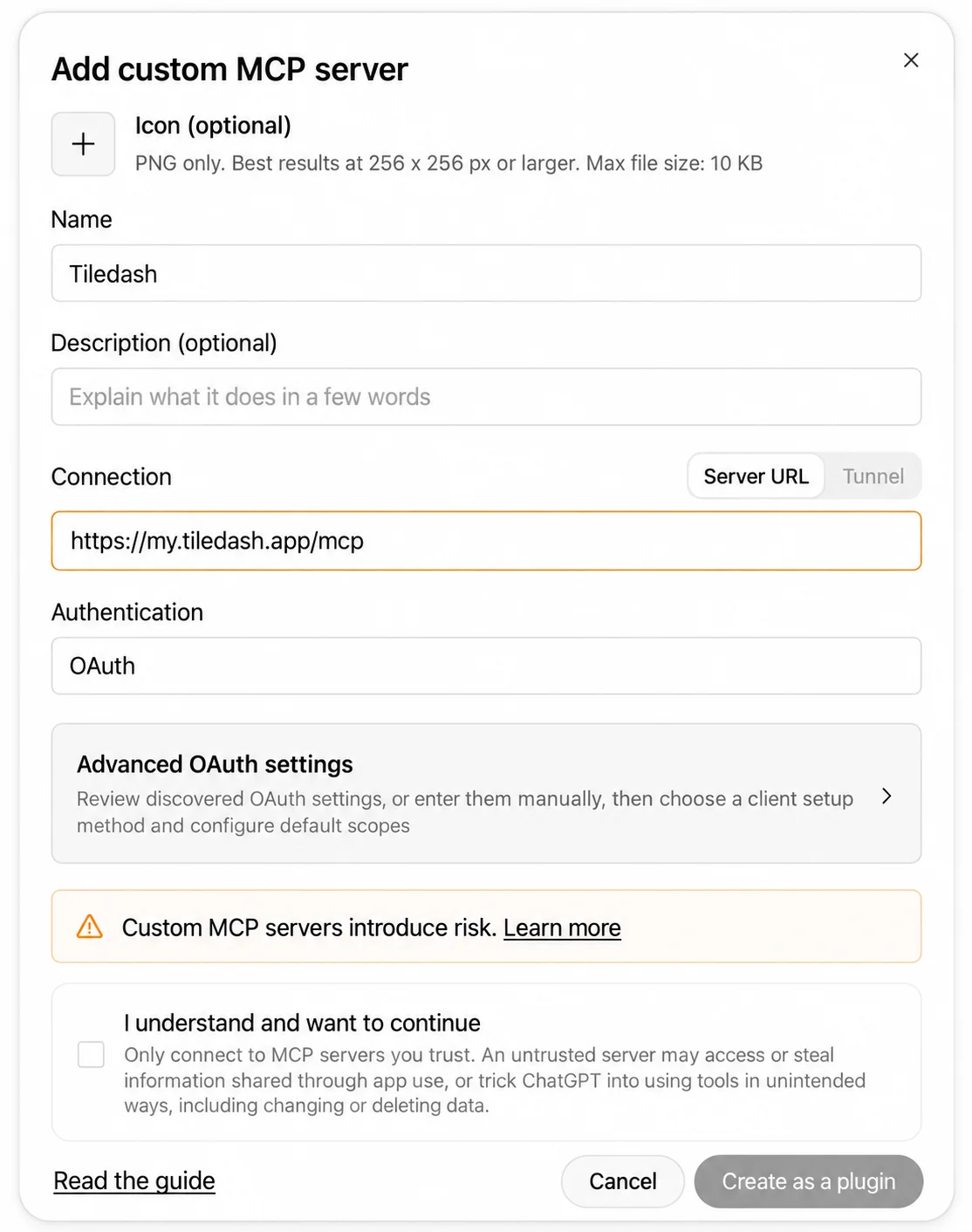
https://my.tiledash.app/mcpIn ChatGPT, open Plugins → Personal, then Add → Add custom MCP server. Enter Tiledash as the Name, paste the same Server URL, and choose OAuth. Leave the optional client ID and secret empty.
Start the connection
In Codex, choose Save, restart the app if prompted, then choose Authenticate for Tiledash in MCP servers.
In ChatGPT, read the custom-server notice. If you agree, select I understand and want to continue, choose Create as a plugin, then Continue to Tiledash.
Sign in with Homey
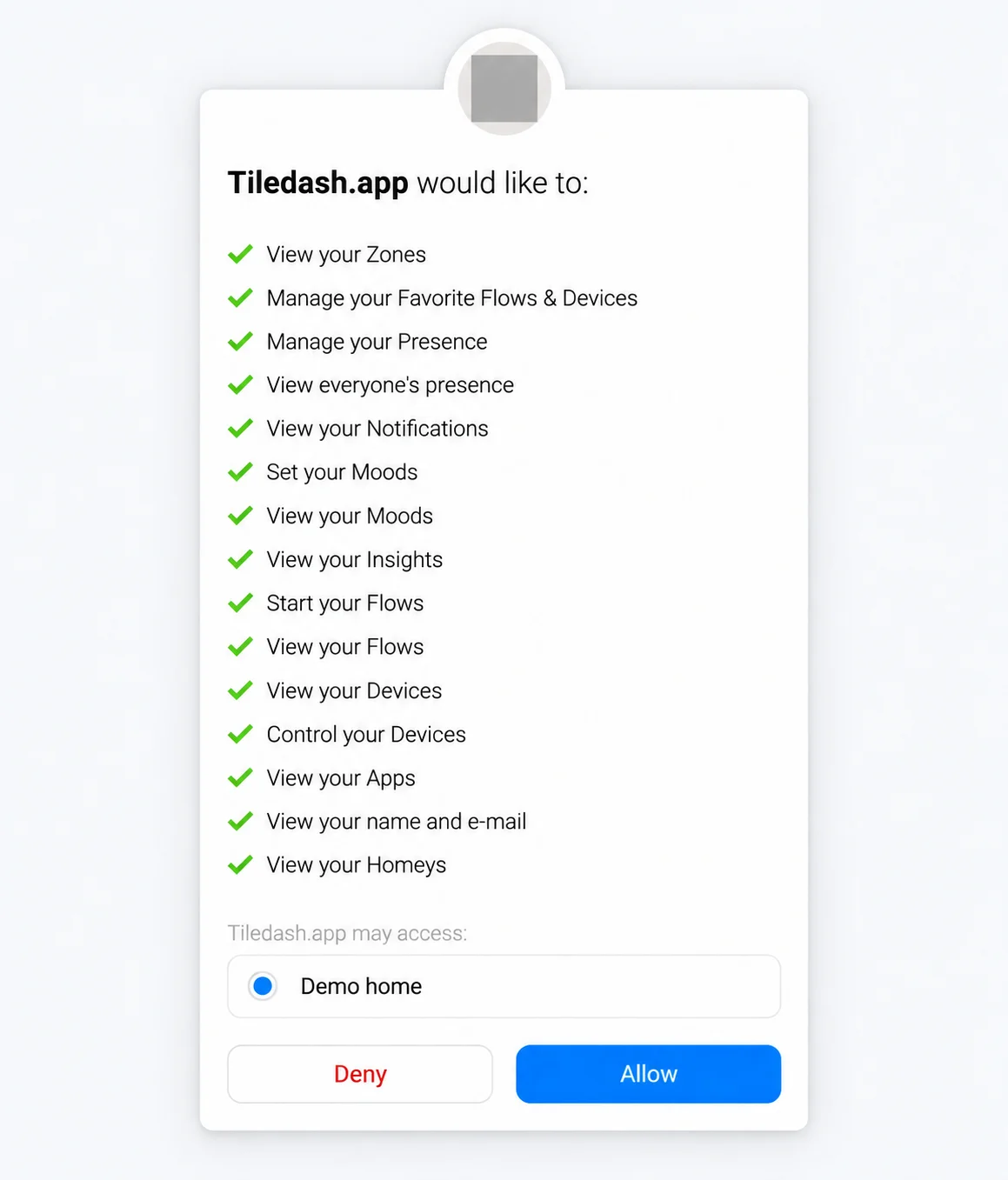
Sign in with your Homey account. If Homey asks for permission, review the listed access and the selected Homey. Choose Allow if you want Tiledash to use that Homey. You may skip this screen if you are already signed in.
Review the assistant’s access
Tiledash names the assistant and shows what it can and cannot do. Check that the return address belongs to your client. This connection can read device names and readings and change your own widgets, test devices and furniture models. Choose Allow if you agree.
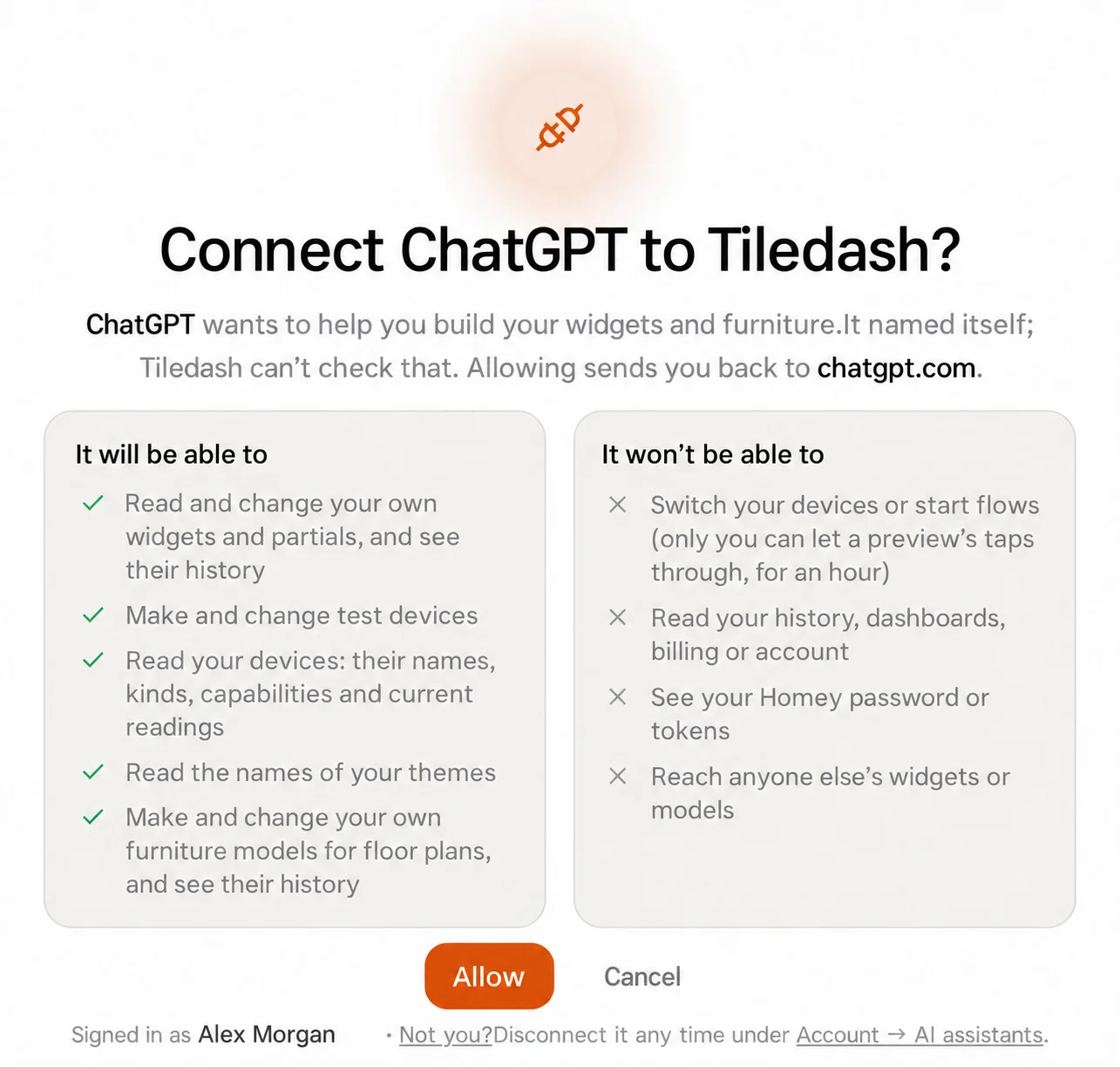
You can disconnect it later under Settings → AI assistants.
Try your connected assistant
You return to your client. In ChatGPT, Tiledash appears under Installed and offers Try in chat. In Codex, check that Tiledash is enabled in MCP servers and available in your chat.
Next, build a model with your AI. Making widgets and furniture needs Pro; you can connect an assistant before upgrading.
Read Build widgets with your AI for other clients and a fuller explanation of the connection’s access.