Dashboards and screens
Dashboards for every screen: laid out per size, on the wall, on e-ink and in your flows.
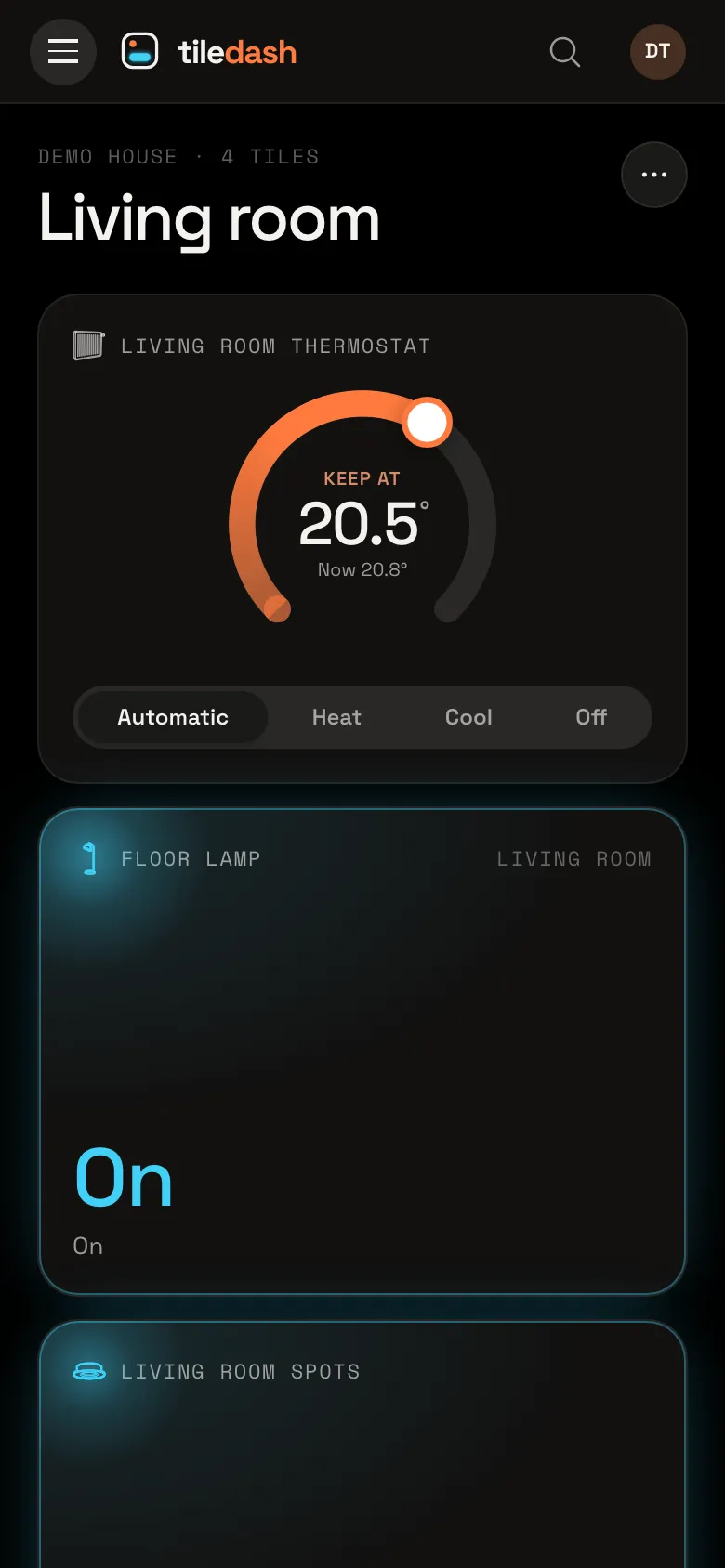
- Your dashboardsStart a dashboard from your own Homey, edit it, configure and style its tiles, and set its options.
- Tiles that do moreShow a tile only when it matters, put tiles inside a widget, and stack tiles on top of each other.
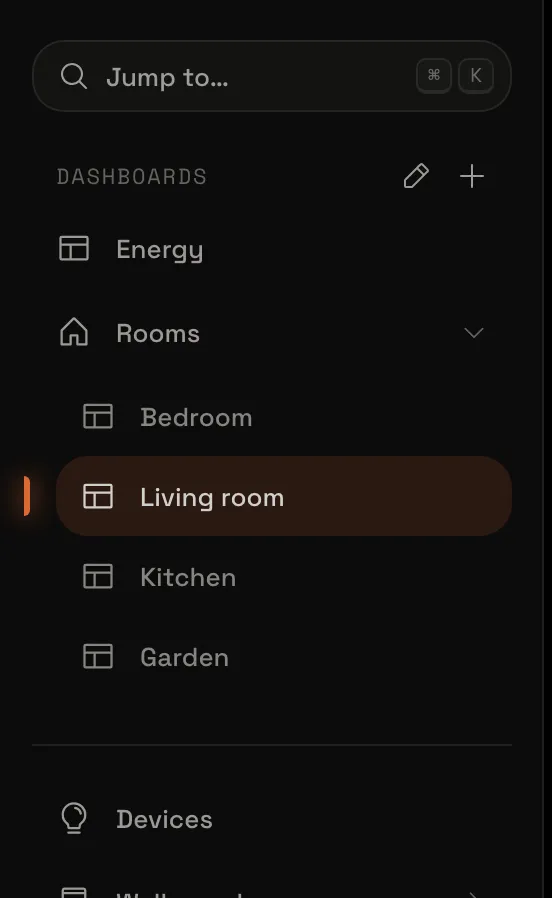
- A layout per screenArrange each dashboard for phone, tablet and desktop, and arrange the sidebar.
- Open dashboards and popupsOpen one dashboard from another, add a navigation bar, send a web request, and let popups open when something happens.
- History and recordingRecord the readings you care about and see days, months or years of them in a chart.
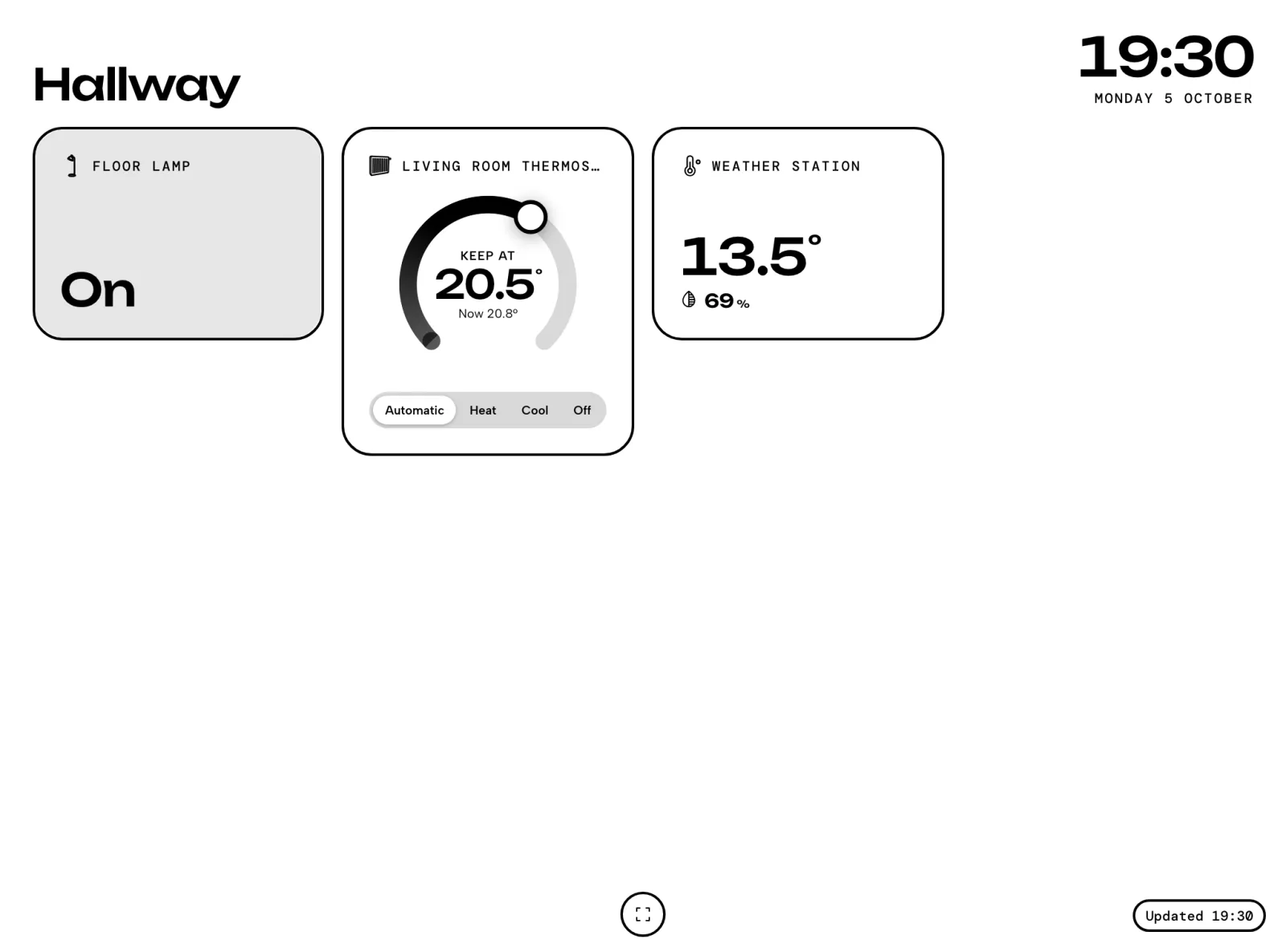
- Wall panels and e-inkTurn a tablet into a wall panel that swipes between dashboards, falls asleep to a clock and wakes for alerts, or run Tiledash on an e-ink screen.
- AlertsSmoke, a leak, the alarm, the doorbell, motion or a door can wake your wall panels and take over the screen, with the camera that sees it.
- Tiles in your Homey flowsLet a tile tell Homey it was pressed, so a flow starts, and let your flows switch that tile, give it a text, a colour or an icon, or hide it. With the Tiledash app for Homey Pro.

