Tutorial
Protect an action with a PIN
Set your PIN, choose which device action asks for it, and try unlocking your front door.
- Takes
- About 5 minutes
- Steps
- 6
What you end up with

Open Settings
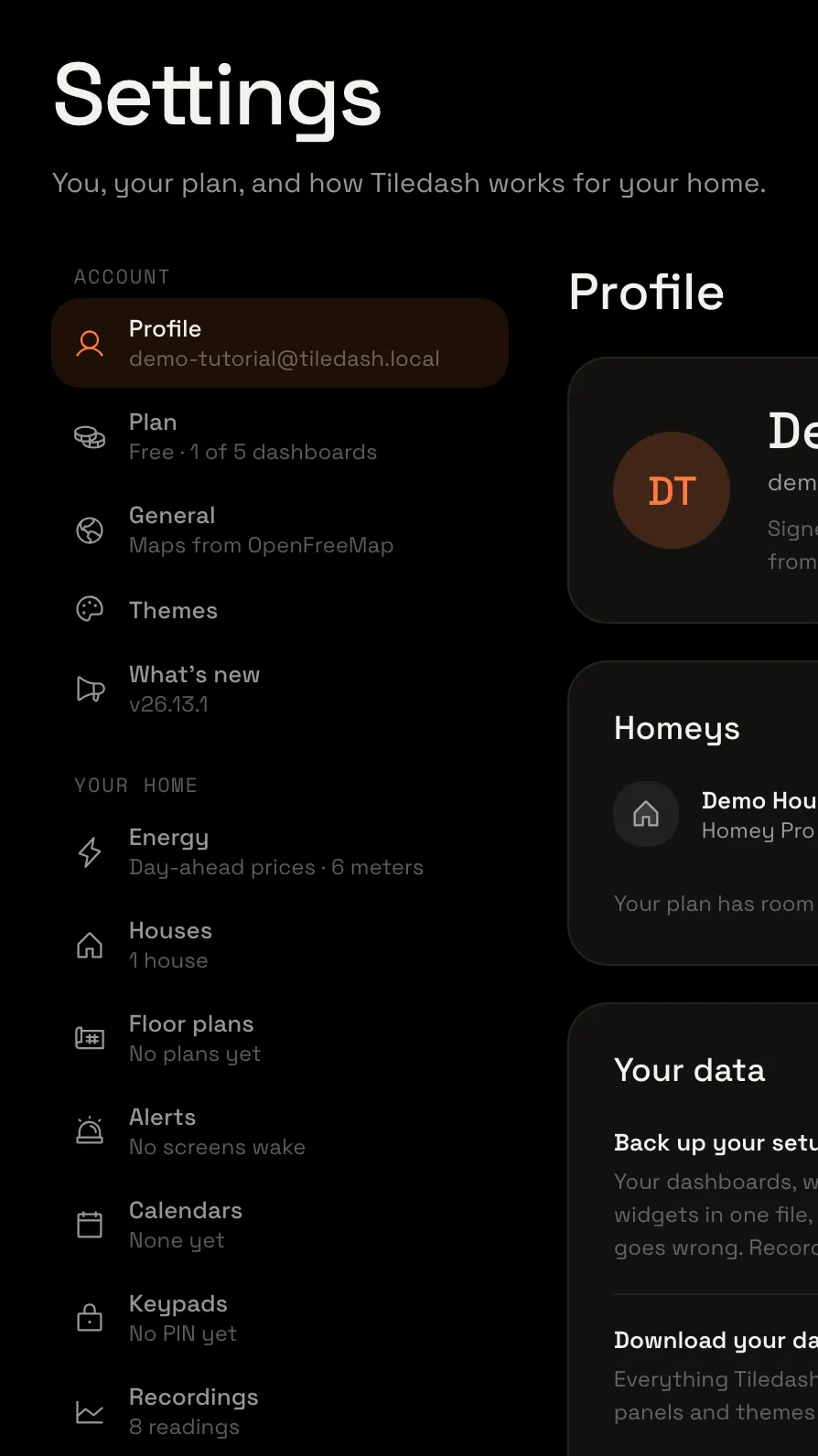
At the bottom of the sidebar, choose the gear beside your name: it opens Settings.

Choose Keypads
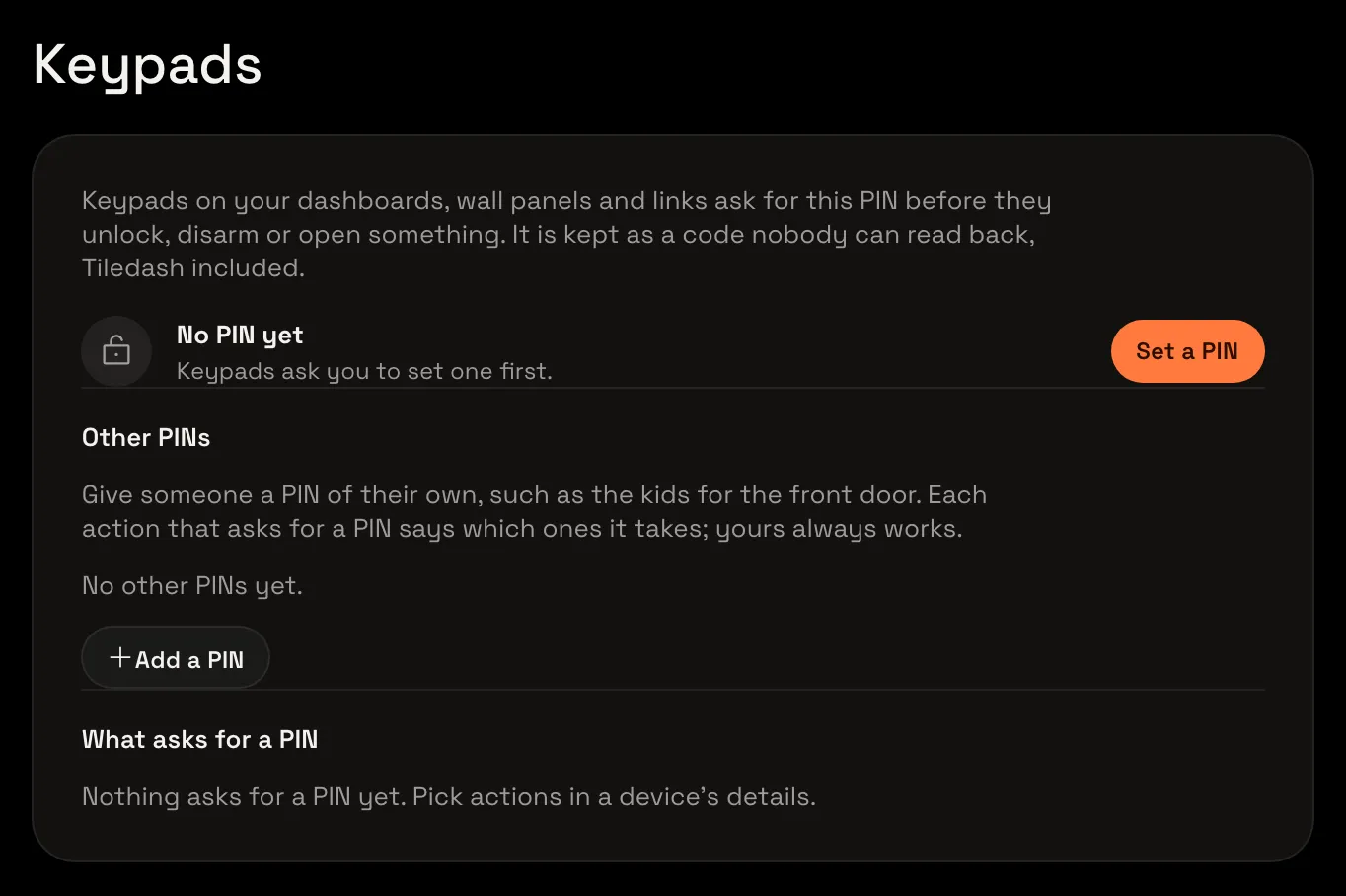
Choose Keypads. If you haven’t set a PIN, the card says No PIN yet.
Set your PIN
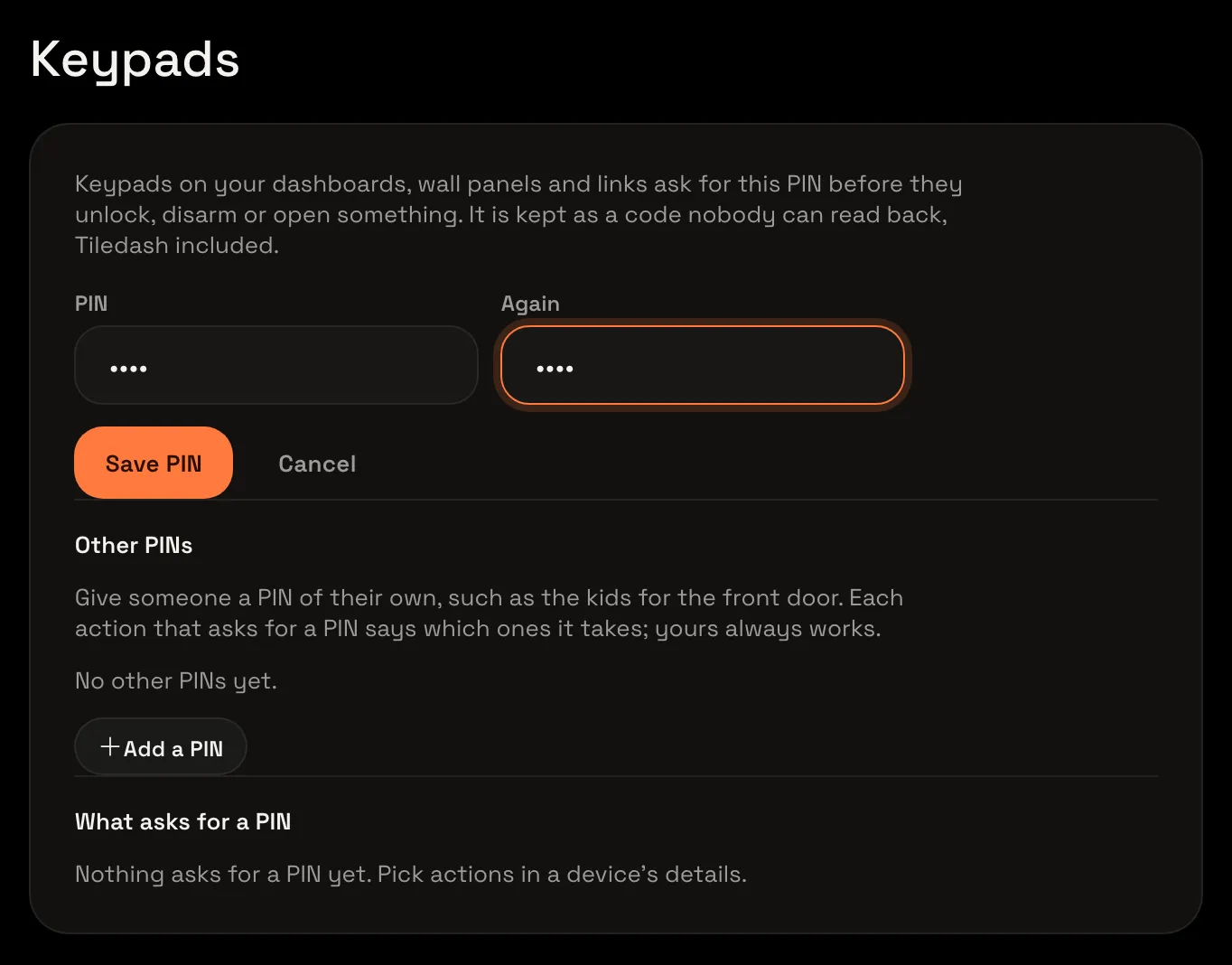
Choose Set a PIN. Type a PIN of 4 to 8 digits in PIN, then type it again in Again. Choose Save PIN. The card now says A PIN is set.
Open your device
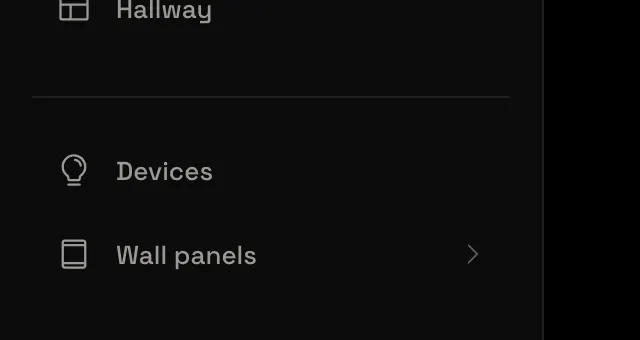
Choose Devices in the sidebar. The Devices page opens.
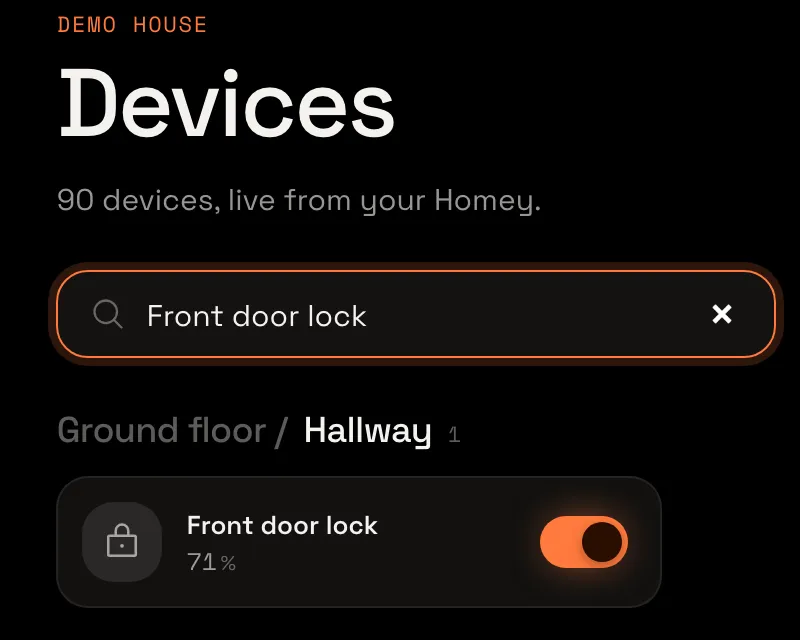
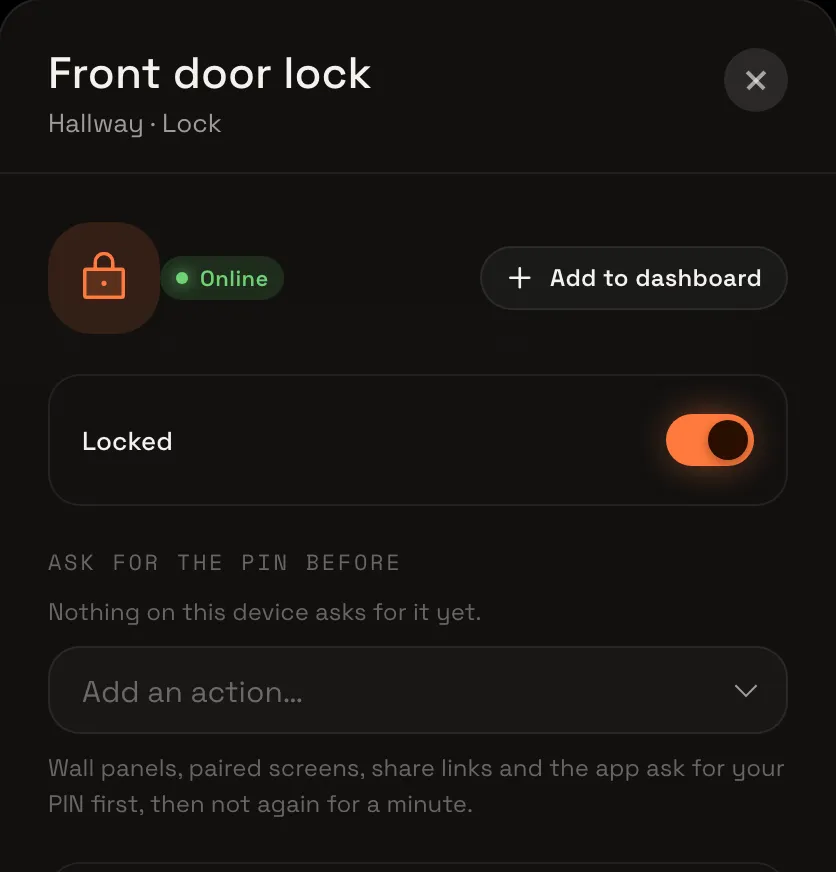
Search for the device you want to protect, then choose its name. Here, that’s Front door lock. Its details open; Nothing on this device asks for it yet means no actions are protected yet.
Choose the action to protect
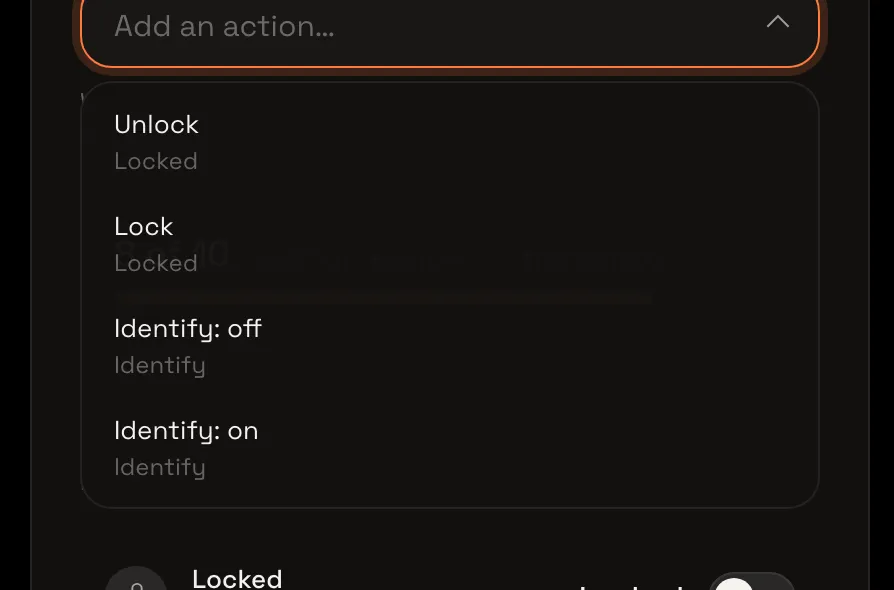
Under Ask for the PIN before, choose Add an action….
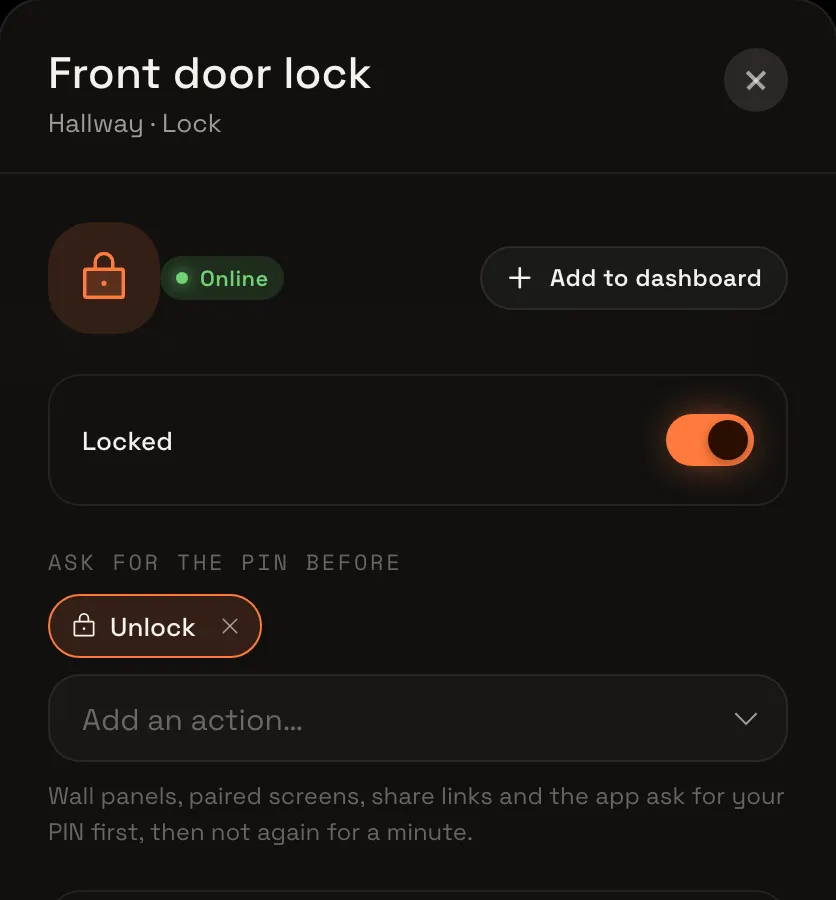
Choose Unlock. It appears as a badge: this is the action that will ask for your PIN.
Try the protected action
In the device’s Controls, choose the Locked switch to unlock the door.
A keypad asks to Unlock Front door lock. The lock stays locked until you enter the PIN.
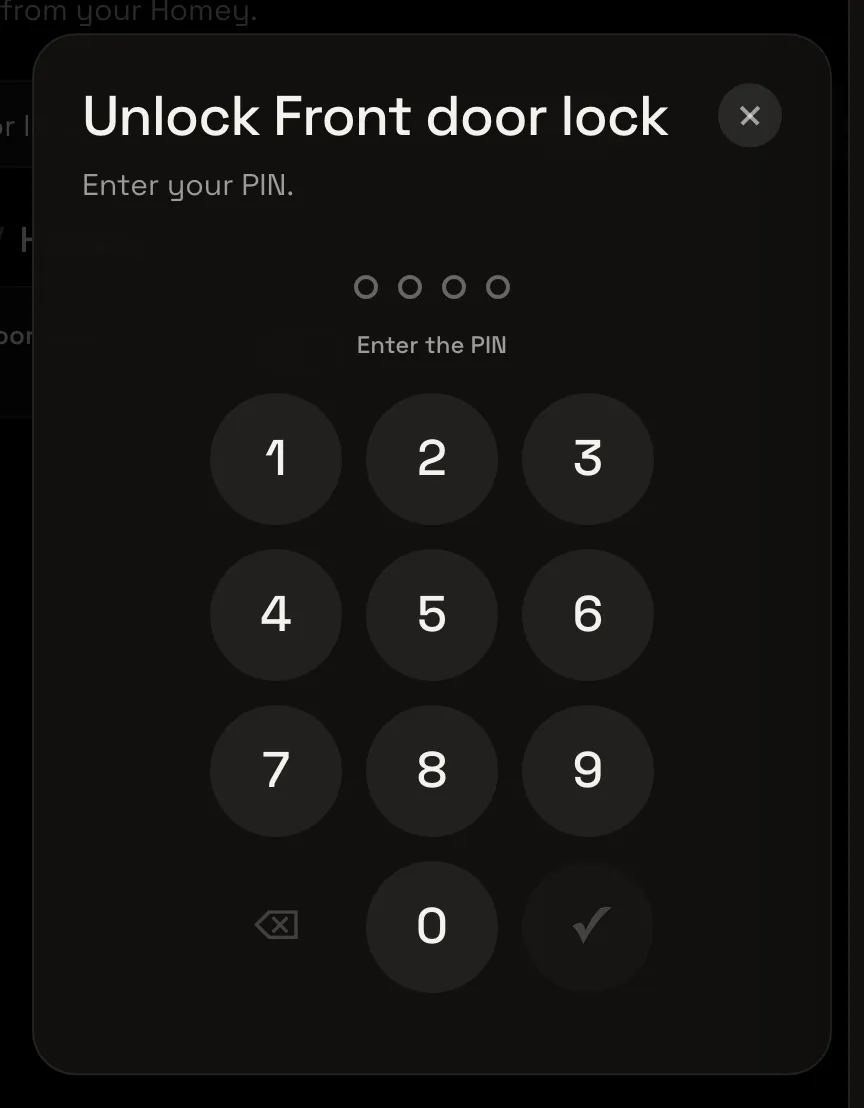
Enter your PIN
Enter your PIN on the keypad, then choose ✓. The keypad closes and the lock is now unlocked.
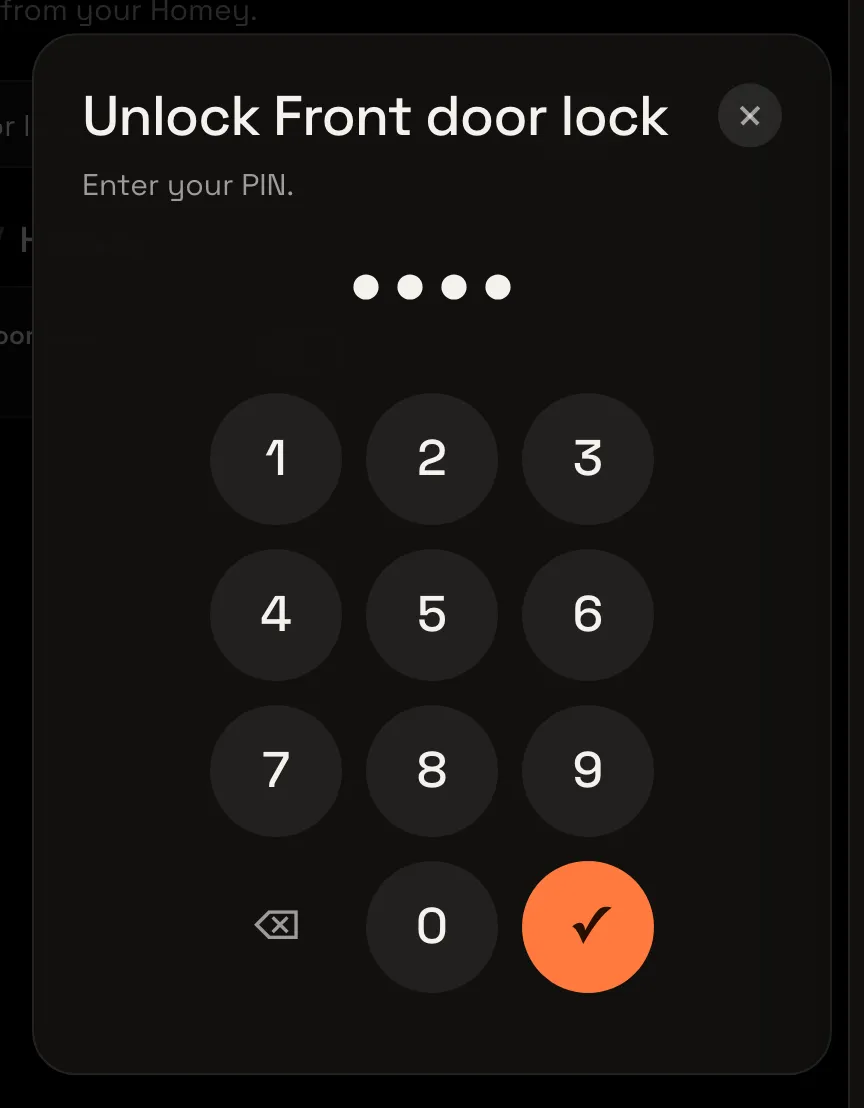
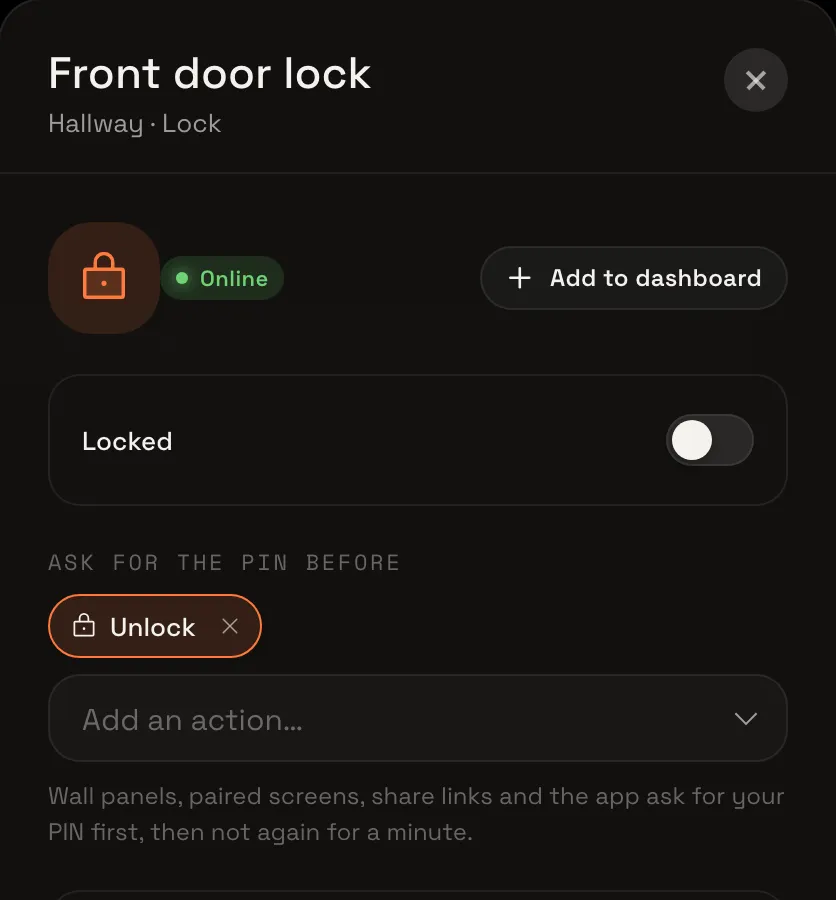
The chosen action also asks for a PIN from tiles, wall panels, paired screens and share links that can control devices. After the right PIN, that screen won’t ask again for a minute.
Read Your PIN for more, including giving someone a named PIN that works only for the actions you choose.


