Tutorial
Make your first dashboard
A dashboard of your own, with its name in the sidebar, ready for its first widgets.
- Takes
- About 3 minutes
- Steps
- 3
What you end up with

Open a new dashboard
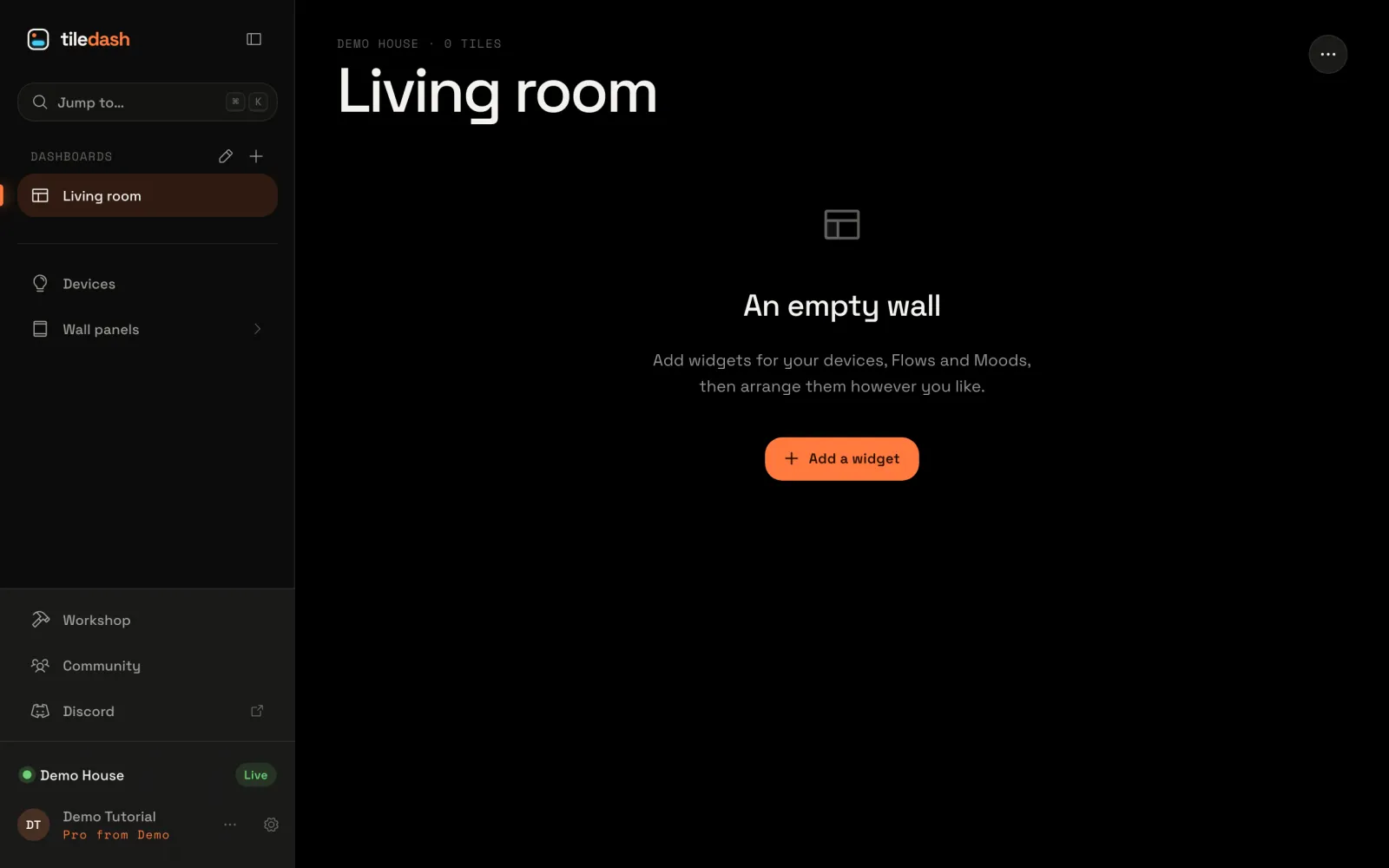
In the sidebar, next to Dashboards, choose +. The New dashboard window opens, and it starts by asking how your dashboard should start.
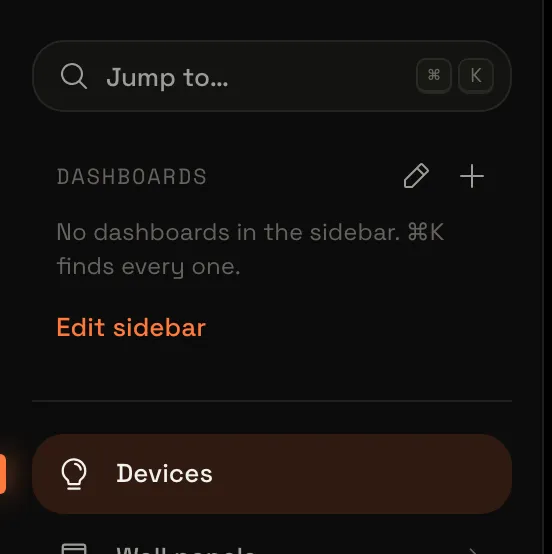
Pick how it starts
There are three starts. Custom dashboard lets you pick rooms and what goes on it, and One room puts one room on it; both are made from your Homey and are a quick start for later. For this tutorial, choose An empty wall and then Next. The window now asks for a name.
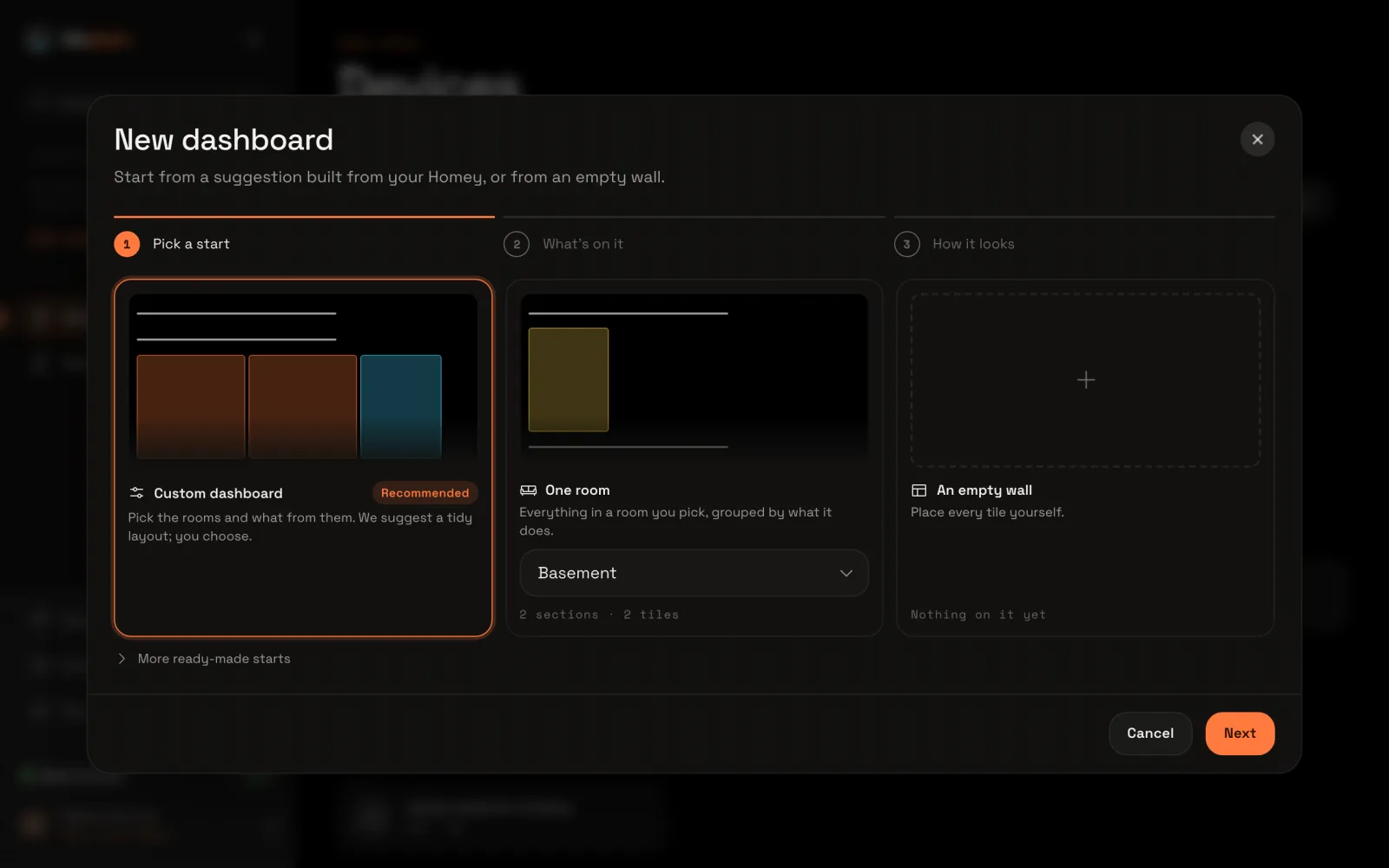
Name it
Type a name, such as Living room, and choose Create dashboard. The window closes and your new dashboard opens, called Living room.
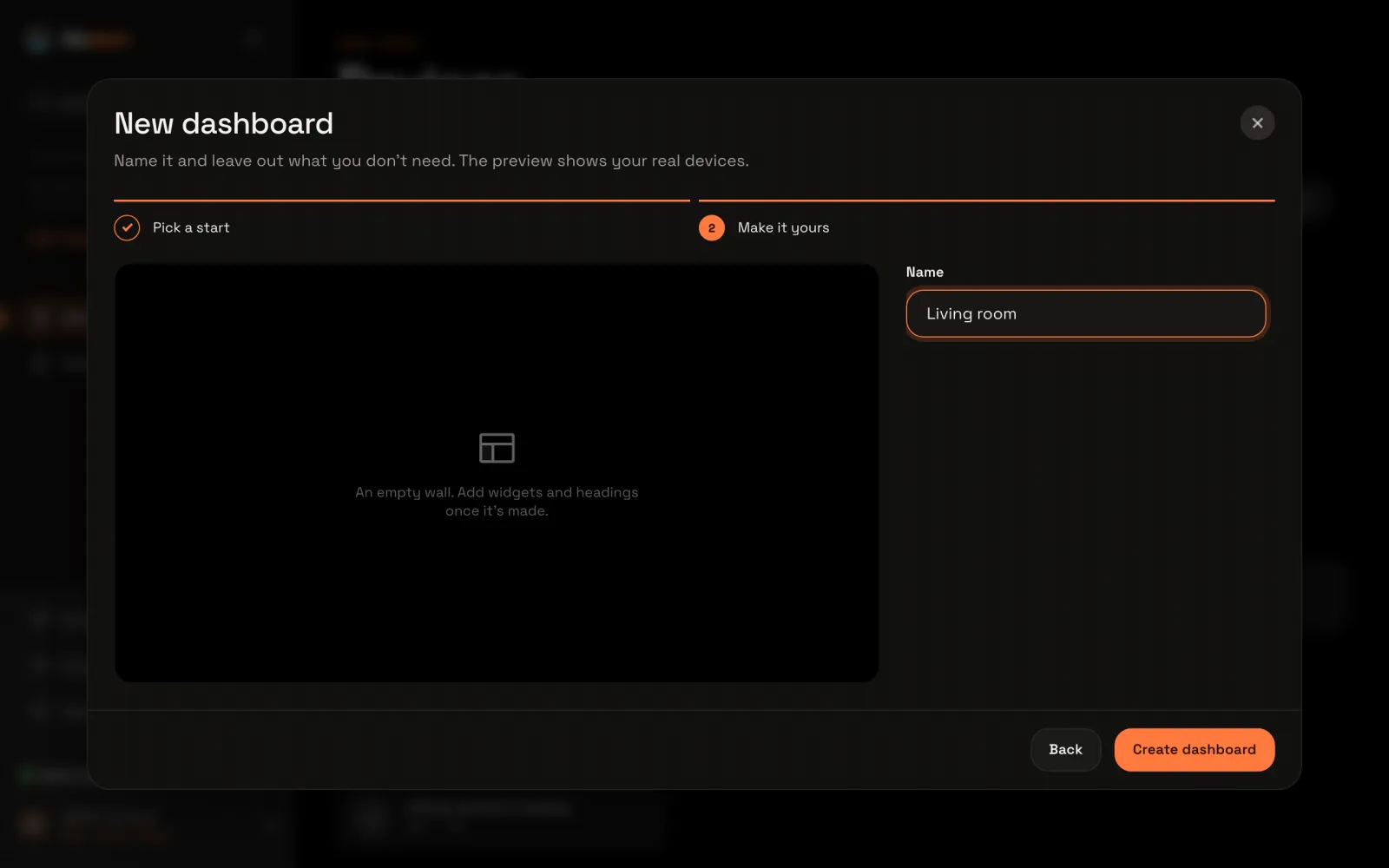
Your dashboard is ready
It’s in the sidebar under Dashboards, and still empty. Choose Add a widget to put its first tile on it: the next tutorial, Add your first widgets, shows how. Or read more about your dashboards: the custom dashboard, wall panels and arranging the sidebar.