Tutorial
Upload your own house picture and place its spots
Upload a 3D picture of your house you already have, crop it to the house, and mark where your solar, battery, car and the rest are, one tap each.
- Takes
- About 5 minutes
- Steps
- 6
What you end up with

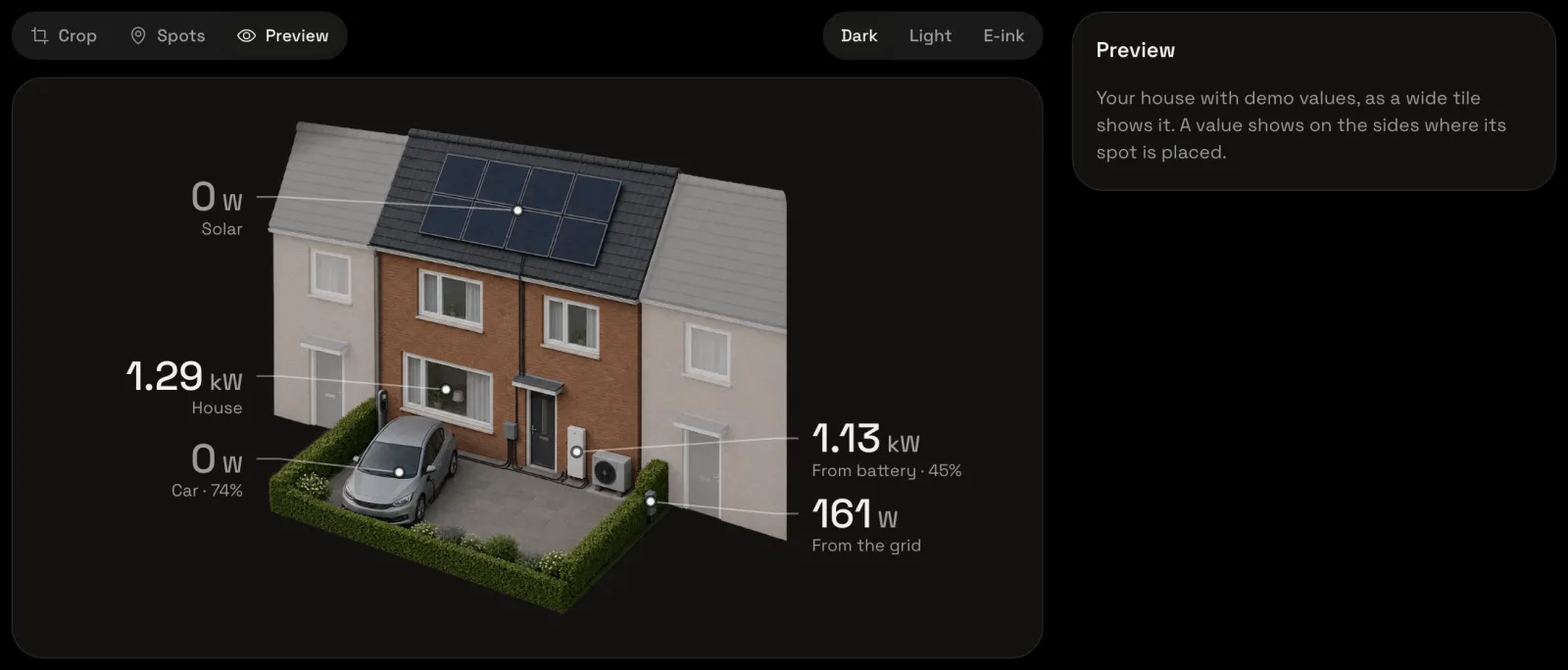
Have a picture of your house already, from your own ChatGPT or Gemini, a drawing or a render? Upload it, and mark its spots yourself: the places on the picture where your solar, battery, car and the rest show their values.
Make a new house
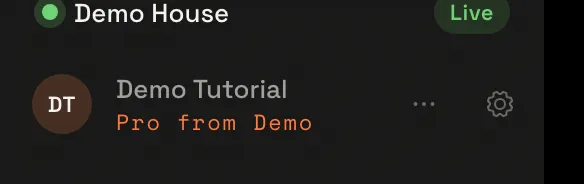
Choose the gear beside your name at the foot of the sidebar to open Settings.
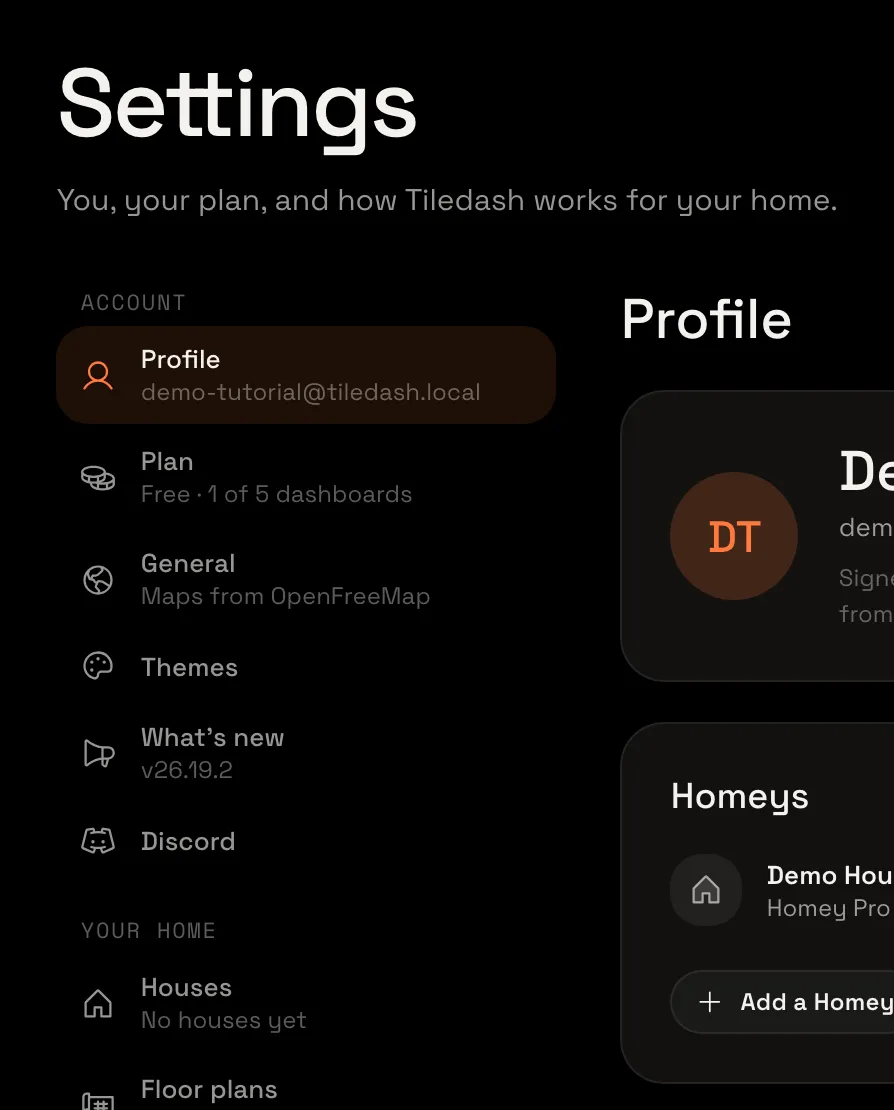
In the Settings menu, choose Houses. While you have none, it says No houses yet.
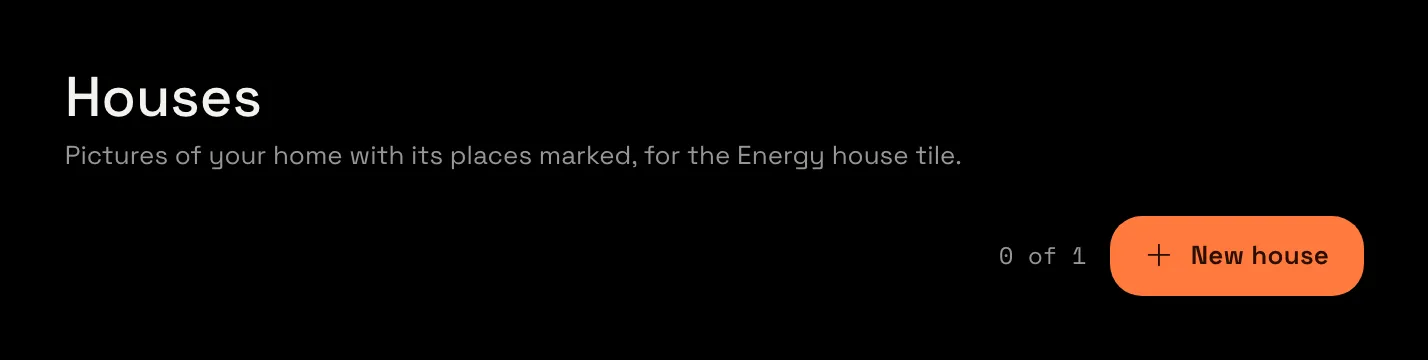
Choose New house. Beside it, Tiledash says how many houses you have of how many your plan holds. The house opens in its editor, on its Front: each side of a house gets its own picture.
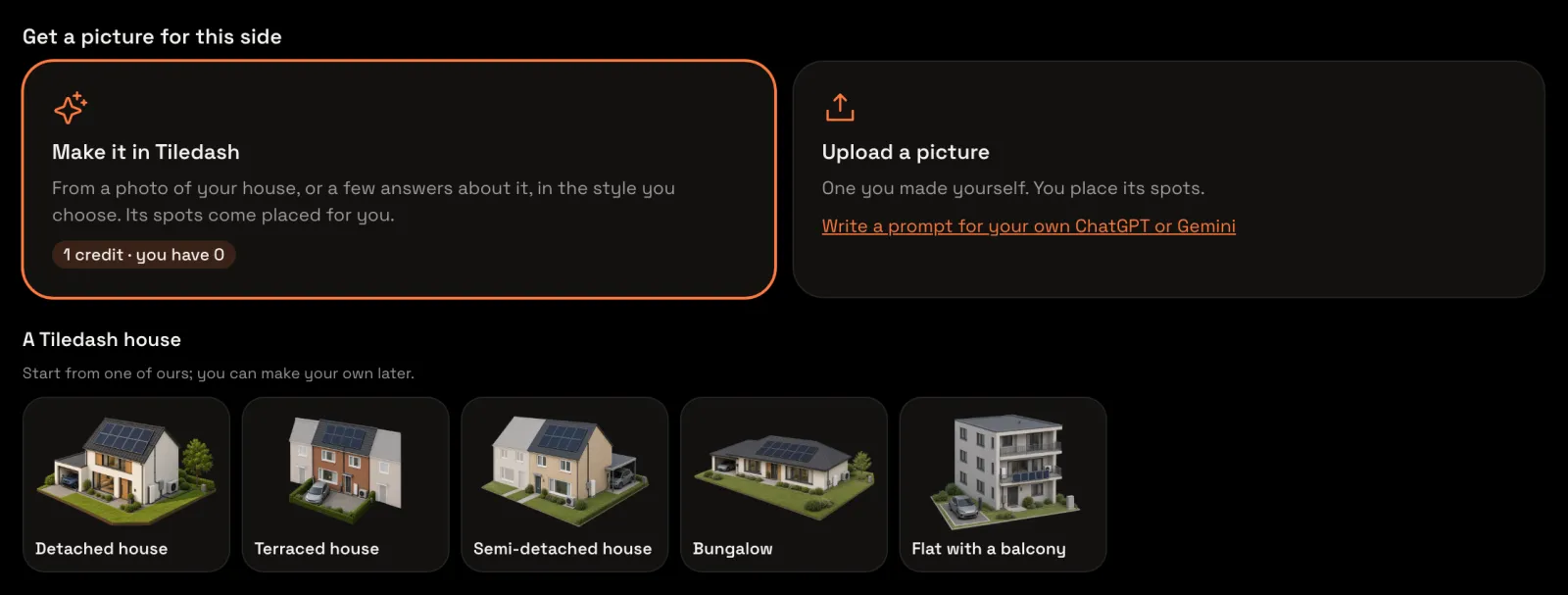
Upload a picture
Under Get a picture for this side, choose Upload a picture and pick your picture: a PNG, JPEG or WebP of up to 10 MB. A window shows how far the upload is; if it can’t be uploaded, that window says why and lets you choose another picture.
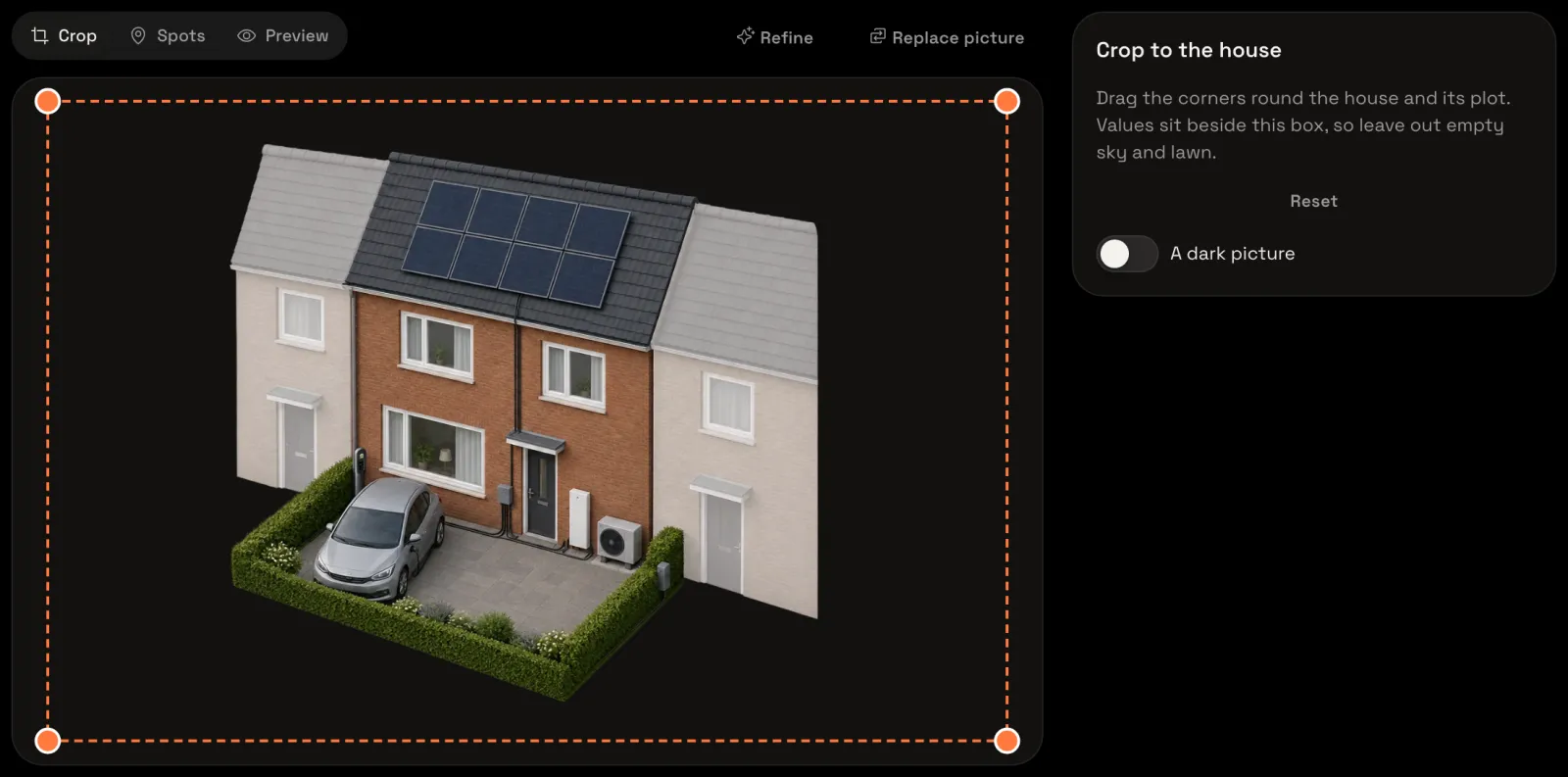
Once it’s in, the editor shows your picture under Crop to the house, and the top right says Saved: the house saves by itself as you go.
Crop it to the house
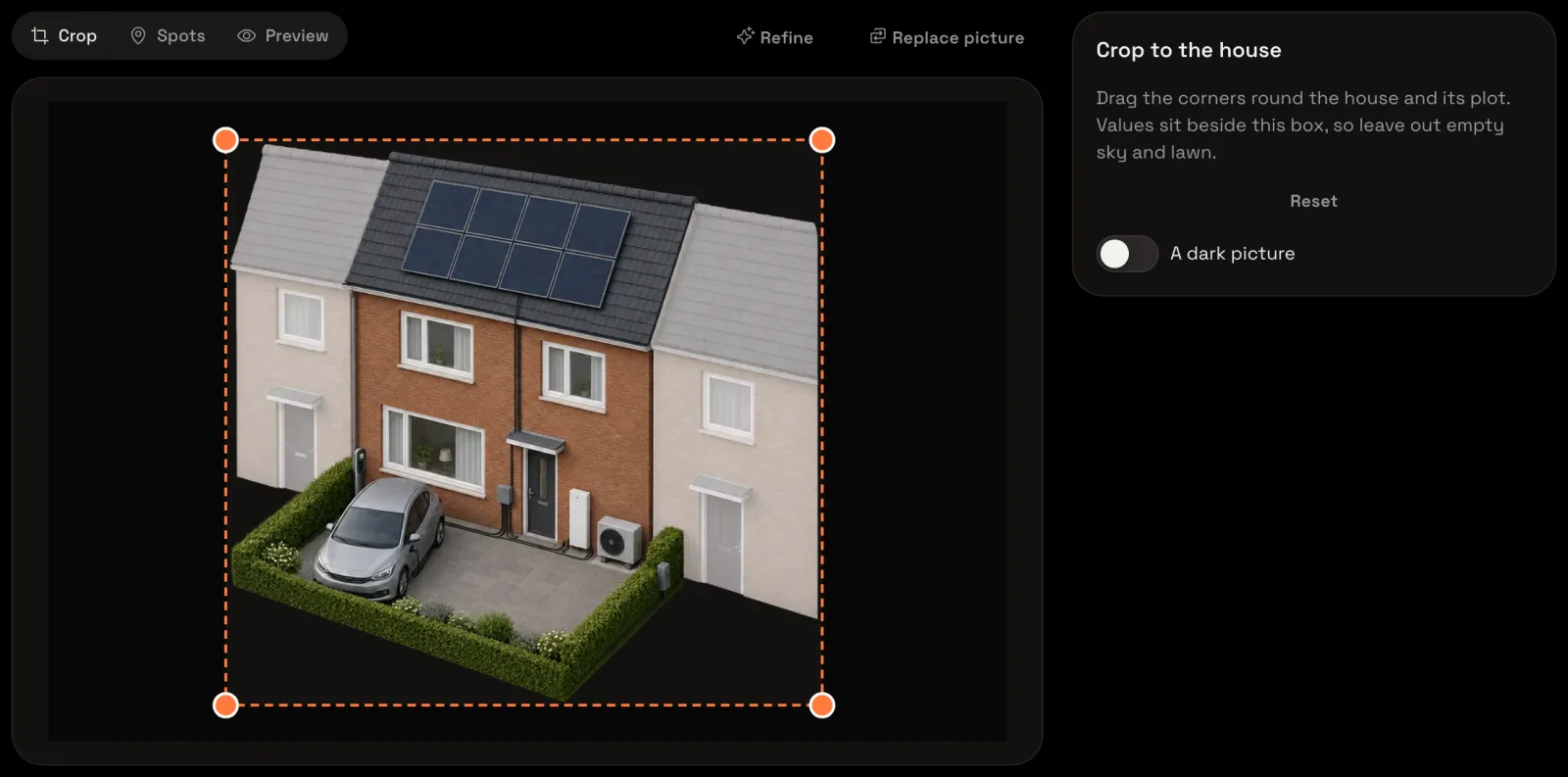
A dashed box lies round the whole picture. Drag its top left corner to the top left of your house and its plot. On a dashboard, the values sit beside this box, so leave out empty sky and lawn.
Drag the bottom right corner the same way. Reset puts the box back round the whole picture.
Place your first spot
Above the picture, choose Spots.

On the right, Spots lists every place of the house, each Not placed yet. Solar, the battery, the car and the grid already show From your meters: Tiledash found your energy meters by itself. Scroll down the list and choose Solar panels.
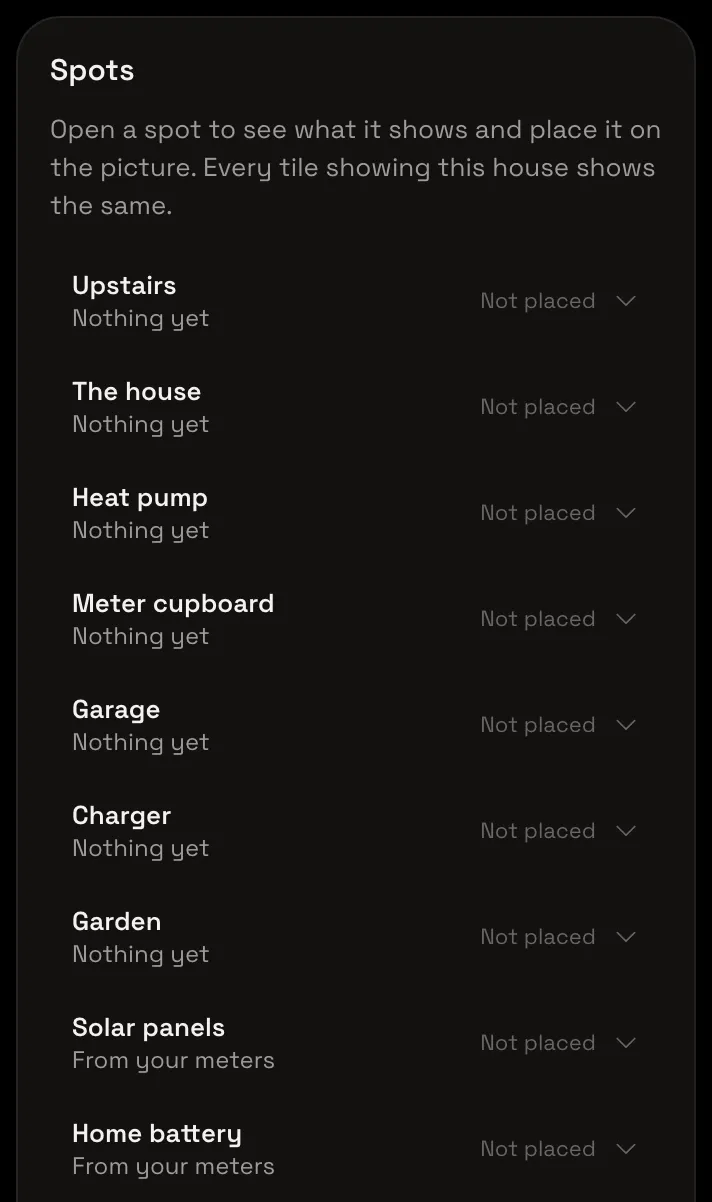
Solar panels opens. Choose Place it.
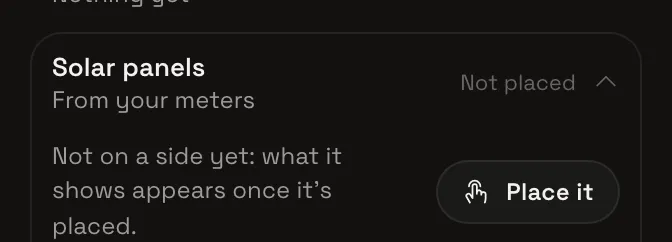
The editor asks you to Tap where Solar panels is: tap your solar panels in the picture. A pin marks them, and the list says Placed.
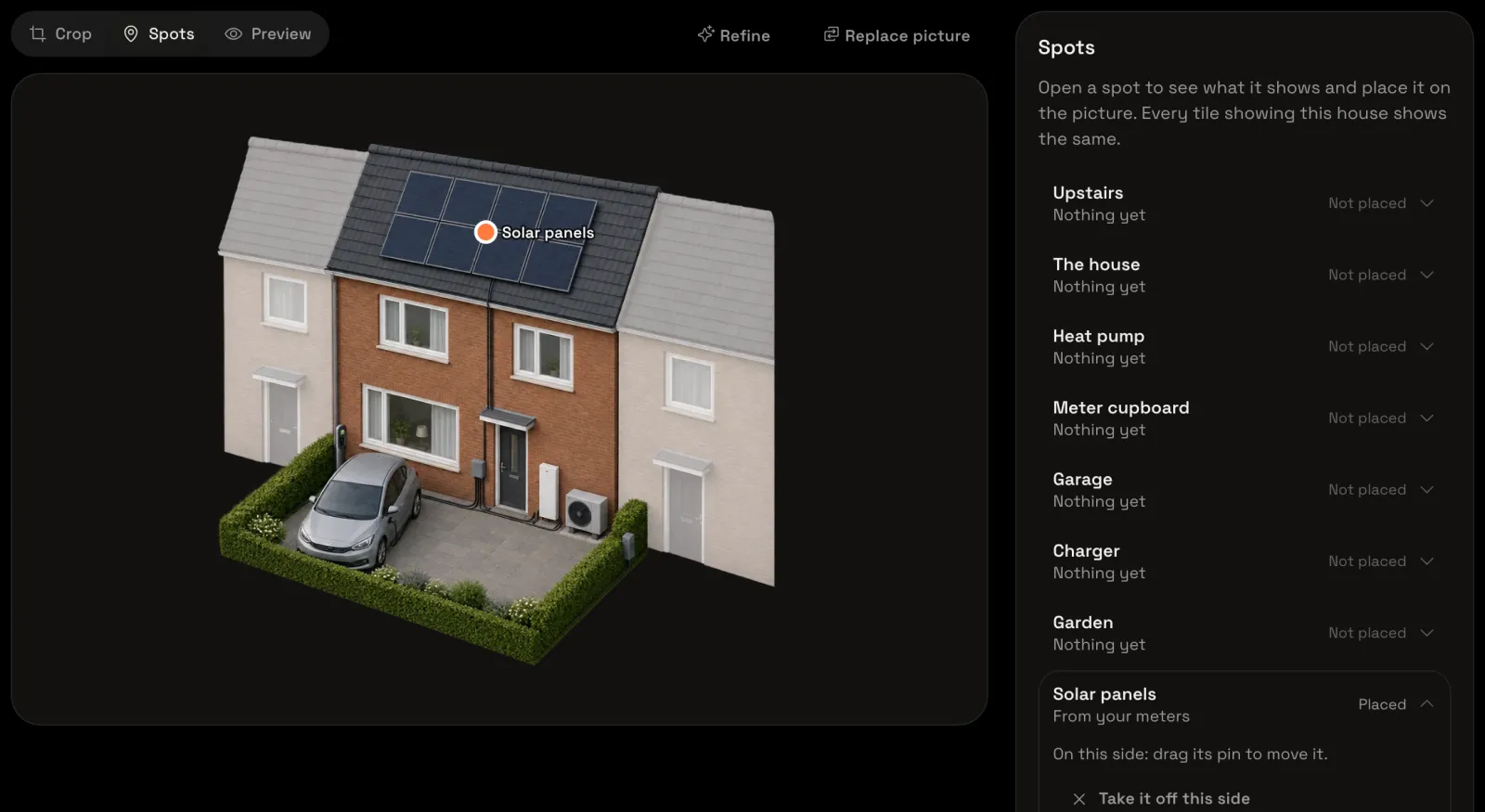
Place the rest
Do the same for each place your home has: choose it in the list, choose Place it, and tap it in the picture. Here that’s the Home battery, the Car, the Grid connection (where the power comes into your house), The house (what it uses) and the Garden. Each says Placed once it has its pin.
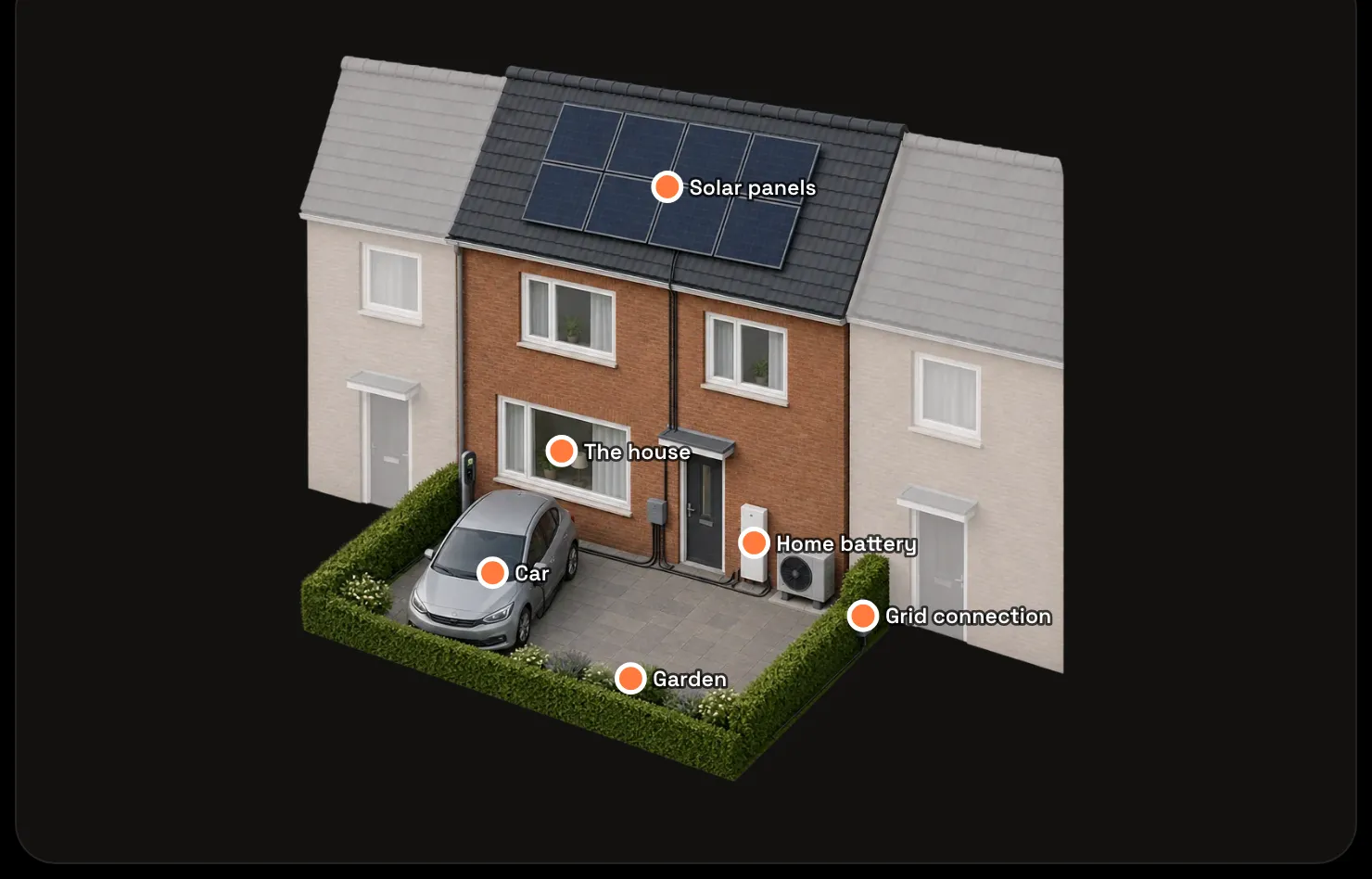
Drag a pin to move it. To take one off again, open it in the list and choose Take it off this side. Places your home doesn’t have, like a heat pump, you simply leave unplaced: they don’t show.
Look at the preview
Scroll back up and choose Preview above the picture.

Your house shows as a wide tile on a dashboard shows it: each value beside its spot, with a line to it. Here it uses demo values; on your dashboard it shows your own.
Your house is ready
Your house is saved and ready for the Energy house tile: Show your house on a dashboard puts it there.
Give a spot a reading of your own, such as the temperature in the garden, or add a place your picture shows that isn’t on the list: see Give your own spot a value. Got a picture of the back too? Show the front and back of your house.