Tutorial
Arrange tiles for each screen size
Give your dashboard its own layout for phones, with the thermostat first and the weather station left out, while tablets and desktops keep theirs.
- Takes
- About 5 minutes
- Steps
- 7
What you end up with

Edit the dashboard
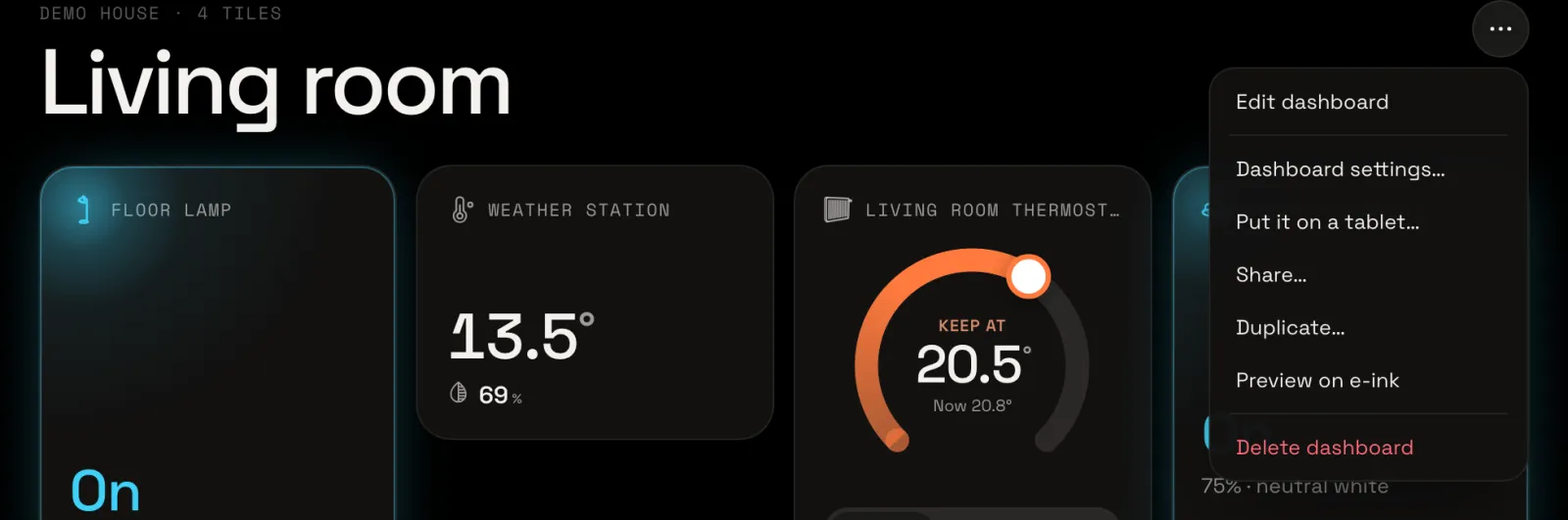
This tutorial starts with a Living room dashboard of four tiles in a row: the floor lamp, the weather station, the thermostat and the spots.
Open the dashboard menu (⋯, top right) and choose Edit dashboard. Edit mode starts, and the size switch at the bottom shows Desktop, the main layout.
Switch to Phone
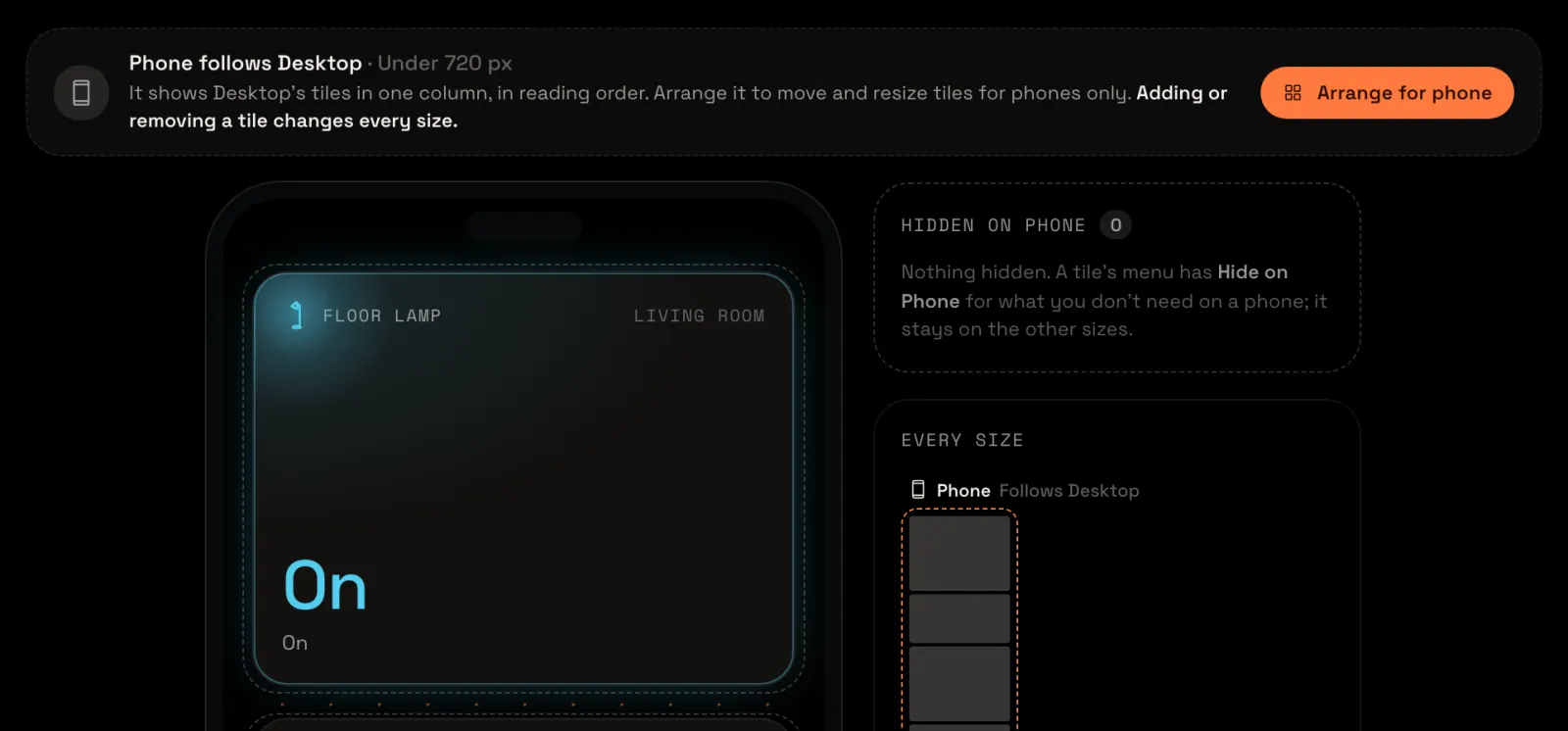
On the size switch, choose Phone. The line above the tiles says Phone follows Desktop: the canvas is as wide as a phone, and it shows your tiles in reading order: across the phone, small ones side by side.

Arrange for phone
Choose Arrange for phone. The line now says Phone · arranged, and a message says that moving and resizing tiles changes Phone only.
Hide the weather station on Phone
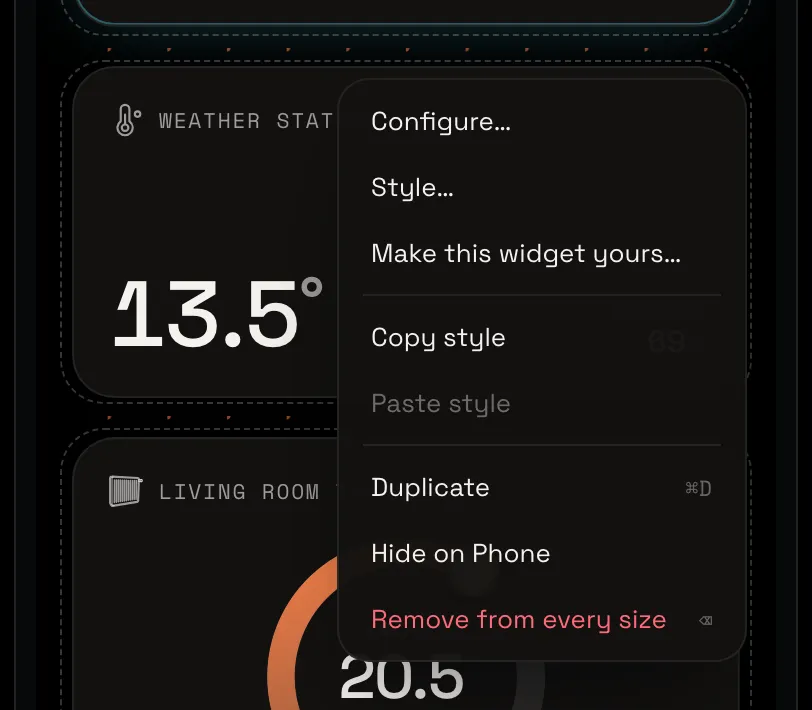
Scroll down to the weather station and point at it: a pencil shows on its corner. Choose it and then Hide on Phone. Hidden on Phone, beside the phone, now lists the weather station with Show. It’s still on Tablet and Desktop.
Put the thermostat first
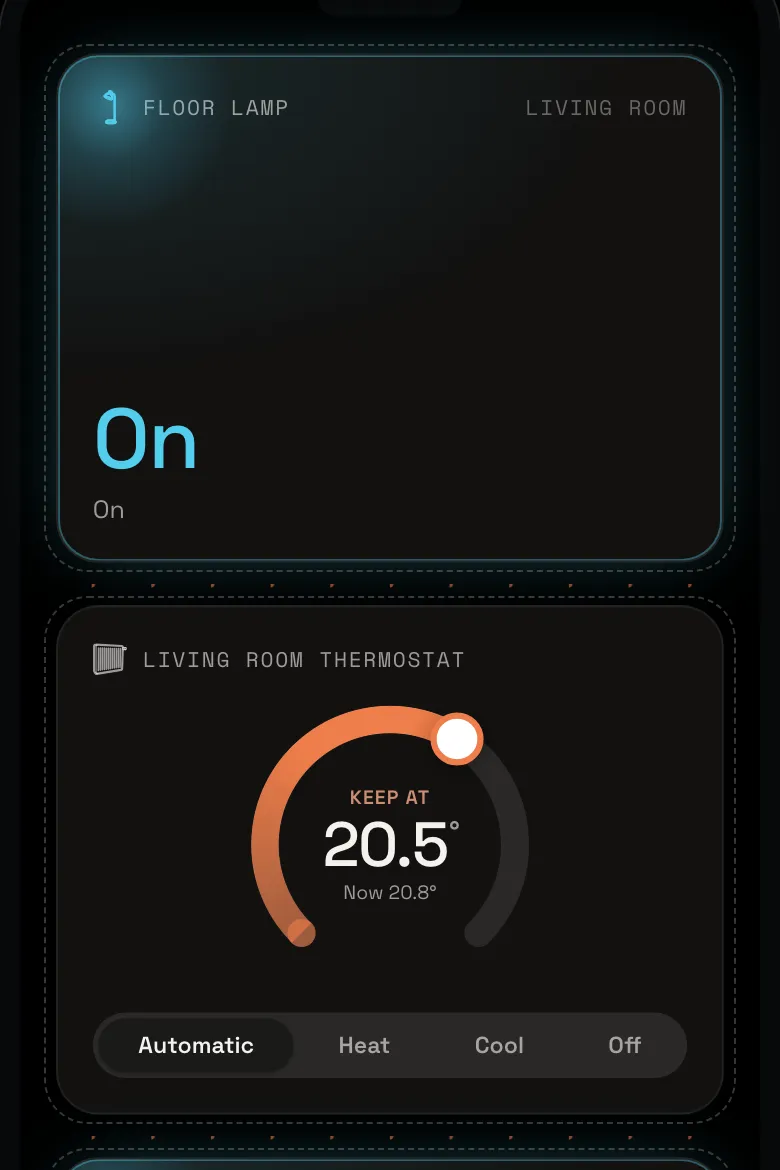
Drag the thermostat by its title up onto the floor lamp. The thermostat moves to the top, and the lamp goes below it.
Look at Tablet
Choose Tablet on the size switch. It says Tablet follows Desktop: the four tiles, the weather station too, as on Desktop. Choose Arrange for tablet if you want it to have a layout of its own as well.

Finish editing
Scroll back up and choose Done. Edit mode ends, and your window shows the dashboard as Desktop has it, with all four tiles.
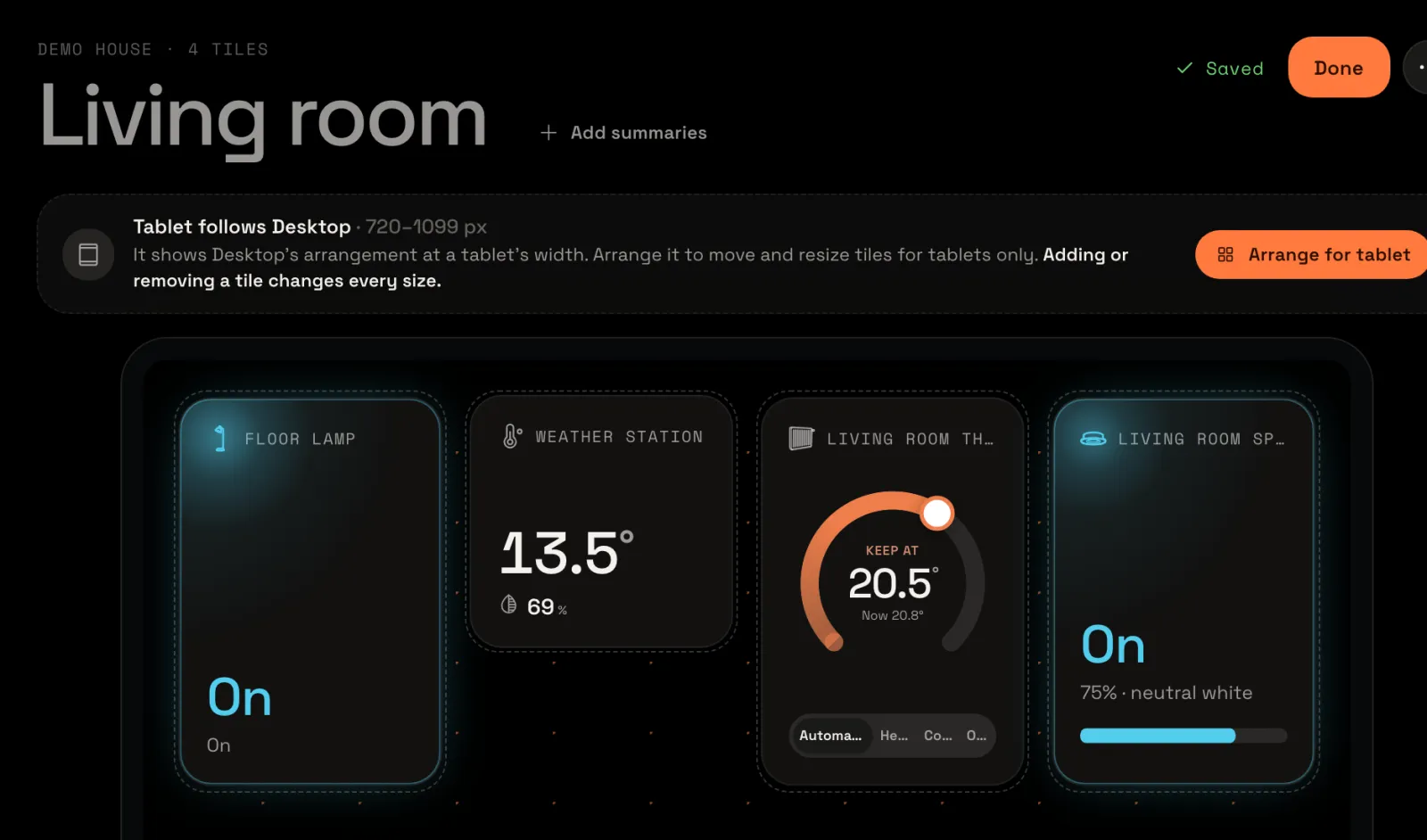
Each screen has its own
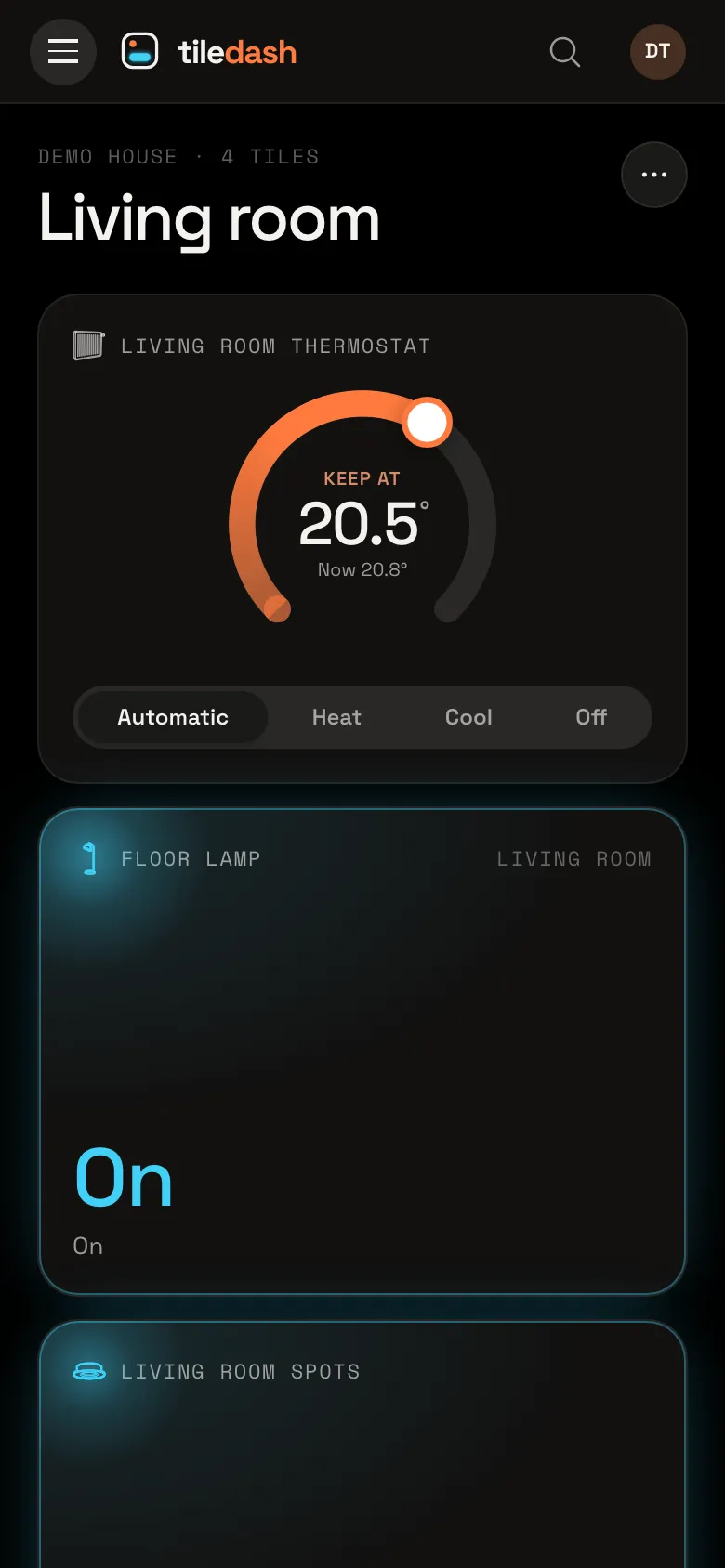
Open the dashboard on your phone: the thermostat is first, the lamp below it, and the weather station isn’t there.
On a tablet, all four tiles are there, as on Desktop.
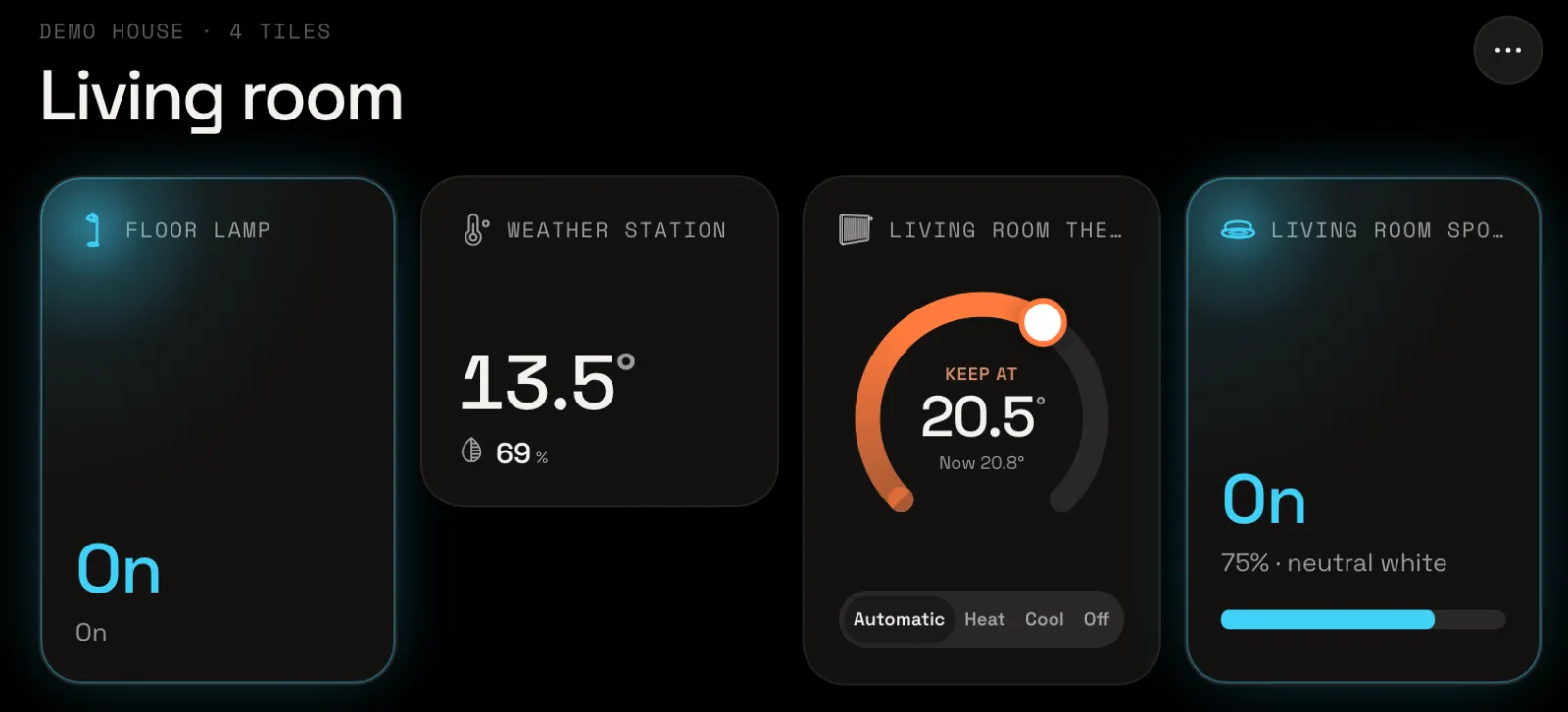
A window under 720 px wide shows Phone, up to 1099 px Tablet, and wider Desktop. One dashboard, three layouts has the rest: tiles you add later, and Follow Desktop again.


