Tutorial
Show your house on a dashboard
Put your 3D house on a dashboard with the Energy house widget, choose which house it shows, and give its garden the temperature outside.
- Takes
- About 4 minutes
- Steps
- 5
What you end up with

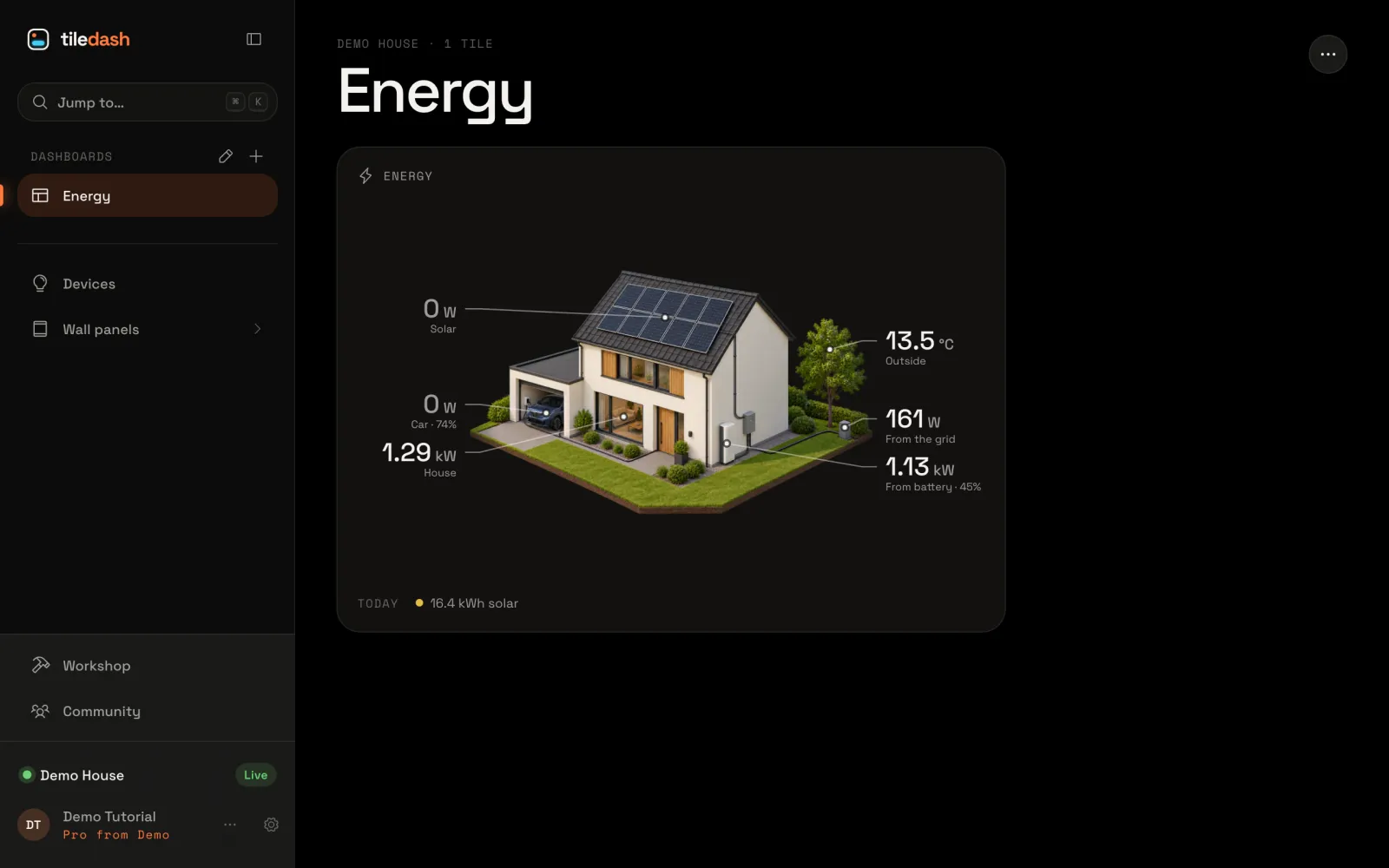
Your house is ready under Settings › Houses: made from a Tiledash house, a photo or your own picture. Now put it on a dashboard, live. Here it goes on an empty dashboard called Energy; any dashboard works.
Add the Energy house
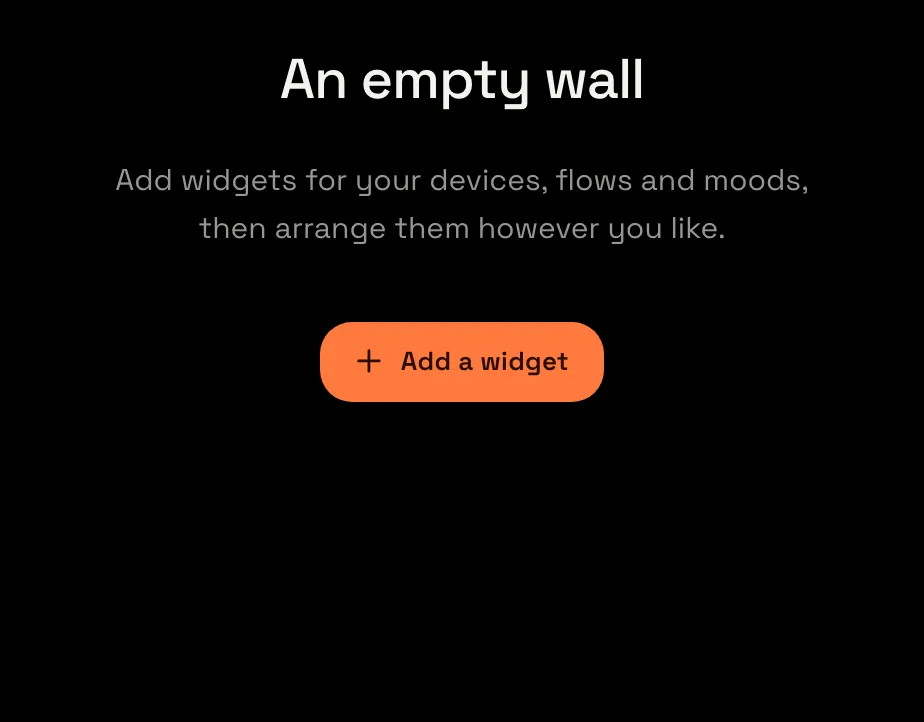
Open your Energy dashboard in the sidebar. An empty dashboard offers Add a widget; choose it.
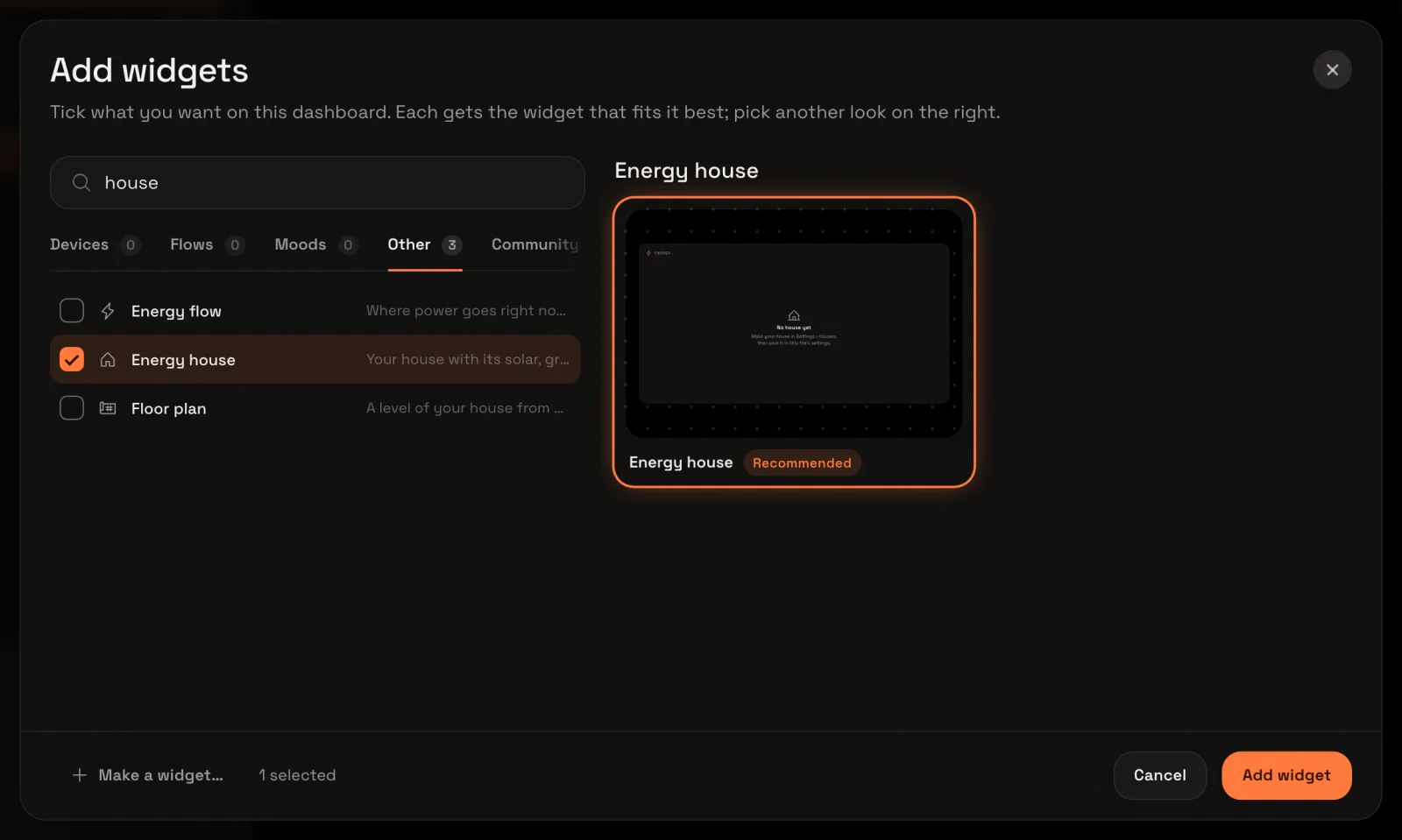
The widget picker opens. Type house in the search, choose the Other tab and tick Energy house. Then choose Add widget.
The window closes and the tile shows your house, with your solar, battery and car found by themselves.
Open the tile’s settings
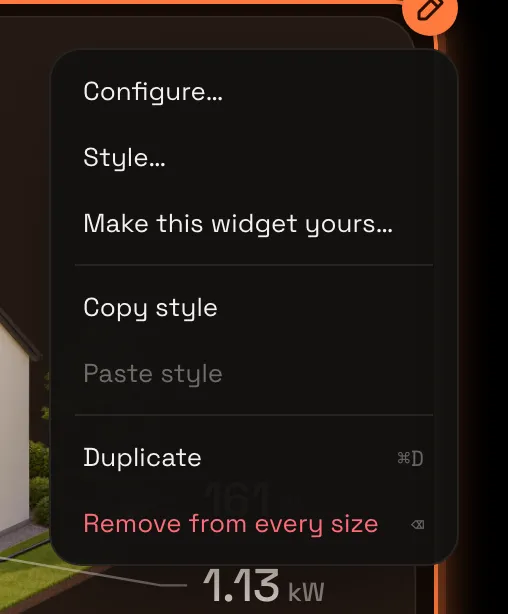
The dashboard is in edit mode now. Point at the tile and choose its ⋯ menu, then Configure….
Choose your house
The tile’s settings open. Under House, your houses are listed with their pictures; choose the one this tile shows, here Our house. With one house, it’s chosen already. Manage your houses in Settings › Houses takes you to the houses themselves.
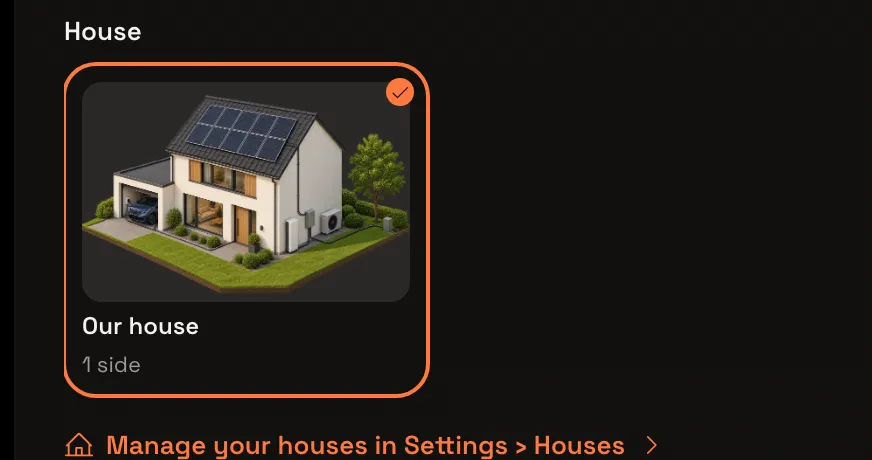
Choose Save. Then choose Done at the top right to end edit mode.

Give the garden a value
A spot can show any reading of your Homey, not only energy. Give the garden the temperature outside: choose the gear at the foot of the sidebar to open Settings.
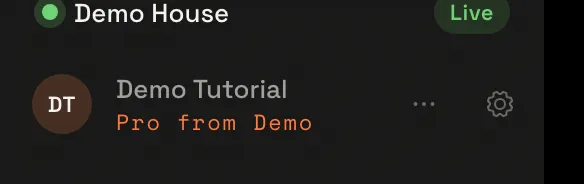
In the Settings menu, choose Houses, then your house.
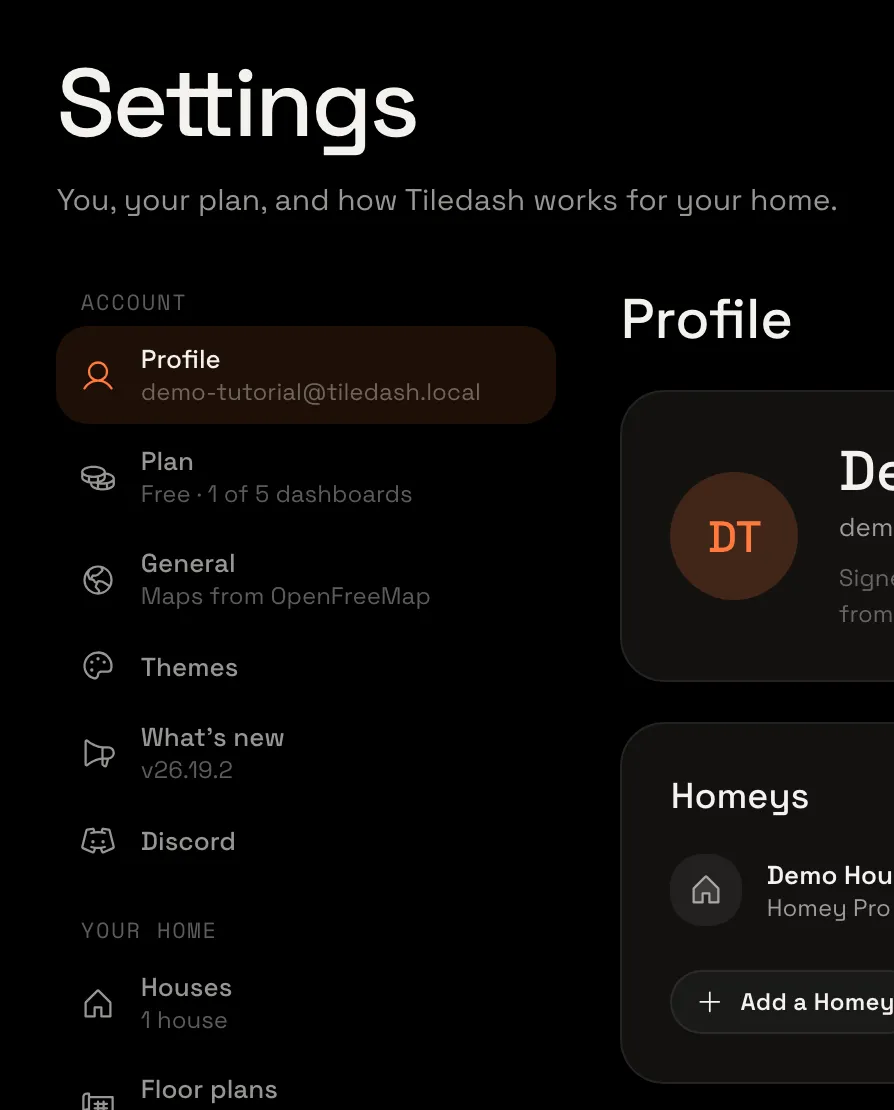
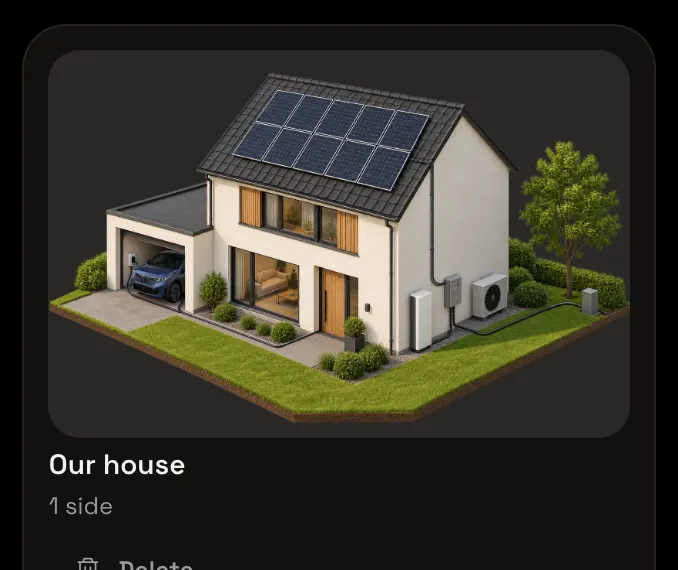
Choose Spots above the picture. In the list on the right, choose Garden.
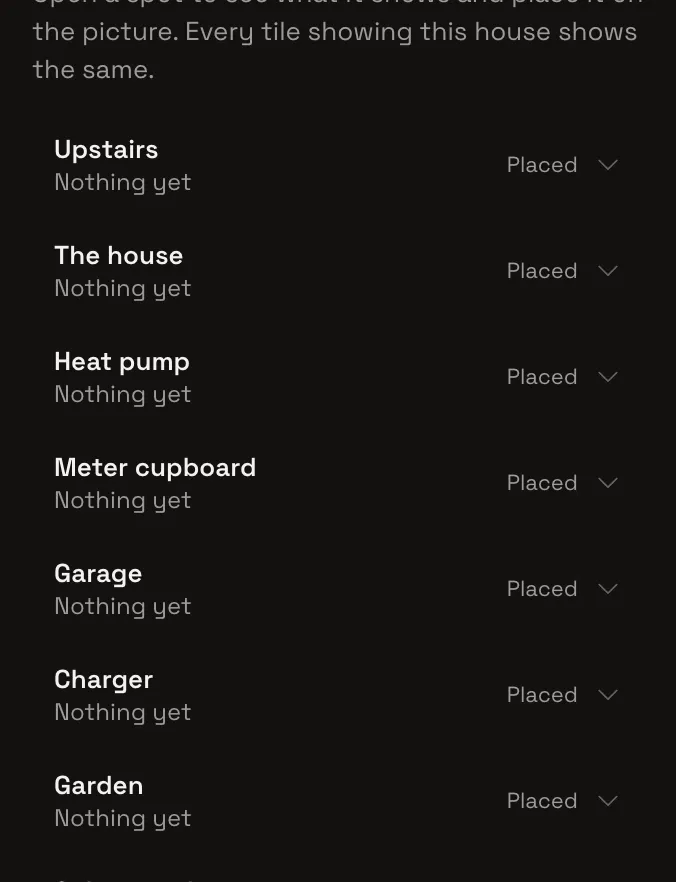
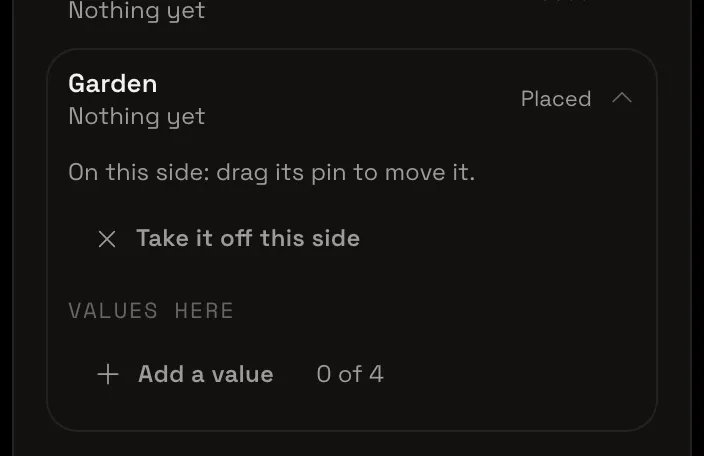
The garden opens: it’s placed on this side, and has no values yet (0 of 4). Choose Add a value.
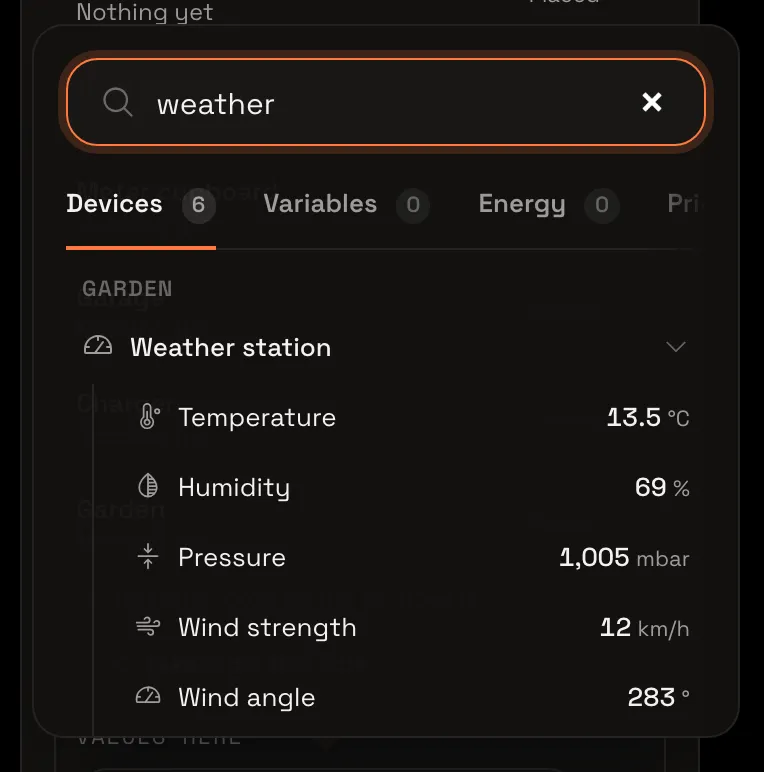
Choose the field that appears, type weather and choose the weather station’s Temperature. The value opens, with its Reading.
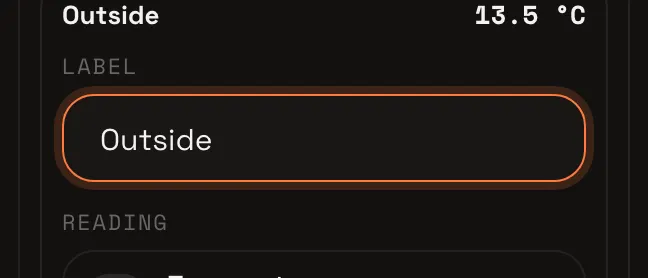
Call it Outside
In Label, type Outside: it’s the line under the value on the house. The garden now says what it shows, and the house saves by itself.
Your house on a dashboard
Open your Energy dashboard again. The house shows what your home uses, where its power comes from and goes, and the temperature outside by the tree. The values change as your home does.
Every tile showing this house shows the same values; give more spots one the same way. On a wall panel the house can fill the screen: see wall panels. More about the energy widgets is in the energy guide, every setting of this one is in the widget gallery, and a picture of the back of your house is in Show the front and back of your house.