Tutorial
Show a 3D model on a tile
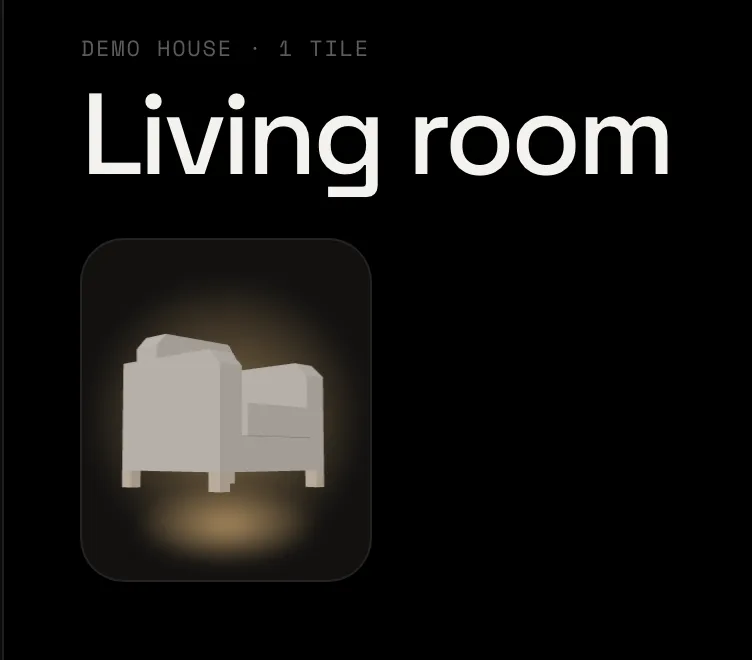
An armchair on your dashboard, turned the way you like in 3D, glowing while the sofa lamp is on.
- Takes
- About 3 minutes
- Steps
- 7
What you end up with

Open the widget picker
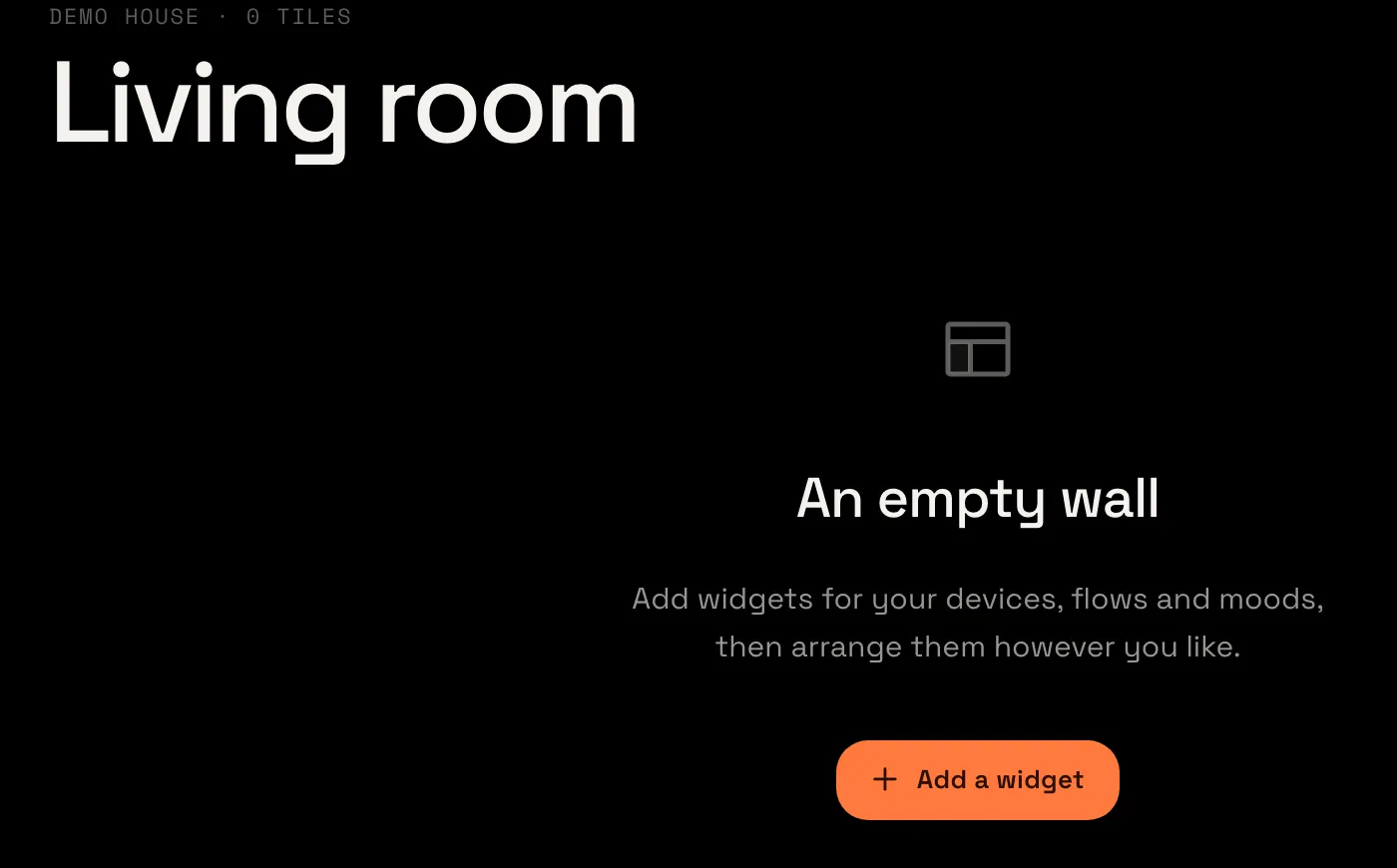
Open your Living room dashboard and choose Add a widget. The Add widgets window opens.
Pick the Model widget
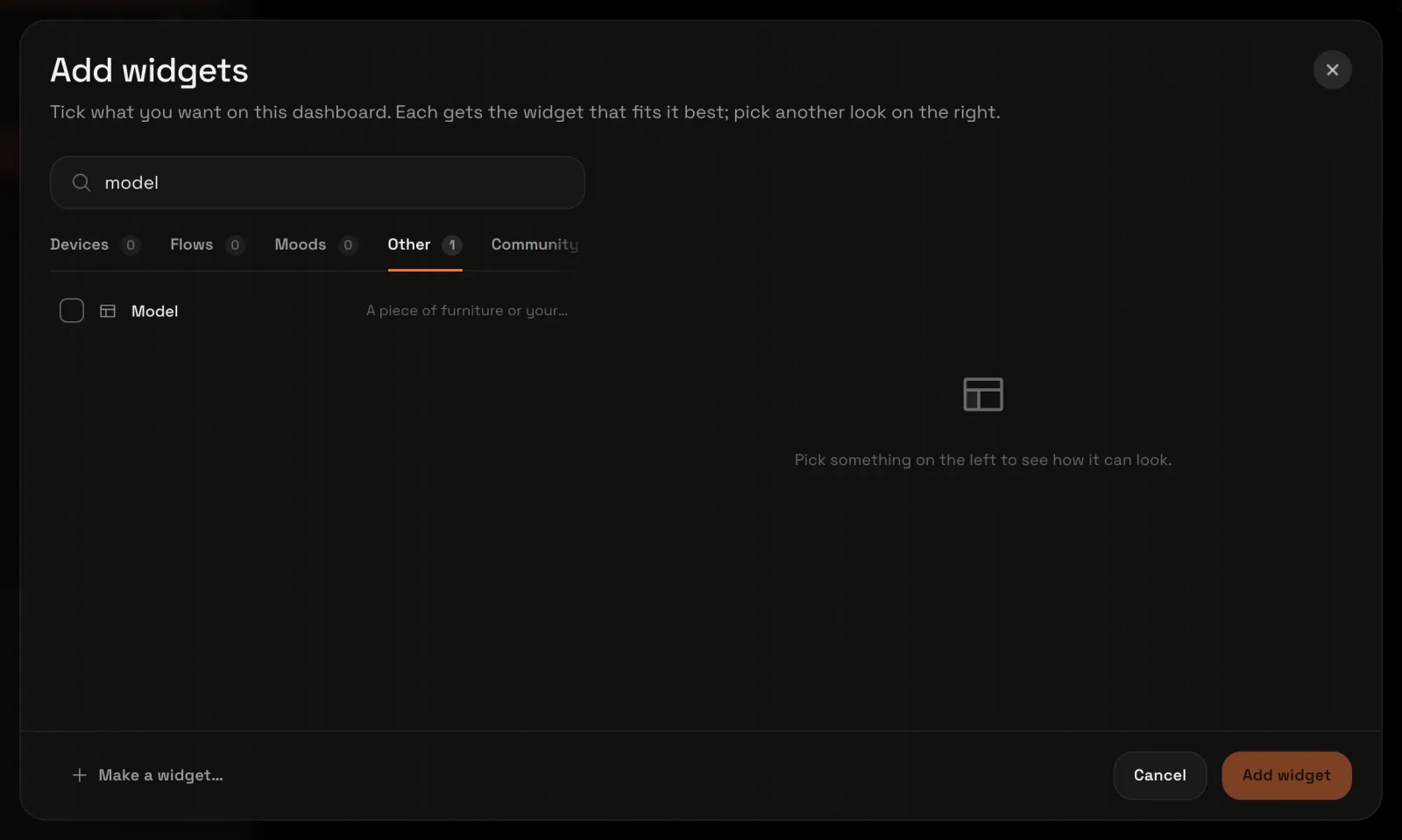
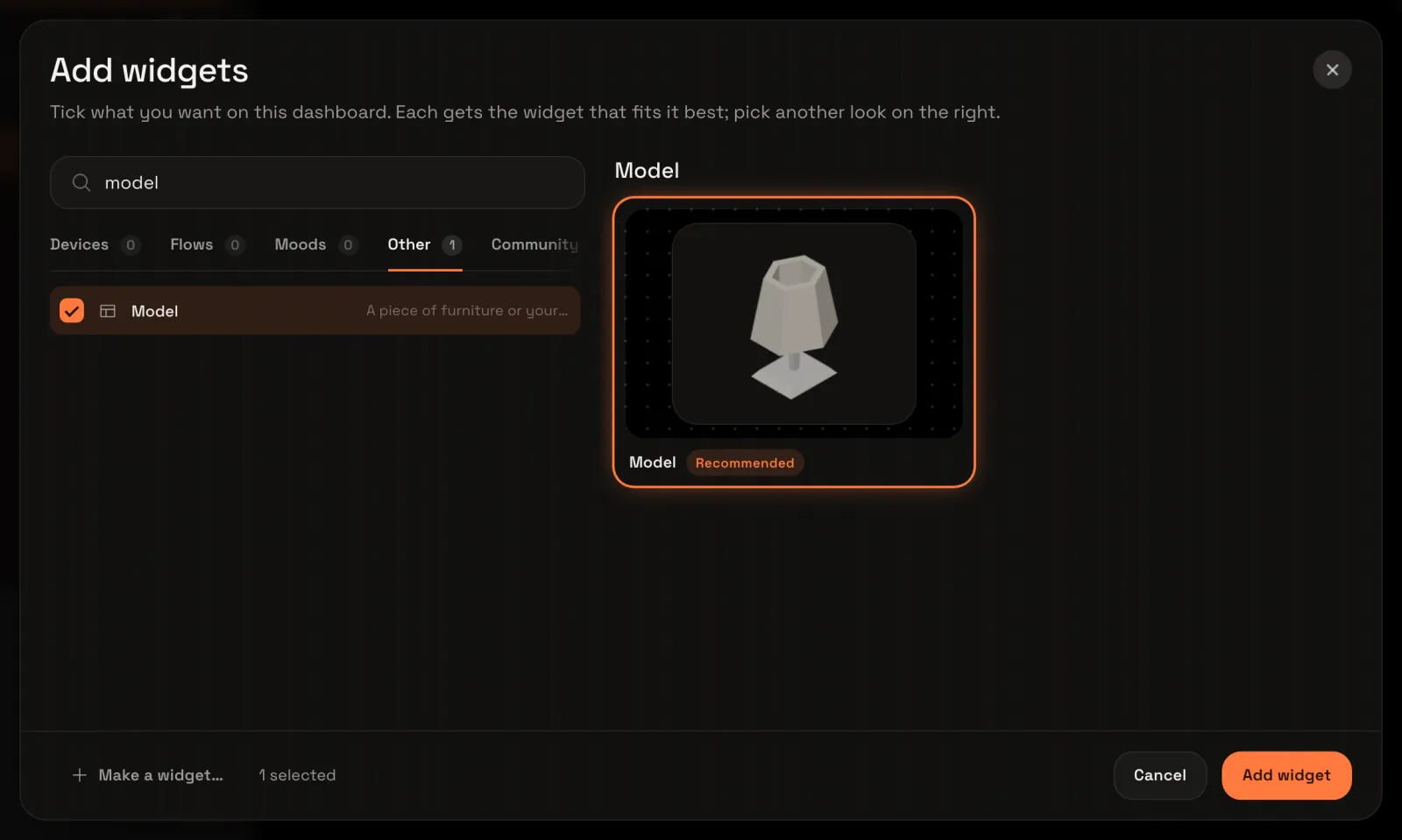
Type model in the search at the top and choose the Other tab, then tick Model. Its look shows on the right, a table lamp, and the footer says 1 selected.
Add it
Choose Add widget. The tile is on your dashboard and its settings open, asking you to Pick a model.
Pick a model
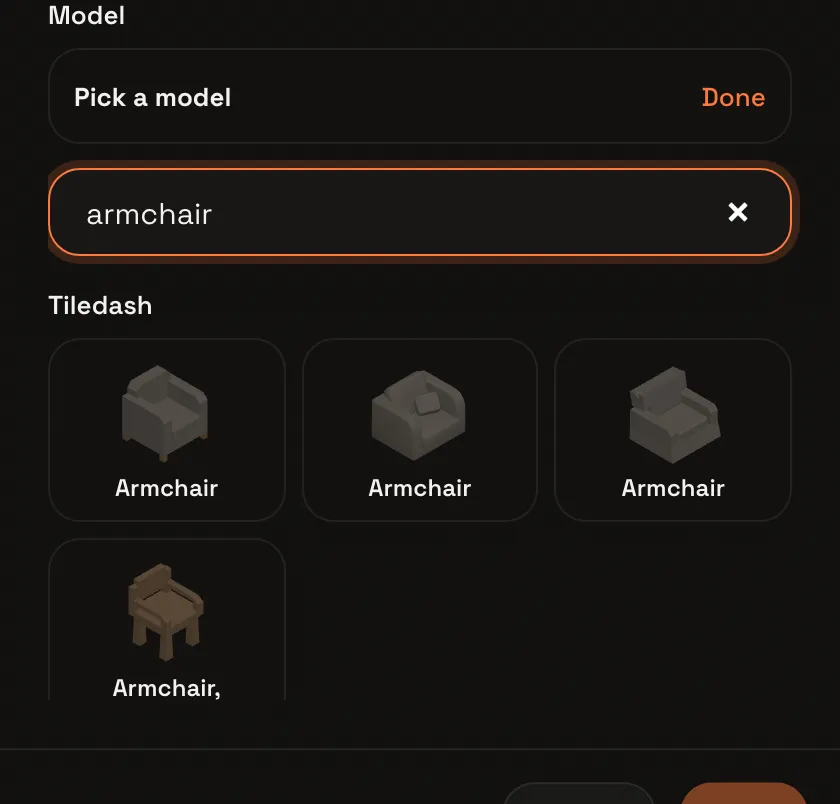
Choose Pick a model, type armchair in the search, and choose the first Armchair. The armchair is chosen, and the preview on the left shows it.
Turn it in 3D
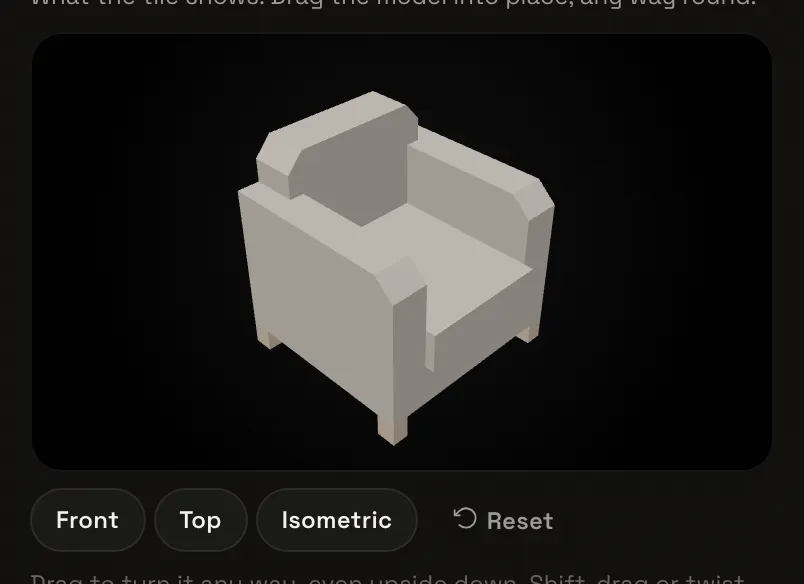
Under View, choose 3D. The Camera stage shows the armchair: drag it to turn it any way you like, even upside down. Here a short drag up looks at it from a little lower. Front, Top and Isometric set it at once.
Link a lamp
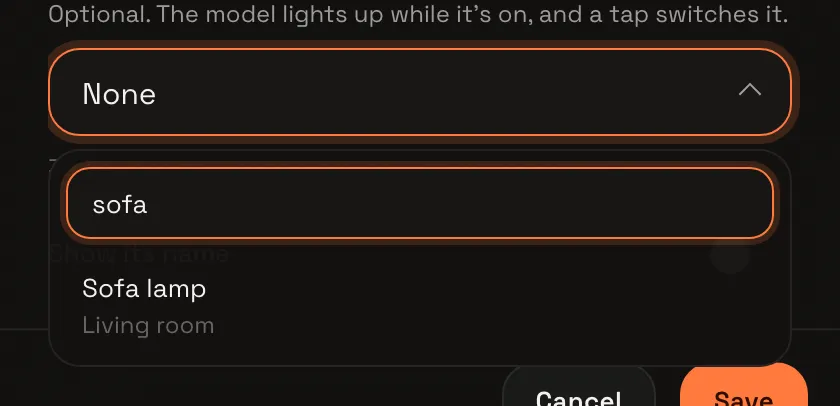
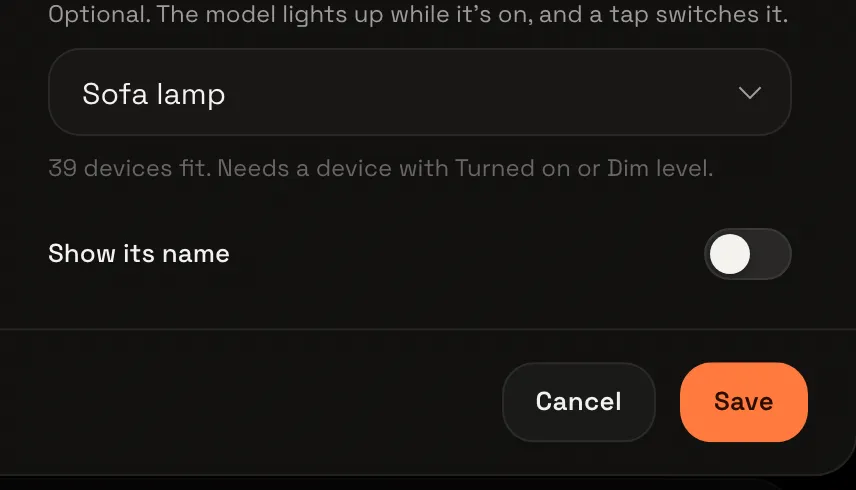
Scroll down to Device and choose it: the list opens with its search ready. Type sofa and choose Sofa lamp. Device says Sofa lamp, and the armchair glows while the lamp is on.
Save and finish
Choose Save. The settings close and the model is on your dashboard. Then choose Done at the top right to end edit mode.
Your model on the dashboard
The armchair glows with the lamp. Tap the tile to switch the lamp on or off.
To change how it looks, open its settings again: Light and Colours under Look make it brighter, more sculpted, or show the model’s own colours. With Rotate on the dashboard people can turn it themselves. Every setting is in the widget gallery, and your own 3D models in floor plans.