Tutorial
Let your household into your Homey
Someone else who uses your Homey asked to join. Let them in, choose which rooms they may see or switch, and share a dashboard with them.
- Takes
- About 3 minutes
- Steps
- 8
What you end up with

You own the Homey on Tiledash, and Robin, who uses the same Homey with their own Homey account, has asked to join. Steps 1 to 7 happen in your account. In step 8 you see what Robin sees in theirs.
Open Settings
In your own account, at the bottom of the sidebar, choose the gear beside your name: it opens Settings.

Choose People
Scroll down the list of groups and choose People, under Sharing. Robin’s request shows under Asking to join, with their email and the note they wrote.
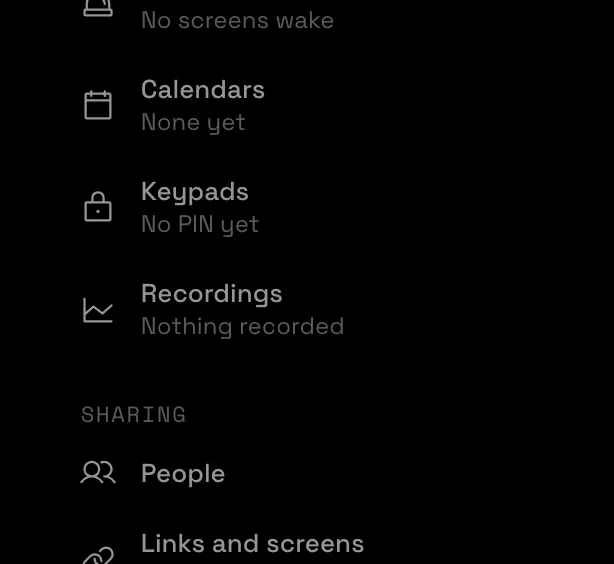
Choose Let in…
Choose Let in… beside Robin’s request. A window opens to choose what Robin may use. Deny would say no instead.

Start from Only these rooms
Under Start from, choose Only these rooms. Robin sees nothing yet: the line at the bottom says so.
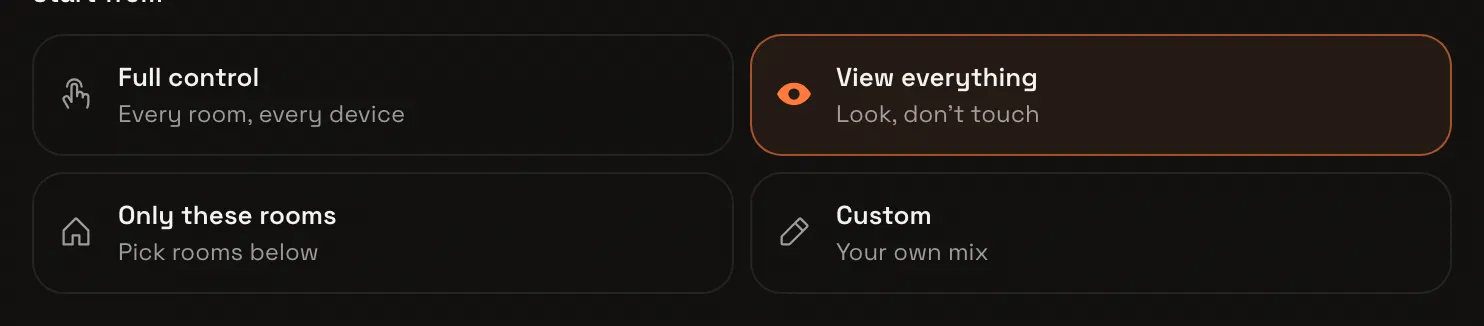
Choose what Robin may use
Scroll down to the rooms. Set the Living room to Control and the Kitchen to View: Robin can switch the living room and look at the kitchen. The line at the bottom counts the devices Robin will see and switch.

Let Robin in
Choose Let Robin in. The window closes and Robin is in the list of people using your Homey.

Share a dashboard
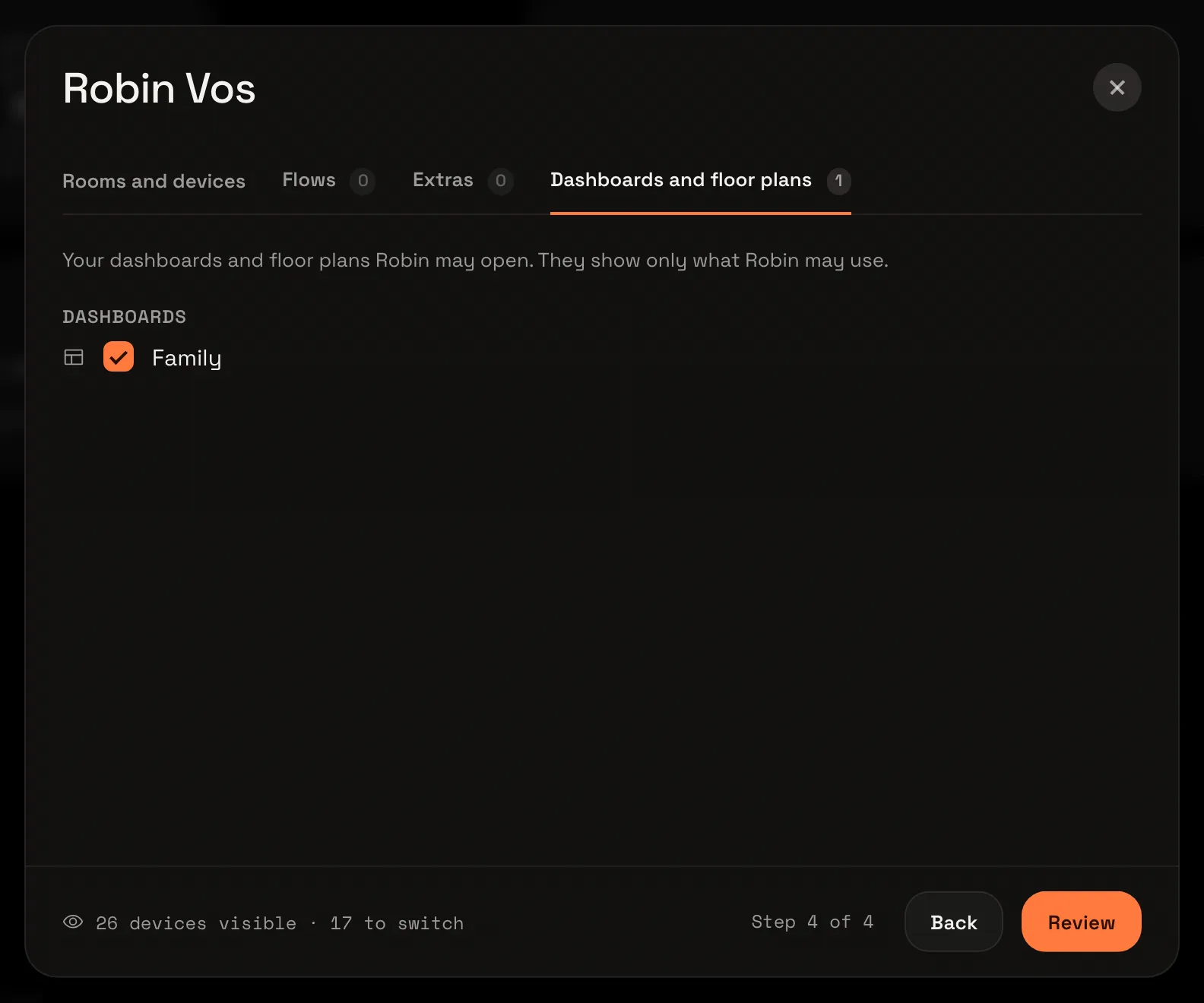
Choose the pencil on Robin’s row. Robin’s window opens on what Robin may use, the same choices as when you let Robin in.

Choose the Dashboards and floor plans tab, tick Family and choose Review. Next takes you through every tab in turn, if you want to look at them all.
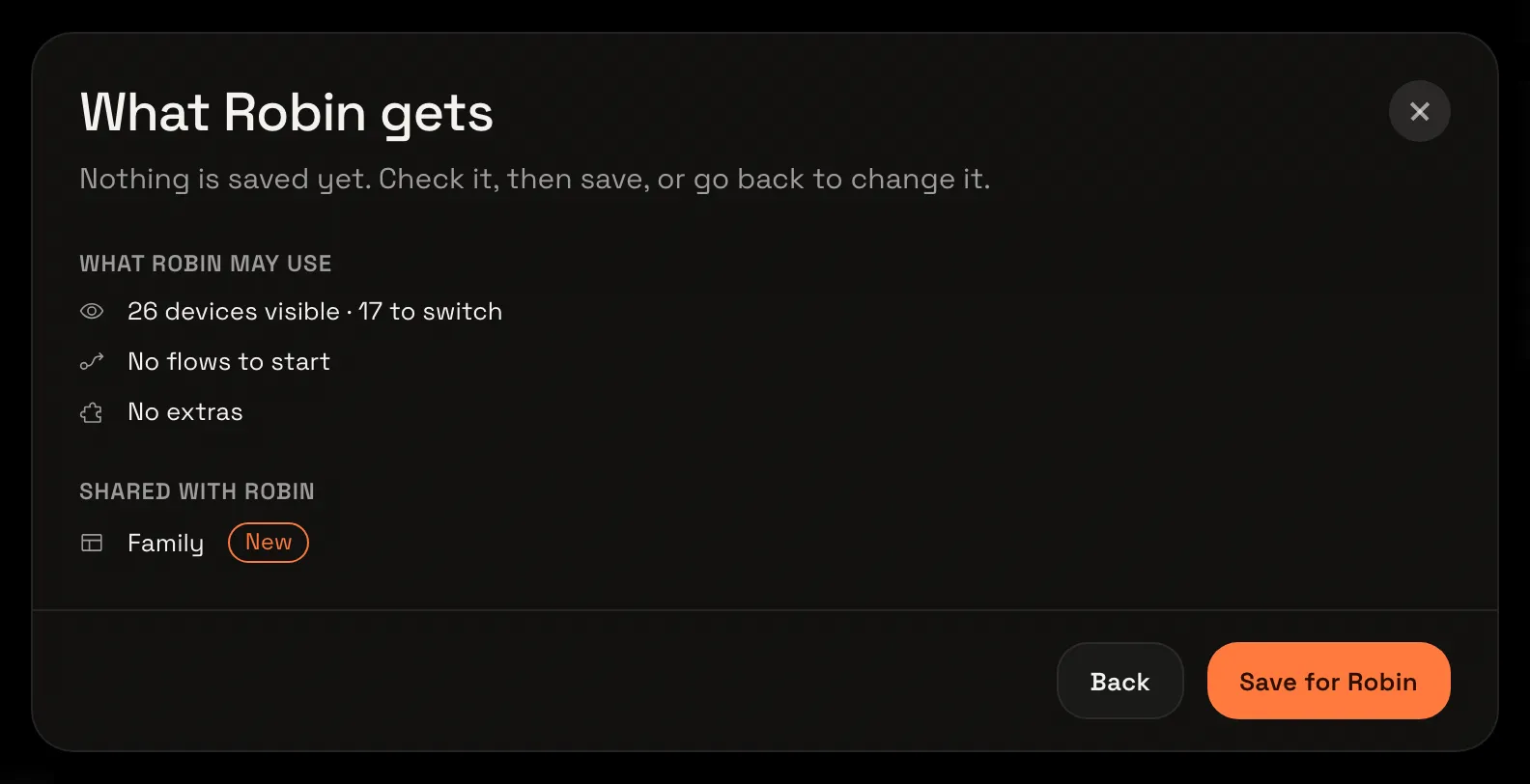
Check and save
Nothing is saved yet. The window shows what Robin gets: what Robin may use, and Family marked New. If Family needs something Robin can’t use yet, like a dashboard it opens or a device, it’s listed there, and you choose what goes along. Choose Save for Robin.
Robin sees what you chose
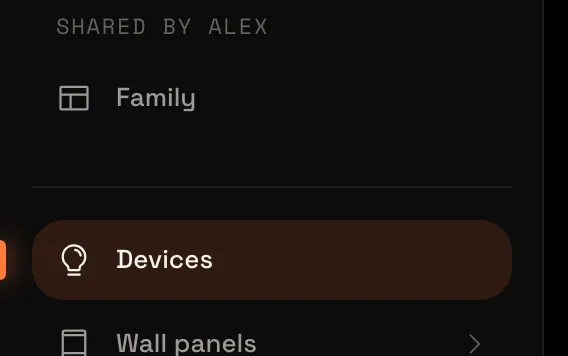
Now in Robin’s account: their sidebar shows Family under Shared by Alex. Robin can look at it and switch what you let them, but can’t change it. Tiles of devices Robin may not see show as unavailable.
Share your Homey with your household explains every choice, and how to change or end someone’s access later.


