Tutorial
Tidy your sidebar
Put your room dashboards in a group of their own, hide a page you rarely use, and make quick changes with a right-click.
- Takes
- About 4 minutes
- Steps
- 7
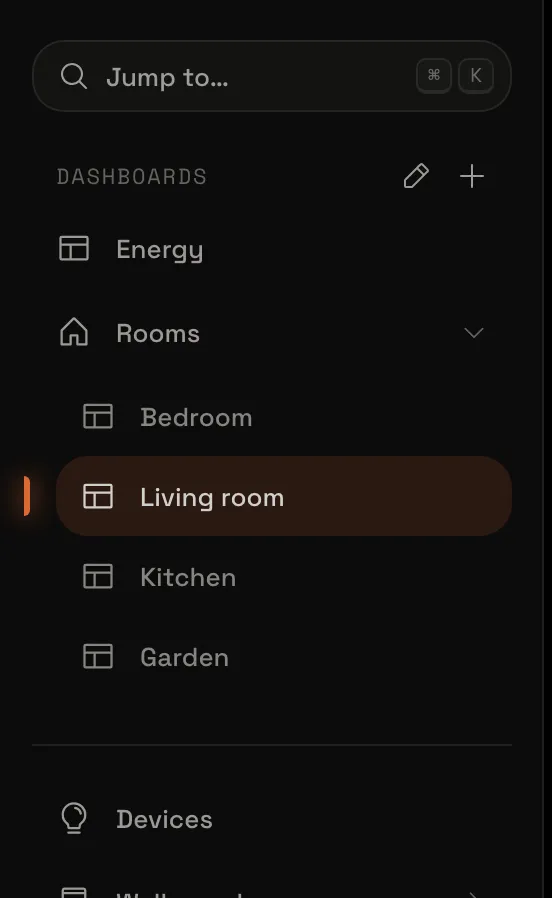
What you end up with

Edit your sidebar
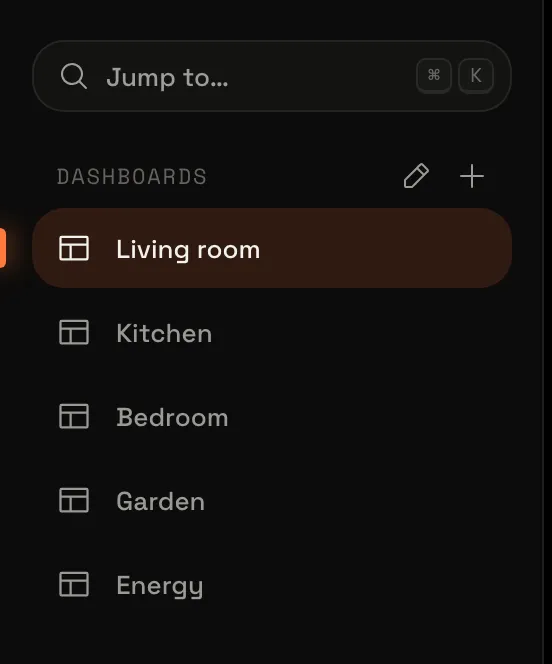
This tutorial starts with five dashboards: Living room, Kitchen, Bedroom, Garden and Energy. Yours can be any you have.
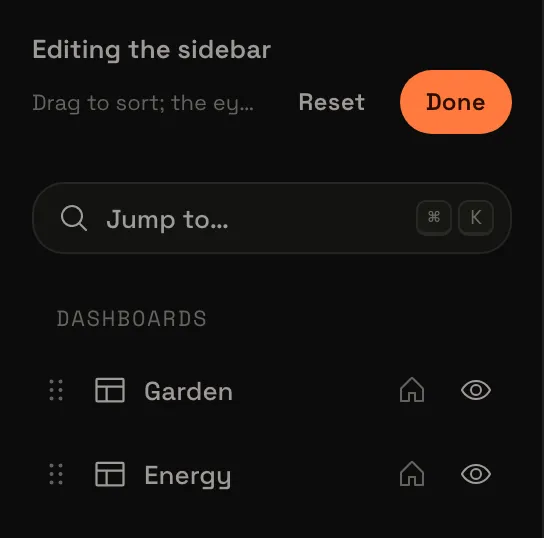
In the sidebar, next to Dashboards, choose the pencil. The top of the sidebar now says Editing the sidebar, with Done, and each dashboard gets a handle on the left and an eye on the right.
Make a group
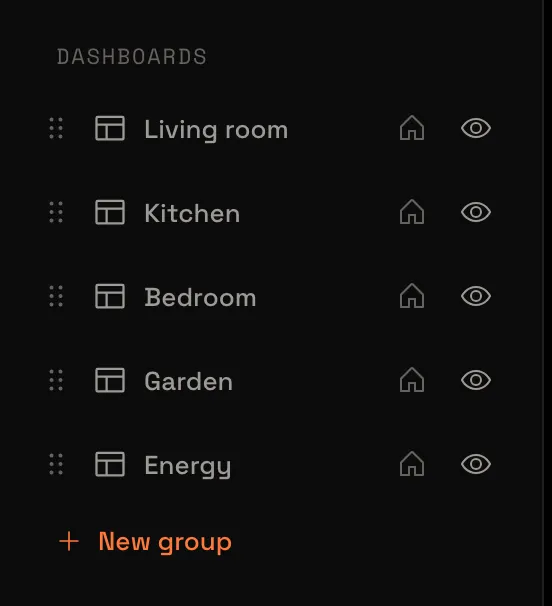
Below your dashboards, choose New group. The New group window opens and asks for a name and an icon.
Name it
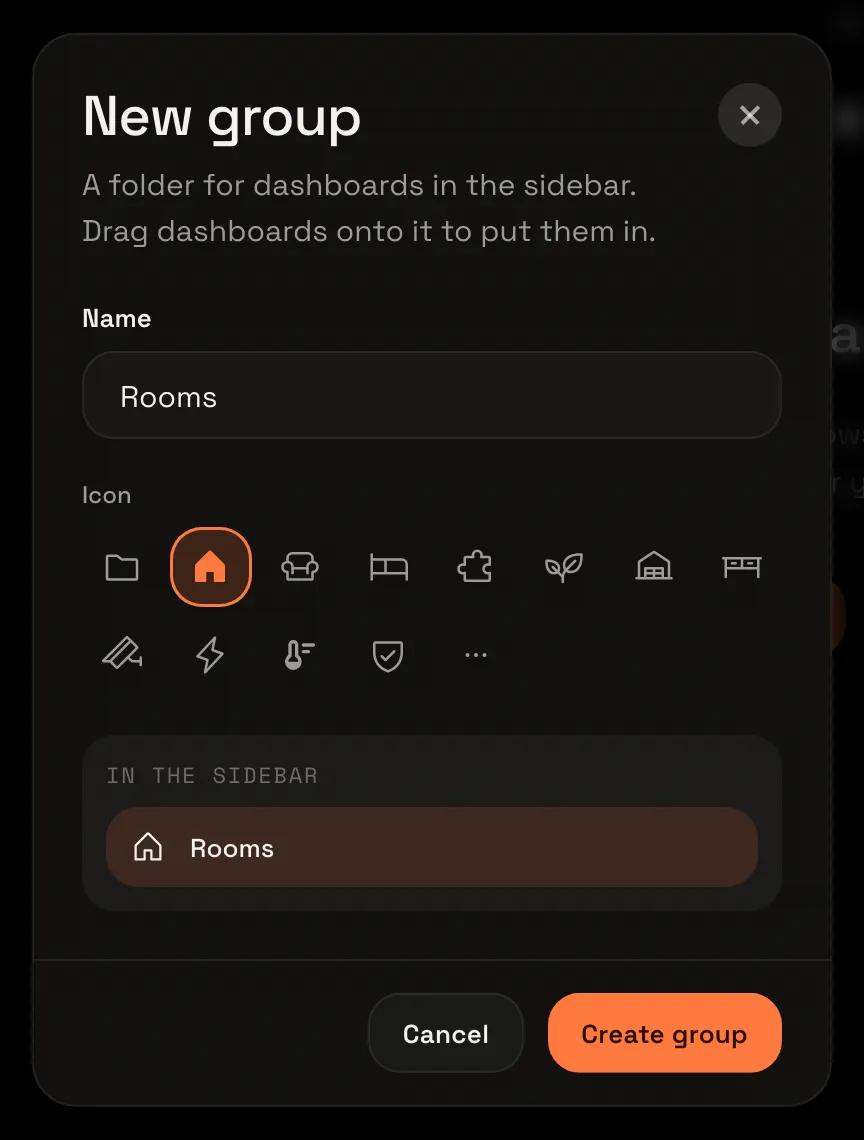
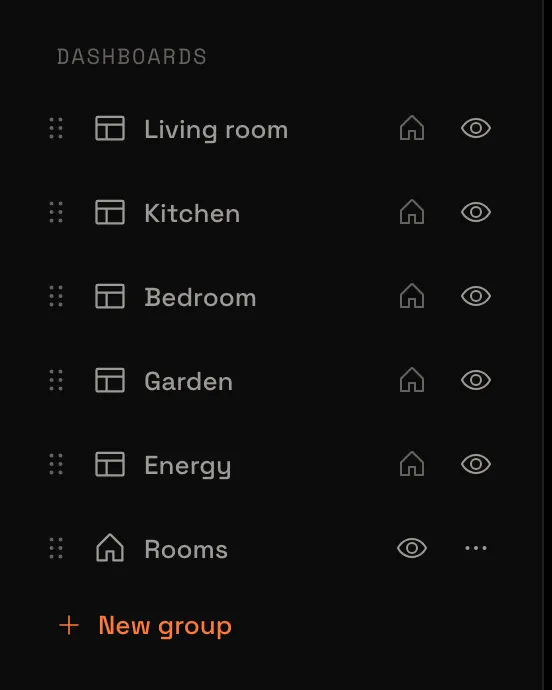
Type Rooms, choose the house icon and then Create group. The window closes, and Rooms is at the end of your dashboards, with a handle of its own.
Put dashboards in it
Drag Living room by its handle onto Rooms. It moves in under the group. Do the same for Kitchen and Bedroom.
Hide a page you rarely use
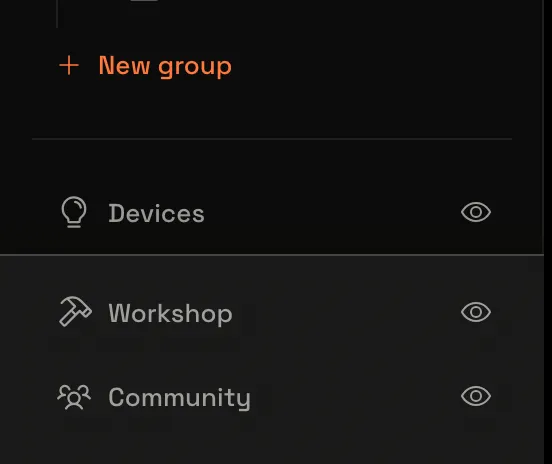
Every page in the sidebar has an eye. Choose the one next to Community to hide it. It stays where it is for now, dimmed, so you can show it again with the same eye.
Save it
Choose Done at the top. Edit mode ends, Community is gone from the sidebar, and Rooms is folded with your dashboards inside it.
Quick changes with a right-click
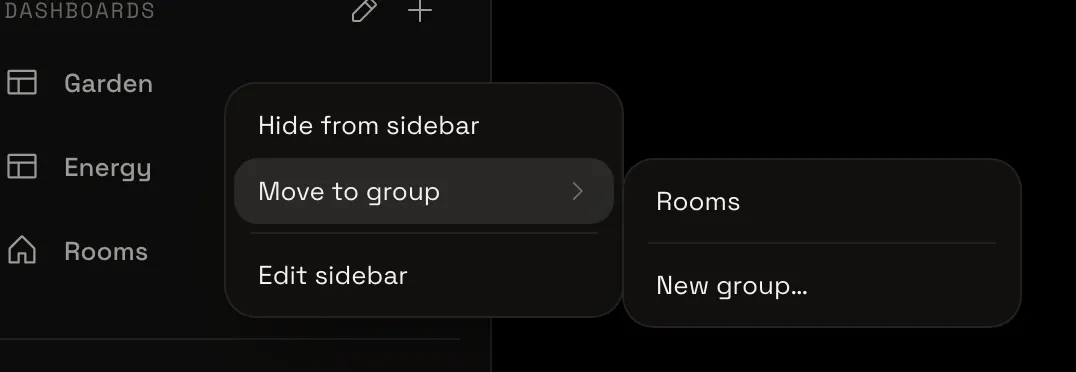
For a quick change, you don’t need edit mode. Right-click Garden in the sidebar (on a touch screen, press and hold), choose Move to group and then Rooms. Garden goes into the group, and a message says so, with Undo in case you change your mind.
Your sidebar is tidy
Choose Rooms to open it: Living room, Kitchen, Bedroom and Garden are in it, and Energy stays on its own.
A hidden dashboard is never far away: Jump to… (⌘K, or Ctrl K) finds every dashboard, shown or not. Your dashboards has the rest: renaming a group, its icon, and Reset.