Tutorial
Connect an e-ink screen
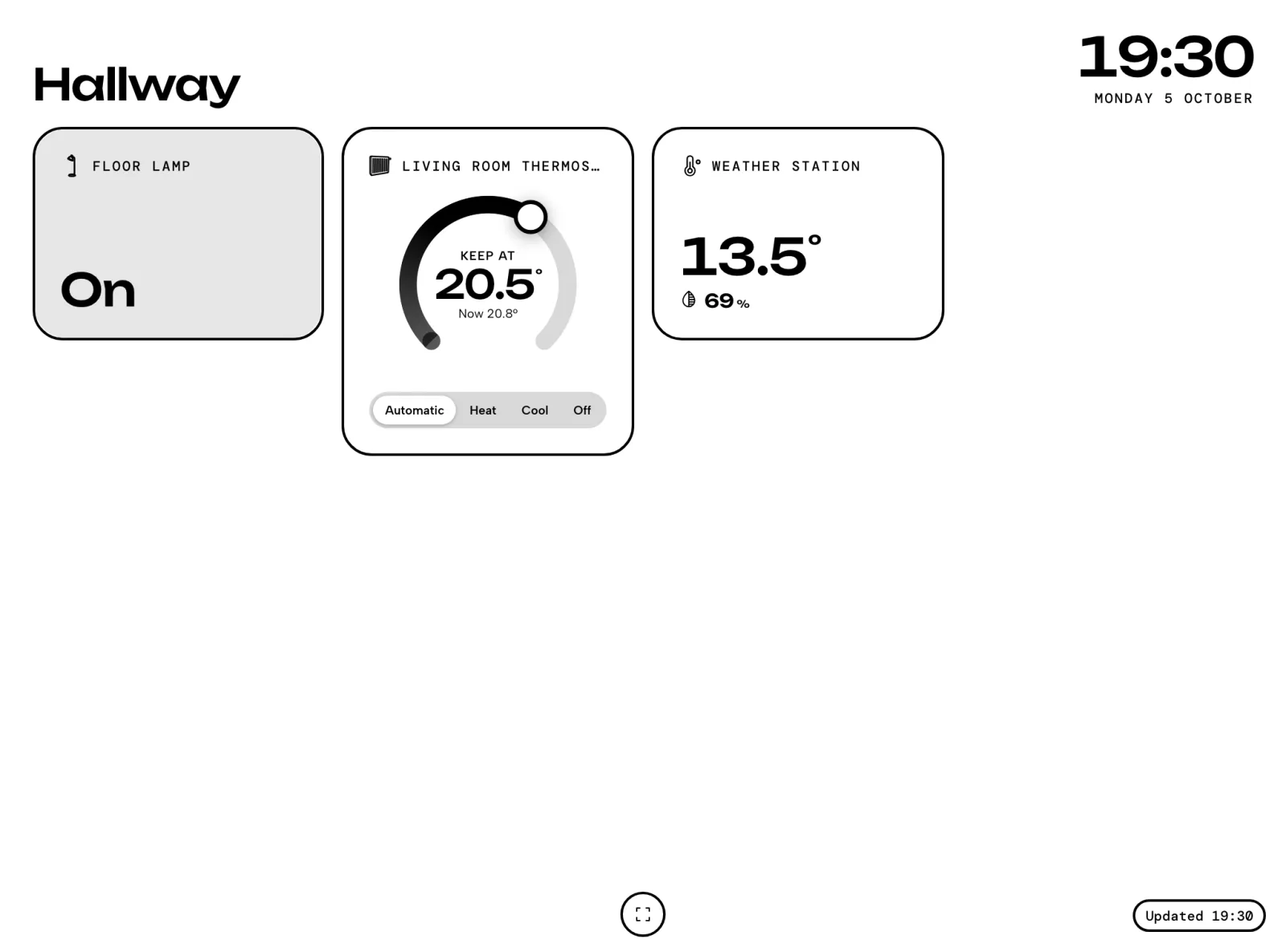
An e-ink screen on your wall running a wall panel, paired with a code and without your login on it, in the theme you pick from your account.
- Takes
- About 4 minutes
- Steps
- 7
What you end up with
Open the pairing page on the screen
This tutorial uses a wall panel called Hallway e-ink, with E-ink screen switched on in its settings. Any screen with a browser works the same way: an e-reader, a tablet or a kiosk.
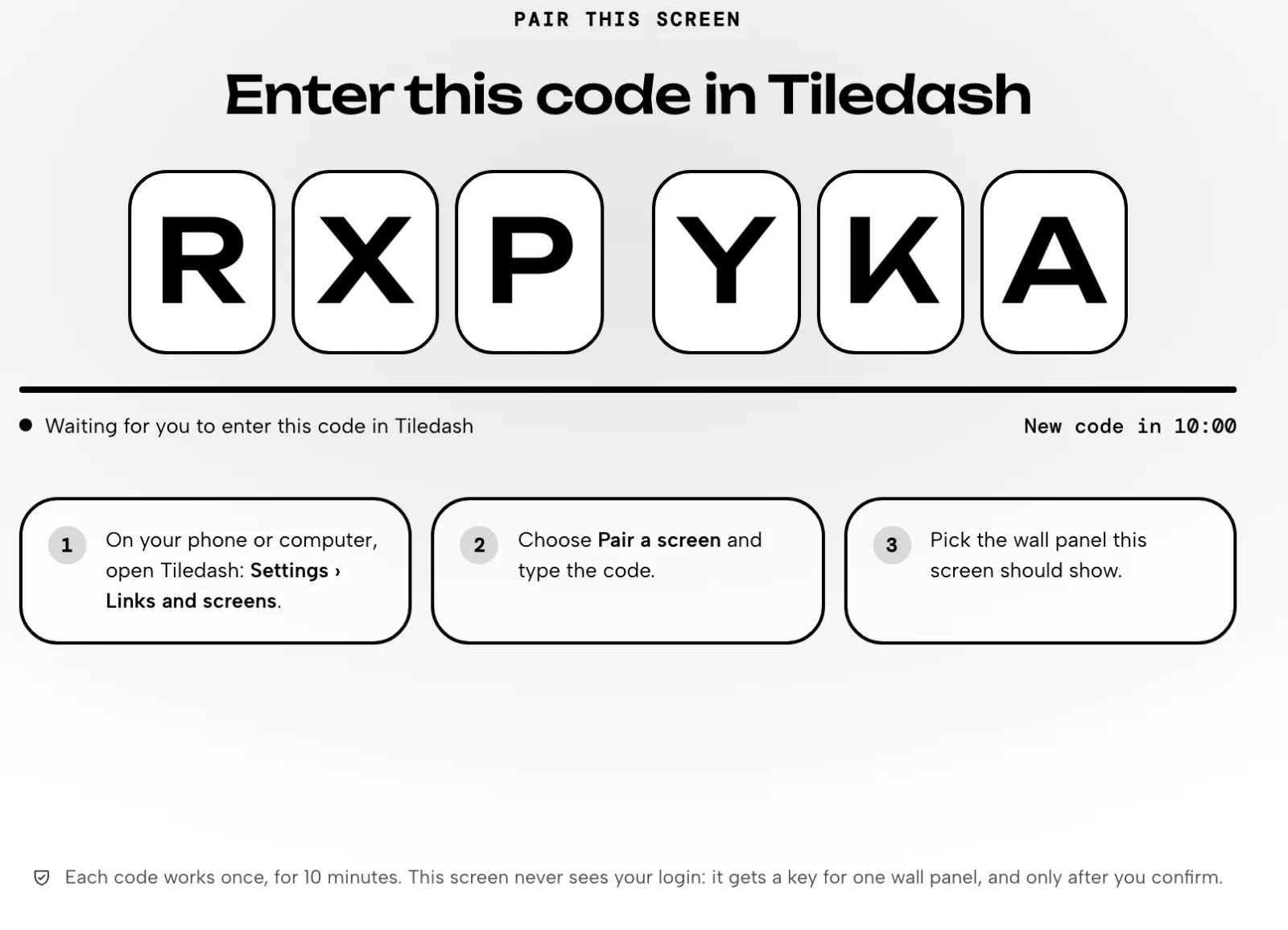
On the screen, open my.tiledash.app/pair. It says Pair this screen and shows a code of six characters. Leave it open: the rest happens on your phone or computer.
Open Links and screens
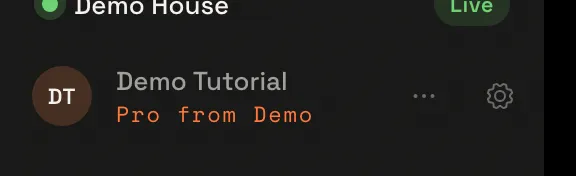
On your computer, choose the gear beside your name at the bottom of the sidebar: it opens Settings. On a phone, tap your initials at the top right, then Settings.
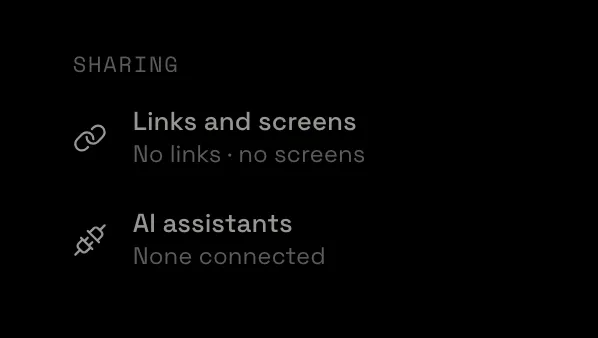
Scroll down the Settings menu to Sharing, and choose Links and screens.
Pair a screen
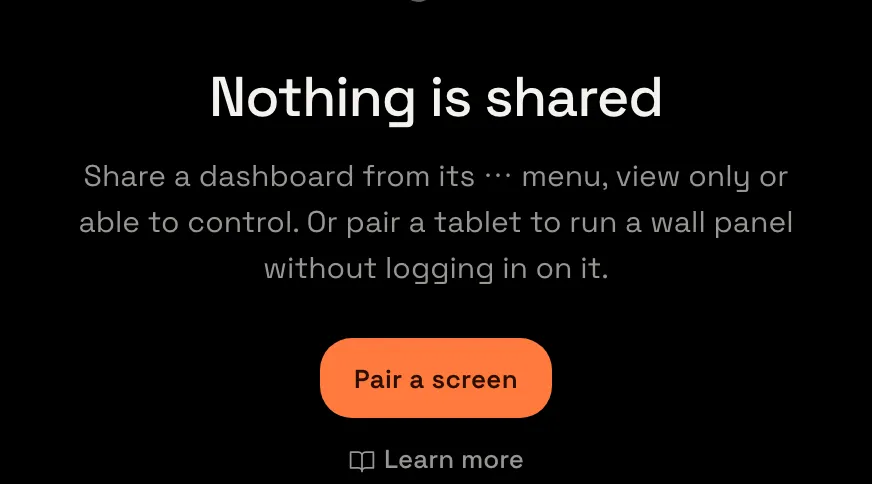
Under Paired screens you see how many you have, out of how many your plan has. Choose Pair a screen. The Pair a screen window asks for the code.
Type the code
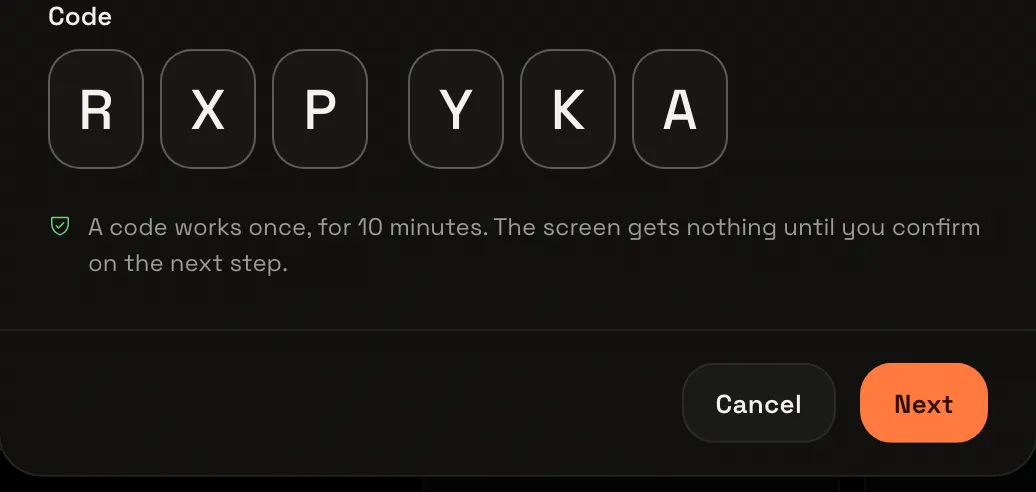
Type the code the screen shows and choose Next. The window asks What should this screen show?, and names the screen that asked for the code, such as Chrome on an Android tablet, so you know it’s yours.
Choose what it shows
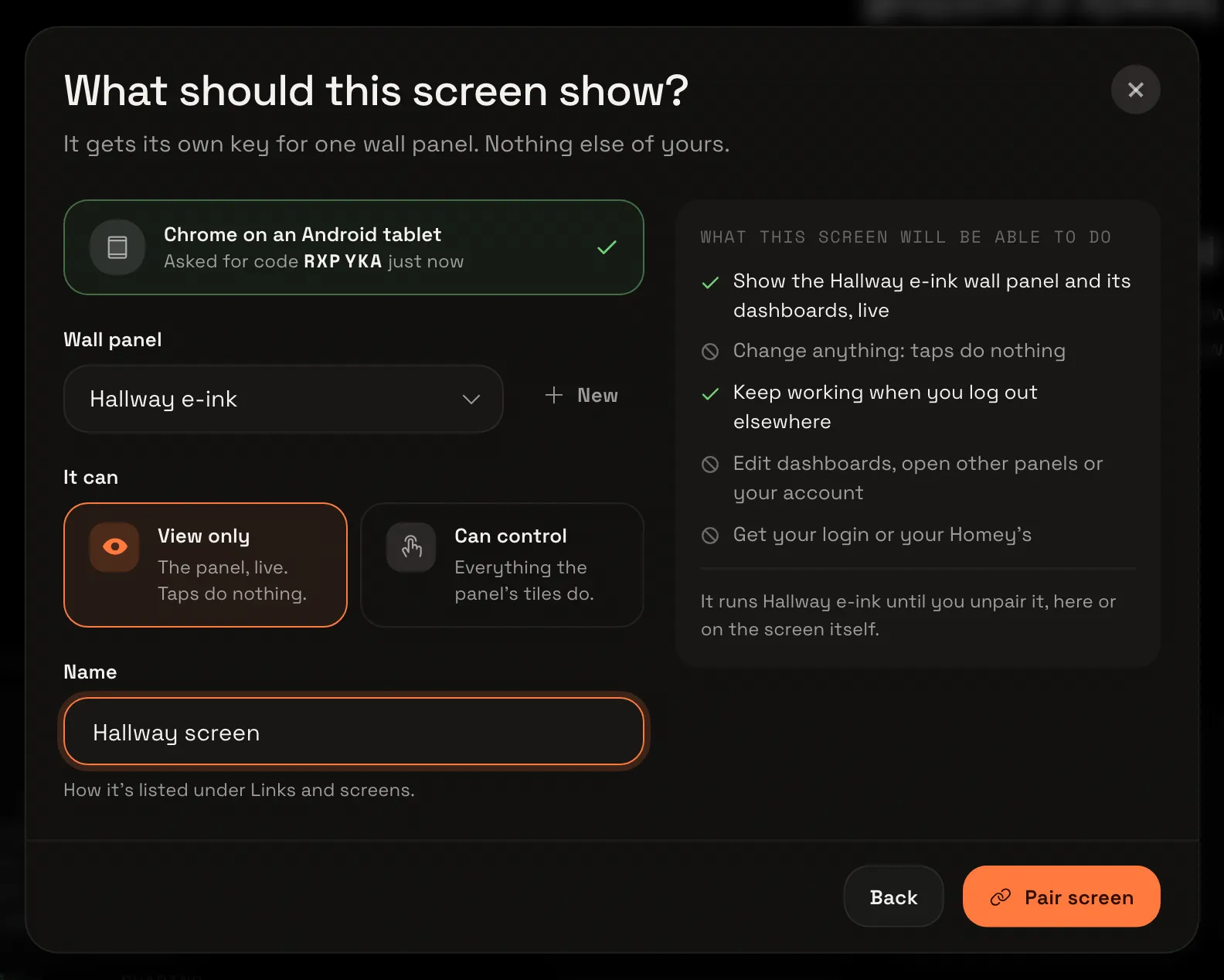
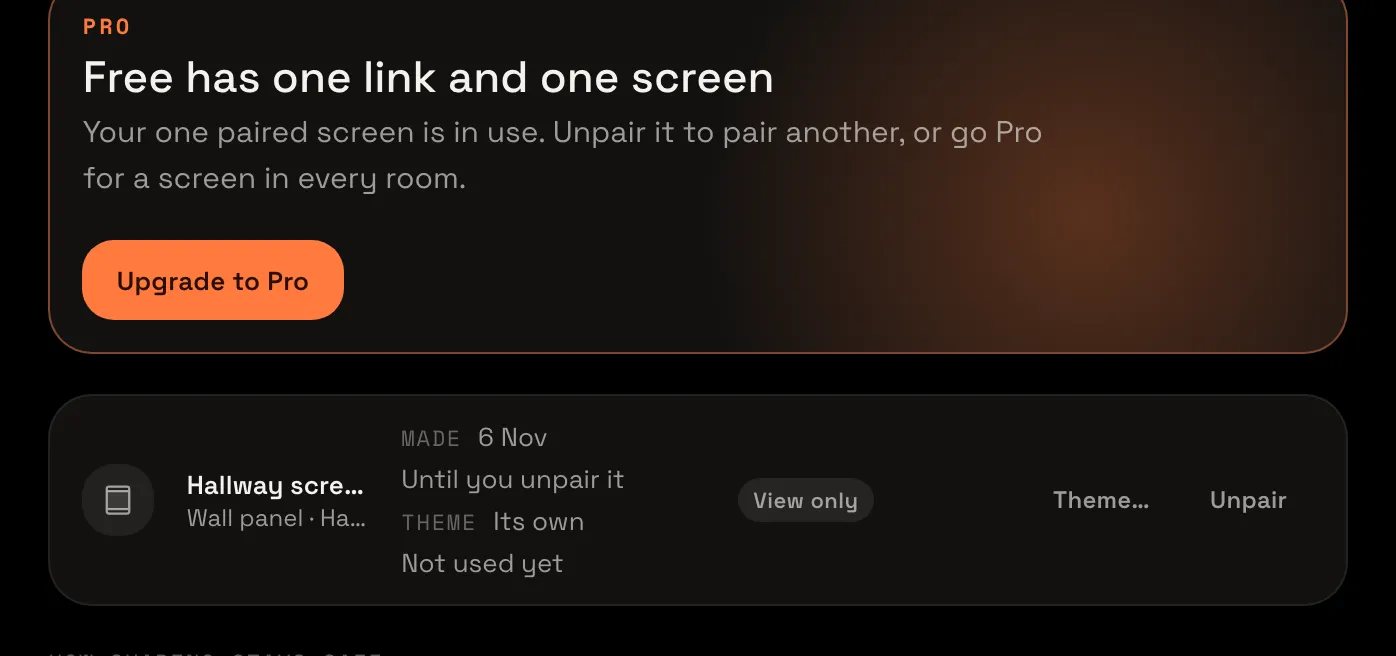
Check that Wall panel is Hallway e-ink and keep View only: on a screen in the hall, taps do nothing. Type a Name, such as Hallway screen, and choose Pair screen. The window closes, and the screen is listed under Links and screens.
Open its theme
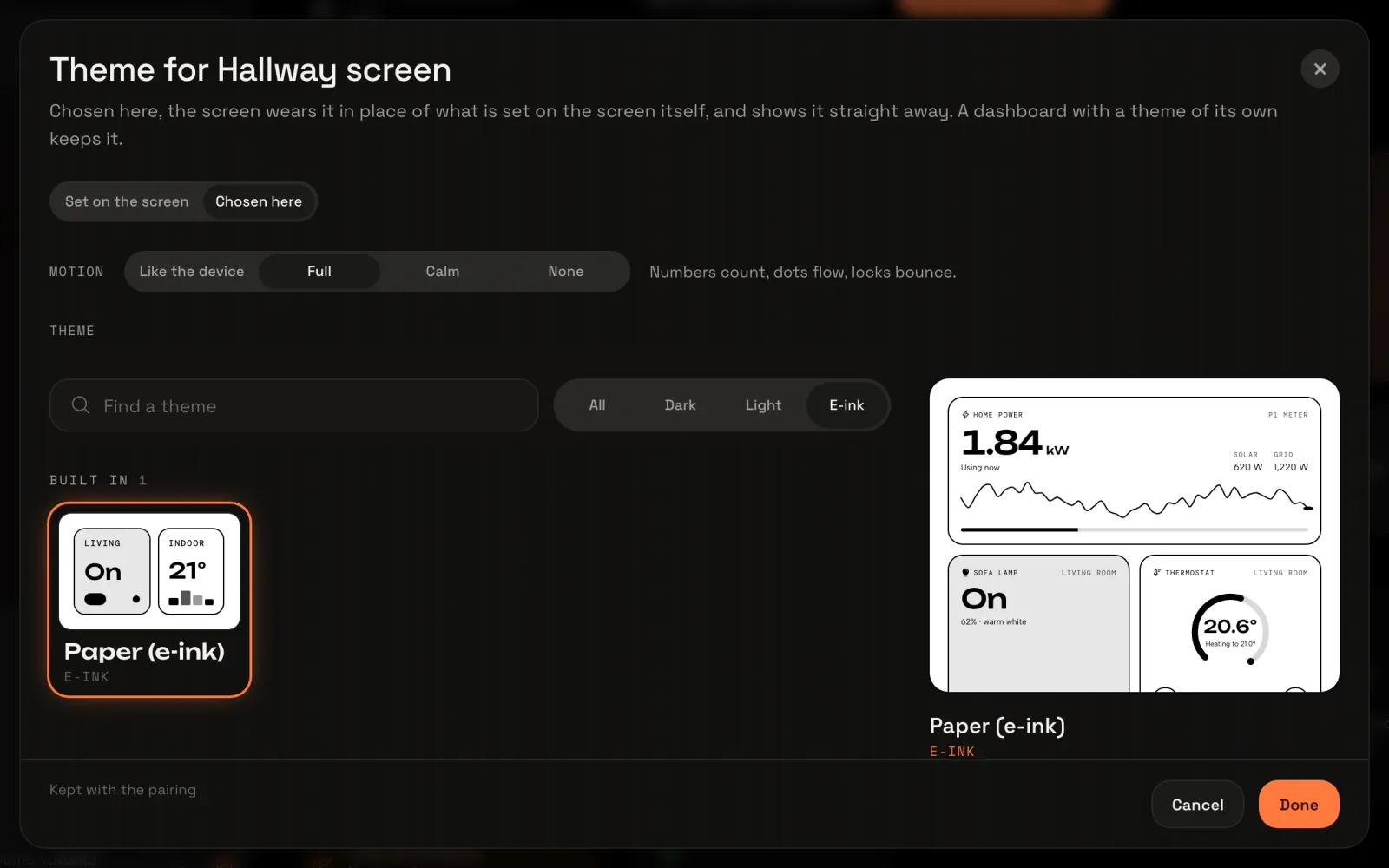
You can change how the screen looks from here, without walking to it. On the screen’s row, choose Theme…. Theme for Hallway screen opens; for now the theme is Set on the screen.
Choose Paper
Choose Chosen here, then the E-ink filter and Paper (e-ink), and choose Done. The window closes and the screen’s row names its theme. On a tablet you’d pick any theme here.
Your screen shows the panel
The screen starts the panel by itself: Hallway in black and white, with Updated 19:30 in the corner instead of a live dot: an e-ink screen takes new values in steps.
Wall panels and e-ink has the e-ink settings, and Sharing and paired screens how to unpair it, from your account or on the screen itself.


