Tutorial
Make a picture of your house in your own chat
Let Tiledash write the prompt for a picture of your house, make it in ChatGPT or Gemini, and upload what it makes.
- Takes
- About 5 minutes
- Steps
- 6
What you end up with

Open the prompt generator
Choose the gear at the foot of the sidebar to open Settings.
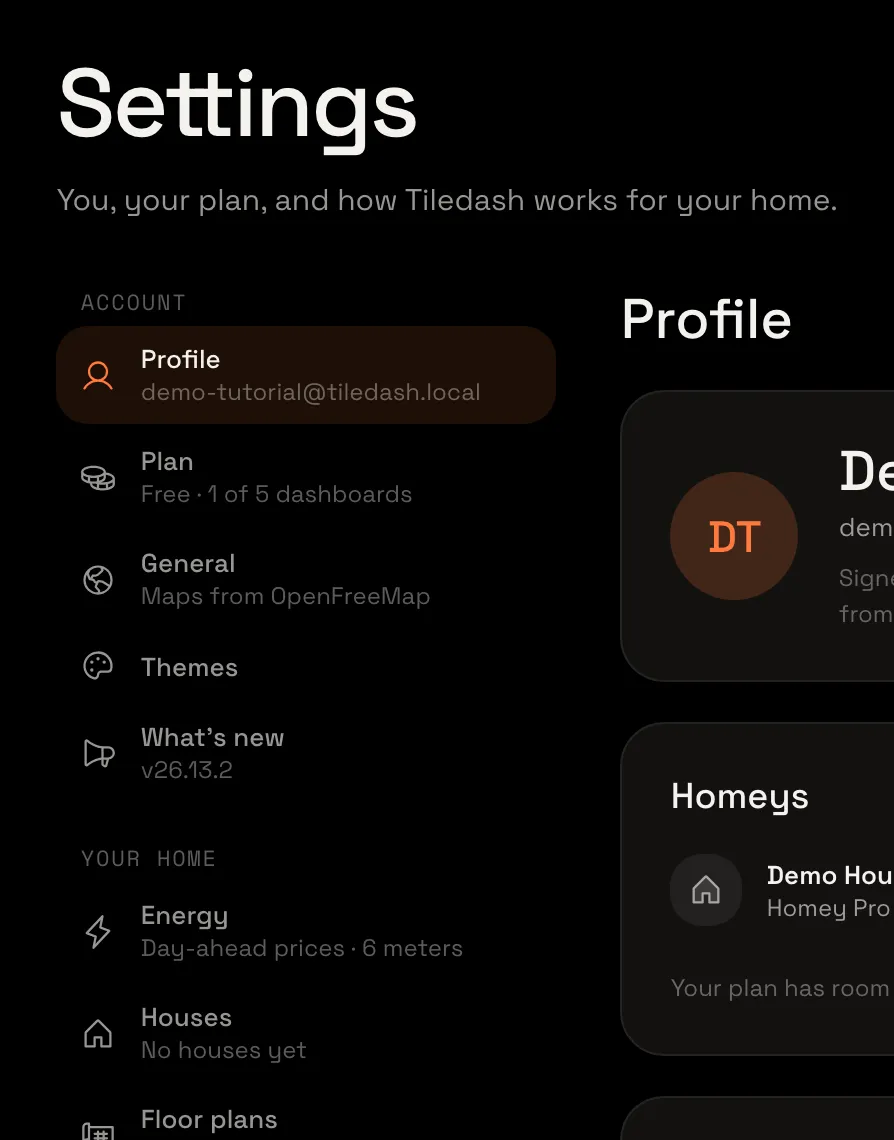
In the Settings menu, choose Houses, then New house. The house opens on its Front.
Under Upload a picture, choose Write a prompt for your own ChatGPT or Gemini. The questions open, with the prompt they write on the right.
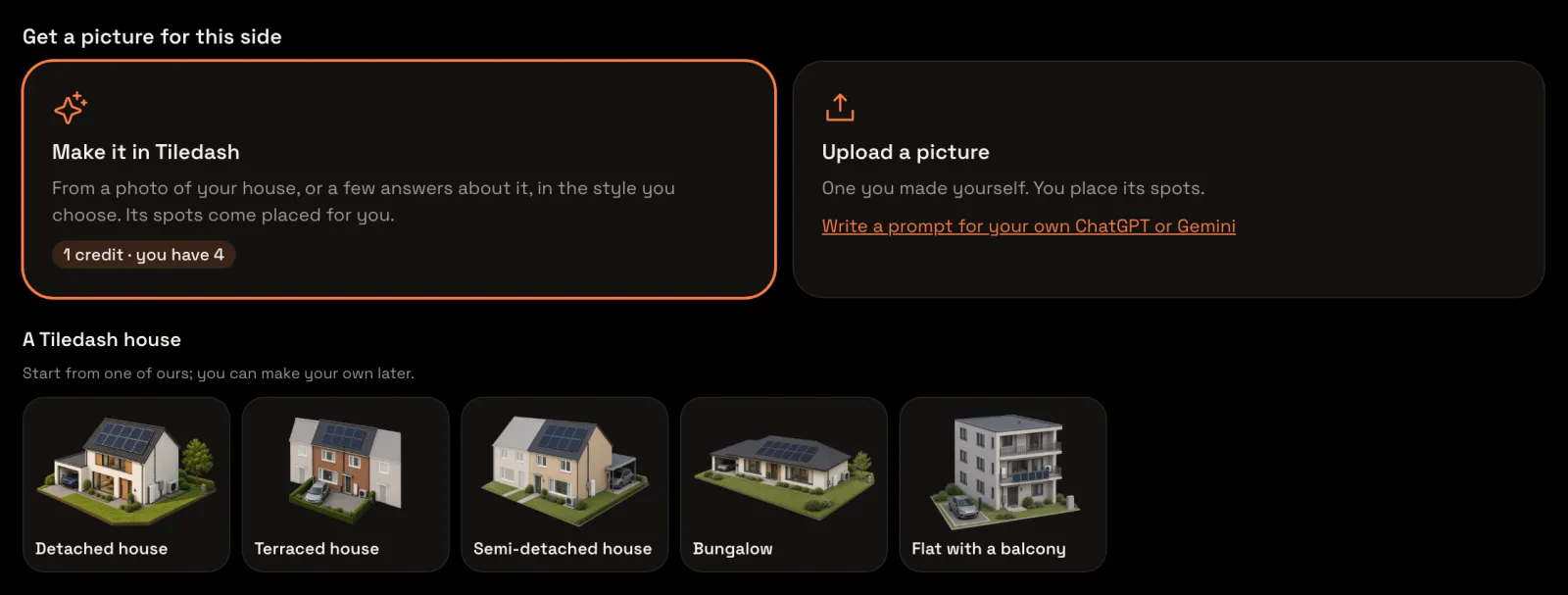
Say what’s at your home
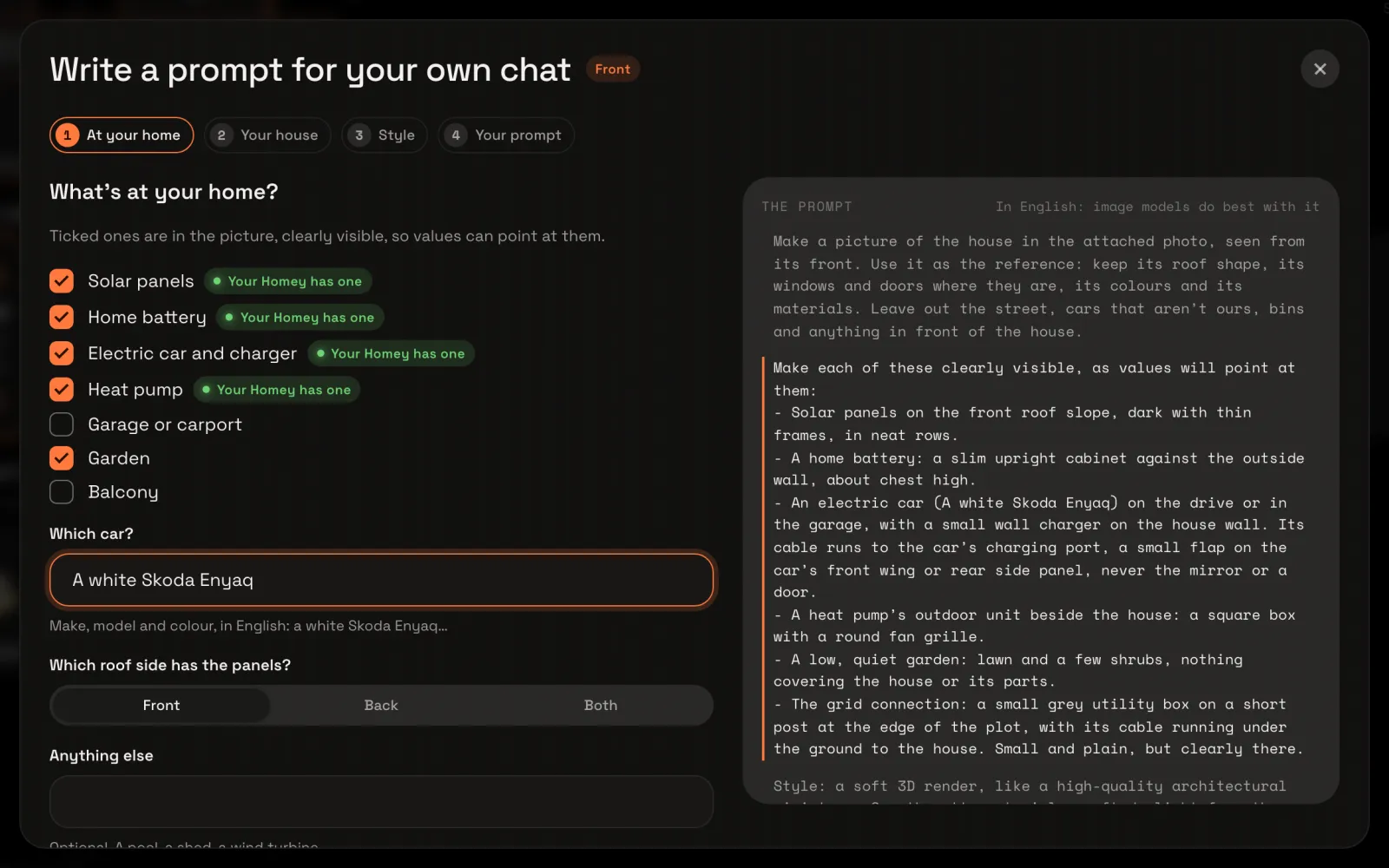
Under What’s at your home?, what your Homey has comes ticked, marked Your Homey has one. Tick what else is at your home. Under Which car?, type your car’s make, model and colour, in English; the prompt names it. Then choose Your house at the top.
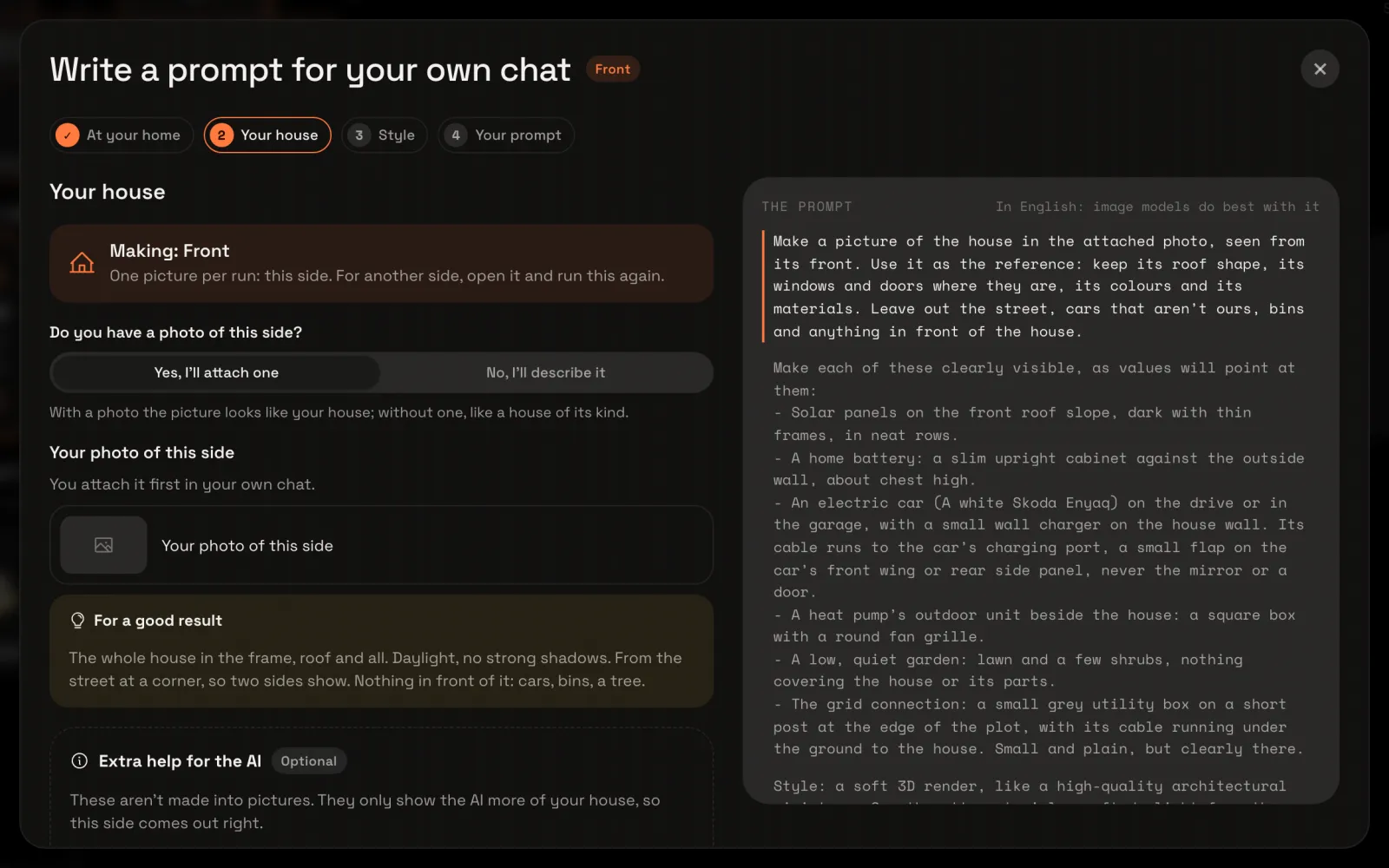
Say whether you have a photo
Making: Front says which side this picture is of: each run makes one side, the one you opened. Choose Yes, I’ll attach one if you have a photo of that side: the picture will look like it. For a good result says how to take one. You attach it in your chat, so you don’t need to choose it here. Without a photo, choose No, I’ll describe it and say what your house is like.
Under Extra help for the AI you can say which photos of other sides or angles you’ll attach too: they only show the AI more of your house, and aren’t drawn. For another side later, its picture can go along so both match. Choose Style at the top.
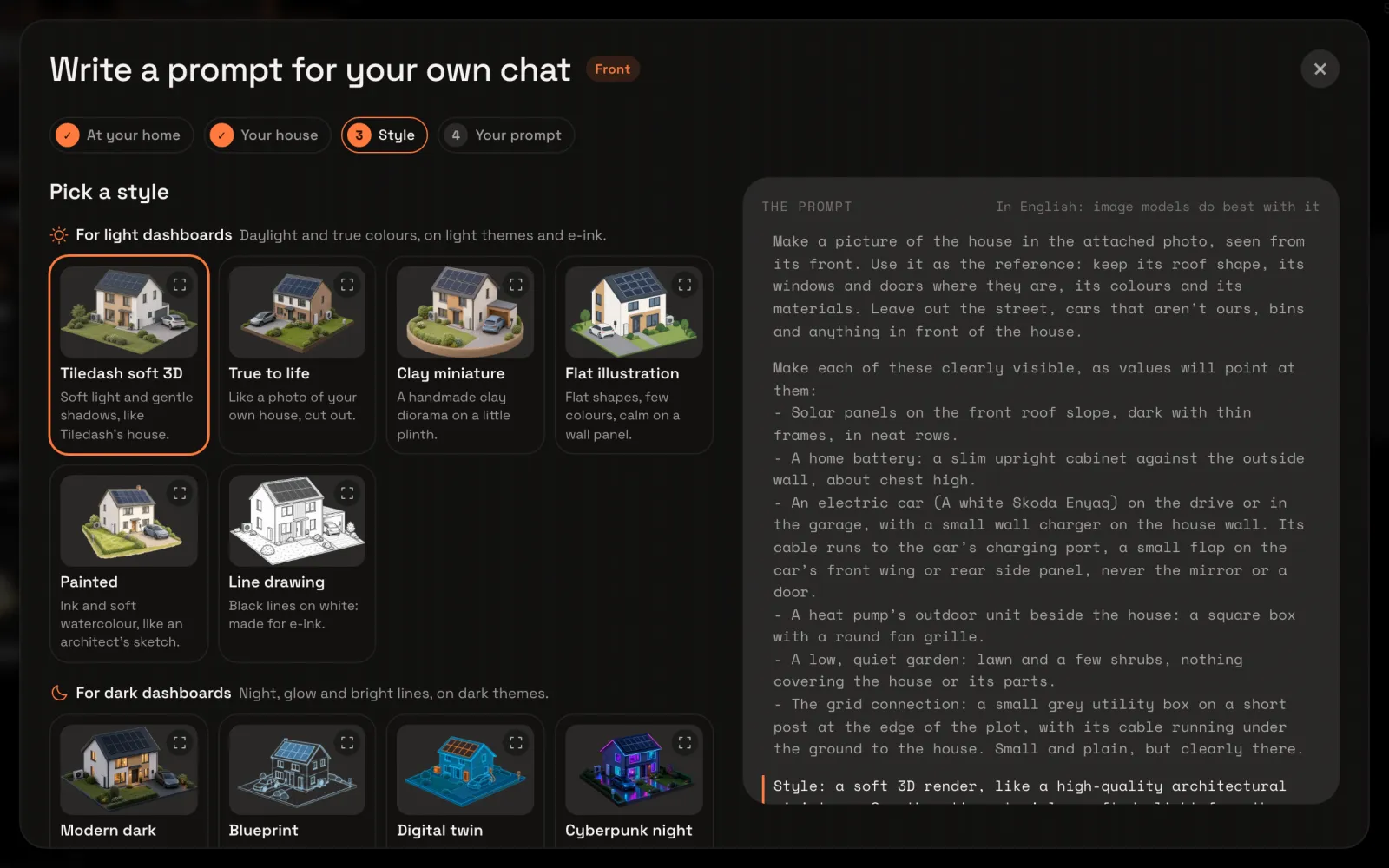
Pick a style
Tiledash soft 3D is chosen, the look of Tiledash’s own houses. The styles come in three groups: For light dashboards, For dark dashboards and Playful. Pick another if you like, then choose Your prompt at the top.
Copy the prompt
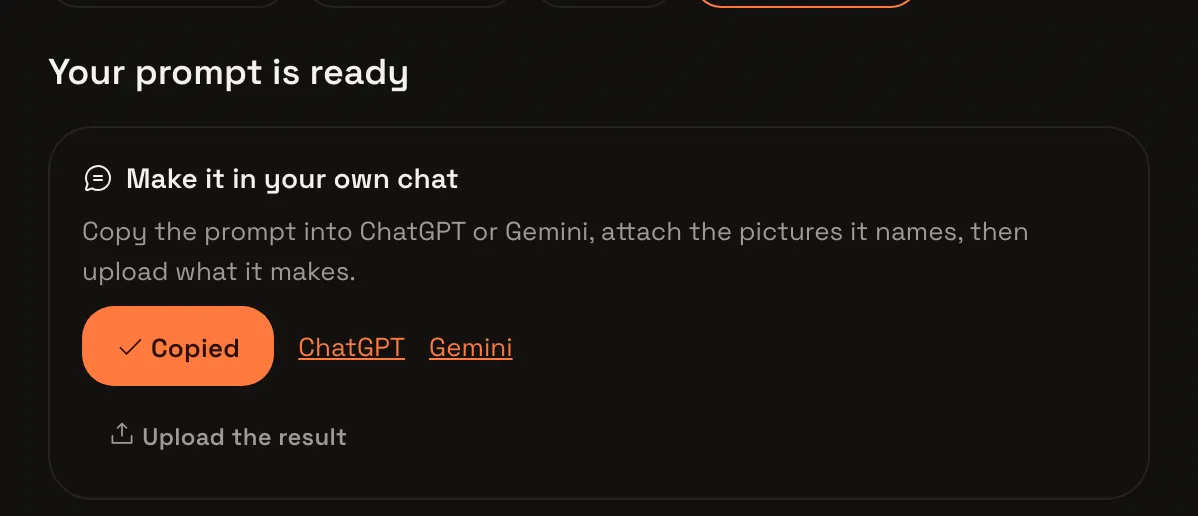
Your prompt is ready. Under Make it in your own chat, choose Copy prompt. It says Copied, and the prompt is on your clipboard.
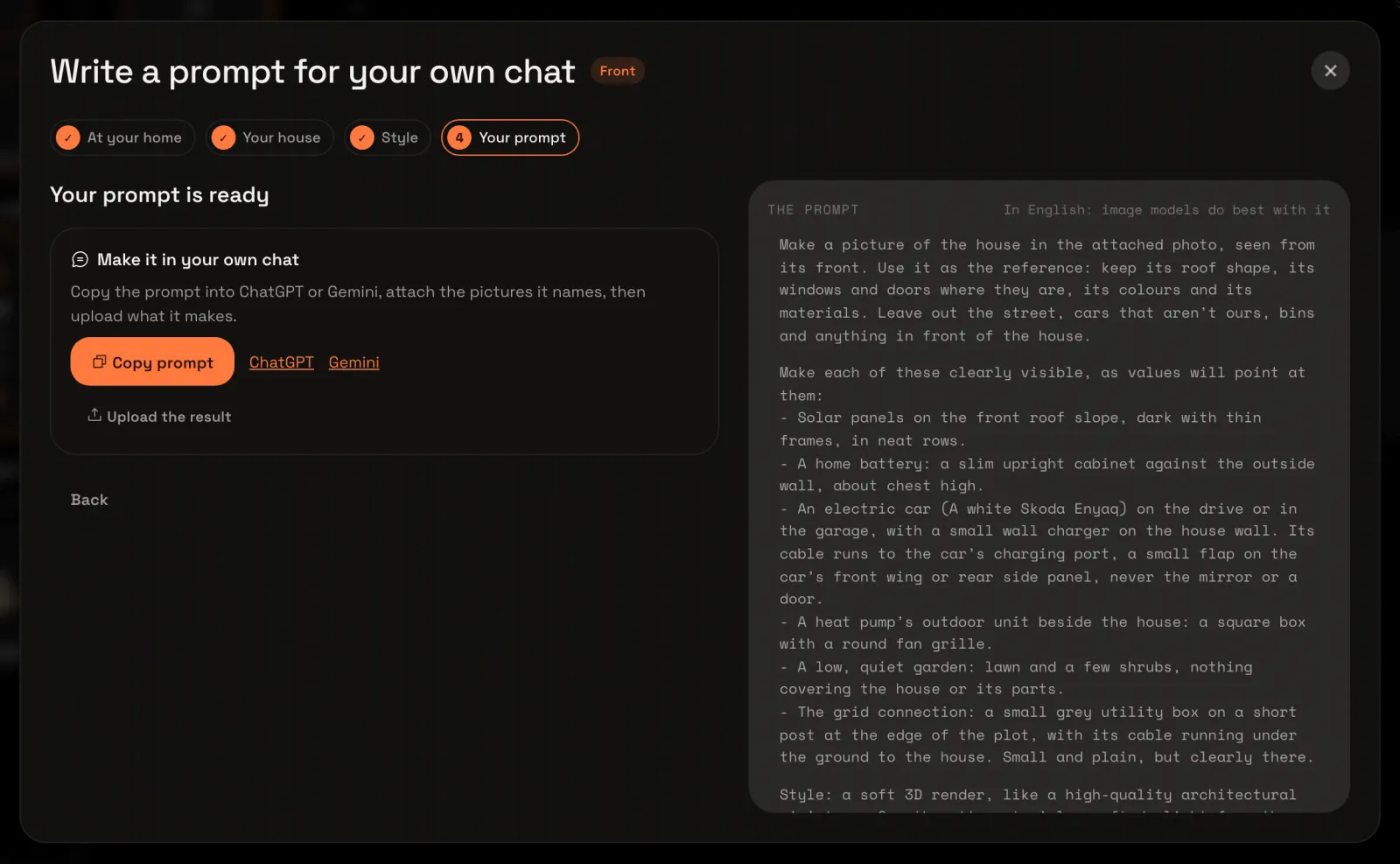
Make it in your chat
Open ChatGPT or Gemini with the links beside Copy prompt. Paste the prompt, attach the photo of your house, and send it. Save the picture it makes. Not quite right? Ask your chat for another try, or to change what’s off.
Upload the result
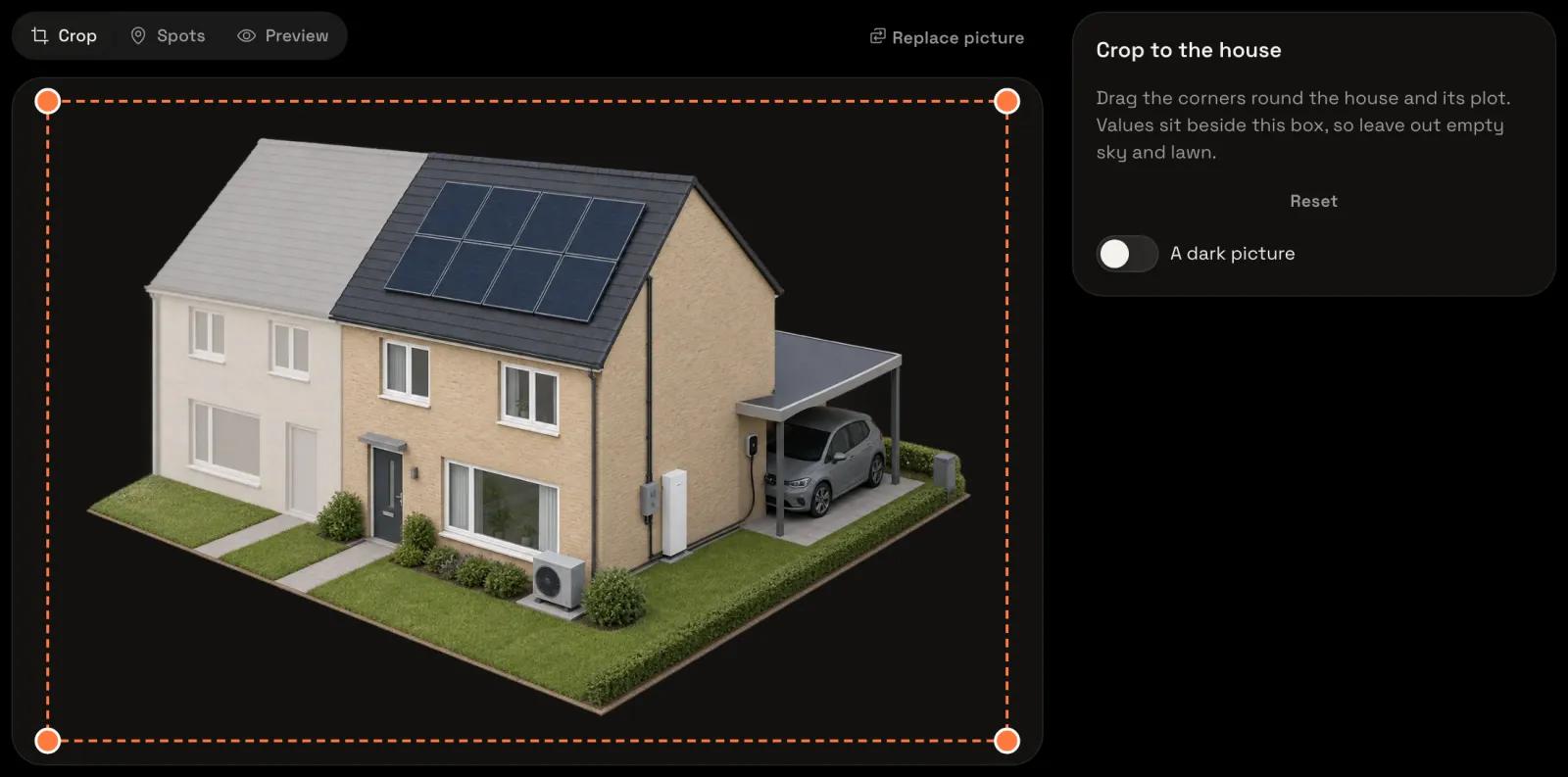
Back in Tiledash, choose Upload the result and pick the picture your chat made. The questions close and the editor shows your picture, ready to crop and place its spots, as in Upload your own house picture and place its spots. The house keeps your answers for its next side.