Tutorial
Turn a photo of your house into a 3D picture
Upload a photo of your house, answer a few questions, and let Tiledash make a 3D picture of it with its solar, battery, car and the rest already marked.
- Takes
- About 5 minutes
- Steps
- 7
What you end up with

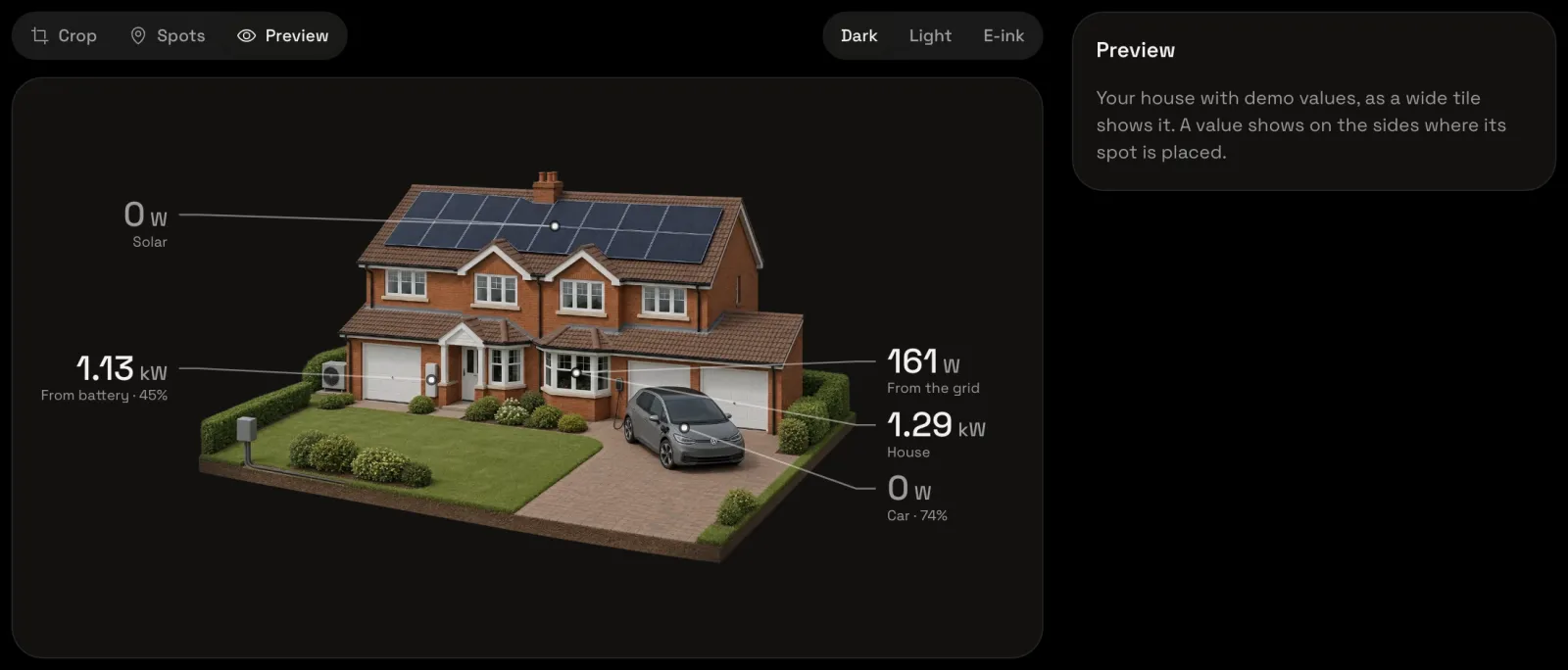
Tiledash can turn a photo of your house into a 3D picture for the Energy house, in the style you pick. Its spots come placed for you: the places on the picture where your solar, battery, car and the rest show their values. A picture costs one credit.
Make a new house
Choose the gear beside your name at the foot of the sidebar to open Settings.
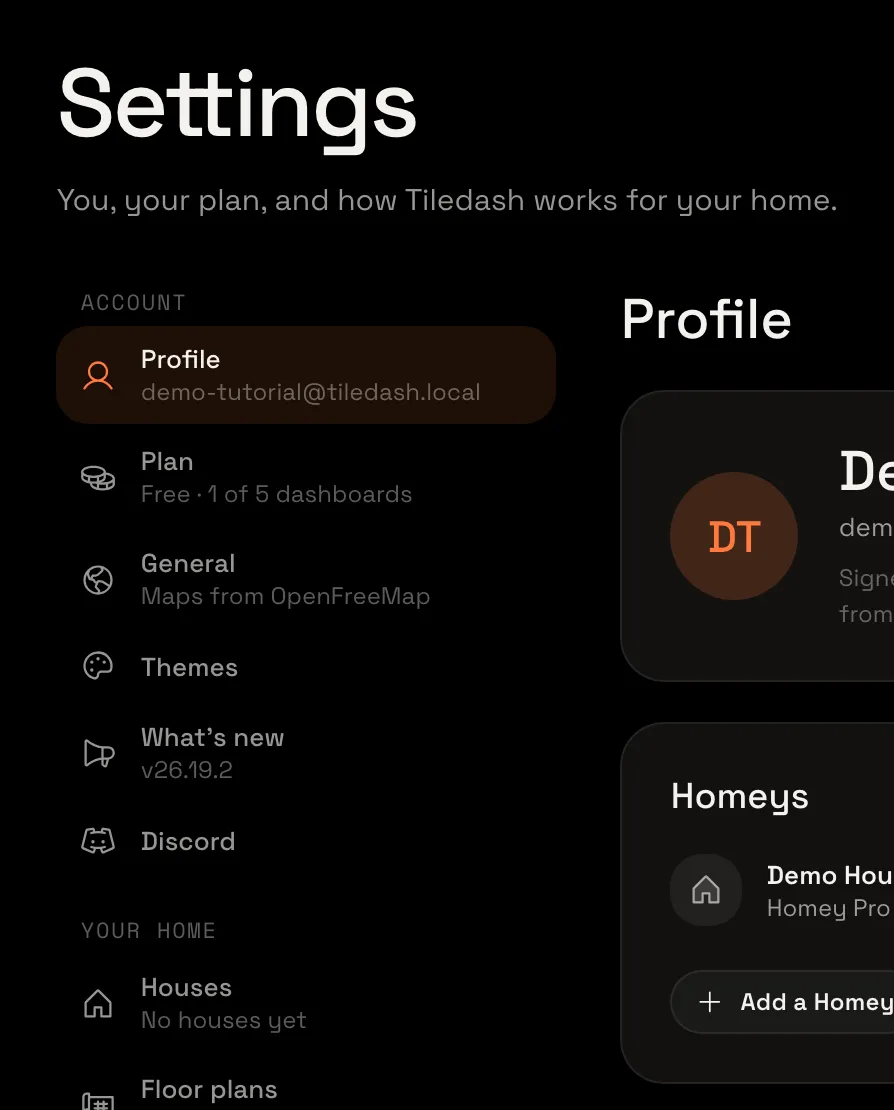
In the Settings menu, choose Houses.
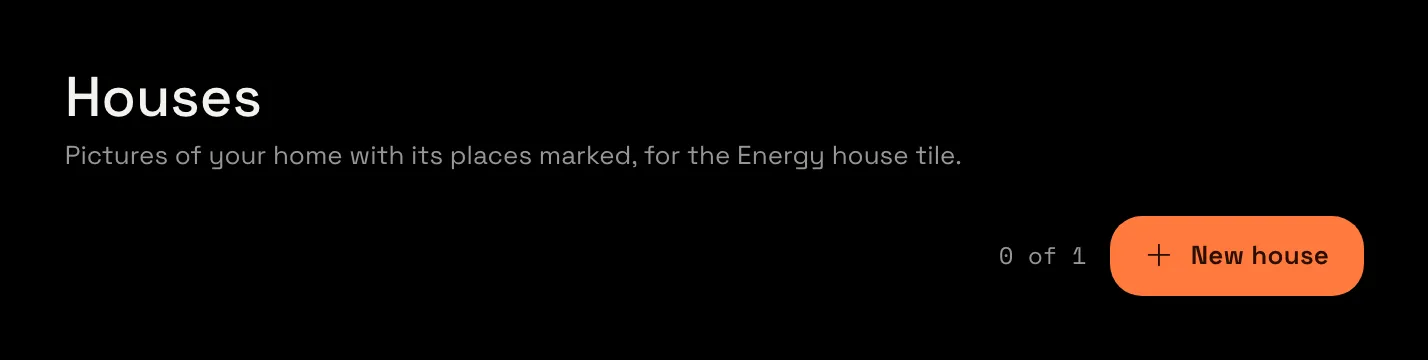
Choose New house. The house opens in its editor, on its Front: each side of a house gets its own picture, and this is the first.
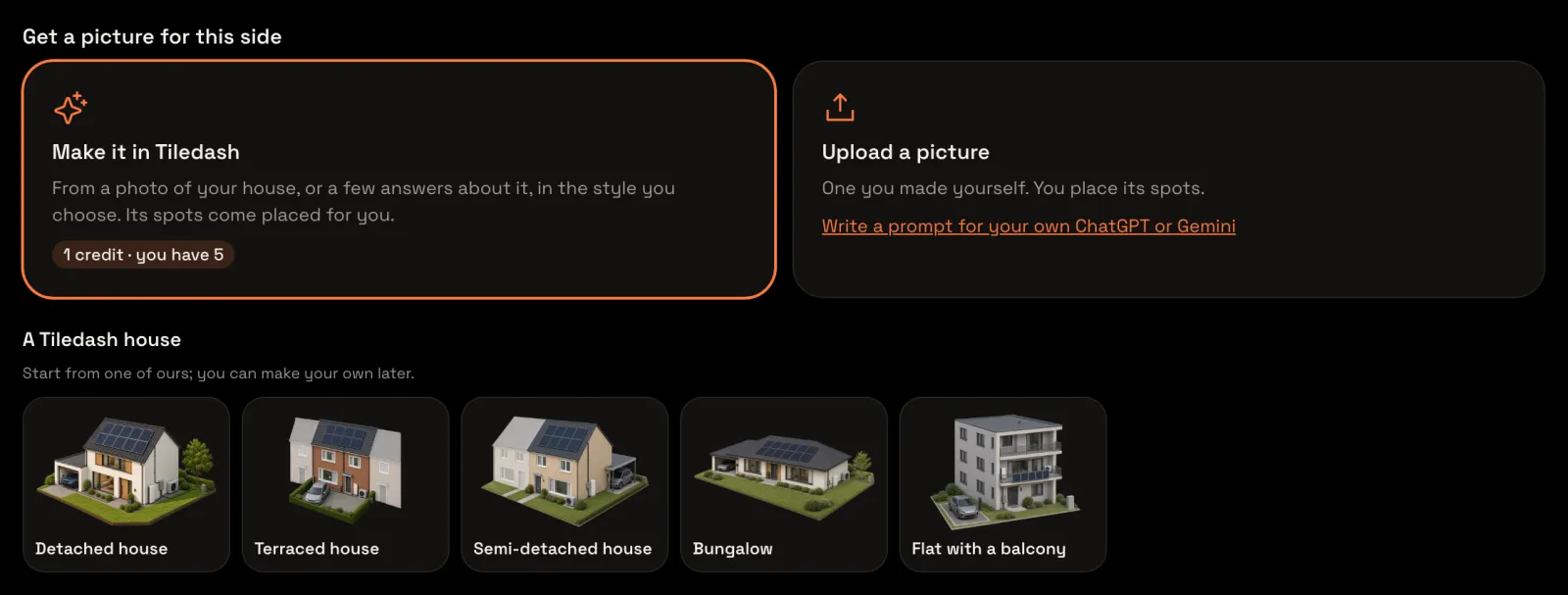
Choose Make it in Tiledash
Under Get a picture for this side, choose Make it in Tiledash. Its badge says what a picture costs and how many credits you have.
Say what’s at your home
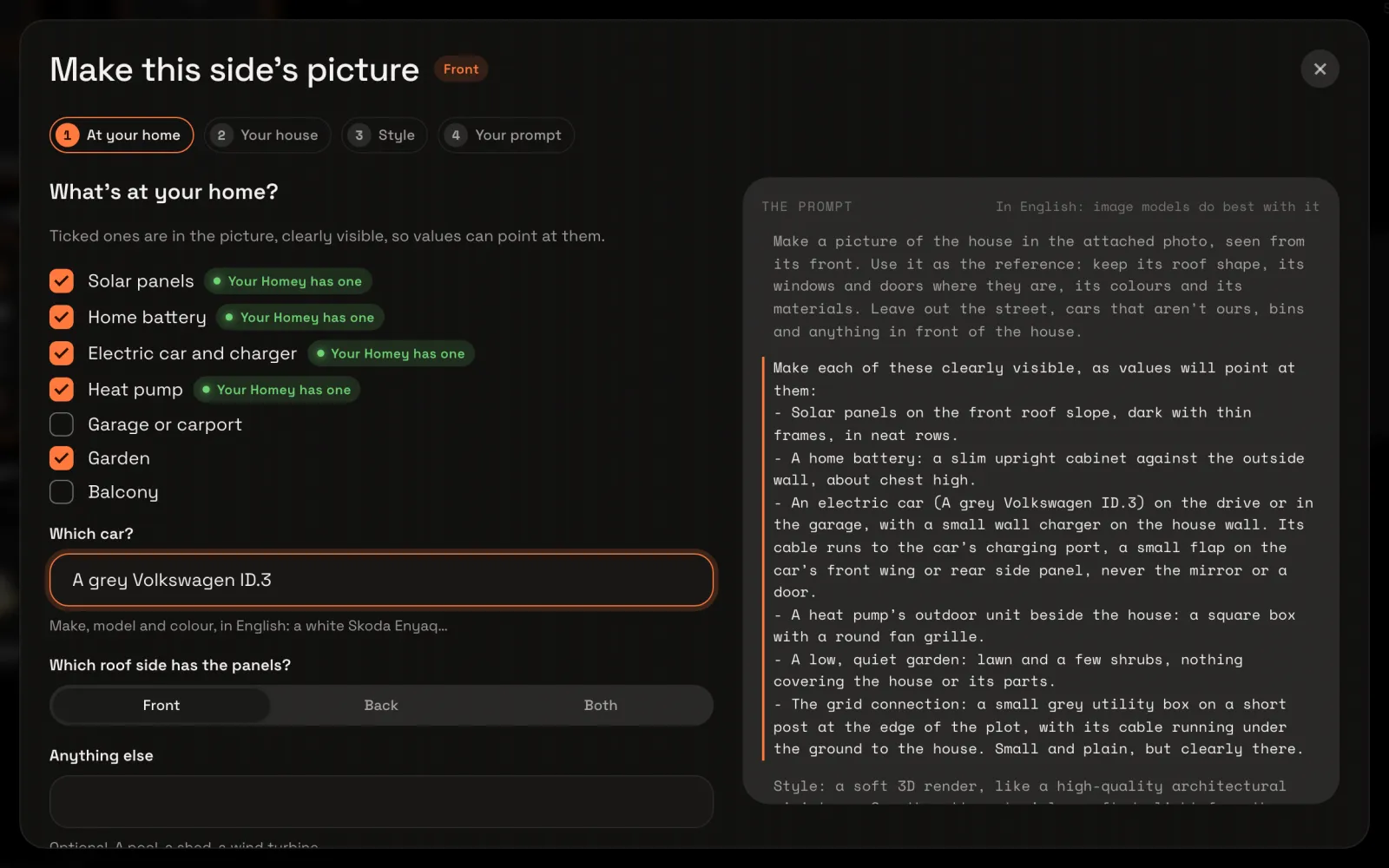
Make this side’s picture opens: four steps along the top, the questions on the left, and the prompt your answers write on the right. Under What’s at your home?, tick what the picture should show: solar panels, a home battery, an electric car and charger, a heat pump, a garage, a garden. What your Homey has comes ticked already, marked Your Homey has one.
Under Which car?, type your car’s make, model and colour, in English: the picture draws it. Anything else takes extras, such as a pool or a shed. Then choose Your house at the top.
Upload your photo
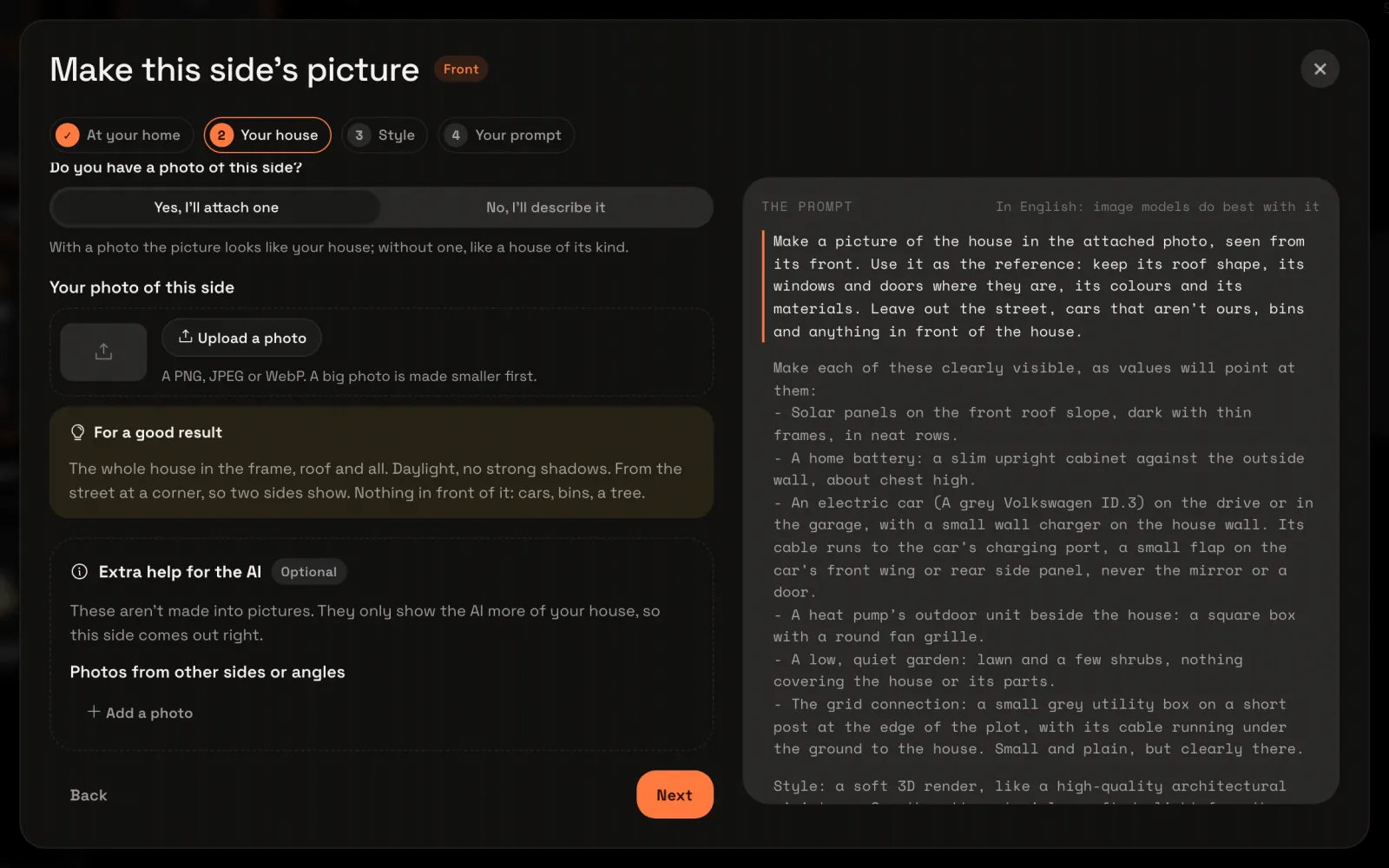
Making: Front says which side this picture is of. Under Do you have a photo of this side?, choose Yes, I’ll attach one: with a photo the picture looks like your house; without one, like a house of its kind. Below it, For a good result says how to take the photo. Choose Upload a photo.
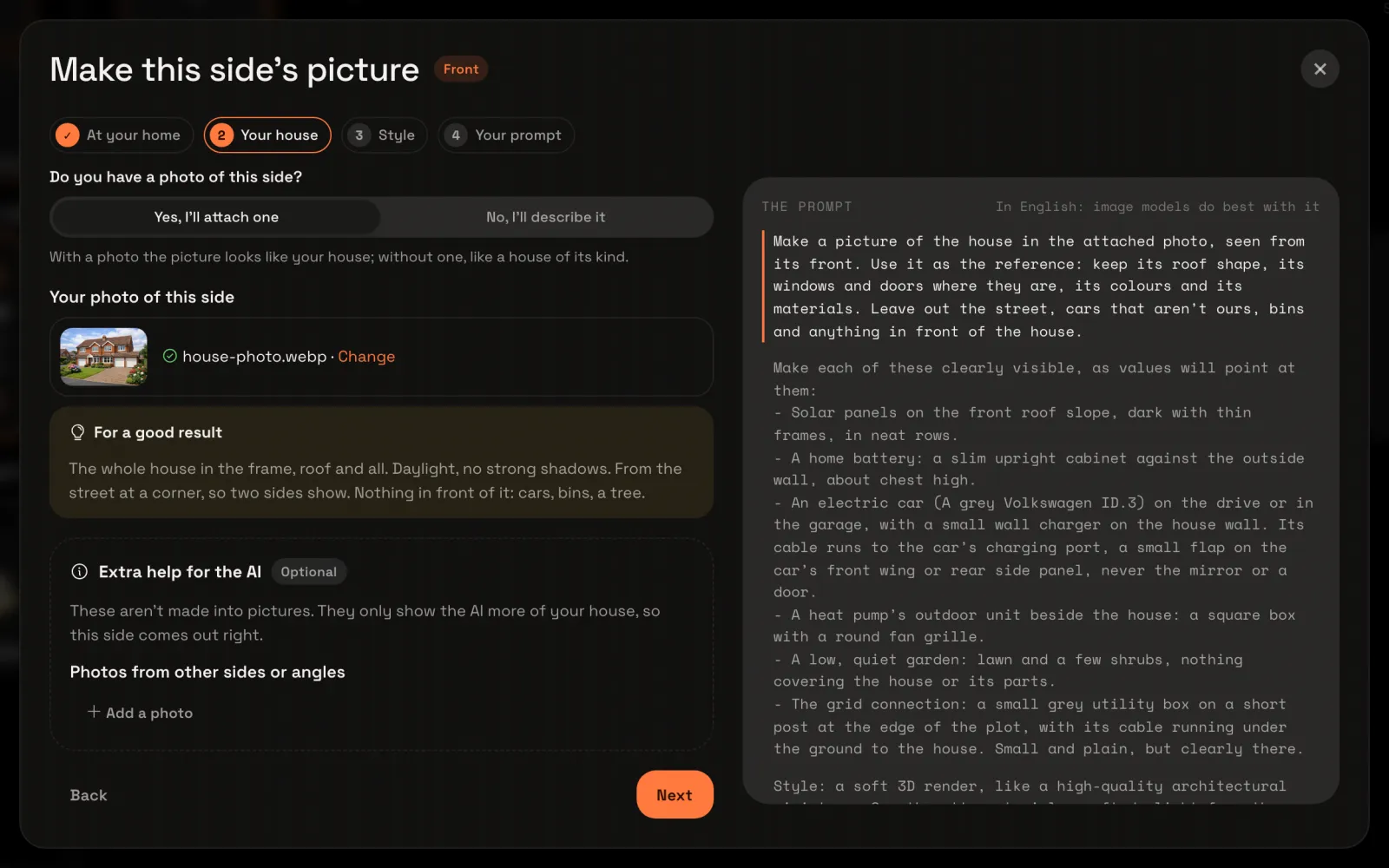
Pick your photo: a PNG, JPEG or WebP; a big photo is made smaller first. Once it’s in, it shows with its name and Change, and the prompt on the right says to keep your house as it is in the photo.
Extra help for the AI is optional: Add a photo adds photos from other sides or angles. They aren’t made into pictures; they only show the AI more of your house. Choose Style at the top.
Pick a style
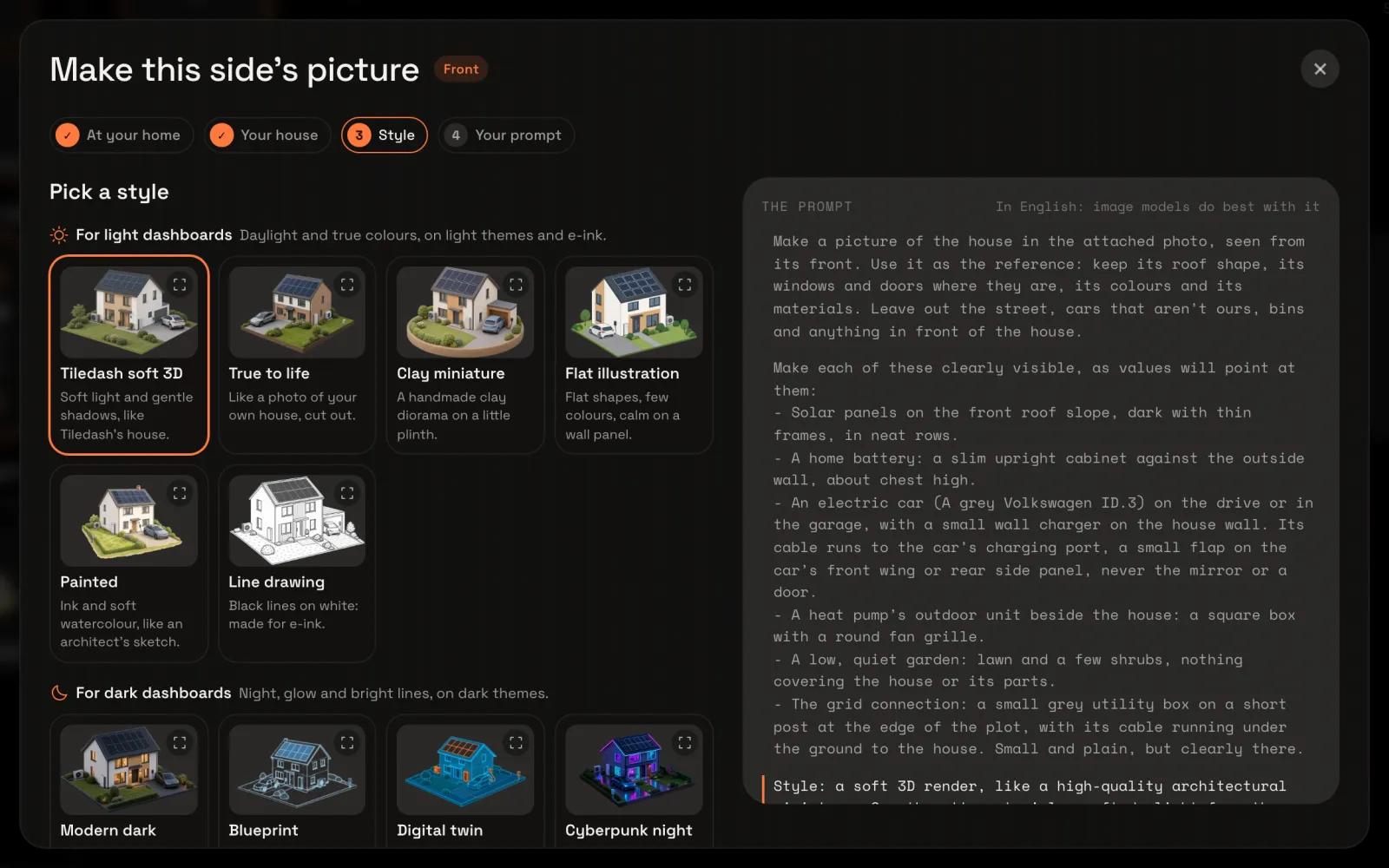
Tiledash soft 3D is chosen: the look of Tiledash’s own houses. The styles come in three groups: For light dashboards, For dark dashboards and Playful. Each shows an example; enlarge one to see it bigger. Pick the one that suits your dashboards, then choose Your prompt at the top.
Generate it
Your prompt is ready. Under Let Tiledash make it, the line below the button says what happens to your photo: it’s sent to the image model’s provider to make the picture, and Tiledash keeps it for 30 days to check the result, then deletes it. Choose Generate · 1 credit.
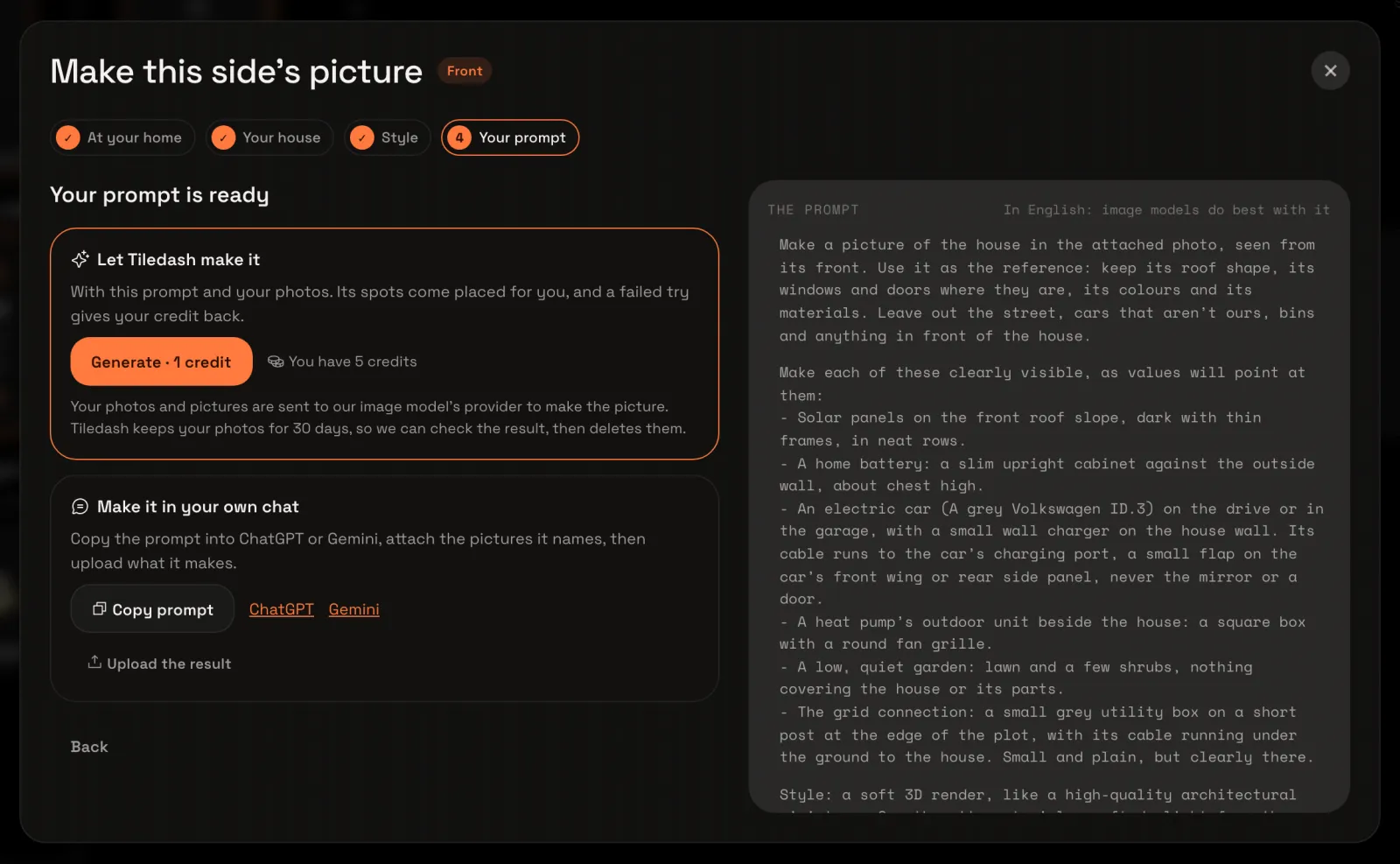
The questions close and Tiledash makes your picture, in about half a minute. You can leave the page meanwhile: it carries on.
Check the spots
Your picture comes with its spots placed. We placed your spots asks you to check each one: drag a pin where it belongs, or drop one that’s wrong. When they’re right, choose Accept all.
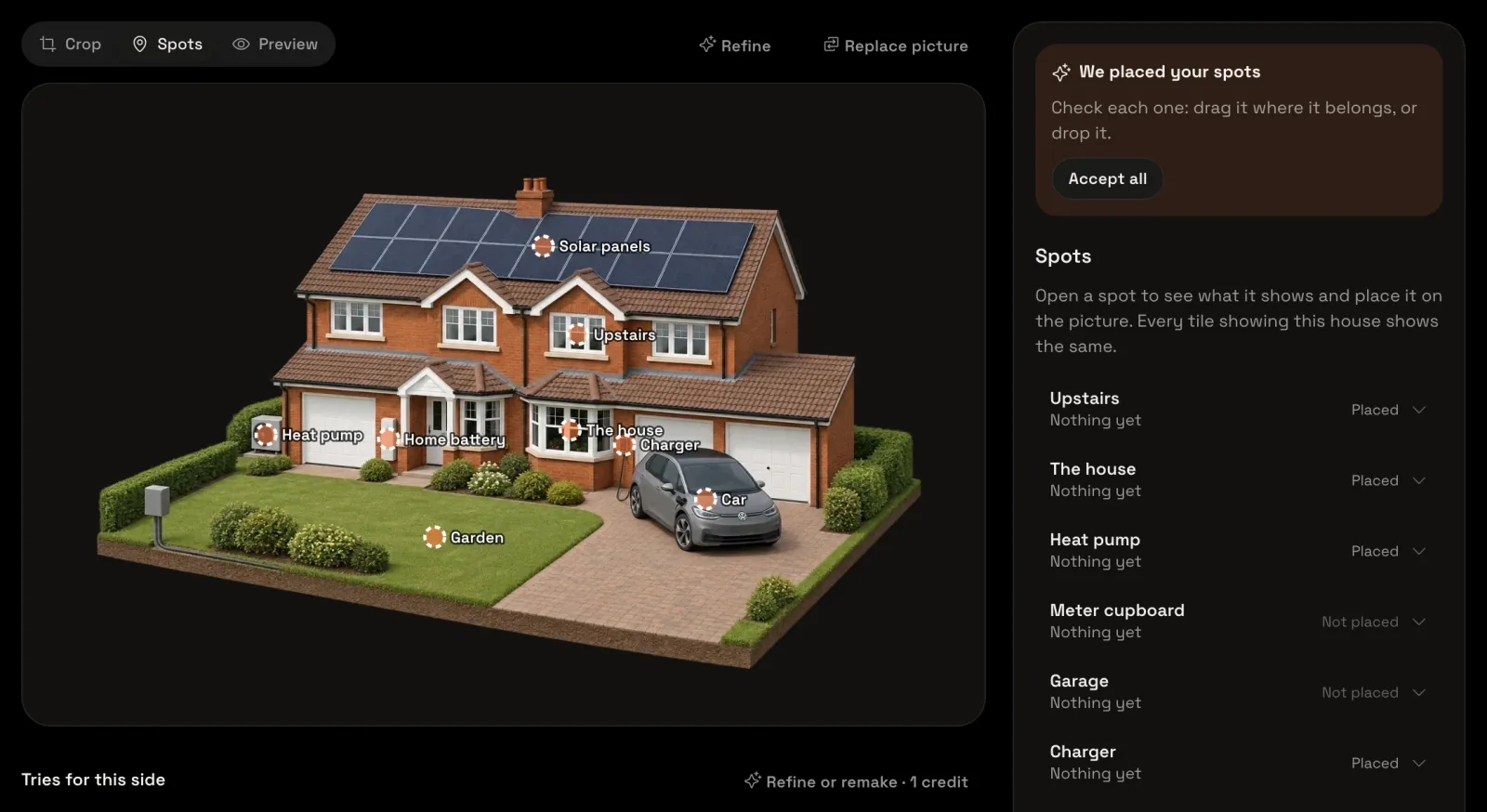
Under the picture, Tries for this side keeps every picture you make for this side. How did it turn out? lets you give it a thumbs up or down: a thumbs down says what went wrong, and when the picture is Tiledash’s mess, you get the credit back. Not quite right? Refine asks for changes to it, for another credit.
Your house in 3D
Choose Preview above the picture. Your house shows as a wide tile on a dashboard shows it: each value beside its spot, with a line to it. It’s saved and ready for the Energy house tile: Show your house on a dashboard puts it there.
Got a photo of the back too? Show the front and back of your house. A place on the picture that isn’t on the list, like your front door: Give your own spot a value.