Tutorial
Give your own spot a value
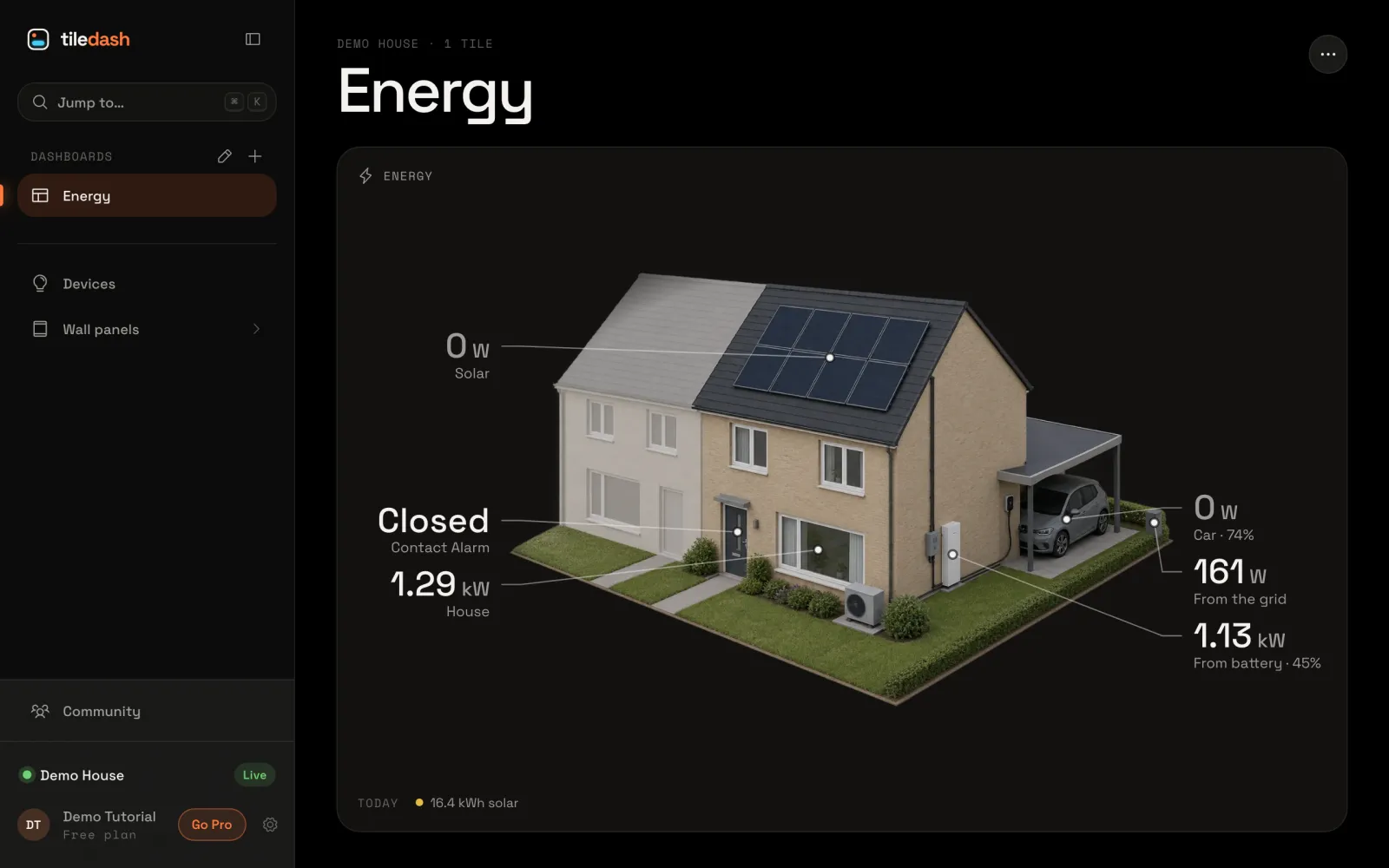
Add a spot of your own to your house’s picture, such as the front door, and show a sensor’s reading there on the Energy house tile.
- Takes
- About 4 minutes
- Steps
- 2
What you end up with

Add your own spot
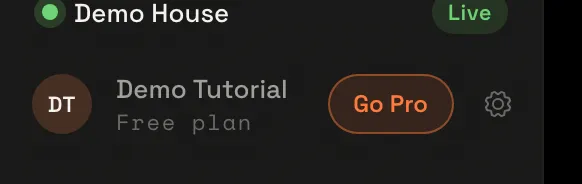
Choose the gear at the foot of the sidebar to open Settings.
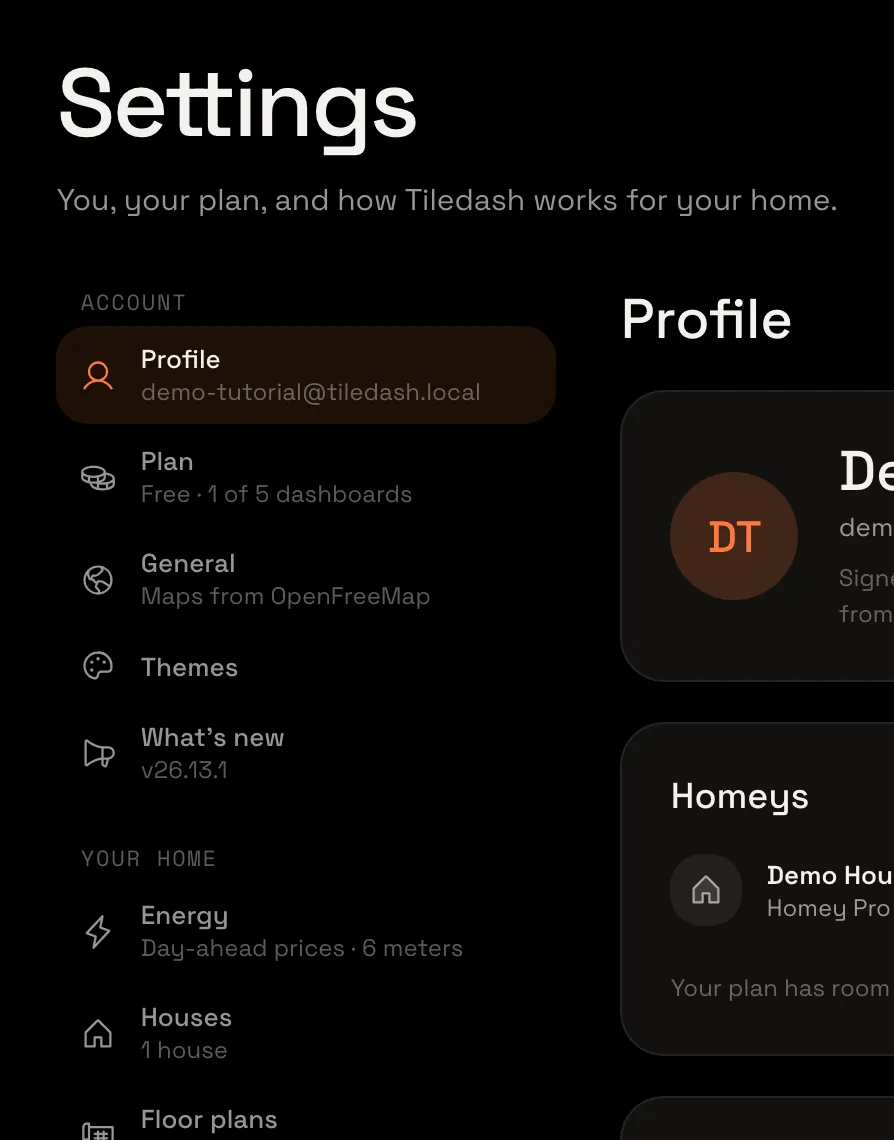
In the Settings menu, choose Houses, then your house, and choose Spots at the top.
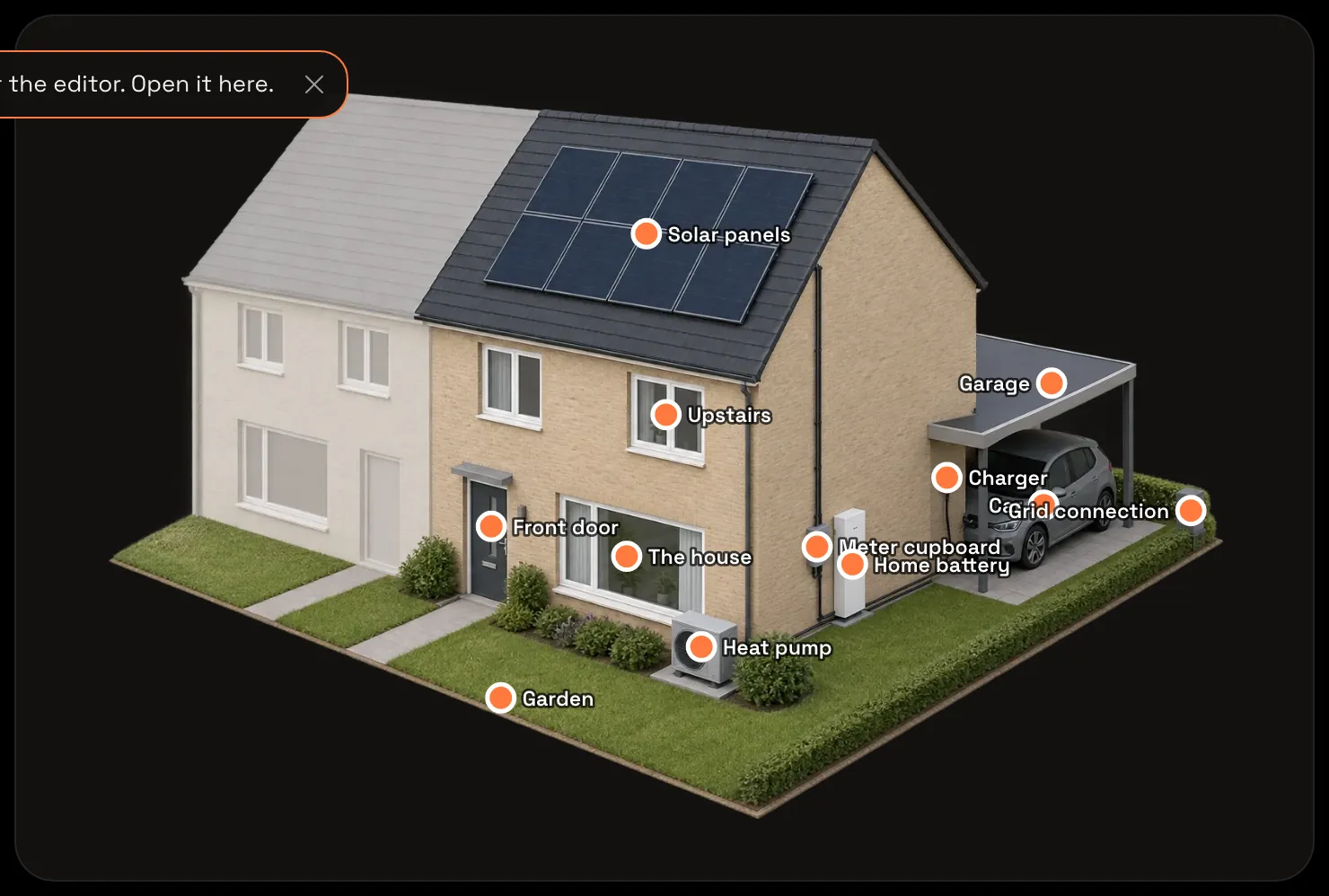
Under the list of spots, type the name of your own spot, here Front door, and choose Add.

Front door joins the list, not placed yet, and Tiledash asks where it is: tap your front door in the picture. A pin marks it.
Give it a value
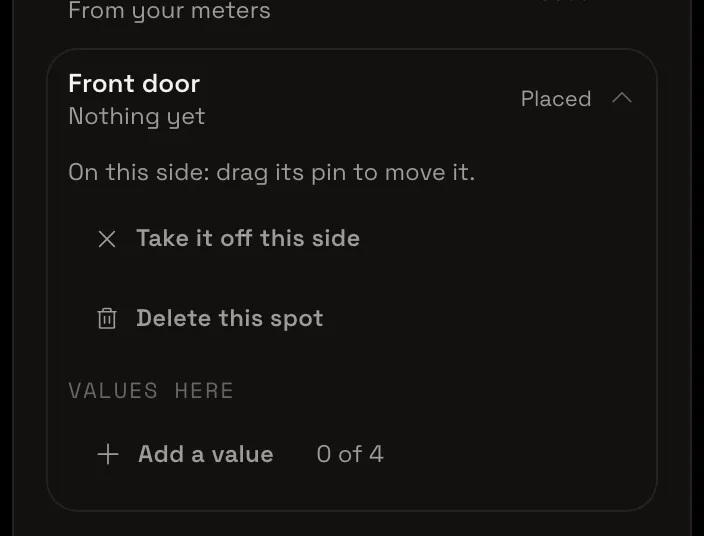
In the list of spots, choose Front door: it opens, placed on this side, with no values yet. Choose Add a value.
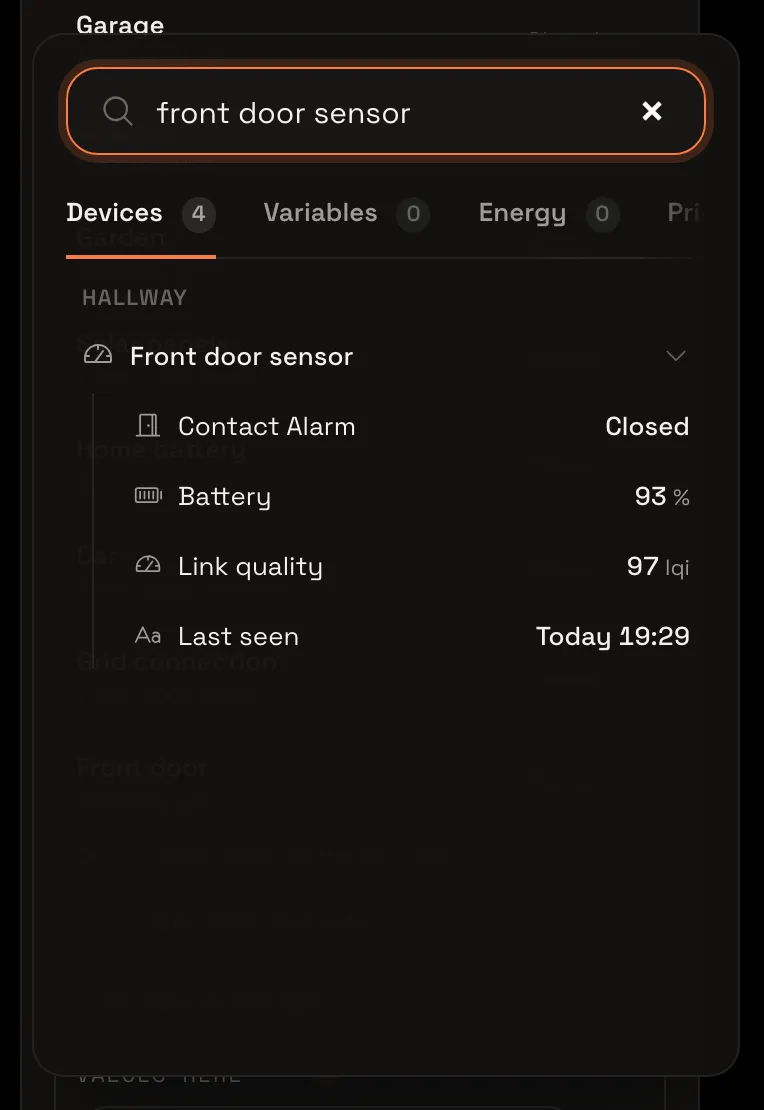
Choose the field that appears, type front door sensor and choose its Contact Alarm. The value opens, with its reading, and the house saves by itself.
Your front door on the house
Open your Energy dashboard: the house shows whether your front door is open or closed, pointed at the door. Give the value a Label of its own in the house to name it as you like; every tile showing the house shows it.